

Where to find this: Payments → Products
What products are
Products are anything you sell through CoachIQ:- Session bookings
- Monthly memberships
- Training programs
- Access codes for partners
- Digital content
- Workshops and camps
Three product types
One-Time
Single purchaseSessions, workshops, evaluations, campsClient pays once → Receives access immediately
Subscription
Recurring billingMonthly memberships, training packagesClient pays monthly → Receives credits or access automatically
Access Code
Code redemptionPartner codes, promo codes, team discountsClient enters code → Discount applied or free access granted
Product type comparison
| Feature | One-Time | Subscription | Access Code |
|---|---|---|---|
| Payment | Single charge | Recurring billing | Single charge (can be $0) |
| Use case | Sessions, camps, workshops | Memberships, monthly training | Partnerships, promos, team discounts |
| Credits | Optional | Optional (renews each period) | Optional |
| Trial period | No | Yes | No |
| Code required | No | No | Yes |
| Renewal | Never | Automatic | Never |
The Products page
Navigate to Payments → Products to see all your products.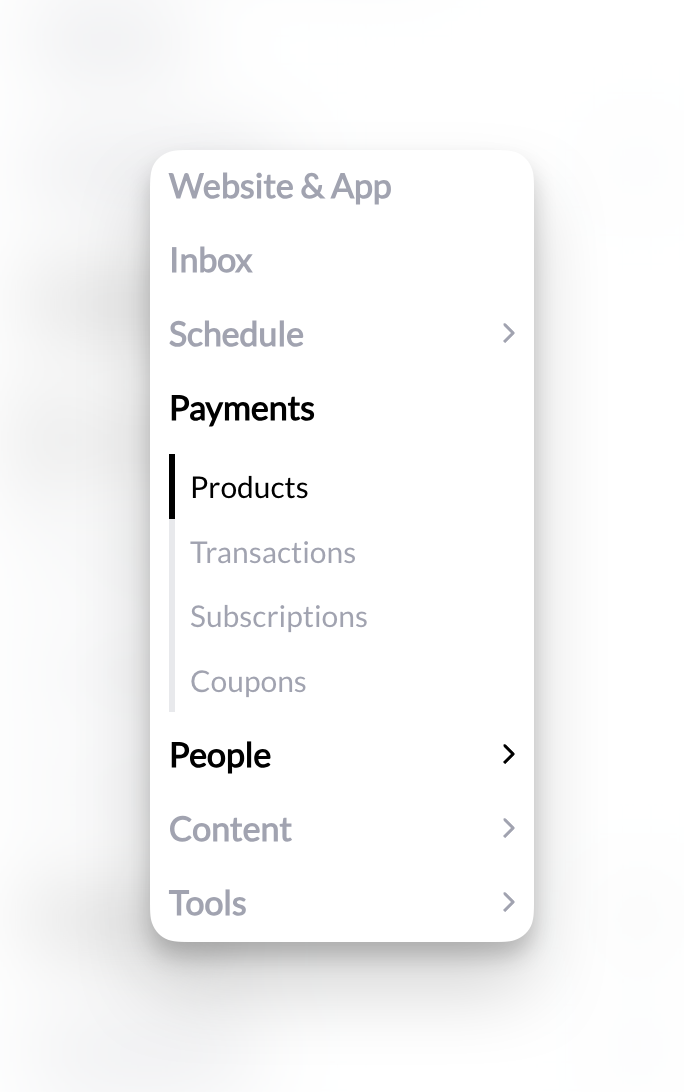
- Product name
- Type (One-Time, Subscription, Access Code)
- Price
- Date created
- Status indicator
- Search by product name
- Filter by type
- Sort by date or price
- Edit existing products
- Archive old products
- Create new products
When to use each type
- One-Time Products
- Subscription Products
- Access Code Products
Best for single purchasesExamples:
- Individual training sessions
- Skills assessments or evaluations
- One-time workshops
- Summer camps
- Merchandise or equipment
- Program access (one-time fee)
How products connect to your business
Products attach to three places in CoachIQ: Session Schedulers → Clients book time slots and pay with products- Schedule → Schedulers → [Select Scheduler] → Payment Settings
- Content → Programs → [Select Program] → Paywall Settings
- Tools → Forms → Form Builder → Add Product
One product can attach to multiple schedulers, programs, or forms. Reuse products across your offerings.
Creating your first product
Ready to build a product?
Full product creation guide →
Product visibility: Where athletes can find products
Products don’t automatically appear to athletes. You control visibility by choosing where to add them:Athlete Portal Products Page
Add products to sections in App Builder → Products. Athletes see them when browsing your portal (web only—not visible on iOS/Android apps).
Direct Product Link
Every product has a shareable checkout URL. Athletes can only access it if you share the link with them.
Attached to Scheduler
Connect products as payment options in Schedule → Schedulers → Payment Settings. Athletes see them when booking sessions.
Attached to Form
Add products to forms in Tools → Forms. Athletes see them when submitting the form.
Key insight: A product you create but don’t add anywhere is effectively hidden. Athletes can’t discover it unless you explicitly place it in one of these locations or share its direct link.
Setting up products before launch
Want to create products now but launch them later? Here’s the recommended workflow:Create your product
Build the product with all settings configured in Payments → Products → + Create.
Don't add it anywhere yet
- Don’t add to Athlete Portal Products page
- Don’t attach to any schedulers
- Don’t attach to any forms
- Don’t share the direct link
Archiving products
Archive products you no longer want to sell. Archiving completely disables a product—it can’t be purchased anywhere, including via direct link.
What happens when you archive:
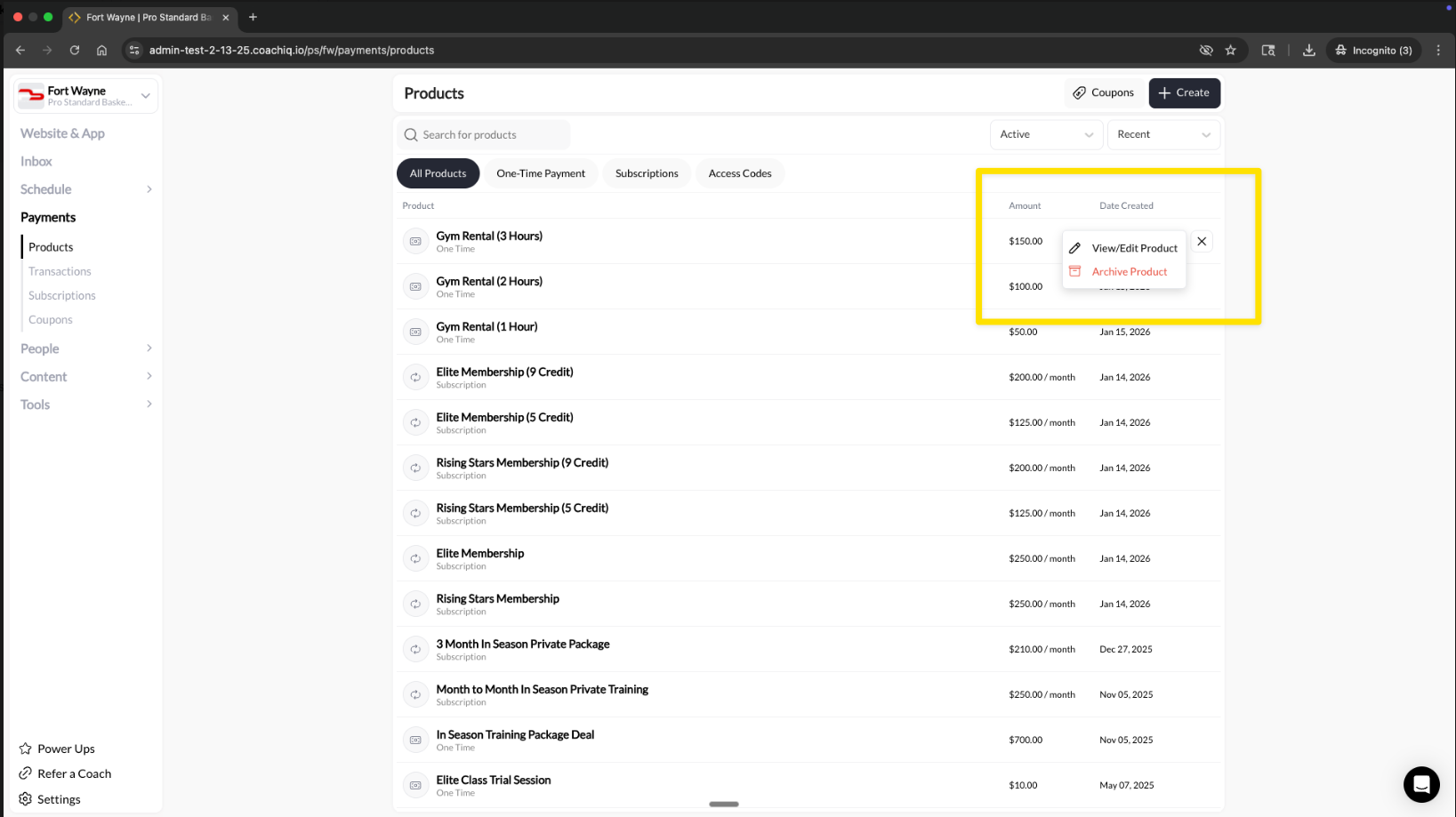
- Product can’t be purchased anywhere (portal, schedulers, forms, direct links)
- Existing subscriptions and credits are not affected
- Transaction history and data remain intact
- Product moves to the “Archived” filter view
- You can unarchive later to re-enable the product
Archive vs. not adding anywhere: If you just want to hide a product temporarily, don’t add it anywhere (or remove it from where it’s displayed). Use Archive when you want to completely disable a product so it can’t be purchased even if someone has the direct link.
Viewing and restoring archived products
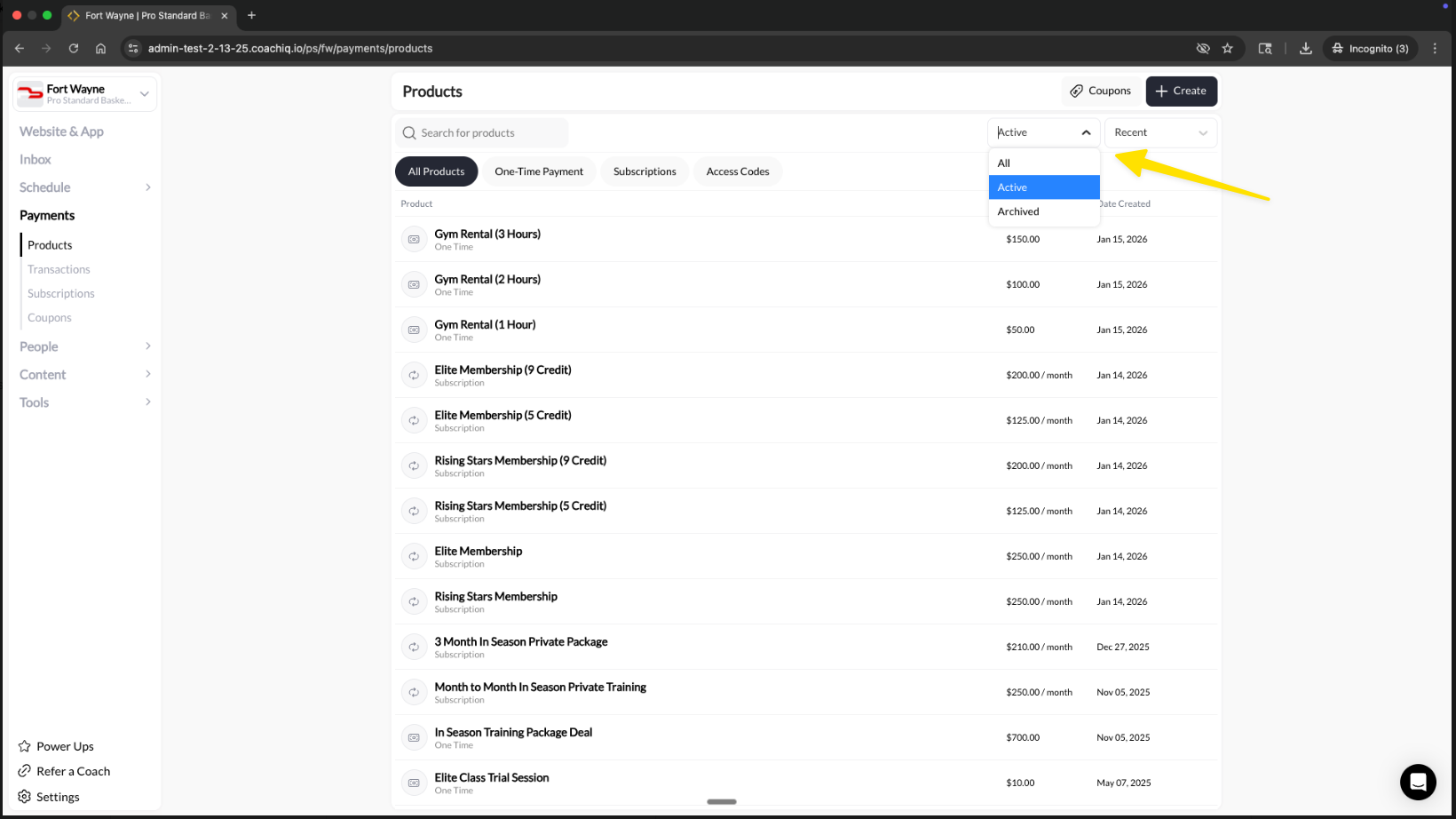
To see archived products, use the status filter dropdown on the Products page:- Active: Products available for purchase
- Archived: Disabled products
- All: Both active and archived
What you need to know about products
Stripe syncs automatically: Products you create in CoachIQ appear in your Stripe dashboard. Products in Stripe appear in CoachIQ. Clients see product details: Whatever you enter (name, description, features) displays during checkout. Write for your clients. Credits are optional: Not every product needs to issue credits. Many coaches use products for payment only. Processing fees: You choose whether to absorb Stripe fees (2.9% + $0.30) or pass them to clients. Changes affect new purchases only: Editing a product doesn’t change existing transactions or active subscriptions.Next steps
- Getting Started - Learn how CoachIQ Payments works and how money flows from your clients to your bank account
- Connect Stripe - Create and connect your Stripe account to start collecting payments
- Product Builder reference - Complete field-by-field documentation