

Where to find this: Tools → Automations
Several of these use Scheduled Automations, which run on a schedule (daily, weekly, monthly) instead of reacting to an event. If you’re new to those, check out Scheduled Automations for a deeper explanation.
Converting Leads & Trials
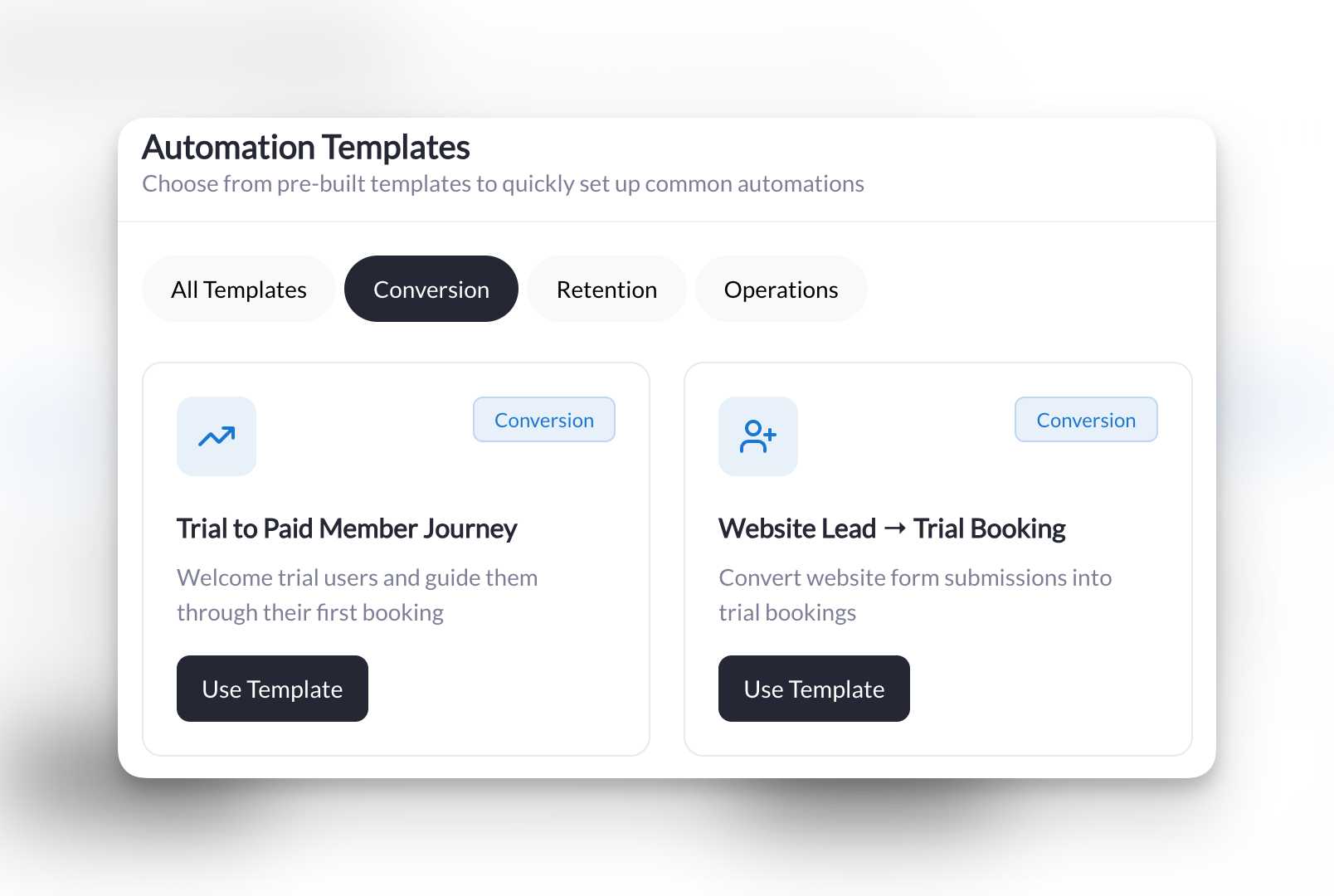
Turn website visitors into trial bookers, and trial bookers into paying members.Website Lead → Trial Booking
Website Lead → Trial Booking
What it does: When someone fills out your trial request form, automatically send them an email with a link to book their free session.
Setup:
- Trigger: New Form
- Condition: Is a specific form → Select your trial request or contact form
- Action: Send an Email
- To: User from trigger
- Subject:
Your trial session at [Your Business Name] - Attach Session: Select your trial session
Welcome First-Time Trial Bookers
Welcome First-Time Trial Bookers
What it does: When someone books their very first session (a trial), send them a personal welcome message to get them excited.
Setup:
- Trigger: New Booking
- Conditions:
- User’s first booking ever → Yes
- Is for a specific session → Select your trial session
- Action: Send an In-App Message
- To: User from trigger
Convert Trial Users Who Haven't Joined
Convert Trial Users Who Haven't Joined
What it does: Every week, check for people who attended a trial but haven’t booked again in 7+ days—then send them a nudge to come back.
Setup:
- Trigger: Scheduled Check
- Schedule: Once a week on Monday at 9:00 AM
- Conditions:
- Has a specific tag → “Trial Attendee”
- Days since last booking is → Greater than 7 days
- Action: Send an In-App Message
- To: User from trigger
- Attach Session: Select your main session
Welcoming New Members
Make every new member feel like they made the right decision.New Member Welcome
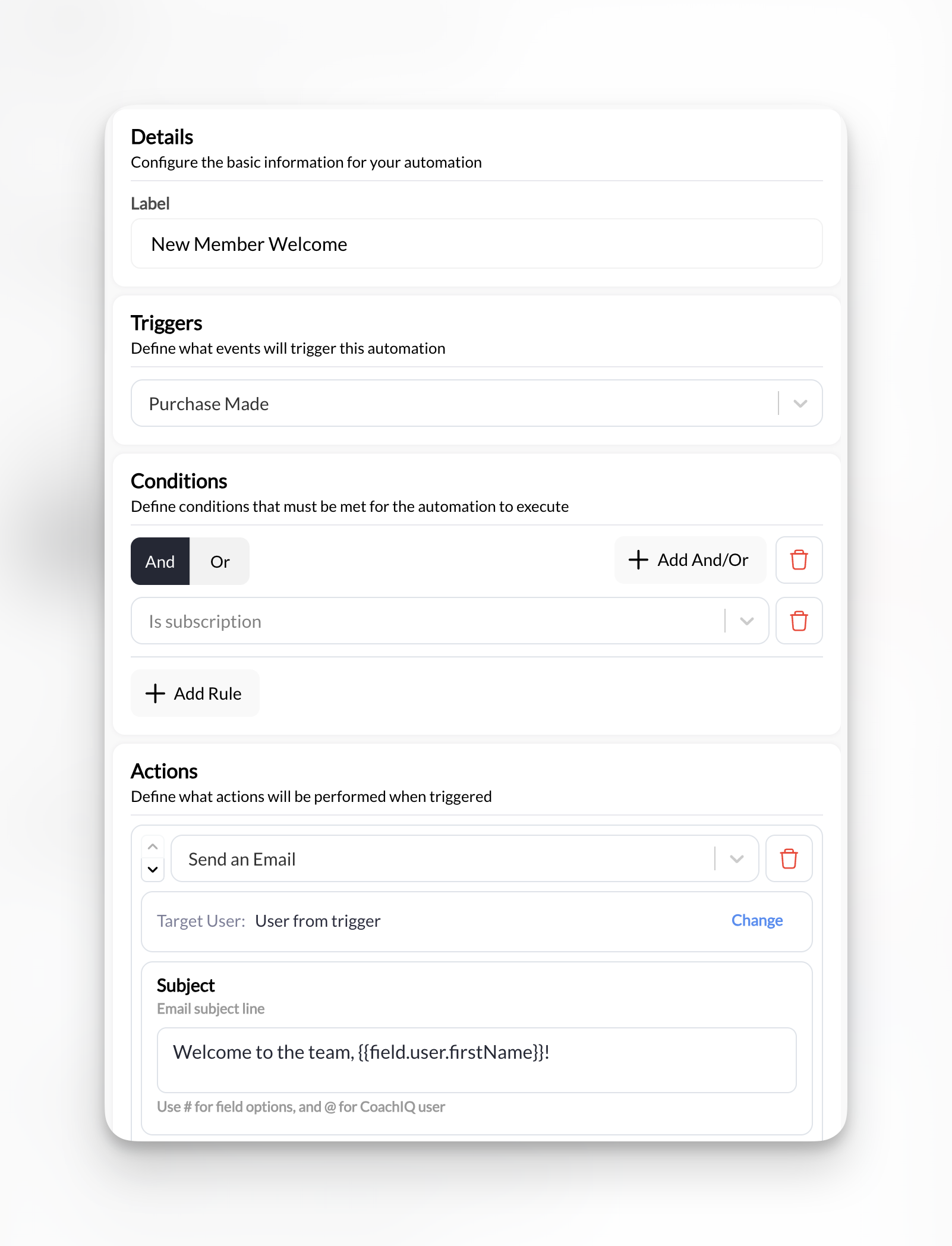
New Member Welcome
What it does: When someone purchases a subscription, automatically send a welcome email with booking instructions and tag them as an active member.
Setup:
- Trigger: New Purchase
- Condition: Is a subscription → Yes
- Action 1: Send an Email
- To: User from trigger
- Subject:
Welcome to the team, @User.FirstName! - Attach Session: Select your intro or main session
- Action 2: Add a Tag to a User
- Tag: “Active Member”
Keeping Members Active
Catch disengaged members before they cancel and keep your credit users booking sessions.Weekly Inactive Member Check
Weekly Inactive Member Check
What it does: Every week, find members who haven’t trained in 14+ days and send them a friendly nudge to book a session.
Setup:
- Trigger: Scheduled Check
- Schedule: Once a week on Sunday at 6:00 PM
- Conditions:
- Days since last booking is → Greater than 14 days
- Has active subscription → Yes
- Action: Send an In-App Message
- To: User from trigger
- Attach Session: Select your primary session
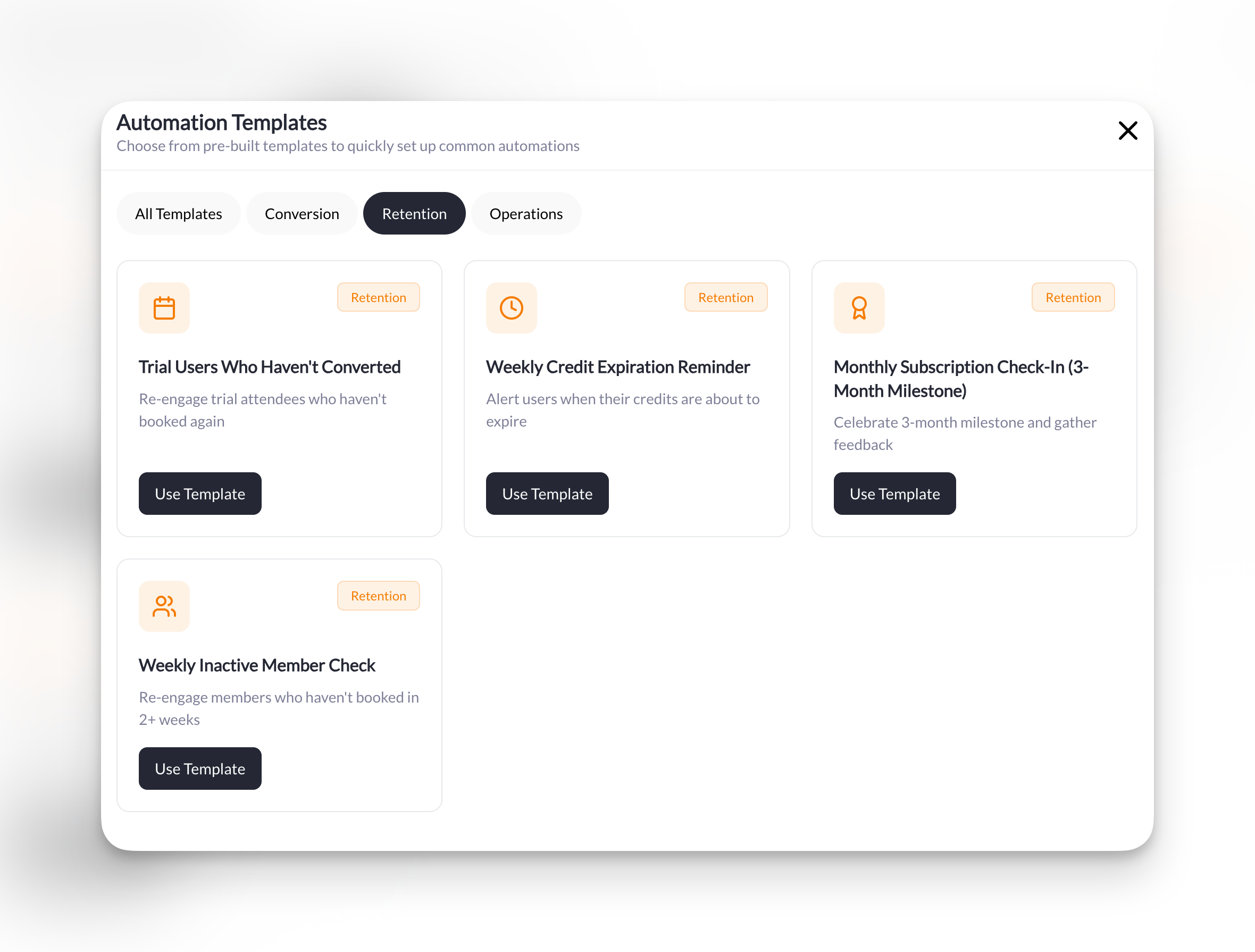
Weekly Credit Expiration Reminder
Weekly Credit Expiration Reminder
What it does: Every week, find members whose credits expire in less than 7 days and remind them to book before they lose them.
Setup:
- Trigger: Scheduled Check
- Schedule: Once a week on Monday at 9:00 AM
- Condition: Days until credits expire is → Less than 7 days
- Action: Send an In-App Message
- To: User from trigger
- Attach Session: Select any session
3-Month Member Milestone
3-Month Member Milestone
What it does: On the 1st of each month, check for members hitting their 3-month milestone and send them a celebration message.
Setup:
- Trigger: Scheduled Check
- Schedule: Once a month on 1st at 10:00 AM
- Conditions:
- Has a specific tag → “3-Month Member”
- Has active subscription → Yes
- Action 1: Send an In-App Message
- To: User from trigger
- Action 2: Remove a Tag from a User
- Tag: “3-Month Member”
How milestone tags work: You’ll need a system to add the “3-Month Member” tag when someone hits that milestone. Some coaches do this manually, others create an automation based on subscription duration. The automation then removes the tag so they don’t get the message twice.
Camps & Events
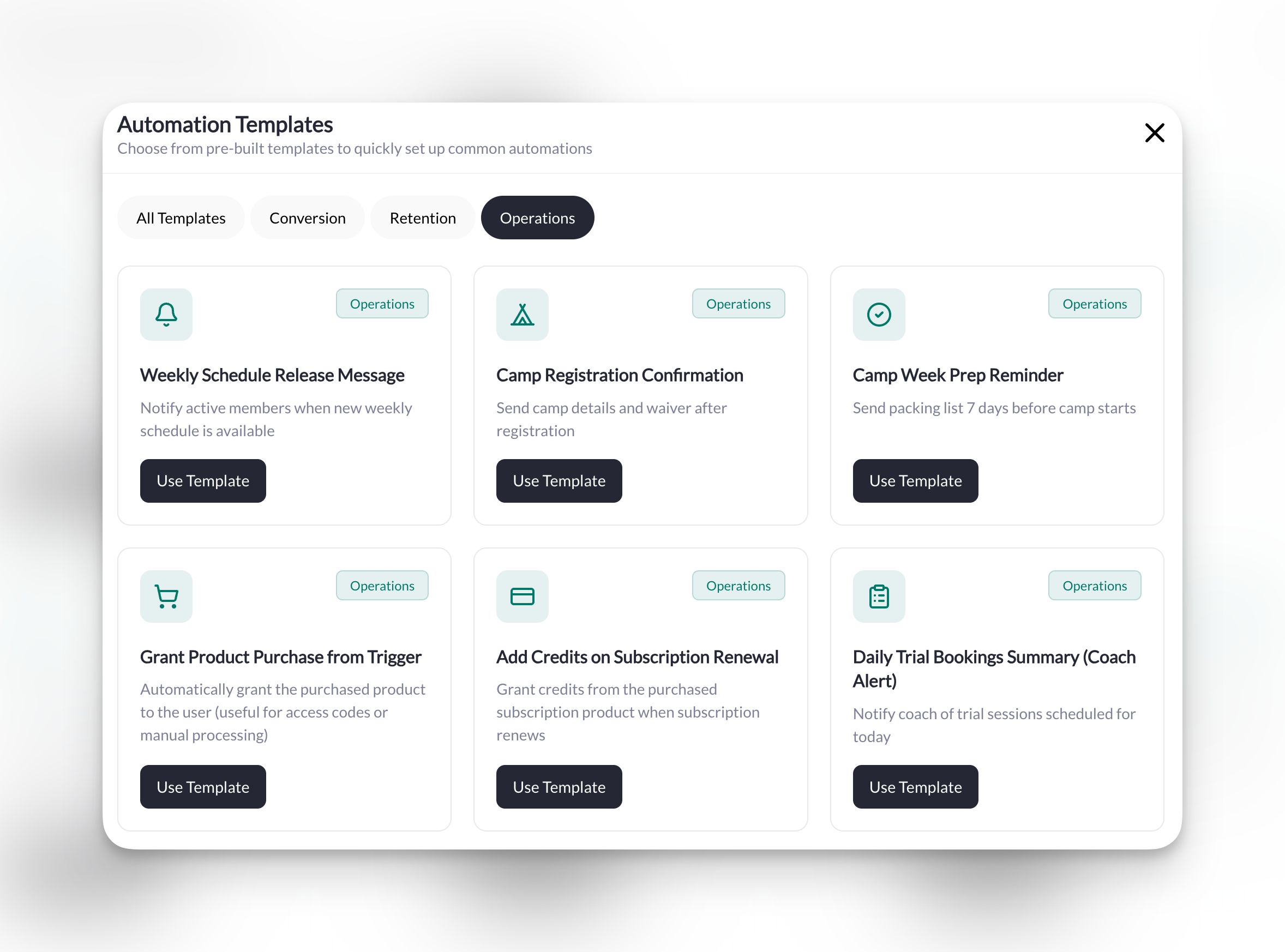
Streamline registration confirmations and pre-event communication.Camp Registration Confirmation
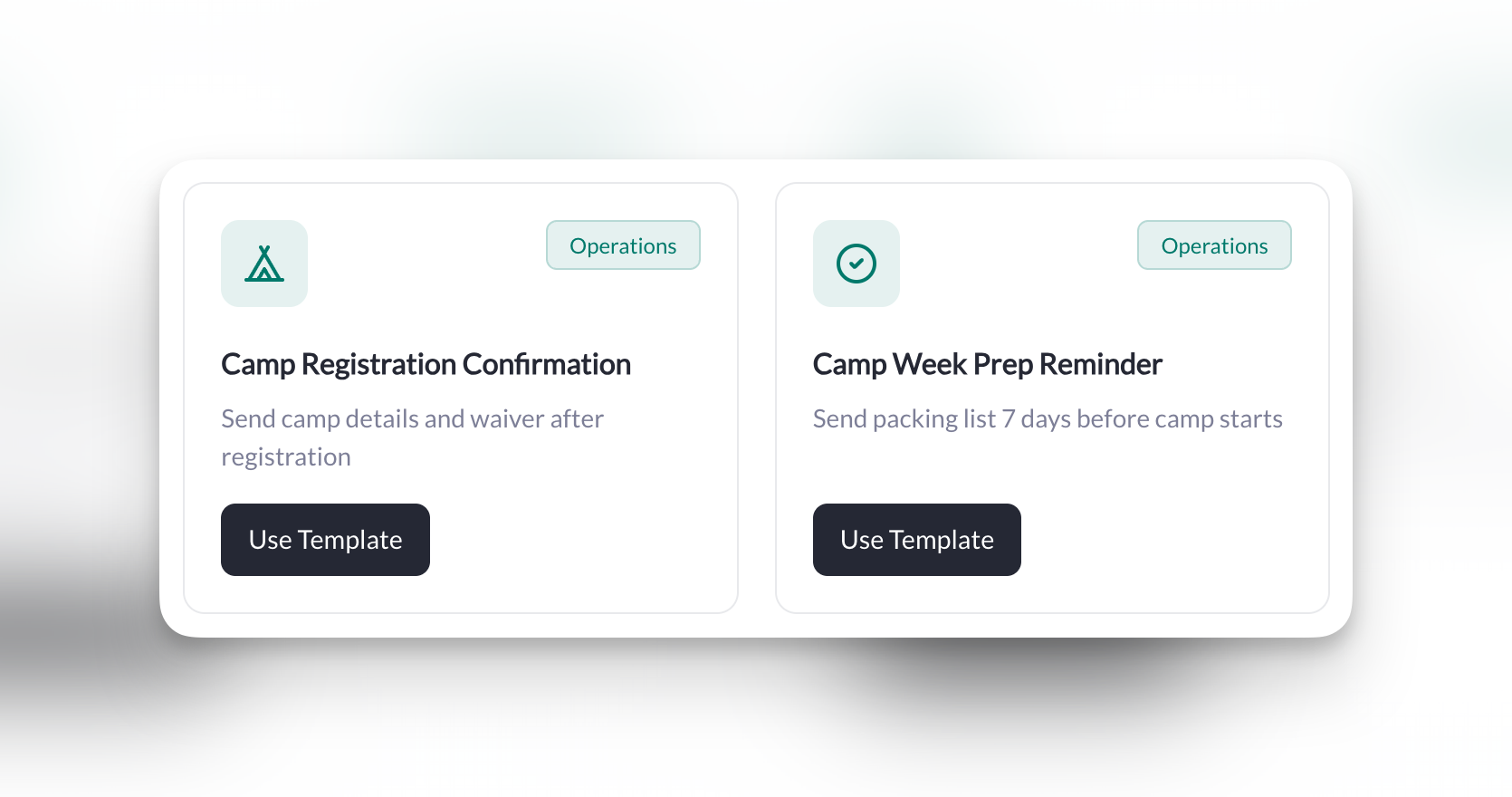
Camp Registration Confirmation
What it does: When someone purchases a camp, automatically send a confirmation email and tag them for future camp communications.
Setup:Trigger: New Purchase
- Condition: Is a specific product → Select your camp product
- Action 1: Send an Email
- To: User from trigger
- Subject:
You're registered for camp!
- Action 2: Add a Tag to a User
- Tag: “Camp Attendee”
Camp Week Prep Reminder
Camp Week Prep Reminder
What it does: One week before camp starts, send registered families a prep email with packing list and schedule.
Setup:
- Trigger: Scheduled Check
- Schedule: Every day at 10:00 AM
- Condition: Has a specific tag → “Camp Next Week”
- Action 1: Send an Email
- To: User from trigger
- Subject:
Camp starts in 7 days! Here's what to bring 🎒 - Attach Form: Select your camp info form (packing list, waiver, etc.)
- Action 2: Remove a Tag from a User
- Tag: “Camp Next Week”
How to use this: Add the “Camp Next Week” tag to all registered campers 7 days before camp starts. The automation will send the reminder and remove the tag so they only get it once.
Weekly Operations
Automate your recurring announcements and stay on top of your schedule.Weekly Schedule Release
Weekly Schedule Release
What it does: Every Monday morning, announce that the weekly schedule is live and prompt members to book their sessions.
Setup:
- Trigger: Scheduled Check
- Schedule: Once a week on Monday at 8:00 AM
- Condition: Has active subscription → Yes
- Action: Send an Announcement
- To: Specific tag → “Active Members”
- Title:
This Week's Schedule is LIVE! 🗓️ - Attach Session: Select your primary training session
Daily Trial Alert for Coaches
Daily Trial Alert for Coaches
What it does: Every morning, get a notification about any trial sessions happening today so you’re prepared to convert.
Setup:
- Trigger: Scheduled Check
- Schedule: Every day at 7:00 AM
- Conditions:
- Has upcoming booking → Has booking today
- Has a specific tag → “Trial User”
- Action: Send an In-App Message
- To: Specific user → Select yourself (the coach)
This one’s different: Most automations message your members. This one messages YOU—it’s a daily briefing so you never forget about a trial.
What’s Next?
Scheduled Automations
Learn how scheduled automations work—the trigger behind credit reminders, inactive member checks, and weekly operations.
Triggers & Actions Reference
See every trigger, condition, action, and dynamic field available in CoachIQ automations.
Related articles
Forms Overview
Create the forms that trigger lead-capture automations
Product Overview
Set up memberships, credit packs, and camps that trigger purchase automations
Scheduling Overview
Manage sessions referenced in booking automations
Announcements
Learn about the announcement action used in weekly operations automations
Tags and Filters
Organize members with tags used throughout these playbook automations
Responses and Automations
See how form responses connect to automation triggers