

What you’ll accomplish
The App Builder is where you bring your athlete portal to life—no code required. In this guide, you’ll learn how to navigate its layout, customize sections, and publish updates so your athletes always see your latest content and schedules.earn how to navigate and use the App Builder interface to create a professional, customized experience for your athletes across web and mobile platforms.Understanding the App Builder layout
The App Builder uses a three-panel interface that gives you complete control over your athlete portal: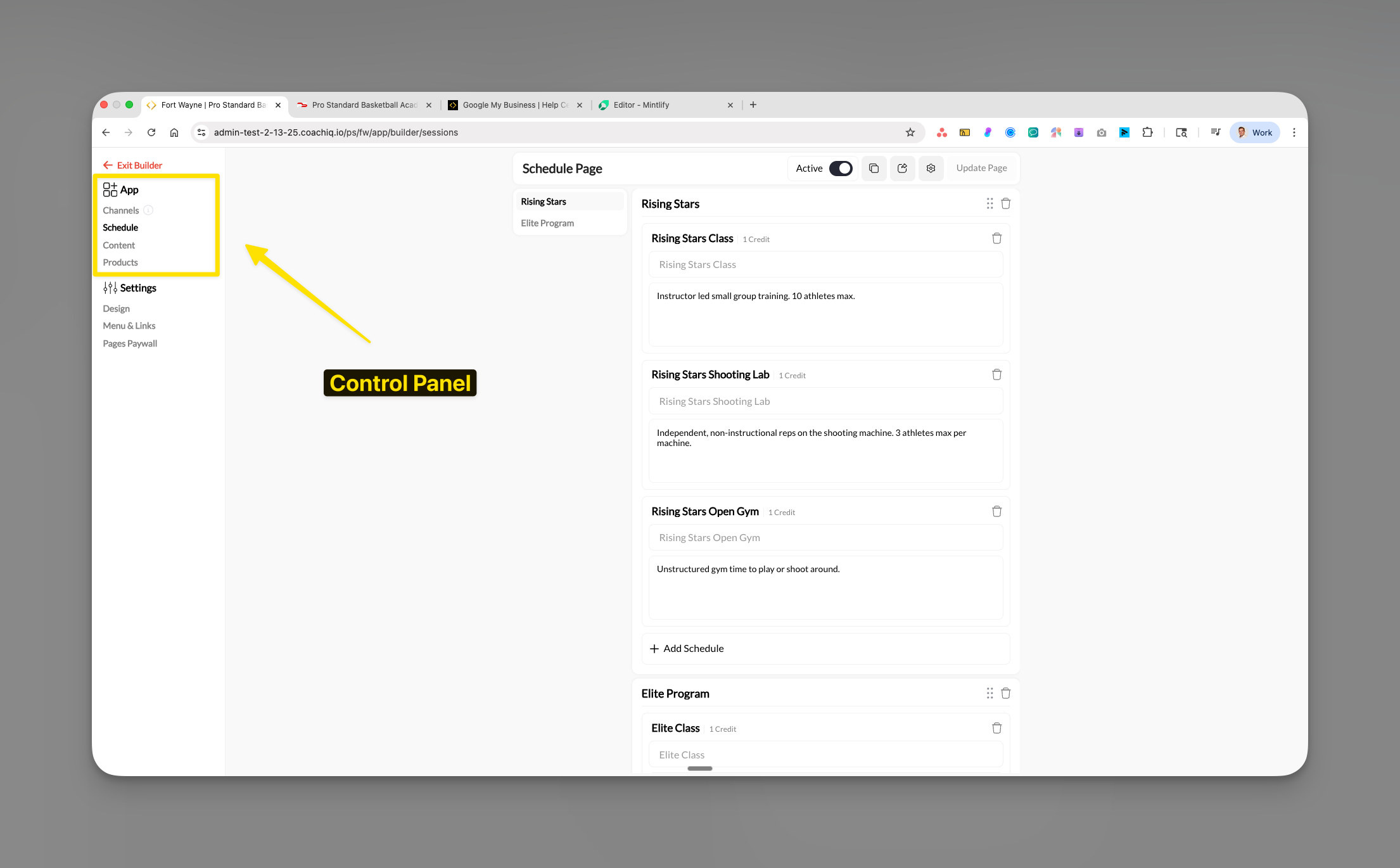
The App Builder interface showing the control panel, content area, and top action bar
Interface components
Left Sidebar (Control Panel)
- Channels (communication)
- Schedule (bookings)
- Content (programs)
- Products (purchases)
- Settings (design & configuration)
Center Content Area
- Add/remove sections
- Configure schedulers
- Organize content
- Set descriptions
Top Action Bar
- Active toggle (on/off)
- Copy page button
- Preview option
- Update Page button
- Page Settings access
Section Management
- Sections contain categories
- Categories contain items
- Items link to actual content
- Everything is customizable
Navigating between pages
The App Builder organizes your athlete portal into distinct pages, each serving a specific purpose:Access the main pages
The App Builder's main navigation showing all available pages
- Channels: Messaging and announcements
- Schedule: Session bookings and calendar
- Content: Programs and educational materials
- Products: Memberships and purchases
Access Settings
- Design: Themes and colors
- Menu & Links: Navigation visibility
- Pages Paywall: Access restrictions
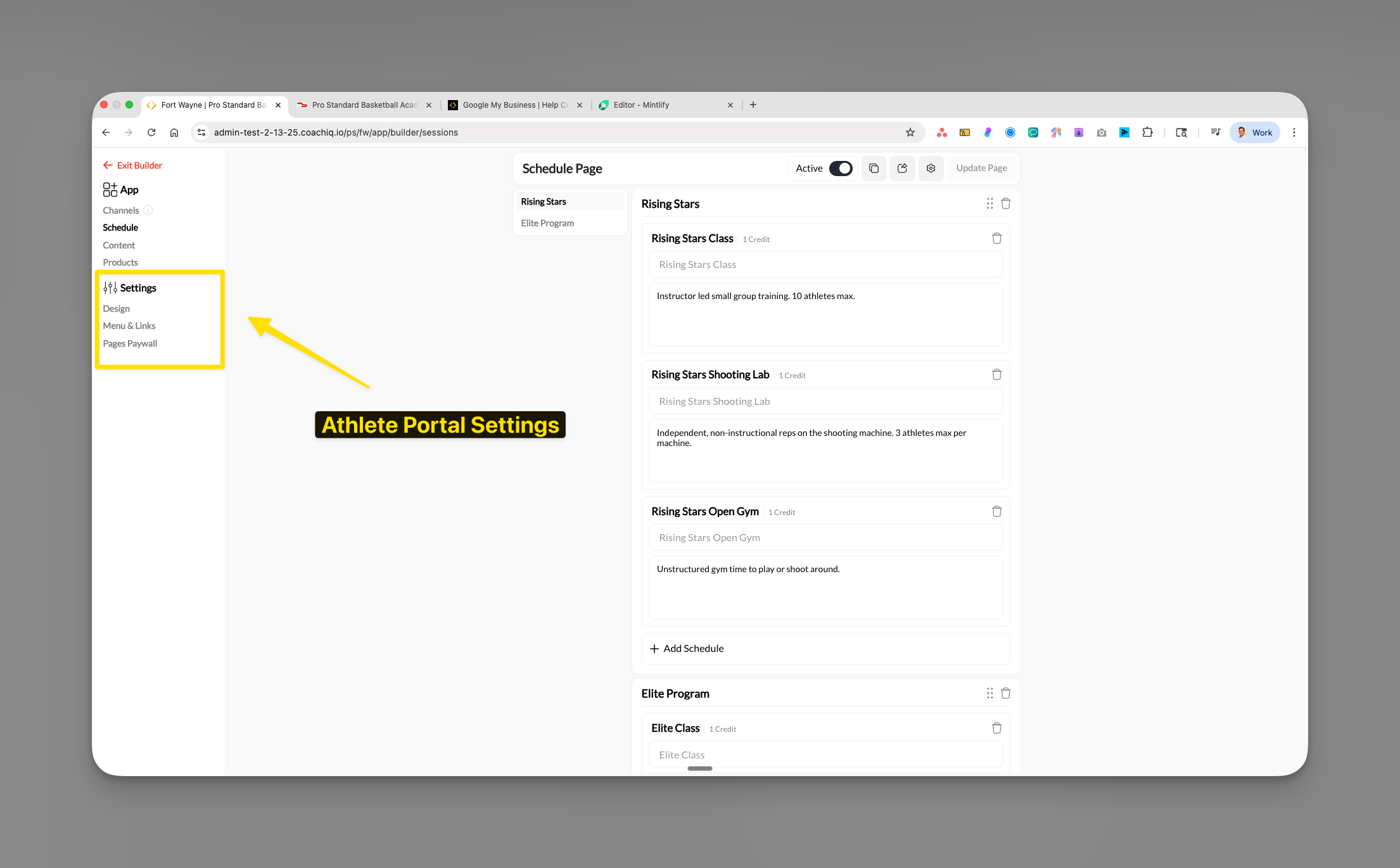
Settings section in the App Builder sidebar
Working with sections and items
Each page in your athlete portal is built using a section-based architecture:Adding new sections
Navigate to your desired page
Click 'Add Section'
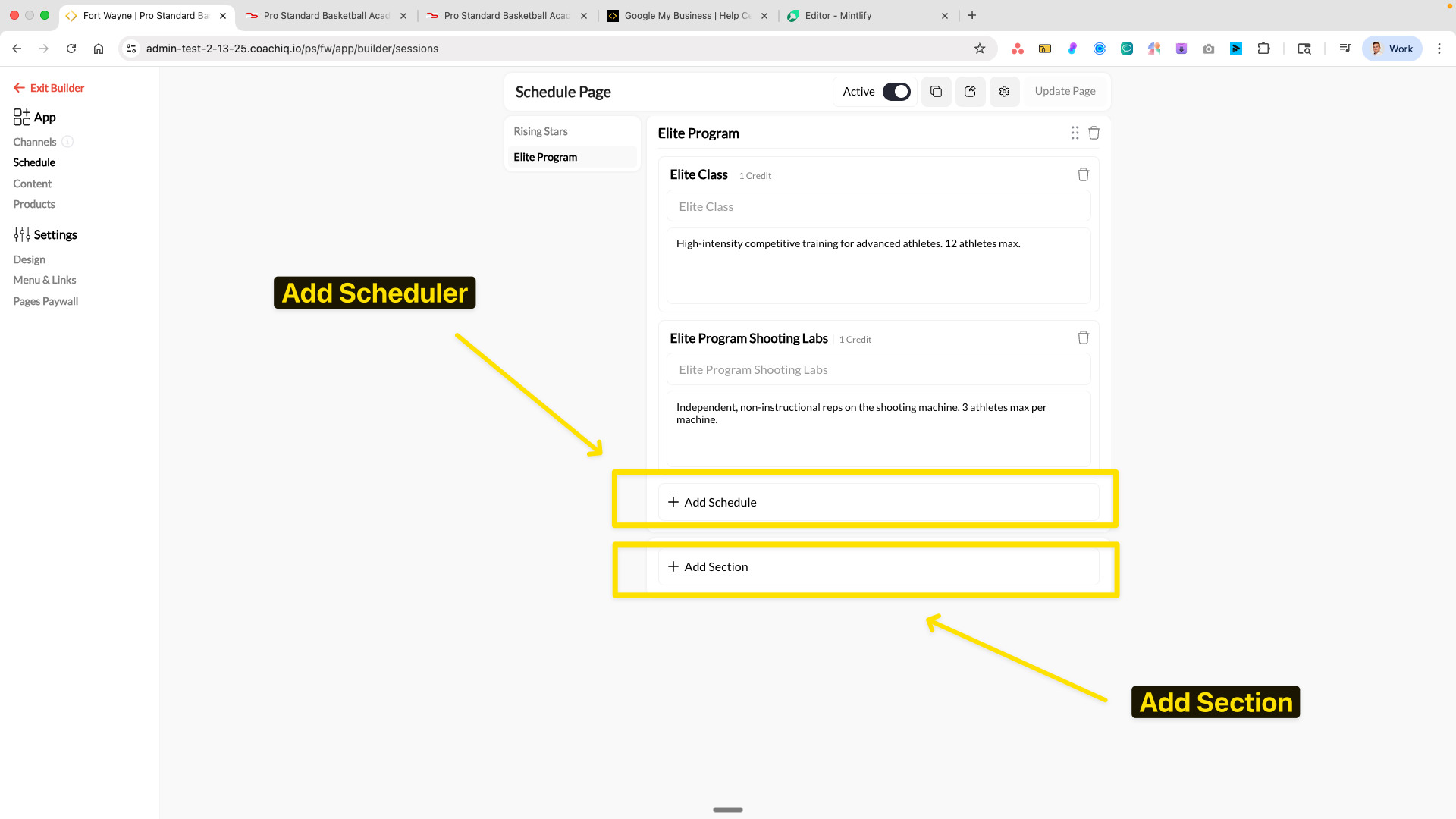
Adding sections and schedulers to organize your content
Configure your section
- Give it a descriptive name (e.g., “Rising Stars”, “Elite Program”)
- Add a description for clarity
- Set credit requirements if applicable
Adding items to sections
Within each section, you can add specific items:- Schedule page: Add schedulers (booking sessions)
- Content page: Add programs (courses/training)
- Products page: Add products (memberships/packages)
Understanding the preview system
The App Builder shows you exactly what athletes will see: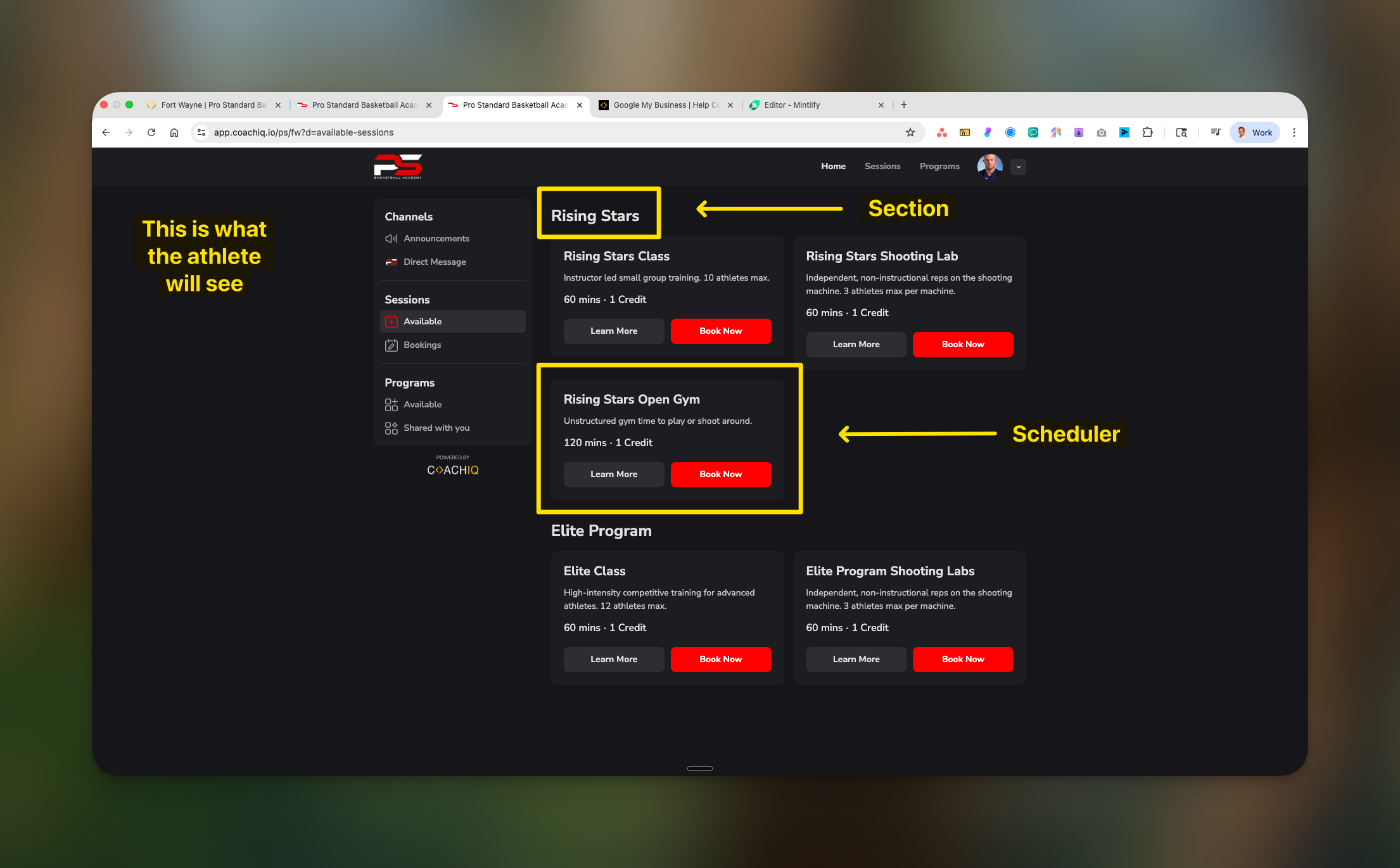
Compare what coaches configure (left) vs what athletes see (right)
- Section name and description
- Credit requirements
- “Book Now” or “Learn More” buttons
- Professional, branded appearance
Page controls and settings
Activating pages
Each page must be activated before athletes can see it:Toggle the Active switch
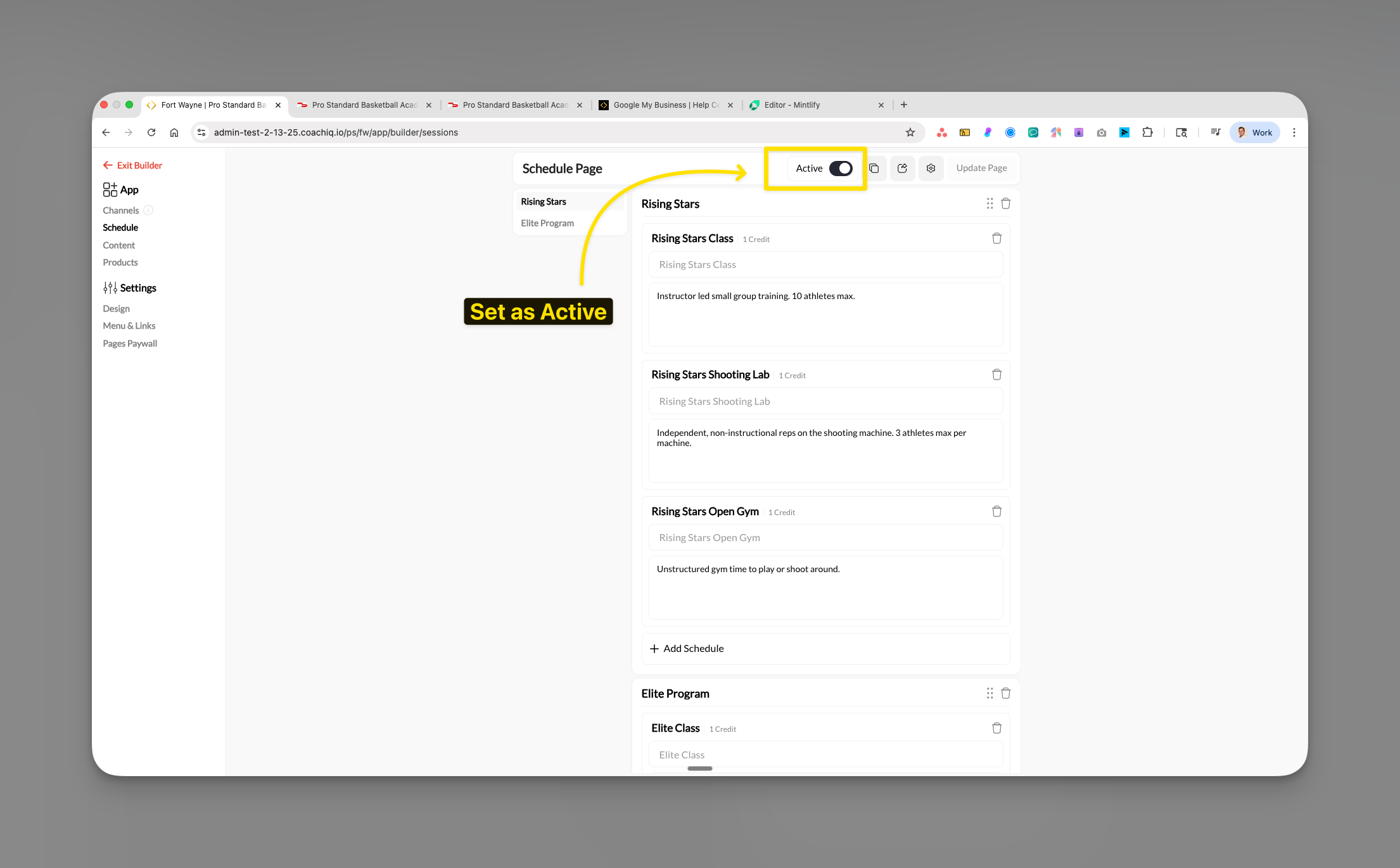
The Active toggle controls whether athletes can see this page
Configure visibility in Menu & Links
Page-specific settings
Click the settings icons in the top bar to access: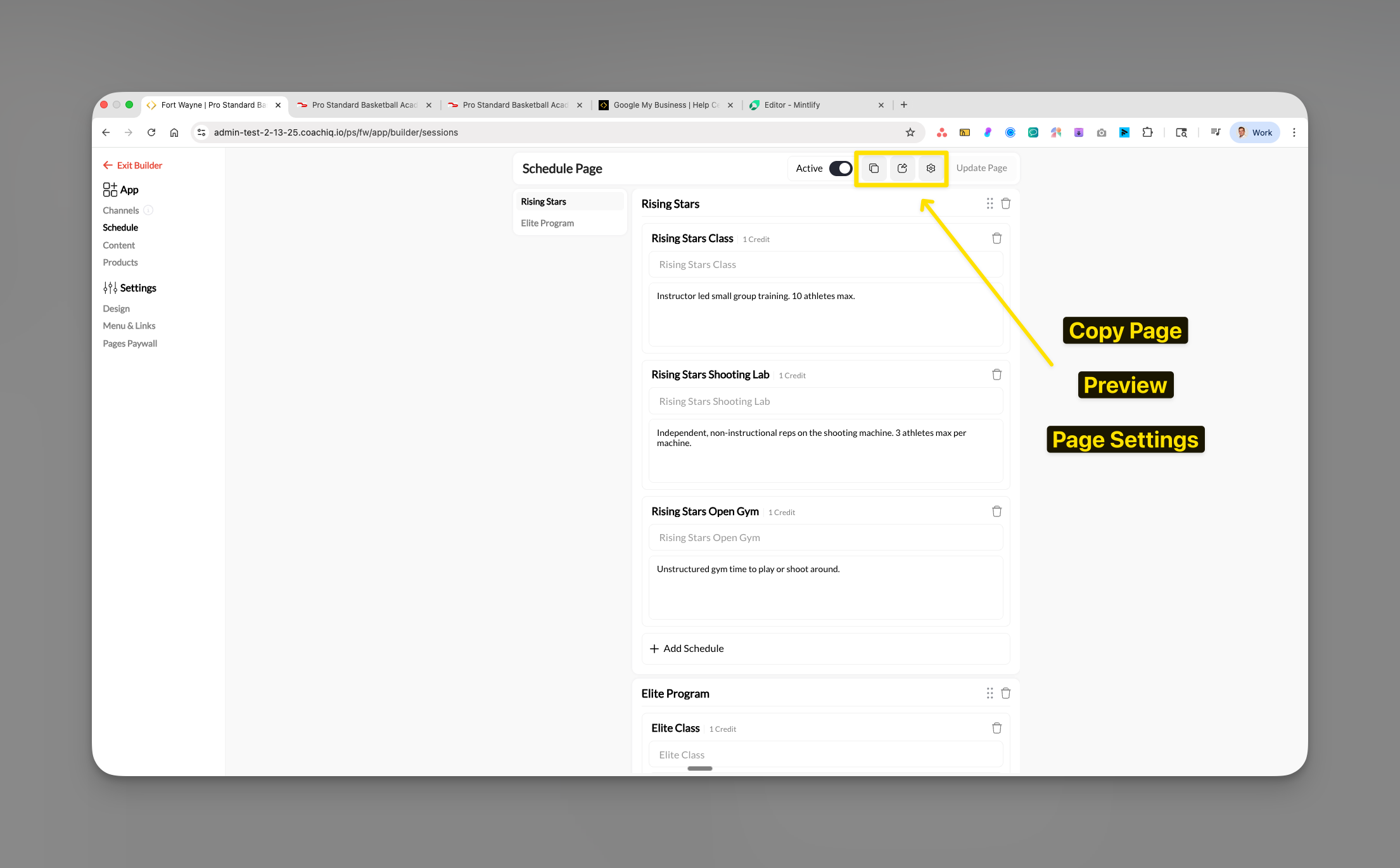
Page settings options for additional configuration
- Copy Page: Duplicate the entire page configuration
- Preview: See how the page looks to athletes
- Page Settings: Advanced configuration options
Publishing your changes
Make your desired changes
Review your changes
Click 'Update Page'
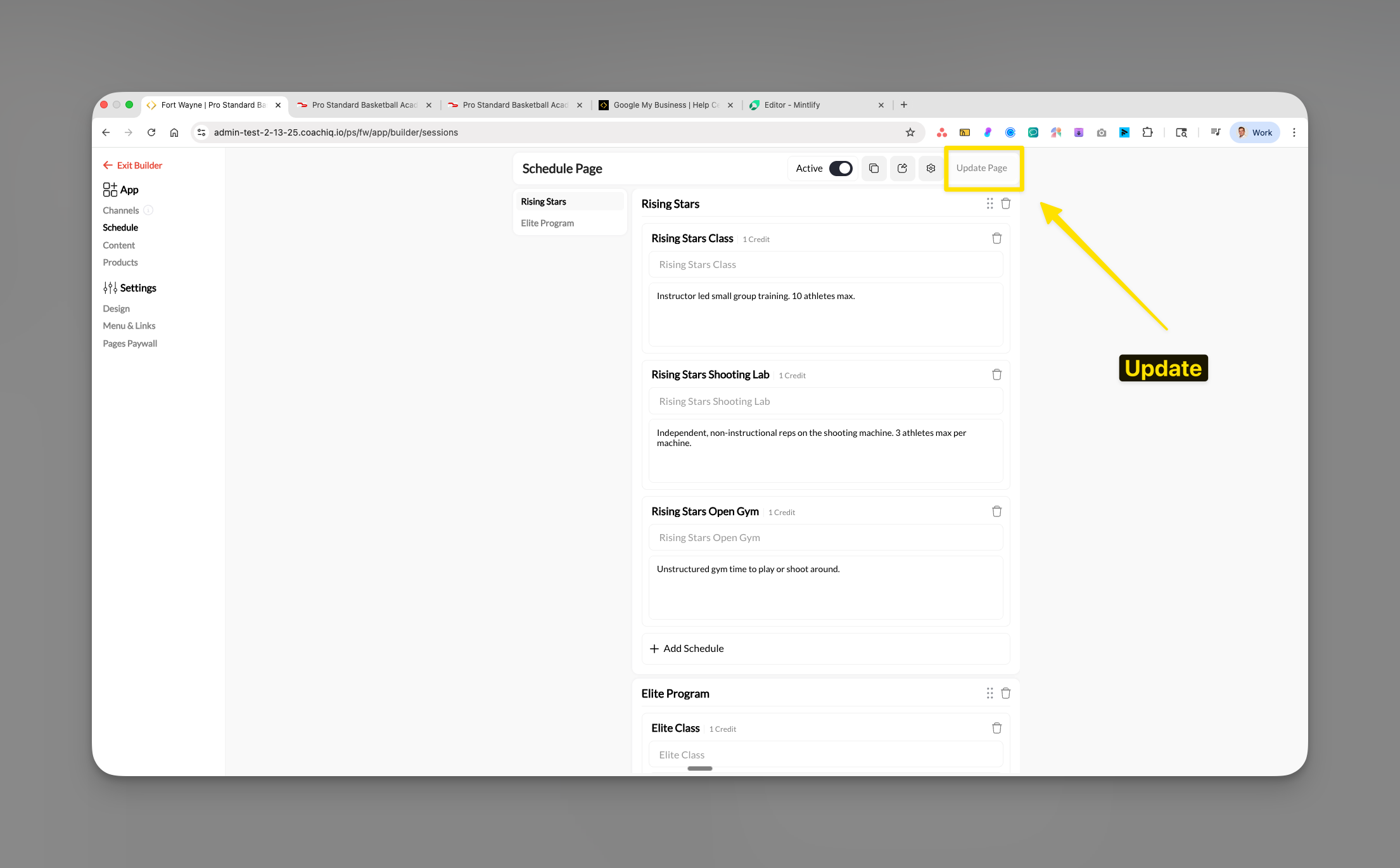
The Update Page button makes your changes live
Verify the update
Common interface patterns
The toggle hierarchy
The App Builder uses three levels of toggles:- Page level: Active toggle (entire page on/off)
- Menu level: Settings → Menu & Links (navigation visibility)
- Section level: Individual section toggles (show/hide sections)
Visual indicators
- Gray text: Descriptions and helper text
- Credit badges: Show credit requirements clearly
- Trash icons: Remove sections or items
- Drag handles: Reorder sections (where available)
Pro tips for navigation
Common questions
Why can't athletes see my changes?
Why can't athletes see my changes?
- The page Active toggle is ON
- The page is enabled in Menu & Links settings
- Athletes have refreshed their app
Can I undo changes after updating?
Can I undo changes after updating?
- Manually revert changes
- Use the Copy Page feature to backup configurations
- Contact support for assistance with major issues
How do I know which sections athletes can see?
How do I know which sections athletes can see?
- Page Active toggle (must be ON)
- Menu & Links visibility settings
- Individual section settings and paywall configuration
What's the difference between sections and schedulers?
What's the difference between sections and schedulers?
- Sections: Categories that group similar items (like “Elite Training”)
- Schedulers: Actual bookable sessions within sections (like “Tuesday 6pm Elite Class”)