

Quick Answer: Page paywalls restrict athlete access to specific pages (Programs, Scheduling, or Products) in your athlete portal until they purchase a required product. Configure paywalls at App Builder → Settings → Pages Paywall.
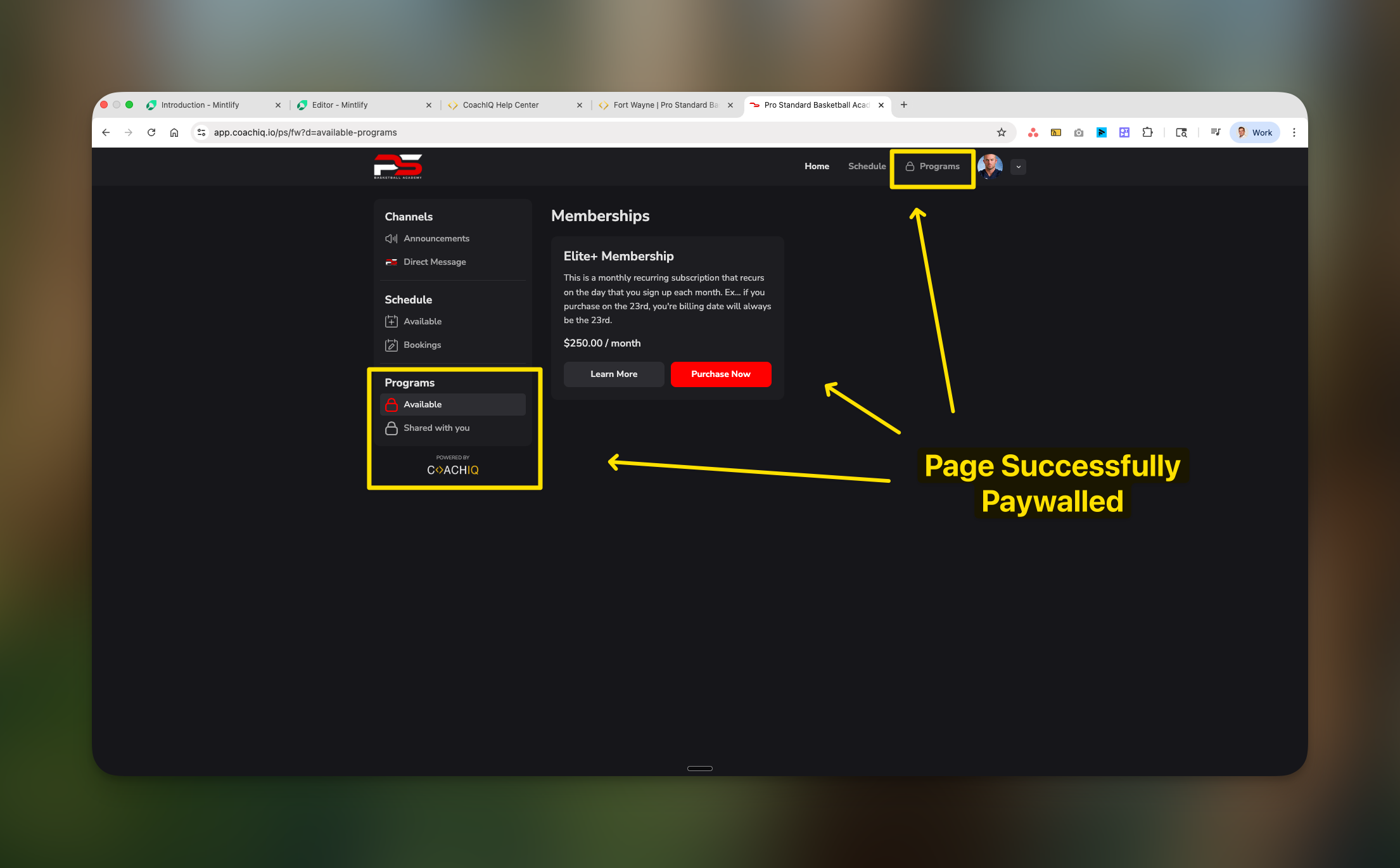
What is a page paywall in CoachIQ?
A page paywall is a monetization feature that restricts athlete access to entire sections of your athlete portal until they purchase a qualifying product. When athletes attempt to access a paywalled page without the required product, they see a purchase prompt instead of the content.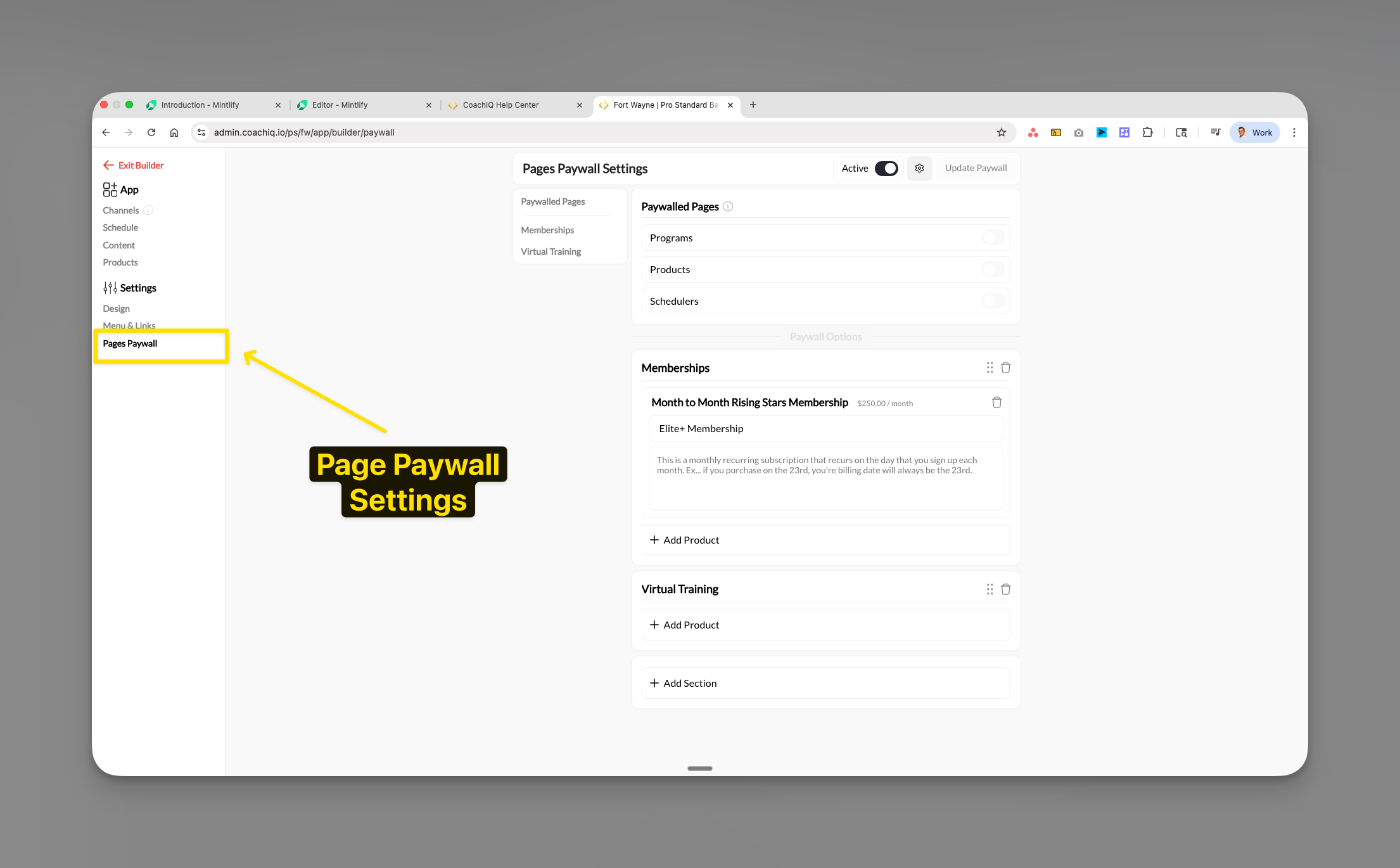
- Paywall three core pages: Programs, Scheduling, and Products
- Multiple products can unlock the same page
- Works with subscriptions, one-time purchases, and access codes
- Automatically relocks pages if subscriptions expire or payments fail
Prerequisites for setting up paywalls
Required before starting:
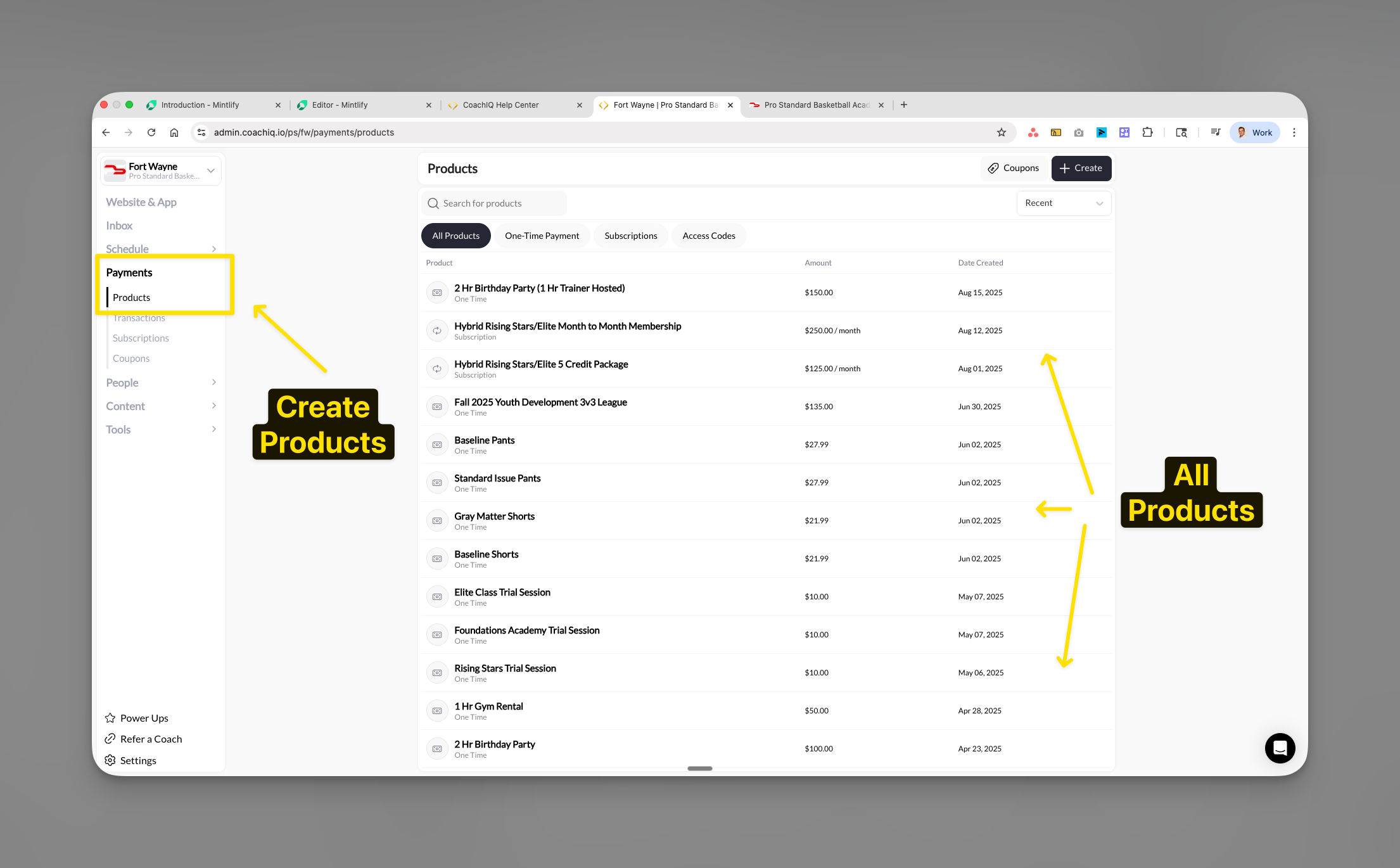
- At least one product created in Payments → Products
- Admin or owner permissions in CoachIQ
- Active athlete portal (configured in App Builder)
- Pages activated in Menu & Links settings
Setting up your first page paywall
1
Navigate to paywall settings
From your App Builder, click Settings in the left sidebar, then select Pages Paywall.
2
Select pages to paywall
Choose which pages you want to restrict access to. You can paywall:
- Programs - Training content, certifications, and courses
- Products - Your product catalog and purchase options
-
Schedulers - The Schedule page and the schedulers you have added to it
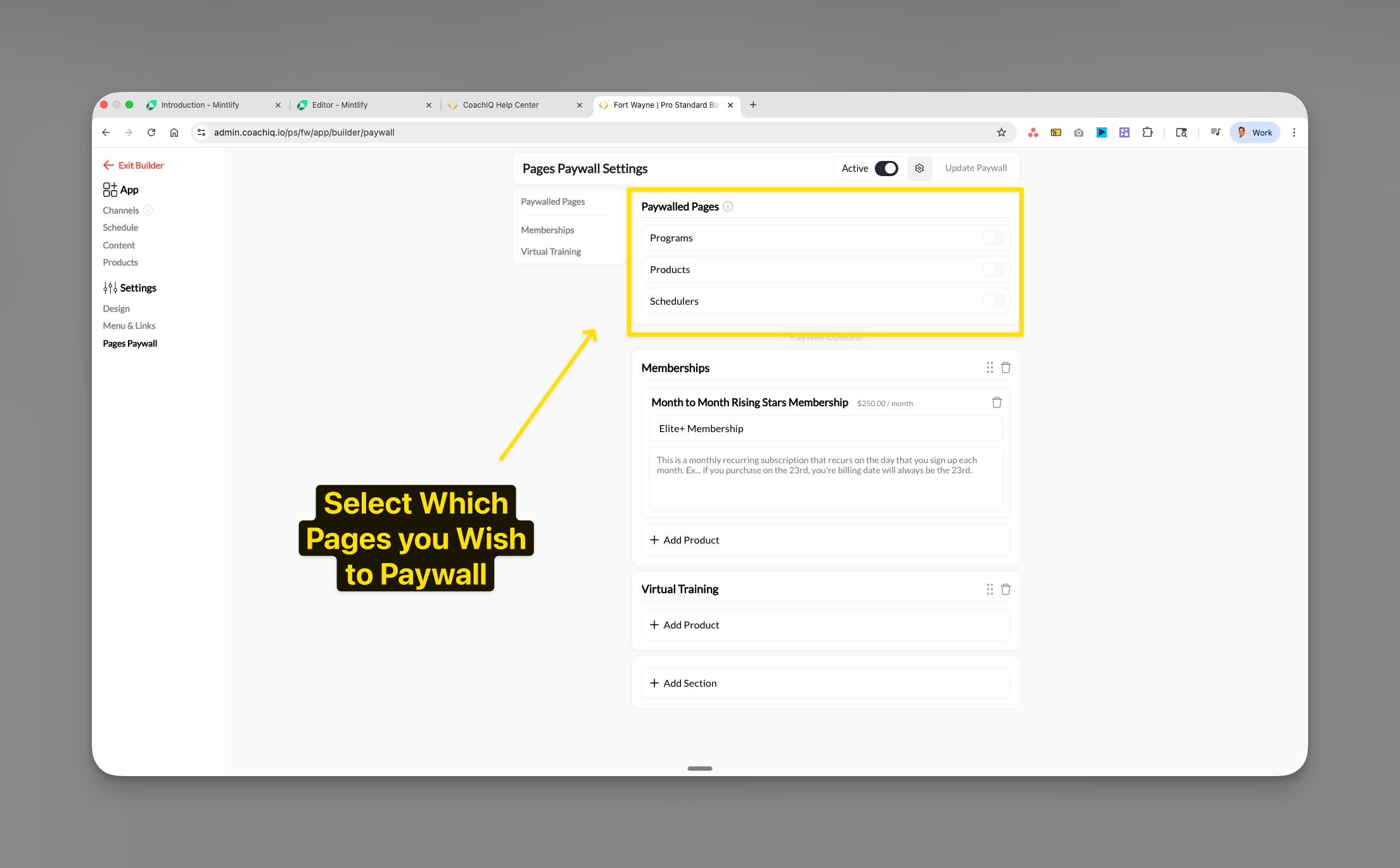
Paywalling Schedulers restricts only the schedulers listed on your portal’s Schedule page. A scheduler you link from a form, a website button, or a direct link stays bookable without the paywalled product, so intake forms and evaluation links keep working for prospects. To gate one of those schedulers too, attach a product to it directly — see Attach products to schedulers.
3
Add qualifying products
Click + Add Product under the page section you want to paywall. This opens a product selection modal.Select one or more products that will grant access to this page. Athletes must purchase at least one of these products to unlock the page.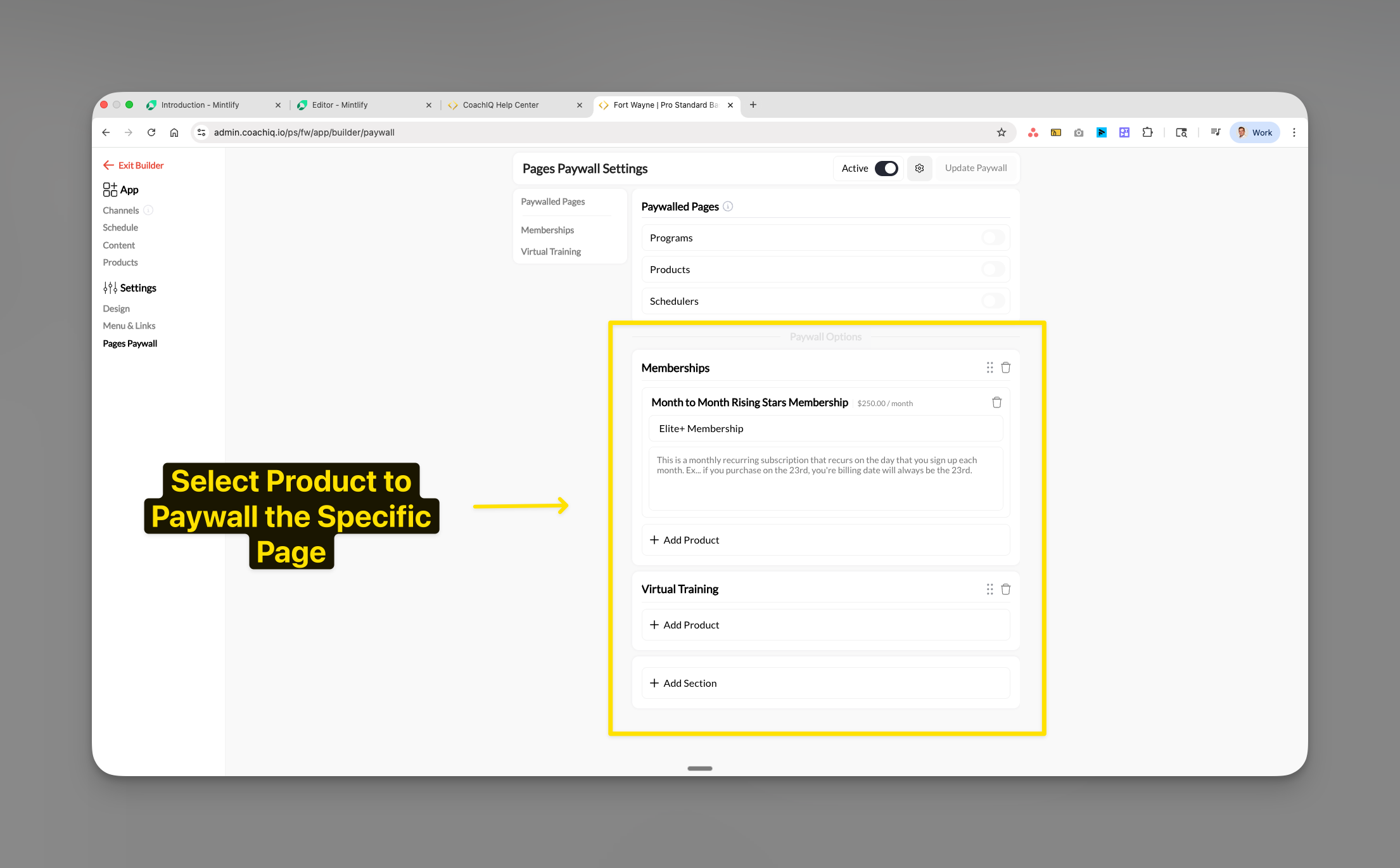
4
Configure product grouping
You can create multiple product groups (sections) for different membership tiers:For example:
- Memberships section: Monthly subscriptions
- Virtual Training section: One-time course purchases
Products in the same section represent alternatives (athlete needs ANY one). Products in different sections can represent bundles or tiers.
5
Update and activate
Once configured, ensure:
- The page is set to Active in Menu & Links settings
- Click Update Paywall to save your changes
- The paywall takes effect immediately for all athletes
What athletes see when accessing paywalled pages
When an athlete without the required product tries to access a paywalled page, they see:- Clear indication the page is restricted
- Product name and price display
- Description of what’s included
- “Purchase Now” or “Learn More” buttons
- Professional branded appearance matching your portal
The paywall only stands in front of the page itself. An athlete who reaches a scheduler through a form, a button, or a direct link (rather than the Schedule page) can book it without the paywalled product, and a program you shared directly with an athlete stays visible even when the Programs page is paywalled.
Managing multiple products on paywalls
Adding products to existing paywalls
You can add multiple products that grant access to the same page:- Navigate to Pages Paywall settings
- Find your paywalled page section
- Click + Add Product
- Select additional products from your product list
- Click Add Selected
- ANY product in the list grants full access
- Athletes only need to purchase ONE qualifying product
- Great for offering different price points or payment options
- Perfect for seasonal promotions or grandfathered pricing
Creating membership tiers
Structure your paywalls for different access levels: Basic Membership (100/month) → Unlocks: Programs + Scheduling Elite Membership ($250/month) → Unlocks: Programs + Scheduling + ProductsUsing sections for organization
Create logical groupings of products:- Add Section to create categories like “Memberships” or “Virtual Training”
- Helps athletes understand their options
- Makes managing multiple products easier
- Each section can have its own description
Customizing paywall pages
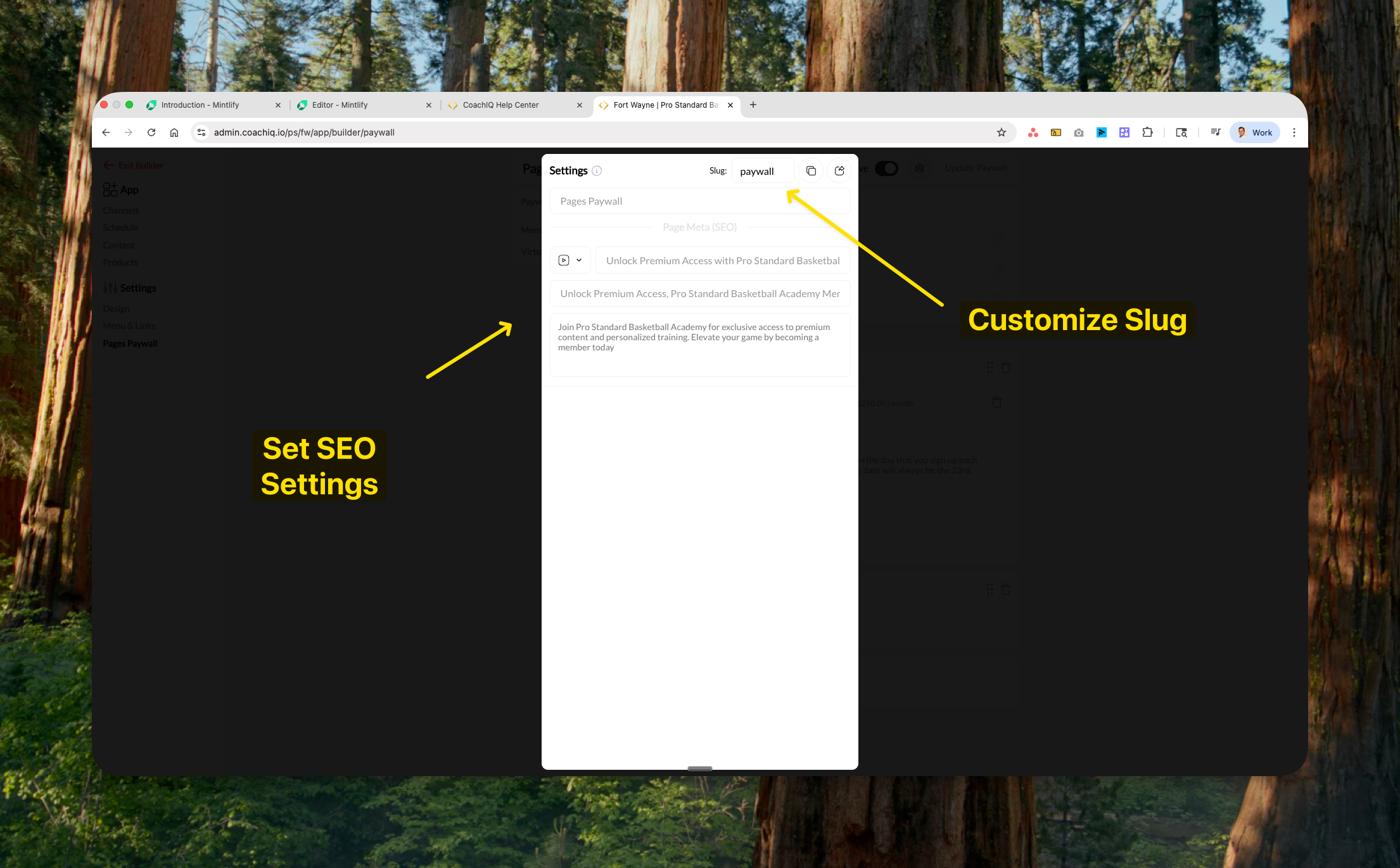
SEO and URL settings
Configure how your paywalled pages appear in search results and browsers:- Page Title: Optimize for search engines (e.g., “Premium Basketball Training Programs”)
- Meta Description: Describe the value behind the paywall
- URL Slug: Customize the page URL (e.g.,
/paywallor/premium-access)
Paywall messaging
The paywall automatically displays:- Subscription description from your product settings
- Price and billing frequency
- Clear call-to-action buttons
- What’s included with purchase
- Billing terms (monthly, one-time, etc.)
- Value proposition for athletes
Troubleshooting paywall access issues
Why athletes can’t access paywalled pages
Diagnosis checklist:- No qualifying product purchased
- Check: People → [Athlete Name] → Products tab
- Solution: Direct athlete to purchase page on web portal
- Subscription expired
- Check: Payments → Subscriptions → Filter by athlete
- Solution: Update payment method or reactivate subscription
- Payment failed
- Check: Payments → Transactions → Failed payments
- Solution: Have athlete update billing information
- Product removed from paywall
- Check: Pages Paywall settings for product list
- Solution: Re-add product or communicate changes to athletes
- Page not active
- Check: Menu & Links settings for page toggle
- Solution: Activate the page in settings
- Paywall on, but no active page selected
- Symptom: athletes see a prompt to pick a page instead of the paywall or the content
- Solution: Activate at least one paywalled page in Menu & Links, then click Update Paywall again
Quick fixes for common issues
Athlete purchased but still can't access
Athlete purchased but still can't access
- Verify purchase in People → [Athlete] → Transactions
- Check if subscription is active (not past due)
- Have athlete log out and back in
- Ensure the correct product is linked to the paywall
Subscription renewed but page still locked
Subscription renewed but page still locked
Failed payments can cause temporary locks. Check:
- Payment status in Stripe
- Transaction status in CoachIQ
- May take up to 5 minutes to sync after successful payment
Access code not working
Access code not working
Ensure the access code product is:
- Added to the paywall product list
- Not expired or at usage limit
- Properly redeemed by the athlete
Want to temporarily remove paywall
Want to temporarily remove paywall
To temporarily grant free access:
- Remove all products from the paywall section
- Save changes
- Page becomes accessible to all athletes
- Re-add products when ready to restore paywall
Best practices for page paywalls
Common questions about paywalls
Does the Schedulers paywall block every scheduler I own?
Does the Schedulers paywall block every scheduler I own?
No. It blocks the schedulers you added to the portal’s Schedule page. Schedulers reached through a form, a website button, or a direct link are not gated by the Pages Paywall. If you want one of those gated as well, attach a product to that scheduler in its own settings.
Can I paywall individual programs instead of the whole Programs page?
Can I paywall individual programs instead of the whole Programs page?
No, paywalls work at the page level only. To restrict individual programs, use the program sharing settings in Content → Programs → [Program] → Share Settings instead.
What happens when a subscription payment fails?
What happens when a subscription payment fails?
The page automatically relocks when a subscription payment fails. Athletes see the purchase prompt again until payment is successful. There’s typically a grace period of 3-7 days for payment retry.
Can athletes preview paywalled content?
Can athletes preview paywalled content?
No, paywalled pages are completely restricted. Consider creating a separate “preview” or “demo” section outside the paywall to showcase value.
How do I offer a free trial before the paywall?
How do I offer a free trial before the paywall?
Create a subscription product with a trial period in Payments → Products. Set the trial length (e.g., 7 days free), then add this product to your paywall.
Do paywalls work on both mobile app and web?
Do paywalls work on both mobile app and web?
Yes, paywalls function on both platforms. However, purchases can only be made through the web portal due to iOS restrictions.
Can I have different paywalls for different user groups?
Can I have different paywalls for different user groups?
Currently, paywalls apply to all athletes universally. For group-specific access, consider using private program assignments or access codes.
What if I want to grant manual access without payment?
What if I want to grant manual access without payment?
You can:
- Create a $0 access code product
- Add it to the paywall
- Manually provide the code to specific athletes
How do refunds affect paywall access?
How do refunds affect paywall access?
Refunding a product purchase immediately removes paywall access. The athlete will need to repurchase to regain access.
Monitoring paywall performance
Track your paywall effectiveness: Key metrics to monitor:- Conversion rate: People viewing vs purchasing
- Revenue per page: Which paywalled pages generate most revenue
- Churn indicators: Subscription cancellations after paywall access
- Support tickets: Common access issues to address
- Payments → Transactions (purchase tracking)
- Payments → Subscriptions (active membership monitoring)
- People → Activity logs (access patterns)
Related articles
Product Overview
Understand how products work and where athletes can find them
Product Builder
Create memberships, packages, and one-time products
Attach Products to Schedulers
Require payment or credits when athletes book sessions
Products in Your Athlete Portal
Display and organize products in your athlete-facing portal
Transactions
Track purchases, refunds, and payment history
Managing People
View athlete profiles, products, and activity