

Where to find this: Dashboard → Inbox → Create New Message → Attachment Options
What you’ll accomplish
Learn how to enhance your messages with attachments that drive specific actions - from completing waivers to booking sessions to purchasing products. Turn simple messages into powerful engagement tools.Understanding message attachments
Attachments in CoachIQ messages appear as polished, clickable links that maintain your professional appearance while making it easy for athletes to take action. Whether they’re viewing on mobile or web, attachments open seamlessly in their browser.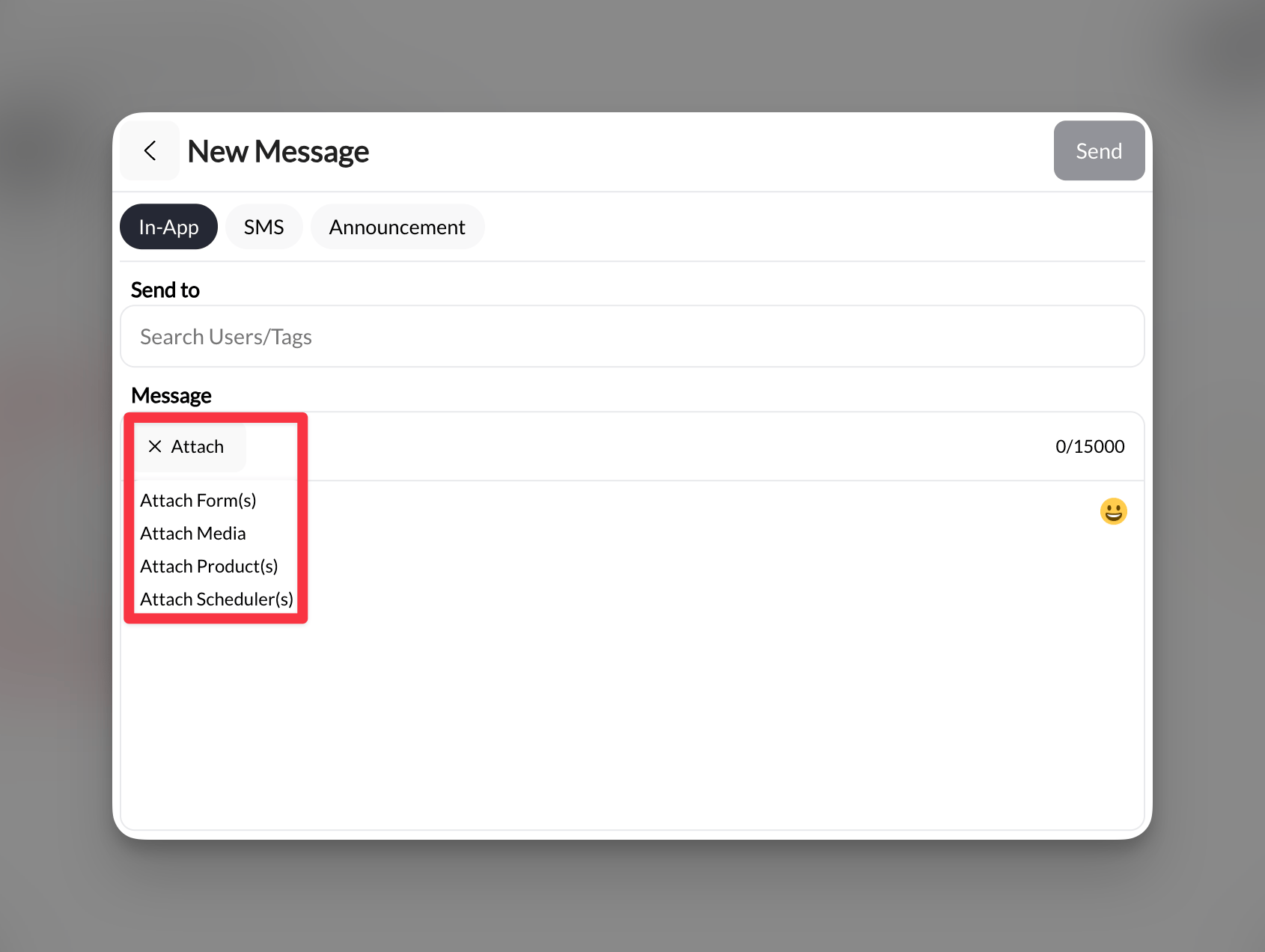
Attachment options above below your message composer
What you can attach
Forms
Waivers, registrations, surveys, and feedback forms from your Forms library
Media
Images, videos, and documents from your Media Hub
Products
Membership packages, training programs, and any products you’ve created
Sessions
Direct links to your schedulers for easy booking
Adding attachments to messages
1
Start composing your message
Navigate to Inbox and click Create New. Select your message type (In-App, SMS, or Announcement) and recipients.
2
Write your message
Compose your message text. Keep it concise if adding attachments - let the attachments do the heavy lifting.
3
Click the attachment type
Below your message composer, click the appropriate attachment button:
- Forms - Opens your forms library
- Media - Opens the Share Media picker, with a Select Media tab for files already in your Media Hub and an Upload Media tab for a file from your computer
- Products - Shows your products list
- Sessions - Displays available schedulers
4
Select items to attach
Choose one or multiple items from the list. You can attach multiple items of the same type or mix different types in one message.
Selected items will appear as attachment previews below your message.
5
Send your message
Review your message and attachments, then click Send. Athletes receive the message with professional, clickable attachment links.
How attachments appear to athletes
In-App and web viewing
Attachments display as styled, clickable elements that match your branding:- Clean design: Professional card-style links with clear labels
- Action-oriented: Clear indicators of what happens when clicked
- Price display: Products may show pricing depending on context
- Smooth transitions: Opens in web browser or new tab seamlessly
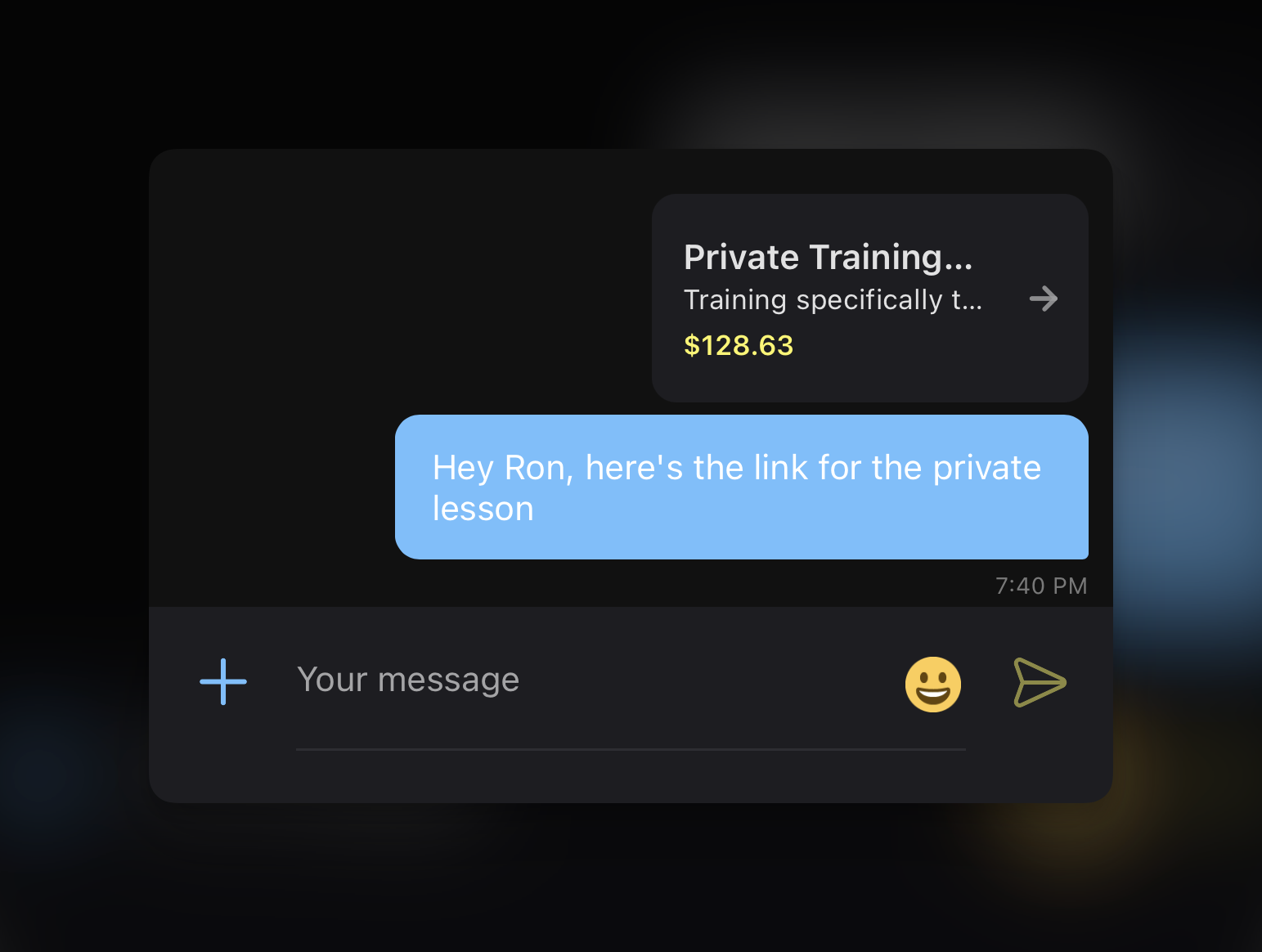
When athletes using the mobile app click an attachment, it opens in their mobile web browser. Web users stay in their current browser with a new tab or window.
SMS attachment behavior
For SMS messages, attachments convert to text links:- Short, trackable URLs
- Clear labeling (e.g., “Waiver Form: [link]”)
- Character count considerations apply
- Multiple attachments listed sequentially
Attachment-specific features
Forms attachments
When you attach a form:- Direct access: Athletes click to open and complete immediately
- No login friction: Forms can be set to not require authentication
- Response tracking: Submissions appear in your Forms → Responses section
- Common uses: Waivers, emergency contacts, feedback surveys, registration
Product attachments
Product links in messages:- Show key details: May display price and description based on viewing context
- Direct purchase path: One click to product page
- Payment ready: Athletes can purchase immediately if payment info is on file
- Perfect for: Limited offers, new program launches, membership renewals
Session/Scheduler attachments
Scheduler links provide:- Full scheduler view: Athletes see your availability calendar
- Real-time availability: Always shows current open slots
- Credit display: Shows if sessions require credits
- Immediate booking: Athletes with credits can book without leaving the flow
Media attachments
Clicking Media opens the Share Media picker, which has two tabs:- Select Media — browse and pick files already in your Media Hub. If the tab shows “No media yet”, nothing has been uploaded to the hub for this group yet.
- Upload Media — choose a file from your device. It is added to your Media Hub as well as to the message, so you can reuse it later.
- All file types: Videos, images, PDFs, documents
- No size limits: Attach large training videos without worry
- Multiple files: Attach several items in one message
- Organized delivery: Files appear in order selected
When a shared file is deleted
A sent media attachment depends on its file in Media Hub. Deleting that file also removes access from the messages you sent it in, including messages in archived conversations. Media Hub warns you about affected messages before you confirm a single or bulk delete. If you or a family sees Attachment no longer available, check whether the file was deleted. Keep sent coaching feedback in Media Hub while athletes need it. If you have the original file, upload it again and send it as a new attachment; this does not repair the attachment in the old message.Audio attachments
Audio files appear with an audio icon and filename in the library and message draft, rather than an image preview. Open an audio attachment to use its playback controls. Saved audio remains identifiable when you reopen the library; image and video previews work as before.Best practices for attachments
Strategic attachment use
- Announcements
- Direct Messages
- SMS Messages
Perfect for: New program launches, schedule updates, required formsExample message: New Season Registration Open! Complete these 2 quick steps: Fill out the attached waiver Book your assessment session Questions? Reply to this message![Waiver Form] [Spring Schedule]
Multiple attachments strategy
When attaching multiple items:- Order matters: Place most important attachment first
- Group logically: Keep related items together
- Explain each: Brief description of what each link contains
- Don’t overwhelm: Maximum 3-4 attachments per message
Driving action with attachments
Create urgency
“Complete the attached waiver by Friday to secure your spot”
Provide value
“Your personalized program is attached - based on last week’s assessment”
Make it easy
“Click the scheduler below to book your free consultation”
Show benefits
“Attached: 20% off our Jump Higher program (this week only)“
Common questions
Can athletes attach files in their replies?
Can athletes attach files in their replies?
Athletes can attach photos and videos when sending direct messages to you, but cannot attach documents or other file types. They access this through the media button in their message composer.
What happens if I delete an attached form/product/session?
What happens if I delete an attached form/product/session?
The link in sent messages will no longer work. Always keep active any items you’ve attached to messages, or send a follow-up if you need to remove something.
Do attachments work in archived conversations?
Do attachments work in archived conversations?
Yes, as long as the linked item or media file still exists. Archiving a conversation does not preserve a separate copy of its attachments. Links to active schedulers show current availability.
Can I see who clicked on attachments?
Can I see who clicked on attachments?
For forms, you can see who submitted. For products, track through transactions. Session bookings appear in your calendar. General link clicks aren’t tracked individually.
Is there a limit to Media Hub file sizes?
Is there a limit to Media Hub file sizes?
No, there’s no size limit for files in your Media Hub. However, consider athlete bandwidth - very large video files may be slow to load on mobile connections.
Pro tips
Related Articles
Create Effective Forms
Build forms that convert and collect the right information
Set Up Products
Create products that are perfect for message attachments
Configure Schedulers
Build schedulers that make booking effortless
Organize Media Hub
Upload and organize media for easy attachment access