

Where to find this: Dashboard → App Builder → Schedule tab
What you’ll accomplish
Set up and organize your schedulers so athletes can view available sessions and book directly from their mobile app or web portal. You’ll learn how to select which schedulers appear, organize them into sections, and customize how they’re displayed to your athletes.Before you begin
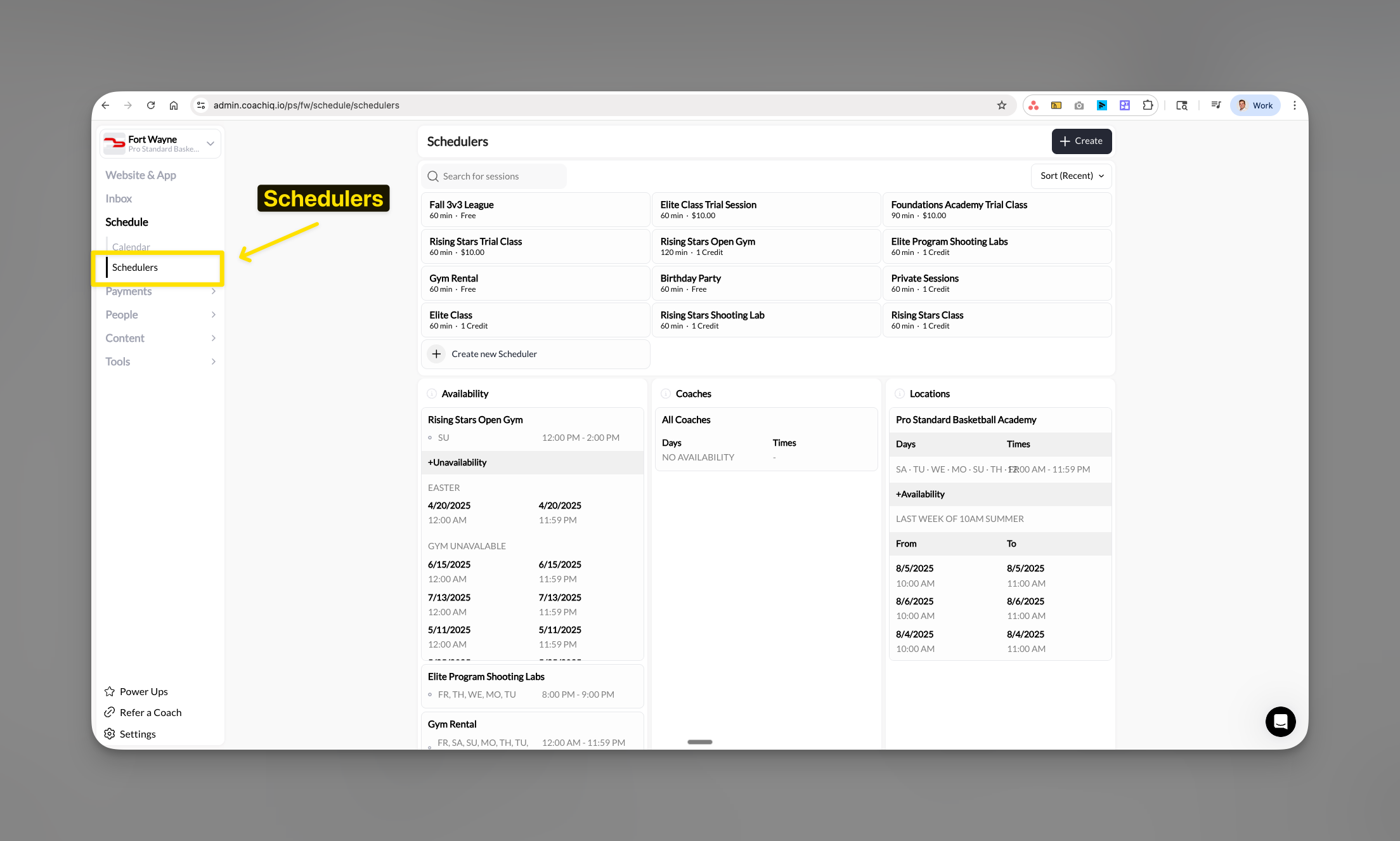
Required setup: You must have at least one scheduler created before adding it to the Athlete Portal. If you haven’t created any schedulers yet, go to Schedule → Schedulers to set up your first one.
Understanding the Schedule page
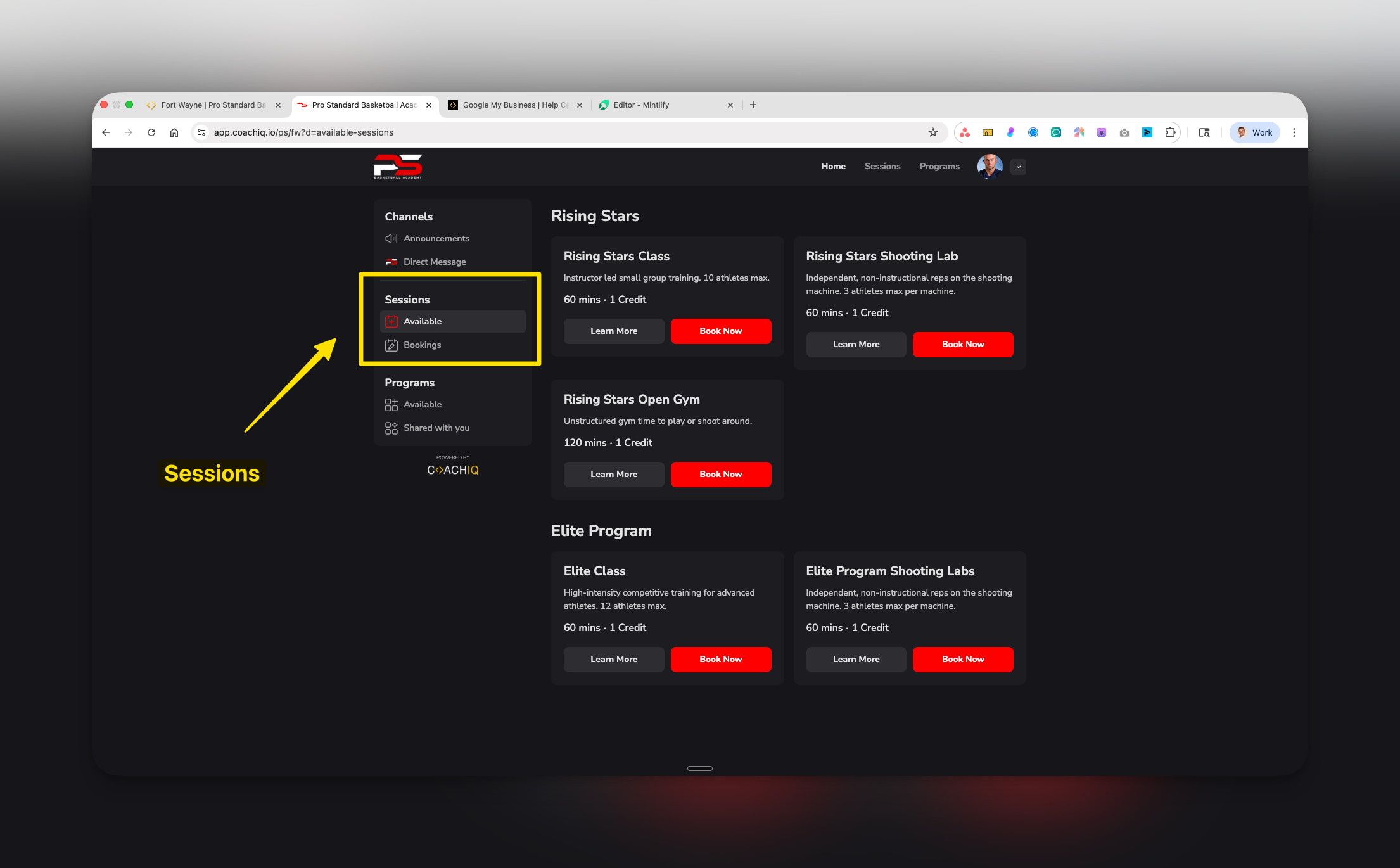
The Schedule page in your Athlete Portal is where athletes view and book available sessions. As a coach, you have complete control over:- Which schedulers athletes can see
- How schedulers are organized into sections
- The titles and descriptions athletes see
- Whether the scheduling feature is available at all
Accessing your Schedule settings
1
Navigate to App Builder
From your dashboard, click App in the left navigation menu, then select Schedule.
2
Locate the Schedule page
You’ll see any existing sections and schedulers already added to your athlete portal.
3
Activate the Schedule page
Toggle the Active switch to control whether athletes can see the Schedule page. When off, the entire scheduling section is hidden from athletes.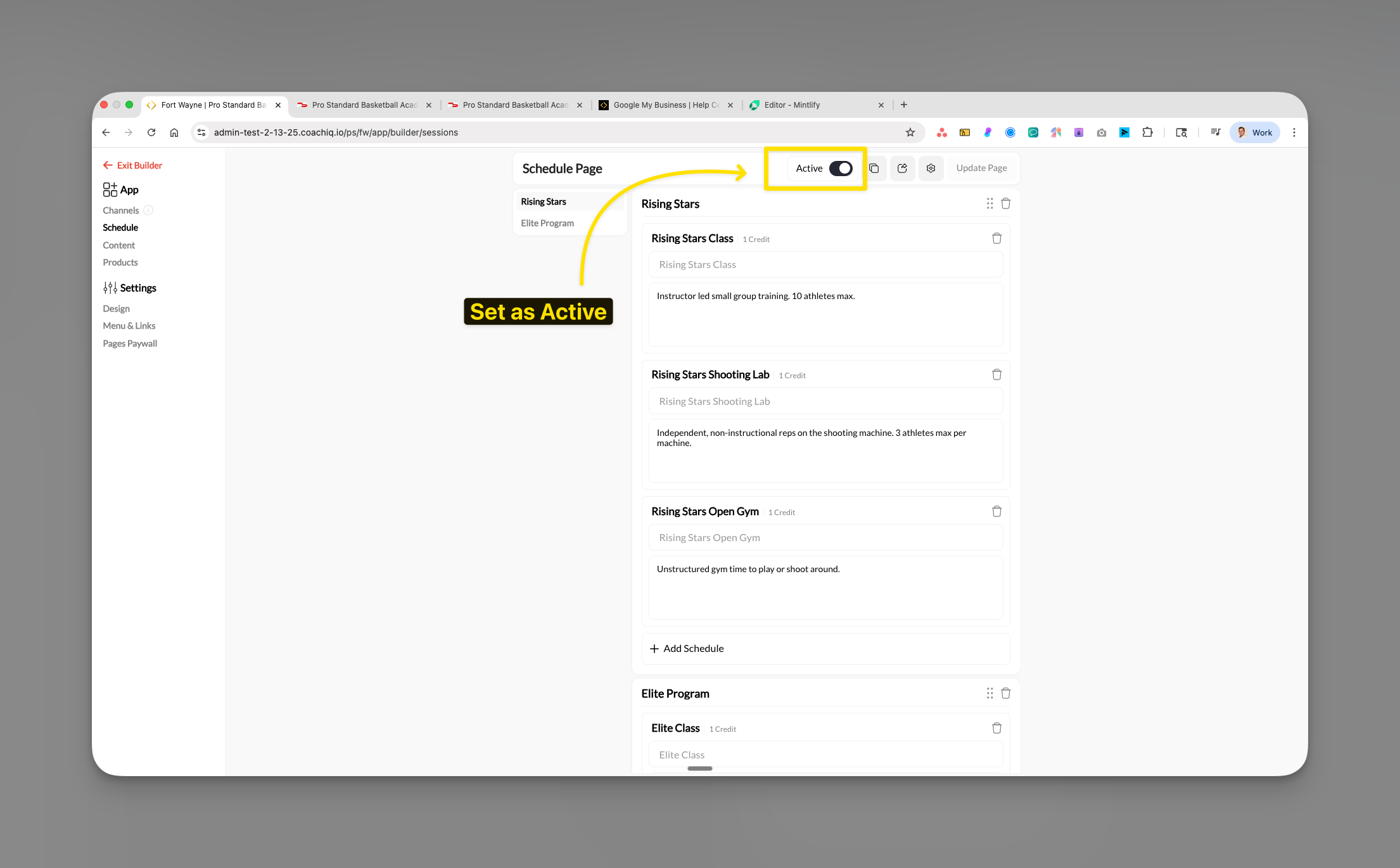
Always hit update page to ensure the updates go live!
Adding schedulers to your portal
1
Click Add Schedule
Within any section, click the + Add Schedule button to add a scheduler.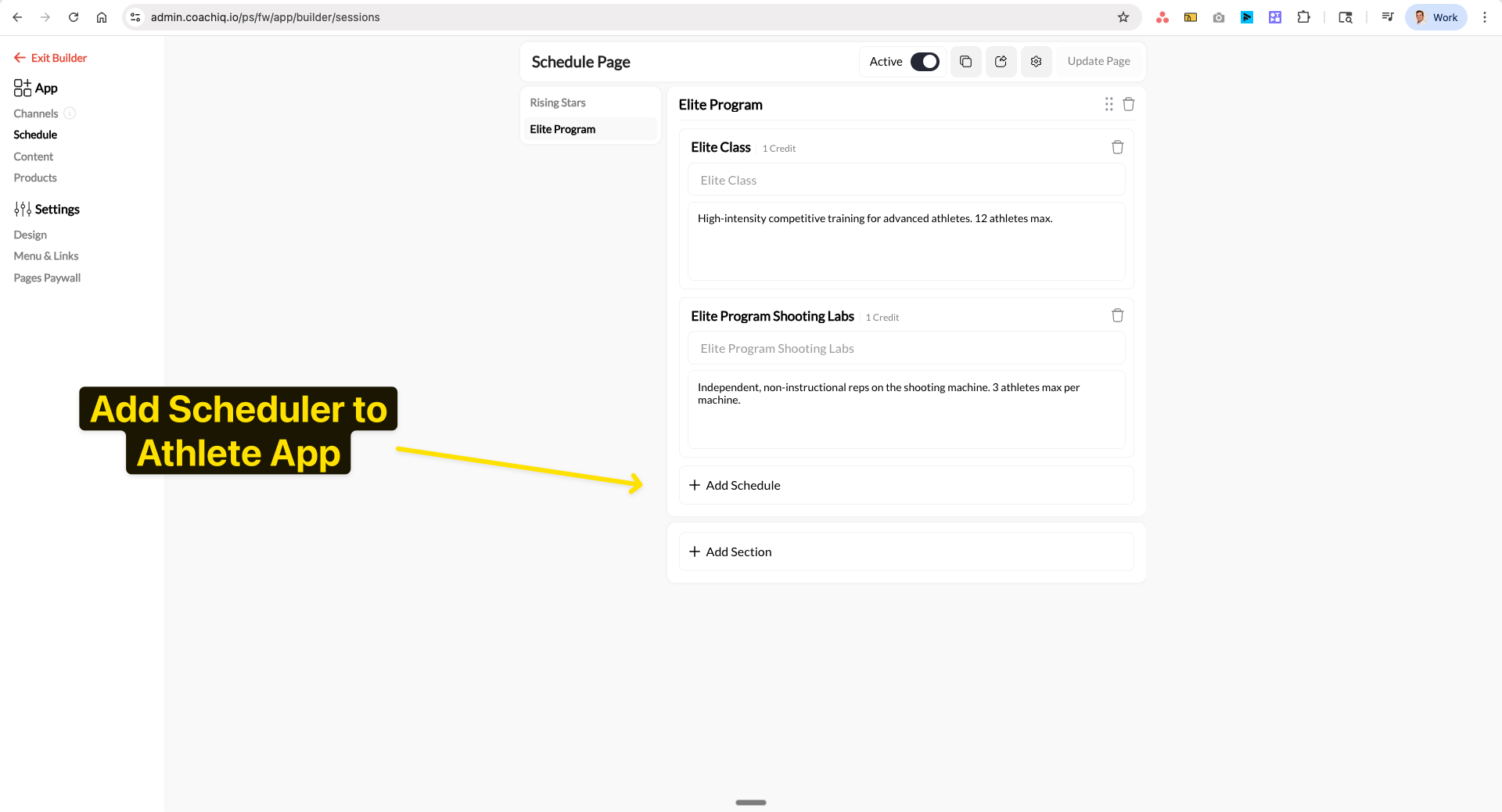
2
Select from available schedulers
A modal will appear showing all schedulers you’ve created in the system. Select the scheduler(s) you want to add.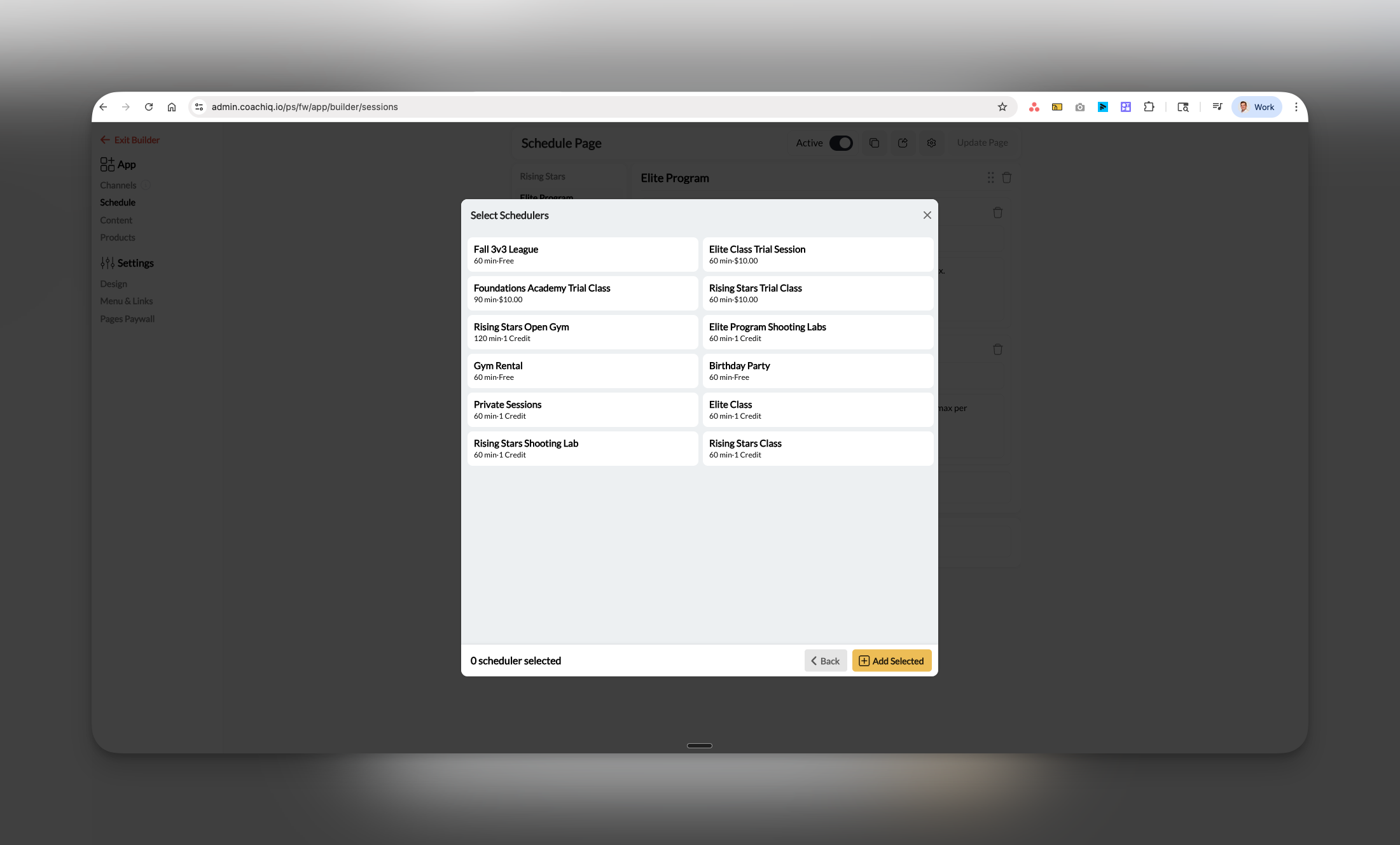
3
Confirm your selection
Click Add Selected to add the chosen schedulers to your section. They’ll appear immediately with their title, description, and credit cost.
Creating and organizing sections
Sections help you organize schedulers into logical groups like “Elite Program”, “Rising Stars”, or by location. Athletes always see sections expanded - they cannot collapse them.1
Add a new section
Click + Add Section at the bottom of your scheduler list.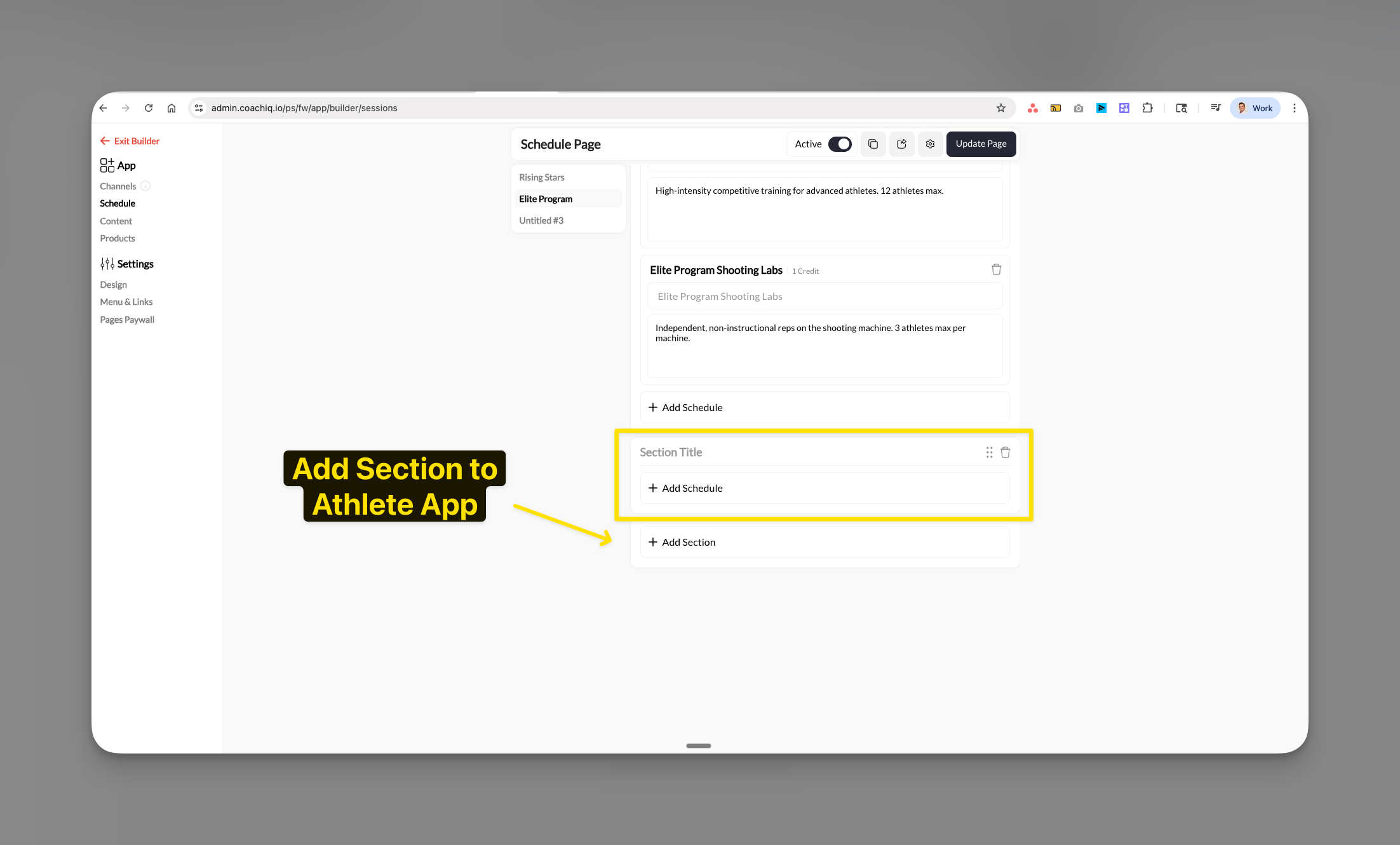
2
Name your section
Enter a clear, descriptive title for the section (e.g., “Beginner Classes”, “Advanced Training”, “Summer Programs”).
3
Add schedulers to the section
Click + Add Schedule within your new section to start adding schedulers.
Your section is created and ready for schedulers!
Customizing scheduler display
Each scheduler can have a custom title and description that athletes see, regardless of the scheduler’s original name.1
Click on a scheduler
Select any scheduler in your list to open its editing panel.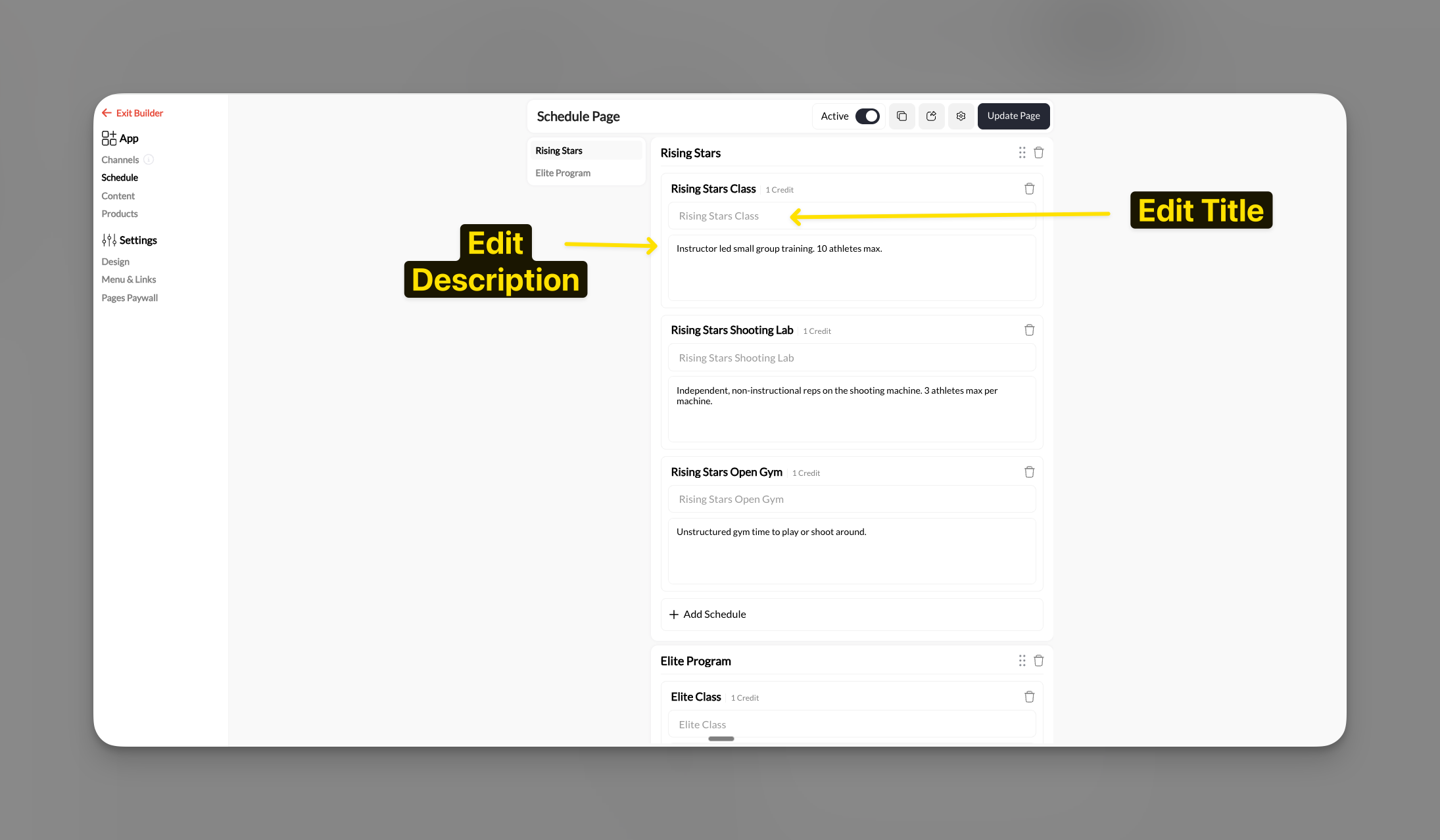
2
Edit the title
Update the scheduler name that athletes will see. Make it clear and action-oriented.
3
Edit the description
Add helpful context about the session type, skill level, or what athletes should expect. Keep it concise but informative.
Reordering and managing sections
1
Access section controls
Click the dots menu (⋮) next to any section to see management options.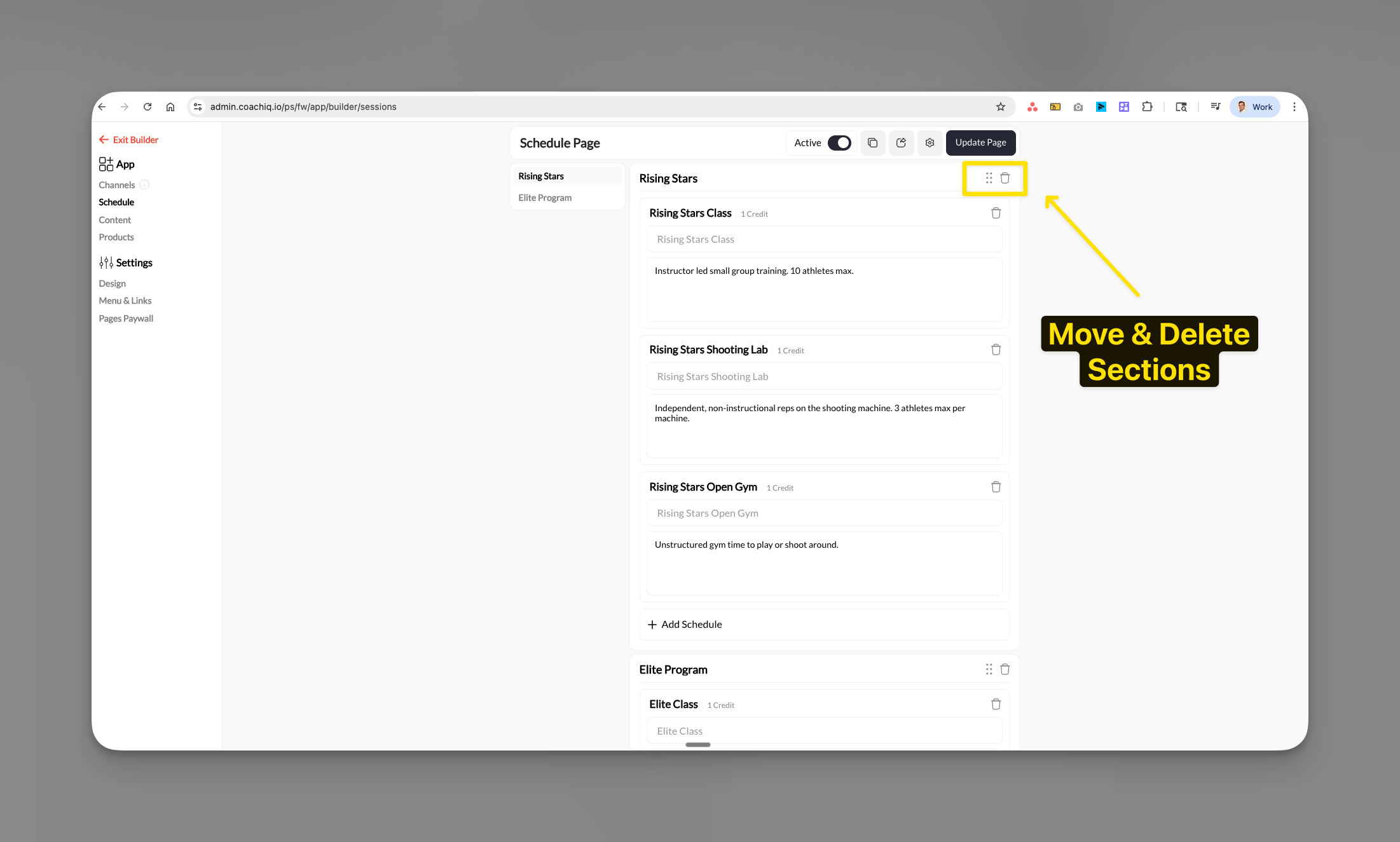
2
Reorder sections
Drag sections up or down to change their display order. Place your most popular or important sections at the top.
3
Delete sections
Select the delete option to remove an entire section and all its schedulers from the athlete view.
Add one session to a personal calendar
After booking in the athlete portal, select Add to Calendar on the confirmation screen and choose Google Calendar, Apple Calendar, Outlook.com, or the calendar file download. Each option includes the session name, date, time, and location. Apple Calendar downloads a file to open in Calendar. This adds the selected session. To subscribe to a feed of bookings, use the calendar subscription below.Subscribe to bookings in Google, Apple, or Outlook
Parents and athletes can open Settings → Calendar in the athlete portal, turn on their calendar subscription, and choose Google, Apple, or Outlook. The subscription is a private, read-only feed of bookings; manage bookings in CoachIQ. Use Reset private link to replace the subscription link, or Turn off to disable it. After resetting, subscribe again using the new link. Keep the private link to yourself. This is separate from a coach’s Admin Google Calendar sync. If you receive both a Google guest invitation and the CoachIQ calendar subscription, the same session can appear twice.Previewing the athlete experience
Always preview your changes to ensure athletes see exactly what you intend.1
Click the preview button
Select the preview icon in the top toolbar to see the athlete view.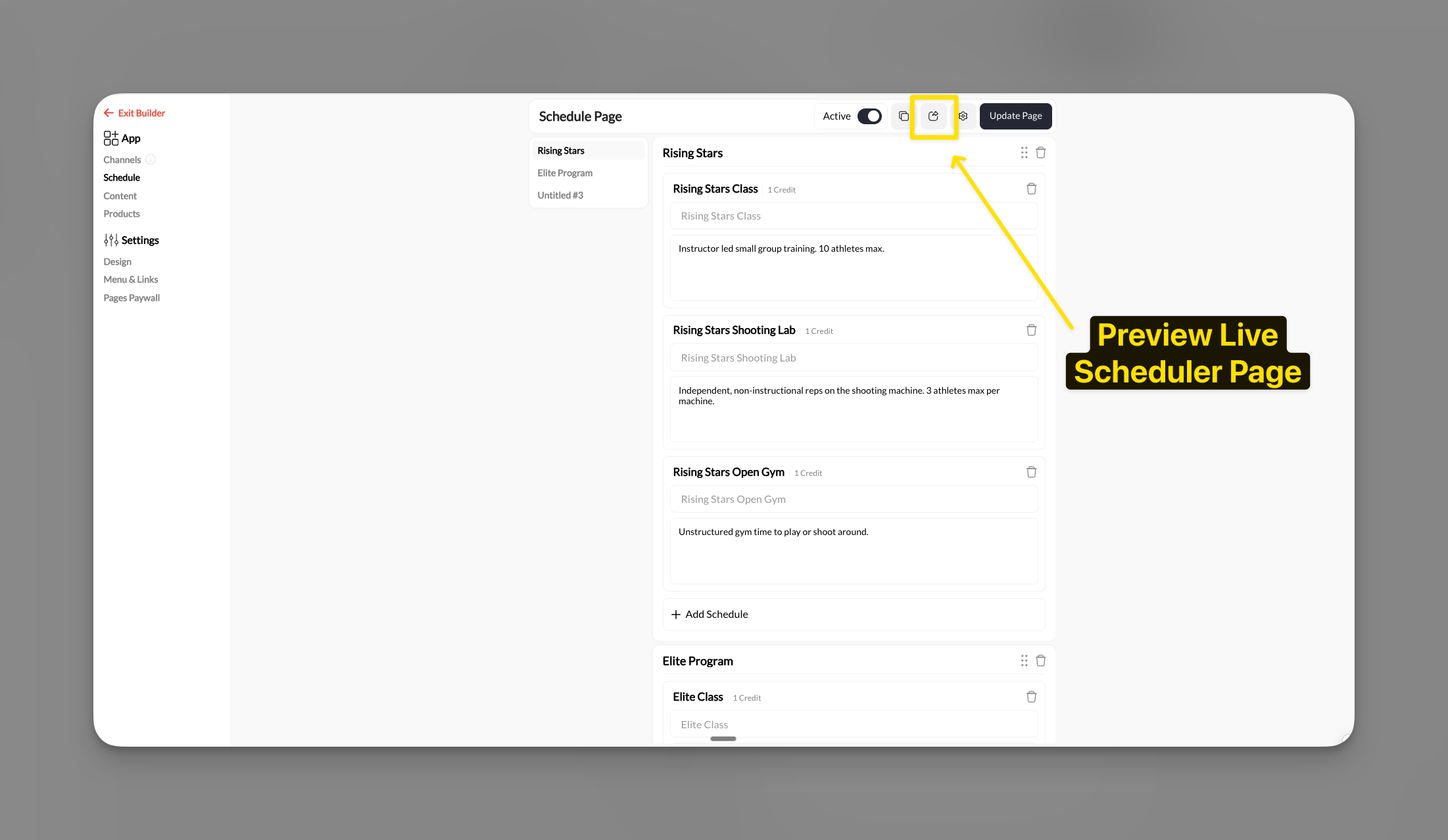
2
Review the layout
Check that:
- Sections appear in the correct order
- Scheduler titles and descriptions are clear
- Credit costs display correctly
- The overall organization makes sense for athletes
3
Test navigation
Click through different schedulers to ensure they’re properly configured and available for booking.
Page settings
Use the Settings panel to rename the Schedule tab and update the page URL.1
Open the Settings panel
Click the gear icon in the top right of the Schedule page to open the Settings panel.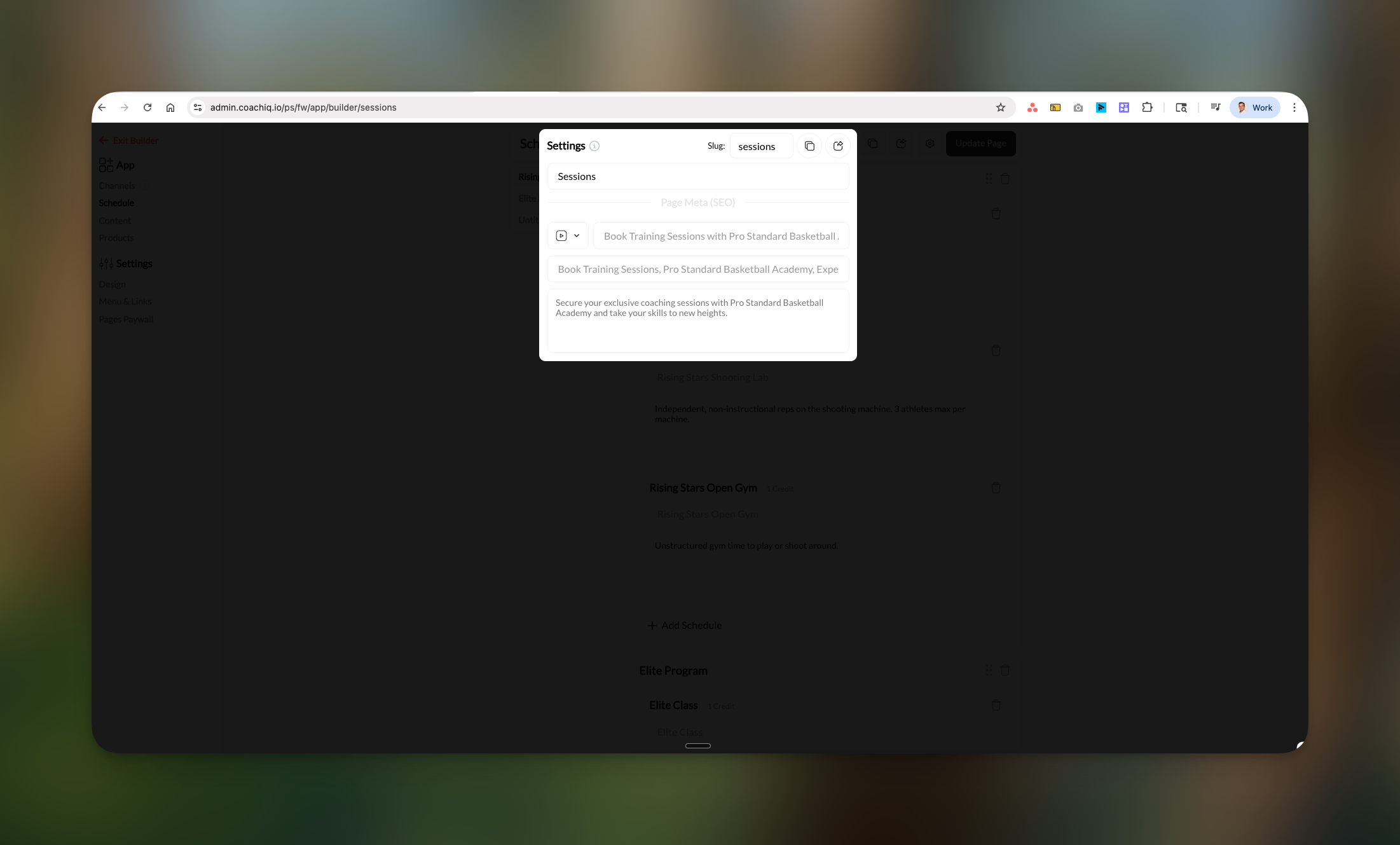
2
Rename the page
The first field at the top of the Settings panel is the page display name — this is what athletes see as the tab name in their portal. Update it to whatever fits your program (e.g., “Book Training”, “Reserve a Spot”).
3
Update the URL slug
The Slug field controls the URL path for this page (e.g.,
/sessions, /schedule). Update it to match your new name if needed.4
Configure Page Meta (SEO)
Edit the SEO metadata fields (title, keywords, description) that appear when someone shares your schedule page link.
5
Save changes
Click Update Page to apply all settings.
Common questions
Where do I create new schedulers?
Where do I create new schedulers?
Schedulers are created in Schedule → Schedulers in your main dashboard. The Athlete Portal only controls which existing schedulers are visible to athletes. Learn how to create schedulers →
Why can't my athletes see certain schedulers?
Why can't my athletes see certain schedulers?
Check that:
- The Schedule page is set to Active
- The scheduler is added to a section in the Athlete Portal
- The scheduler has available time slots configured
- The athlete has the required credits or payment method
How do credits work with bookings?
How do credits work with bookings?
The credit amount shown (e.g., “1 Credit”) is the cost to book that session. Athletes must have sufficient credits in their account to book. Credits are set when creating the scheduler, not in the Athlete Portal.
Can I show different schedulers to different athlete groups?
Can I show different schedulers to different athlete groups?
Currently, all athletes see the same schedulers. To control access, use the scheduler’s internal settings for prerequisites or eligibility requirements.
Do changes appear immediately?
Do changes appear immediately?
Yes! All changes to the Athlete Portal update instantly. There’s no draft mode or publish button - athletes see updates as soon as you make them.
Troubleshooting
Common issues and solutions
Athletes can’t see the Schedule page:- Verify the Active toggle is turned on
- Check that at least one scheduler is added
- Ensure athletes are logged into their accounts
- Credits are set in the scheduler configuration, not in the Athlete Portal
- Go to Schedule → Schedulers to update credit costs
- Use the dots menu (⋮) to drag and reorder sections
- Changes save automatically
- Click directly on the scheduler to open edit mode
- Make sure to click outside the field to save changes