

Most automations react to something happening—a purchase, a booking, a form submission. Scheduled automations are different. They run on a schedule and proactively find people who match your criteria.
Think of it this way:
- Event-based: The doorbell rings, you answer it
- Scheduled: You check the mailbox every morning
This is how you build credit expiration reminders, inactive member outreach, weekly announcements, and milestone celebrations.
When to Use Scheduled Automations
| Use Scheduled When… | Example |
|---|
| You need to check for a condition over time | Credits expiring in 7 days |
| You want to catch people who didn’t do something | Haven’t booked in 2 weeks |
| You want recurring announcements | Weekly schedule release |
| You need to celebrate milestones | 3-month member check-in |
Rule of thumb: If you’re checking status rather than reacting to an event, use a scheduled automation.
Setting Your Schedule
You have three timing options:
| Schedule | Best For | Example |
|---|
| Every day at [time] | Time-sensitive checks | Credit expiration reminders, daily trial alerts |
| Once a week on [day] at [time] | Weekly operations | Inactive member outreach, schedule announcements |
| Once a month on [date] at [time] | Monthly milestones | Subscription anniversaries, monthly check-ins |
Scheduled automations use your timezone from Settings. If you’re in Eastern Time, “Monday at 9am” means 9am Eastern.
Conditions: Targeting the Right People
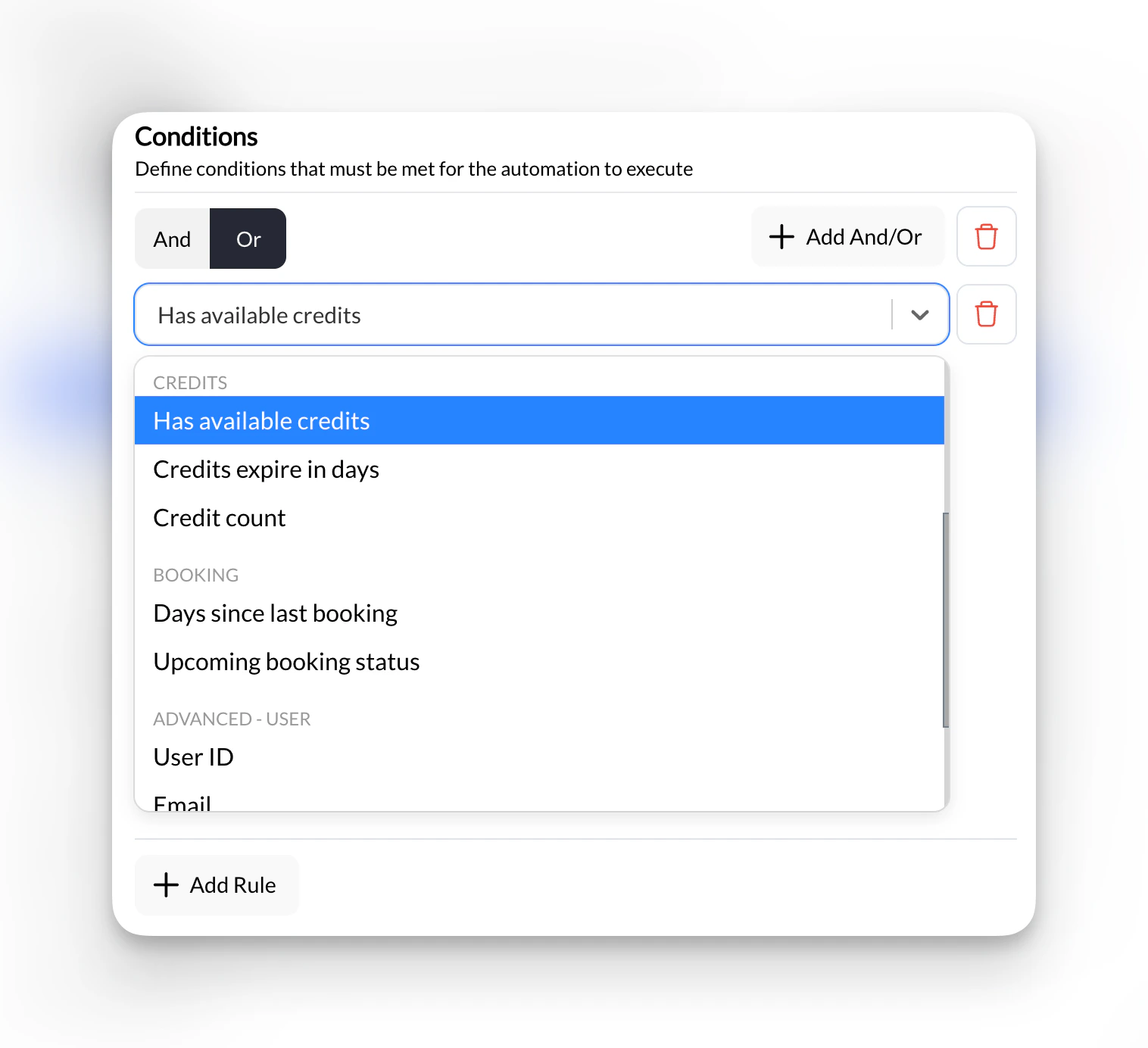
Scheduled automations require at least one condition. This prevents the automation from running for every single user in your system.
Required: You must set at least one condition on scheduled automations. The builder won’t let you activate without one.
Available Conditions
| Condition | What It Checks |
|---|
| Has a specific tag | User has this tag |
| Doesn’t have a specific tag | User doesn’t have this tag |
| Has active subscription | User is currently subscribed |
| Does not have an active subscription | User has no active subscription |
| Subscription active for X days | User has been subscribed for at least X days |
| Has available credits | User has at least 1 credit |
| Days since last booking is > X | User hasn’t booked in X+ days |
| Days until credits expire < X | User’s credits expire within X days |
| Credit count is X | User’s credits are less than / greater than / equal to X |
| Has upcoming booking | User has a booking today / this week / no upcoming bookings |
Combining Conditions
You can add multiple conditions to get more specific. All conditions must be true for a user to be included.
Example: Find members who are at risk of churning
- Has active subscription = Yes
- Days since last booking > 14
- Doesn’t have tag “On Vacation”
How Scheduled Automations Run
Here’s what happens when your scheduled automation fires:
- CoachIQ finds all users matching your conditions (up to 1,000 per run)
- Executes your actions once for each user found
- Logs the results so you can see who was contacted
Built-in spam prevention: CoachIQ won’t message the same person repeatedly. If someone matches your conditions two weeks in a row, they’ll only get the message once—unless their status changes (like booking a session, then going inactive again).
Example in action: Every Monday at 9am, find everyone whose credits expire in less than 7 days → Send each of them a personalized reminder with their credit count and expiration date.
Dynamic Fields for Scheduled Automations
These personalization fields are only available in scheduled automations. They let you include real-time data about each user’s credits, bookings, and activity.
Credit Fields
| Field | What It Inserts |
|---|
@User.CreditCount | Total available credits |
@User.CreditsExpiring | Number of credits expiring soon |
@User.CreditExpirationDate | Next expiration date |
@User.DaysUntilExpiration | Days until credits expire |
Example message:
You have @User.CreditsExpiring credits expiring in @User.DaysUntilExpiration days!
Book now before you lose them.
Booking Fields
| Field | What It Inserts |
|---|
@User.LastBookingDate | Date of their last booking |
@User.DaysSinceLastBooking | Days since last booking |
@User.NextBookingDate | Their next upcoming booking |
@User.BookingCountThisMonth | Number of bookings this month |
Example message:
We miss you! It's been @User.DaysSinceLastBooking days since your last session.
Come back this week?
Standard fields like @User.FirstName, @User.LastName, and @User.Email work in all automations, not just scheduled ones.
Common Scheduled Automations
These are the most popular scheduled automations coaches use. Full setup instructions are in the Automation Playbook.
| Automation | Schedule | What It Does |
|---|
| Credit Expiration Reminder | Weekly, Monday 9am | Alerts members whose credits expire within 7 days |
| Inactive Member Check | Weekly, Sunday 6pm | Re-engages members who haven’t booked in 14+ days |
| Weekly Schedule Release | Weekly, Monday 8am | Announces that the week’s schedule is open for booking |
| 3-Month Milestone | Monthly, 1st at 10am | Celebrates members hitting their 3-month anniversary |
| Daily Trial Alert | Daily, 7am | Notifies you about trial sessions happening today |
Tips for Scheduled Automations
Pick smart timing. Send messages when people are likely to see them—not at 3am. Sunday evening works great for “plan your week” messages. Monday morning works for schedule announcements.
Use tags to control frequency. For milestone messages, add a tag like “3-Month Member” when someone hits that milestone, then remove it after the automation runs. This prevents repeat messages.
Start weekly, go daily only if needed. Weekly checks work for most use cases. Daily checks are best for time-sensitive things like credit expirations or trial session alerts.
Test with a tag filter first. When setting up a new scheduled automation, add a condition like “Has tag = Test” and only tag yourself. Run it once to make sure it works before removing the filter.
What’s Next?