

Where to find this: Dashboard → Inbox → Create New → Announcement
What are announcements?
Announcements are your broadcast system for team-wide communication. Think of them as your digital bulletin board - one message that reaches everyone through multiple channels simultaneously.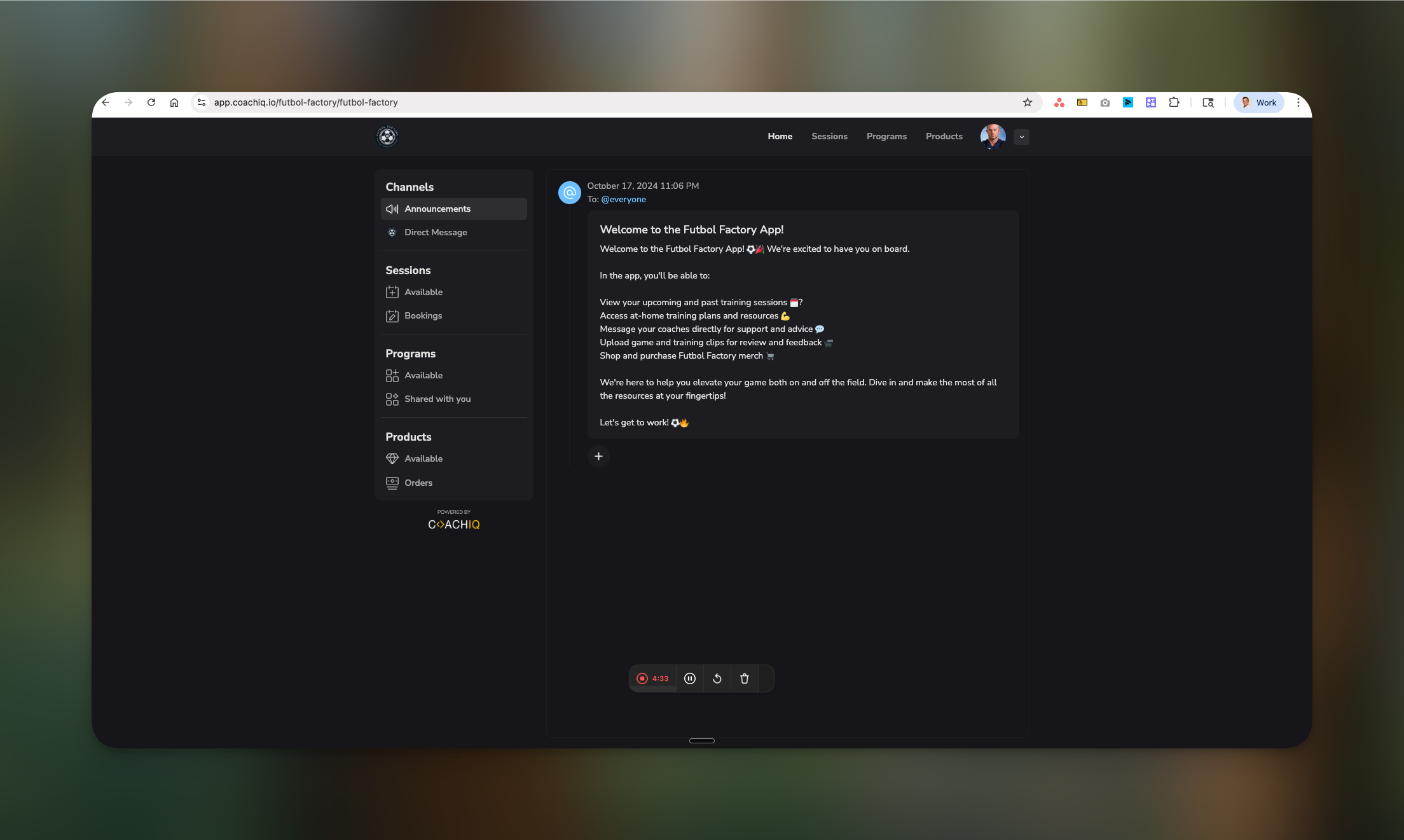
How athletes receive announcements
Professionally formatted email sent to their inbox
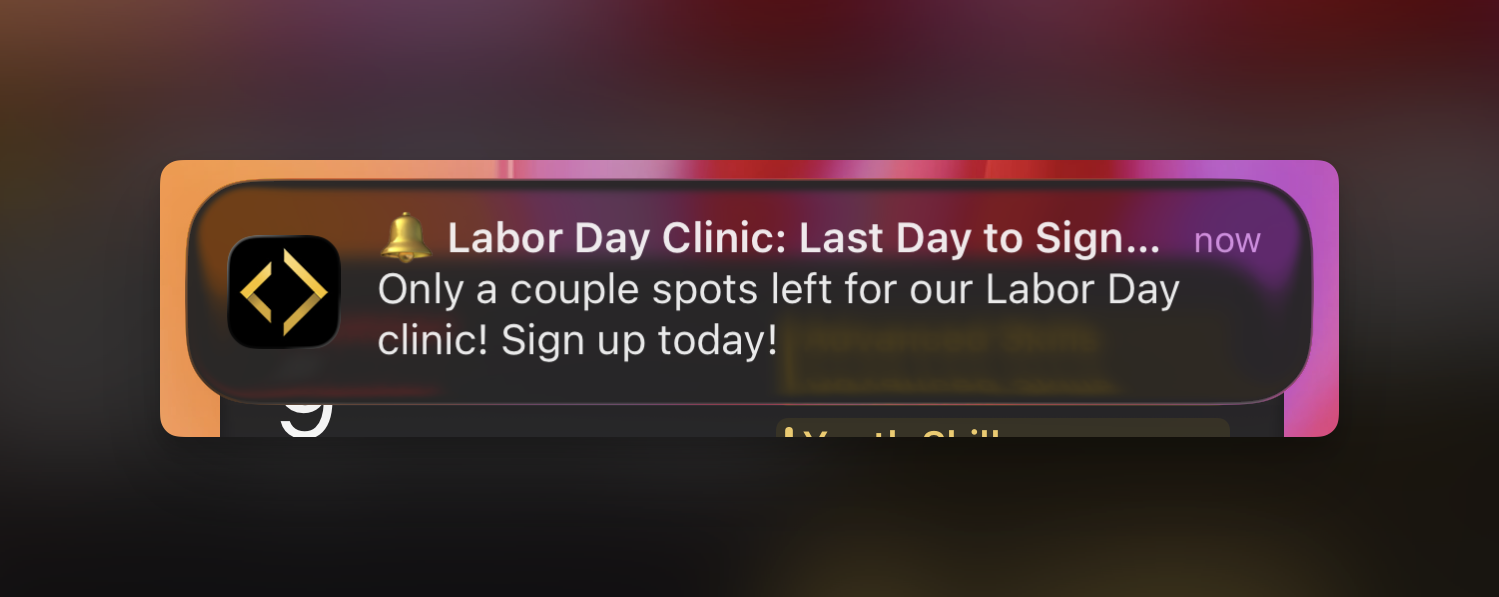
Push Notification
Instant alert on their mobile device
Channels
Permanent record in the app’s Announcements channel and in the athlete portal
Why use announcements?
Perfect for information that:- Affects the entire team or large groups
- Doesn’t require individual responses
- Should be documented and easily referenced
- Needs professional email formatting
- Weekly training schedules
- Tournament information
- Registration deadlines
- Team achievements
- Policy updates
- Seasonal information
What announcements cost
The in-app announcement is free. Each email copy uses 0.1 messaging credit, so an announcement that sends 100 email copies uses 10 credits. The same rate applies when an announcement is sent by an automation or integration. Check your balance in Settings → Communication → Credits before a large send. If insufficient credits block the email copies, the announcement still posts in-app; seeing the post does not confirm that its emails were delivered. See Messaging credits.Creating an announcement
1
Open announcement composer
Navigate to Inbox → Create New → Select Announcement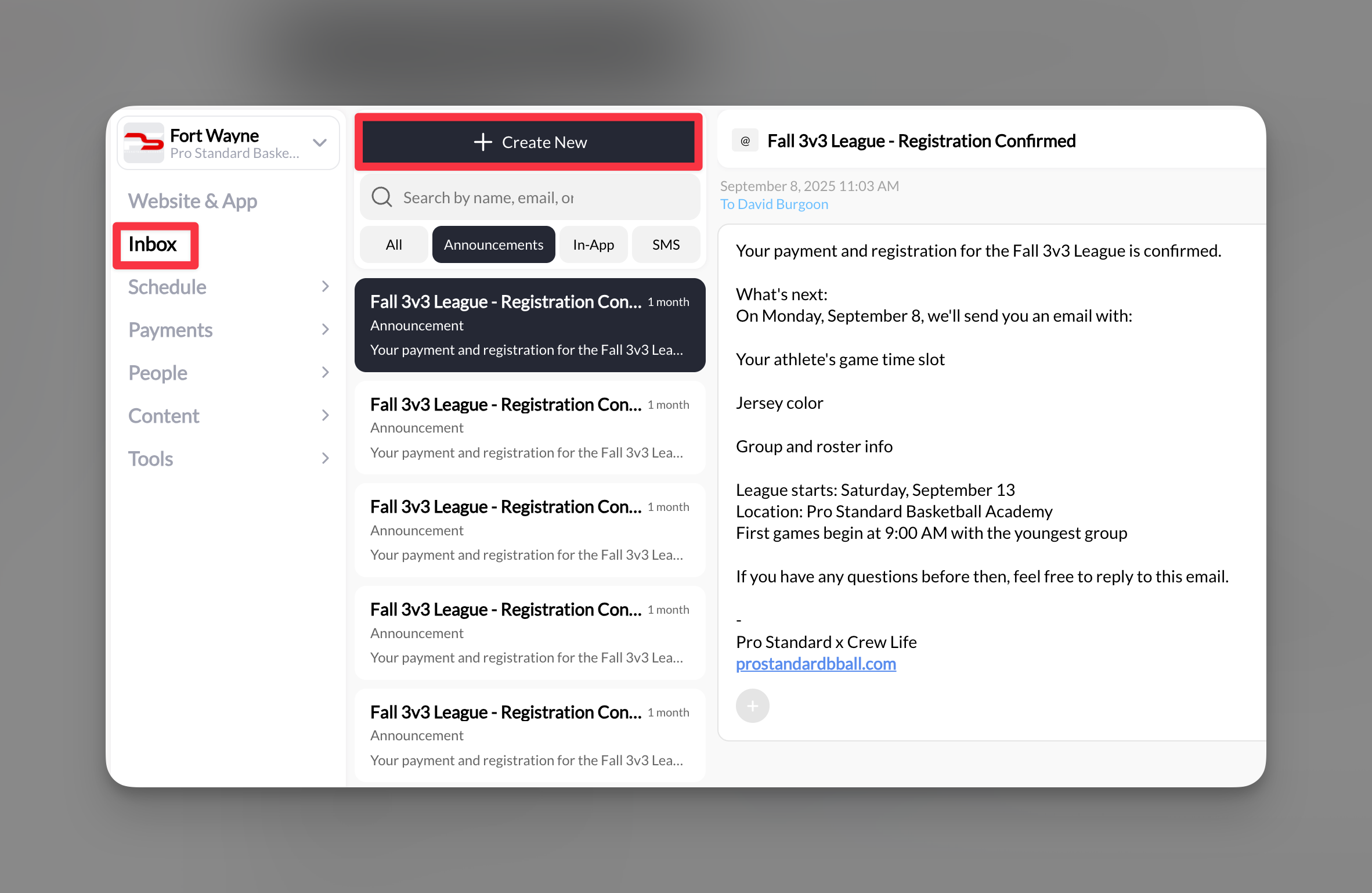
2
Select your recipients
In the “Send to” field, you can:
- Type “Everyone” to broadcast to all athletes
- Use tags to target specific groups (e.g., “Varsity Team”, “New Athletes”)
- Select specific individuals if needed
Recipient limit: 400 contacts per announcement by default. Larger organizations raise it with the User Limit Expansion Power-Up.
3
Add announcement heading
Enter a clear, descriptive heading. This becomes:
- The email subject line
- The push notification title
- The announcement title in the app
- “Week of March 15 - Training Schedule”
- “Spring Tournament Registration Now Open”
- “Important: Facility Closure March 20”
4
Compose your message
Write your announcement content. This appears as the email body and full announcement text.Format tips:
Team,
This week’s schedule has been updated to accommodate the tournament prep:
Monday & Wednesday: Regular practice 4-6pm
Tuesday: Film review 5-6pm (classroom)
Thursday: Extended practice 4-7pm
Friday: Rest day before tournament
Tournament bus departs Saturday at 7am SHARP from the main lot.
Please bring:Both uniforms
Water bottles
Snacks for the bus
Signed permission slipsSee you at practice! Coach Johnson
- Use line breaks for readability
- Include all essential information
- Add dates, times, and locations clearly
- Keep paragraphs short for mobile reading
Team,
This week’s schedule has been updated to accommodate the tournament prep:
Monday & Wednesday: Regular practice 4-6pm
Tuesday: Film review 5-6pm (classroom)
Thursday: Extended practice 4-7pm
Friday: Rest day before tournament
Tournament bus departs Saturday at 7am SHARP from the main lot.
Please bring:Both uniforms
Water bottles
Snacks for the bus
Signed permission slipsSee you at practice! Coach Johnson
5
Add attachments (optional)
Click + Attach to include: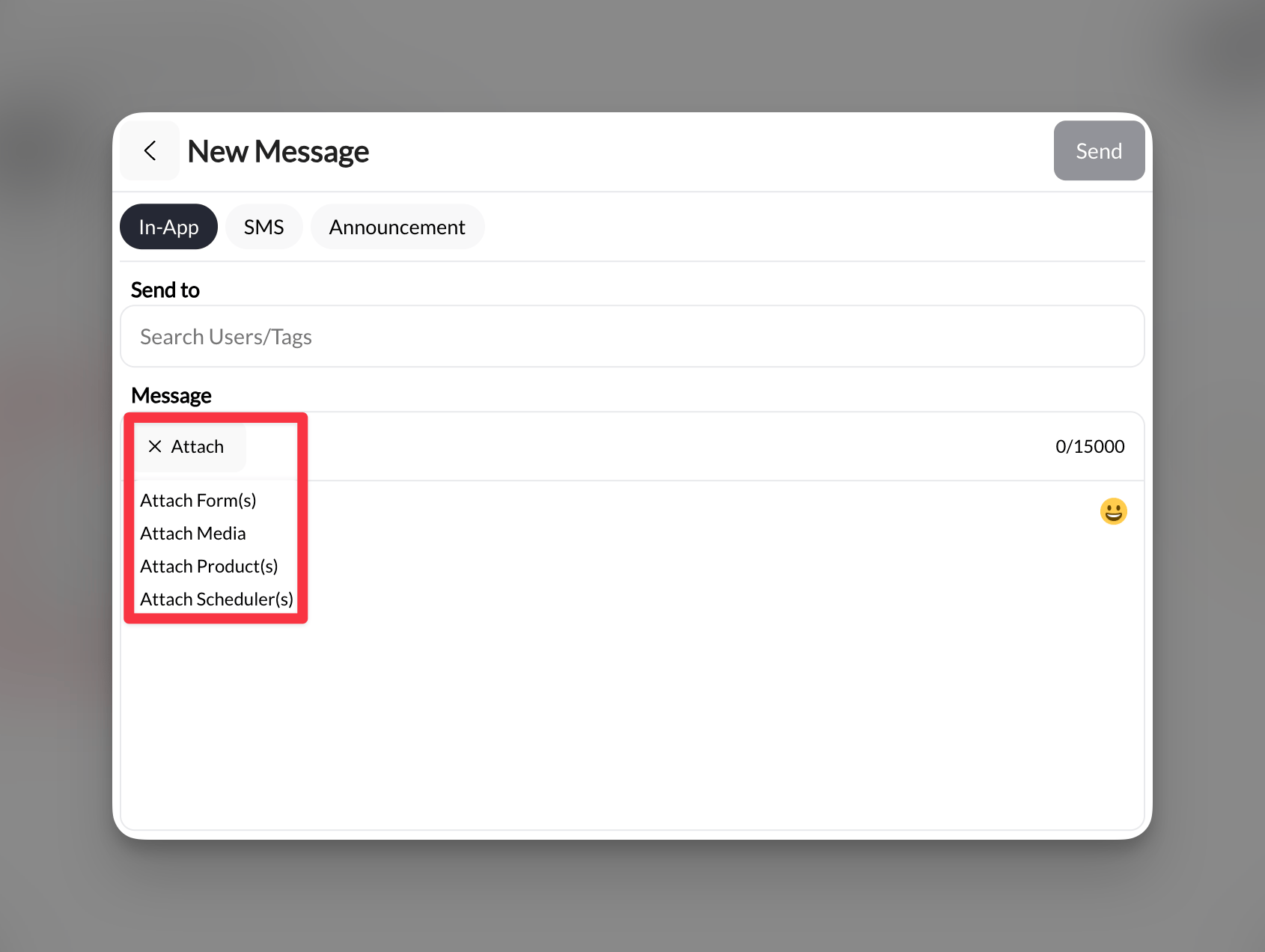
- Forms: Tournament signups, permission slips
- Media: Schedule graphics, facility maps
- Products: Camp registrations, merchandise
- Scheduler: Special training sessions
6
Configure reply settings
By default, email replies go to your configured reply-to address (Settings → Organization → Reply-to Email). If the field is blank, replies go to your organization’s main admin email, not to CoachIQ.
7
Send announcement
Click Send to broadcast immediately to all selected recipients.
Delivered! Your announcement is sent via email and push notification.
How announcements appear to athletes
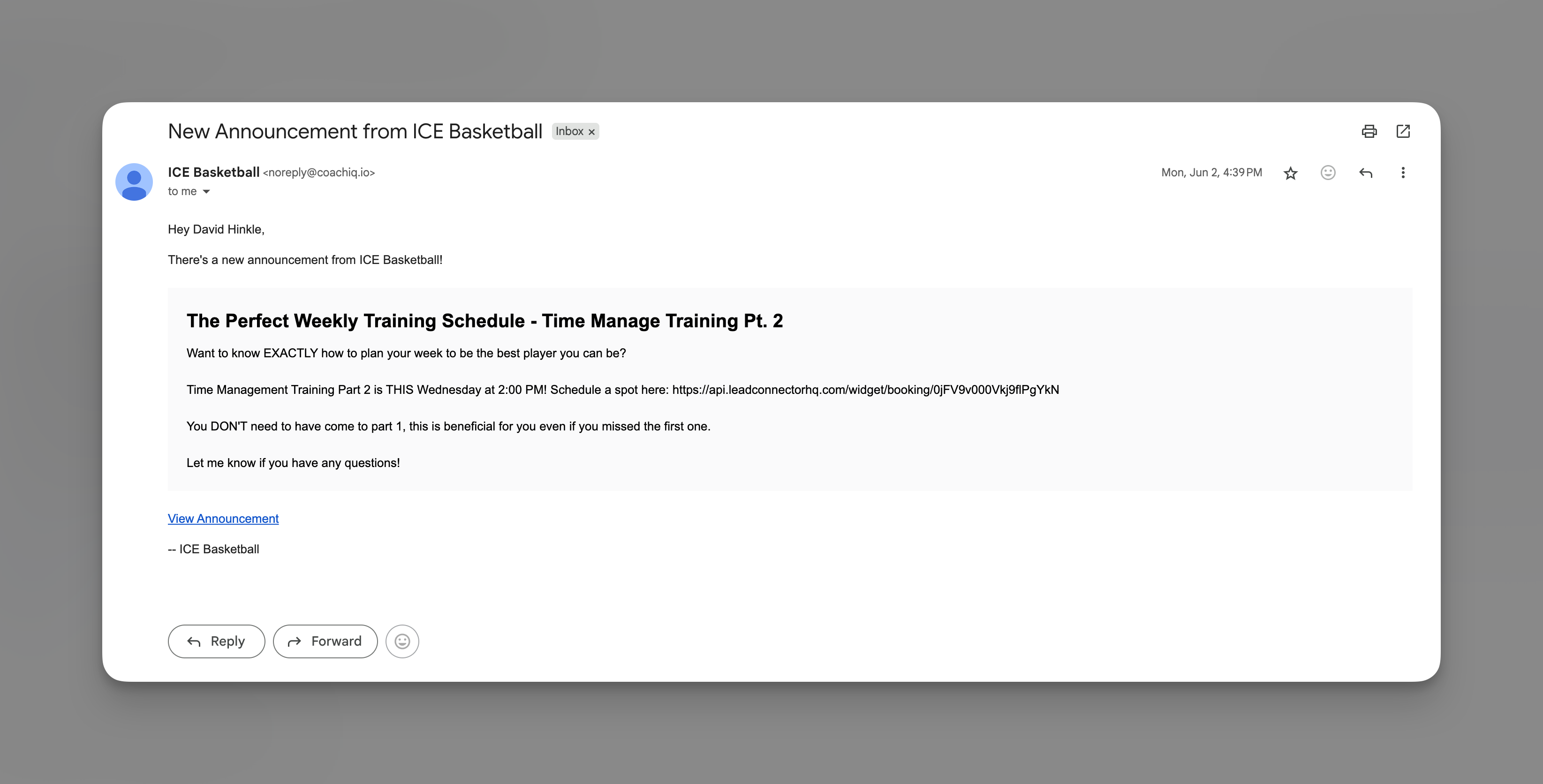
Email version
- Professional HTML-formatted email
- Clear heading and formatted text
- Attachment buttons for easy action
- Reply option (goes to your reply-to email)
Push notification
- Instant alert on their phone
- Shows announcement heading
- Tap to open full announcement in app
Channels section
- Permanent record in Announcements channel
- Chronological list of all announcements, with the pinned announcement (if any) first
- Athletes can reference anytime
- Never expires or disappears
- Athletes and parents can react to an announcement (see Reactions)
Find an older announcement in the mobile app
Announcement history lists the newest posts first. Scroll to load older posts, open the one you need, and use Back to return to the list. From the list, Back returns to Home. This makes older notices available without searching through individual message threads.Pin an announcement
Pin one existing announcement so it shows first for everyone who could already see it. Pinning does not change who can see it, and it does not send it to anyone new. A pinned announcement sits at the top of the Announcements feed in both the mobile app and the athlete portal, so a schedule change or a deadline is not buried by newer posts. Open the announcement in your Inbox (the Announcements channel filters to them), click the ⋯ menu at the top right of the conversation, and choose Pin Announcement. The same menu holds Edit Announcement and Delete Announcement.Reactions
Athletes and parents can acknowledge an announcement with a reaction. Under each announcement they see a fixed row of four chips:
Tapping a chip adds it to the announcement as a count pill showing how many people picked it. Tapping the same chip again removes their reaction. There is no full emoji picker on announcements, and no reply thread; reactions are a quick acknowledgement, not a conversation.
On your side, open the announcement in the Inbox and the same pills appear under the body (for example ❤️ 1, 🔥 3), alongside the Archive button and the ⋯ menu in the header.
Managing announcements
Viewing sent announcements
- All sent announcements appear in your Inbox
- Filter by “Announcements” tab to see only broadcasts
- Click any announcement to see details and recipients
Editing announcements
Open the announcement, click ⋯ at the top right, and choose Edit Announcement to fix a typo or update details. Edits change what athletes see in the app going forward; emails and push notifications that already went out are not recalled.Deleting announcements
Unlike messages, announcements CAN be deleted. Open the announcement, click ⋯, and choose Delete Announcement:- Removes from your Inbox view
- Does NOT remove from athletes’ Channels or emails already sent
Tracking engagement
- No read receipts available
- Reaction count pills show how many people acknowledged the announcement (see Reactions)
- Consider adding “React 👍 to confirm” for important updates
Best practices
Writing effective announcements
Writing effective announcements
Structure for scanning:
- Lead with most important information
- Use clear headings for sections
- Bullet points for lists
- Bold for dates and times
- Who, what, when, where, why
- Include all necessary details
- Add backup contact info
- Specify response requirements
Timing your announcements
Timing your announcements
Best send times:
- Weekday evenings (6-8pm) for next-day info
- Sunday evenings for weekly schedules
- 48-72 hours notice for schedule changes
- Late night sends (unless emergency)
- During school/work hours
- Multiple announcements in one day
Using attachments effectively
Using attachments effectively
- Forms: “Complete this form by Friday”
- Schedulers: “Book your player evaluation”
- Products: “Register for summer camp”
- Media: Visual schedules, facility maps, instruction videos
Announcement vs other message types
Common questions
Can athletes reply to announcements?
Can athletes reply to announcements?
Athletes can reply via email, which goes to your configured reply-to address. These replies do NOT appear in your CoachIQ Inbox.
How do I increase the 400 recipient limit?
How do I increase the 400 recipient limit?
The User Limit Expansion Power-Up raises the cap on athletes and on announcement, SMS, and email recipients. It appears in Power-Ups for organizations approaching the limit.
Can athletes reply with any emoji?
Can athletes reply with any emoji?
No. Reactions are limited to the four chips (👍 ❤️ 🙏 🔥), and each person can add or remove their own reaction. There is no comment thread on announcements.
Can I schedule announcements for later?
Can I schedule announcements for later?
Currently, announcements send immediately. For scheduled sends, prepare your content and send manually at the desired time.
Do announcements work if athletes don't have the app?
Do announcements work if athletes don't have the app?
Yes, they can receive the email copy without installing the app. Each copy uses messaging credits; a posted announcement does not by itself confirm email delivery. See What announcements cost.
Can I pin more than one announcement?
Can I pin more than one announcement?
No. A group has only one pinned announcement. Pinning a different one replaces the current pin.
Does pinning send the announcement to everyone?
Does pinning send the announcement to everyone?
No. Pinning does not change who can see it. It only shows first for people who could already see that announcement.
Can I edit an announcement after sending?
Can I edit an announcement after sending?
Yes. Open it, click ⋯, and choose Edit Announcement. The edit updates what athletes see in the app and portal; emails and push notifications that already went out are not recalled, so send a follow-up if the change matters.
Pro tips
Related articles
- In-App Messages - Direct Athlete Communication
- SMS Messages - Setup and Best Practices
- Using Tags for Group Messages
- Attaching Forms, Sessions, and Products