

Where to find this: Dashboard → App Builder → Content
What you’ll accomplish
Set up and organize your training programs, certifications, and resources so athletes can easily access content from their mobile app or web portal. You’ll learn how to create sections, control access levels, and optimize the layout for maximum engagement.Before you begin
Required: At least one program must exist in Content → Programs before you can display it in the Athlete Portal.
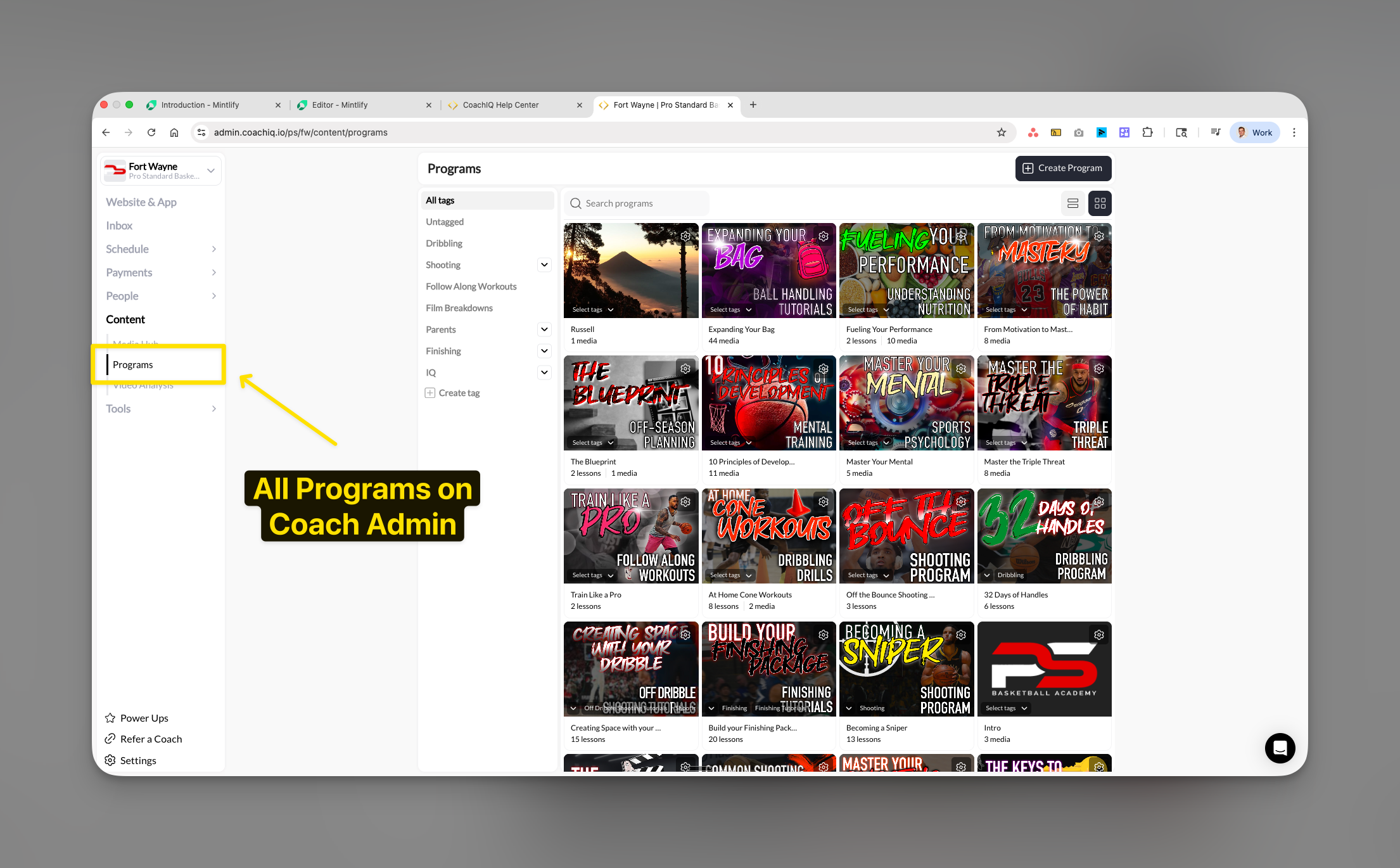
Understanding the Programs page
The Programs page displays training content, certifications, and educational resources that athletes access at their own pace.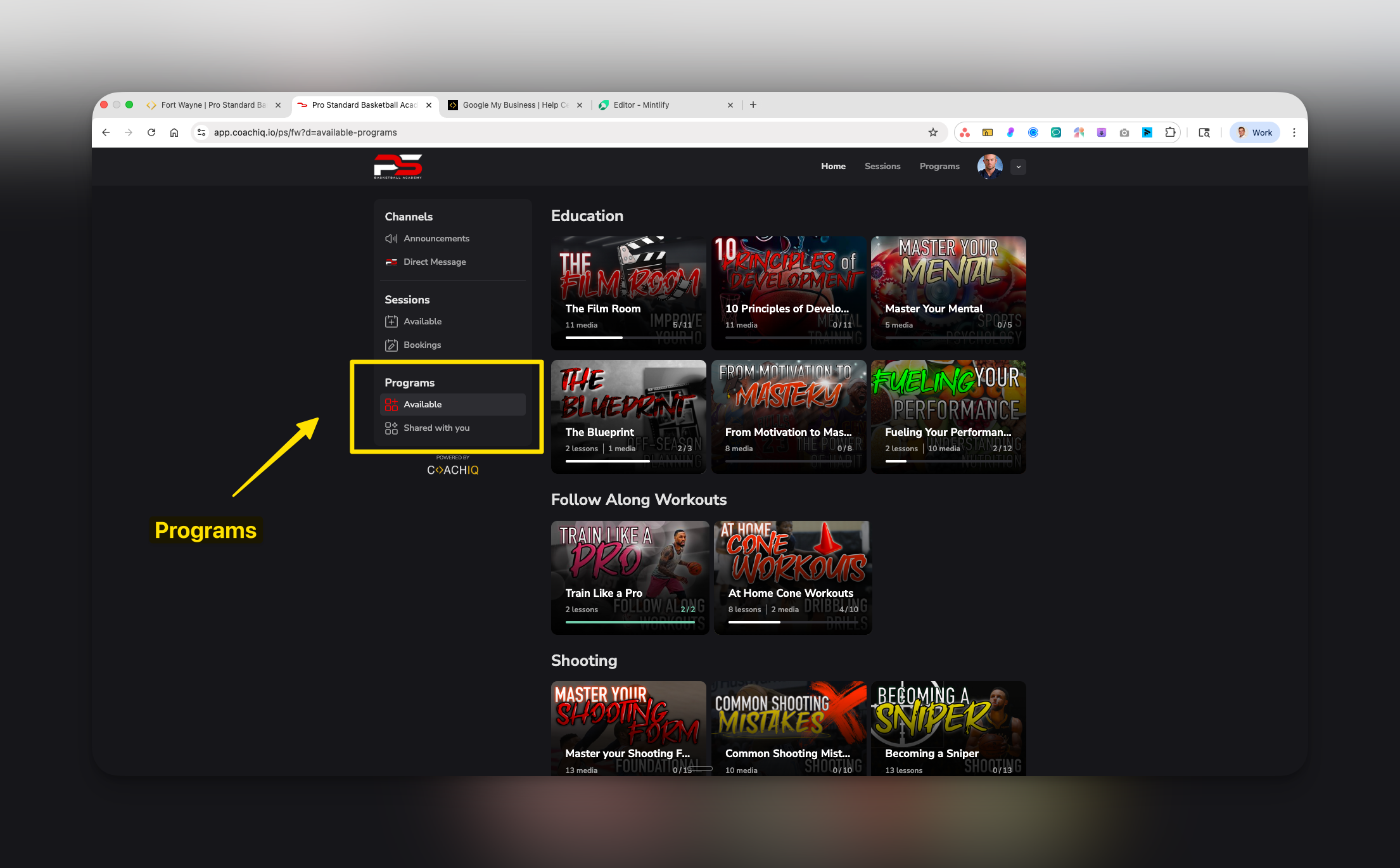
Programs vs Sessions distinction
- Quick Reference
- When to Use
Athlete view components
- Program thumbnails with visual previews
- Lesson and media counts (format: “X lessons • Y media”)
- Completion progress for started programs
- Section-based organization
Accessing program settings
1
Navigate to App Builder
From your dashboard, select App in the left sidebar.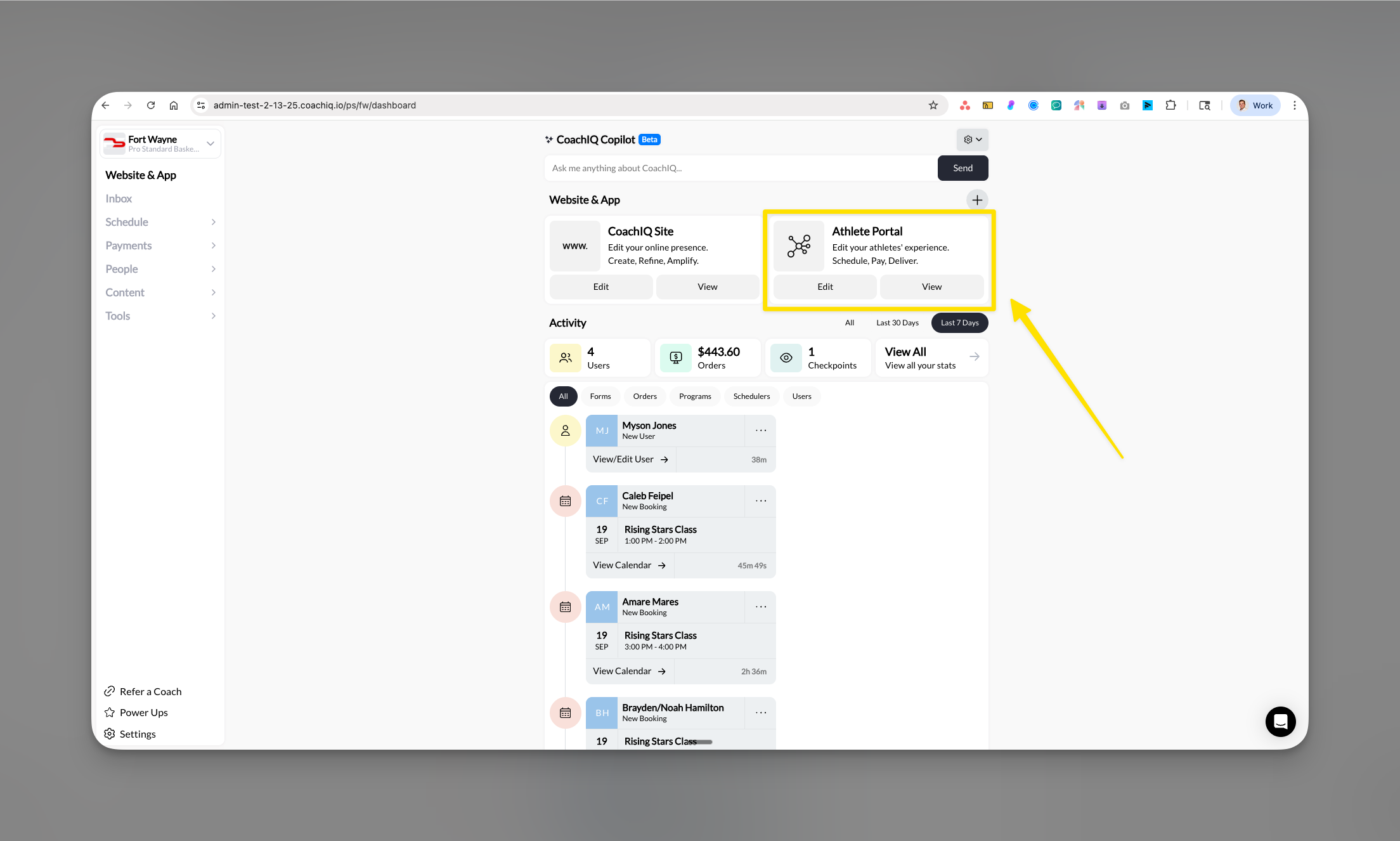
2
Select Content tab
Click on the Content tab in the main navigation.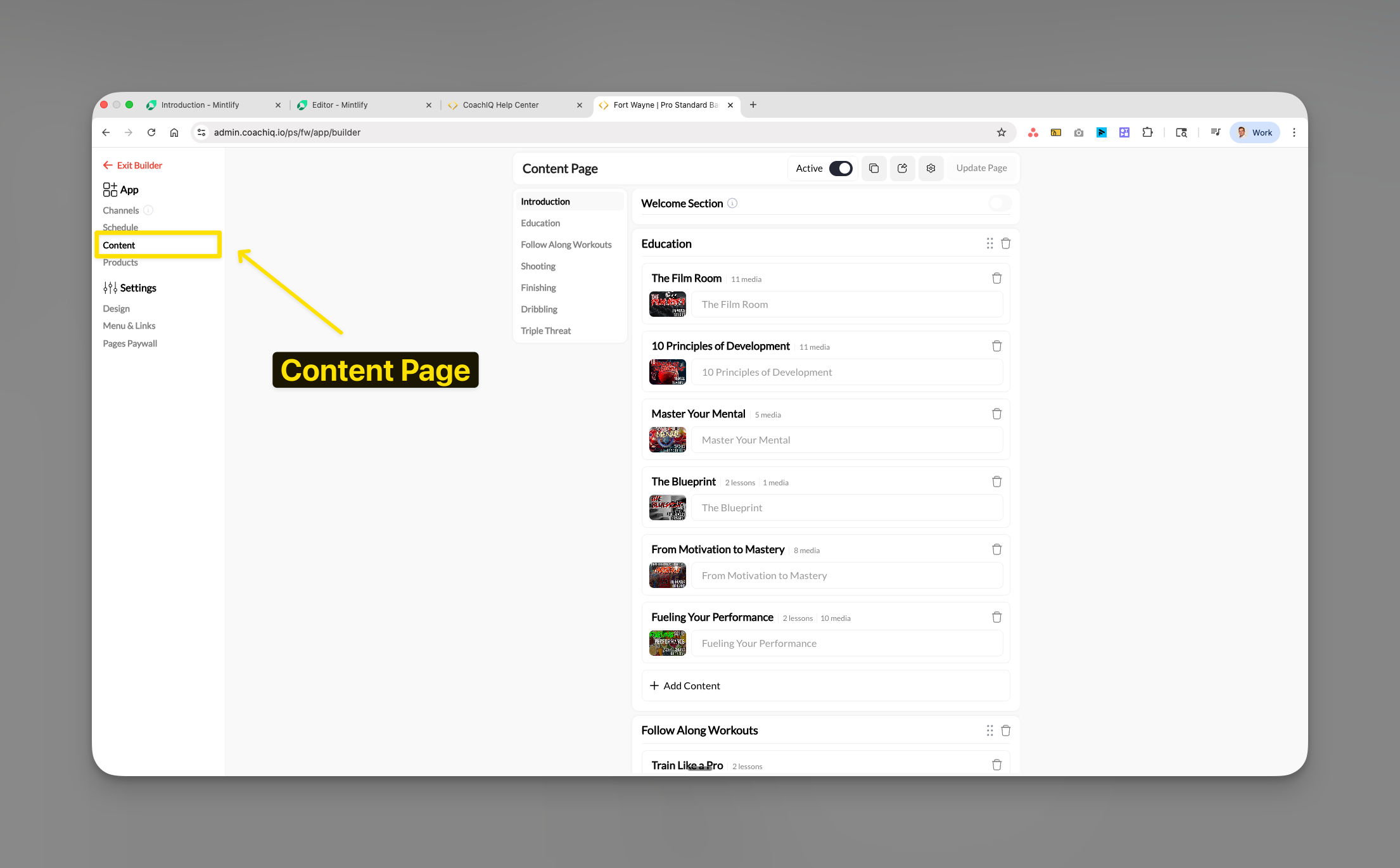
3
Choose Programs
Select Programs from the content options to access your program configuration page.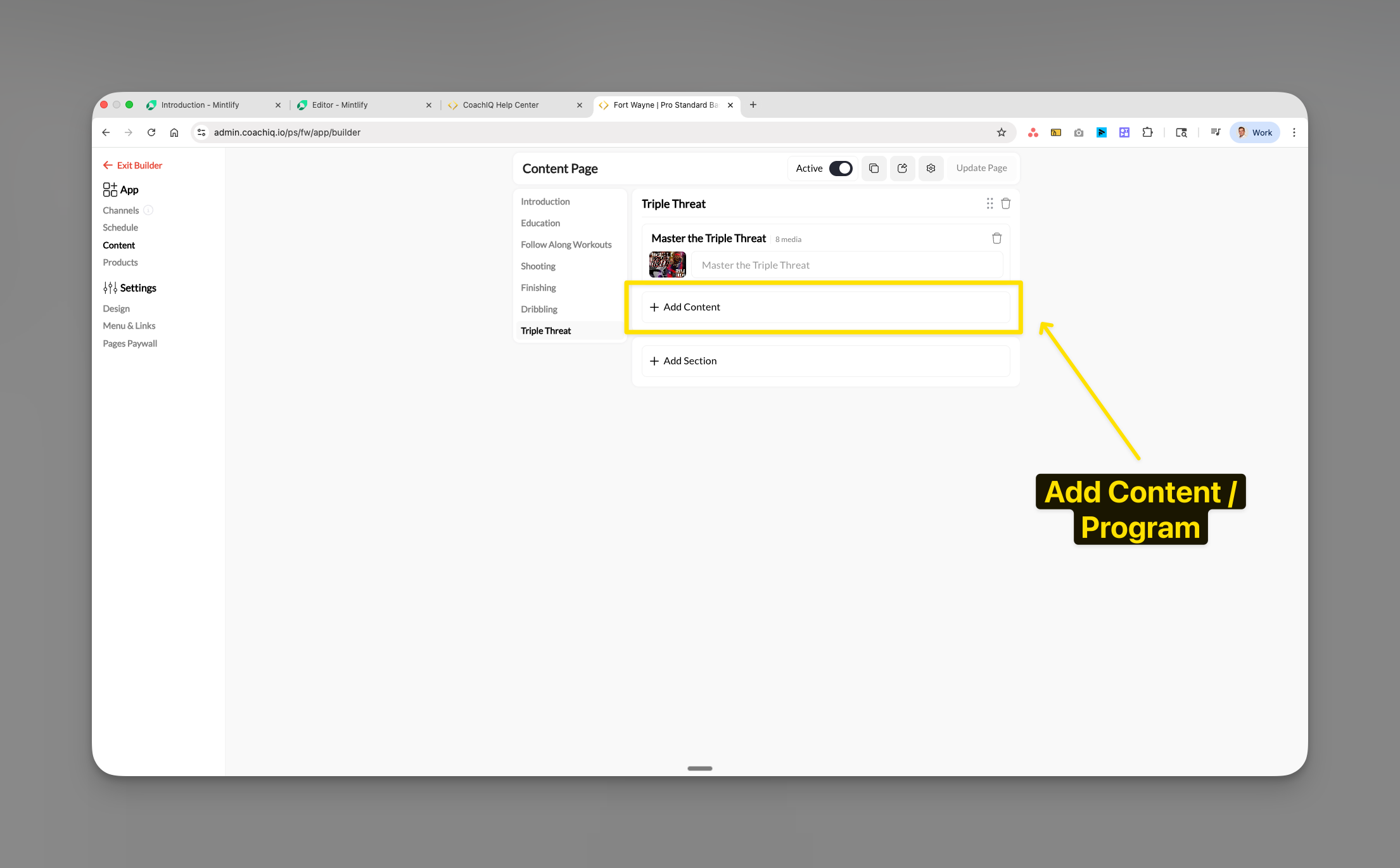
Activating the Programs page
Control athlete visibility of the Programs section through the Active toggle.1
Locate the Active toggle
Find the Active toggle in the top right corner of the Programs page.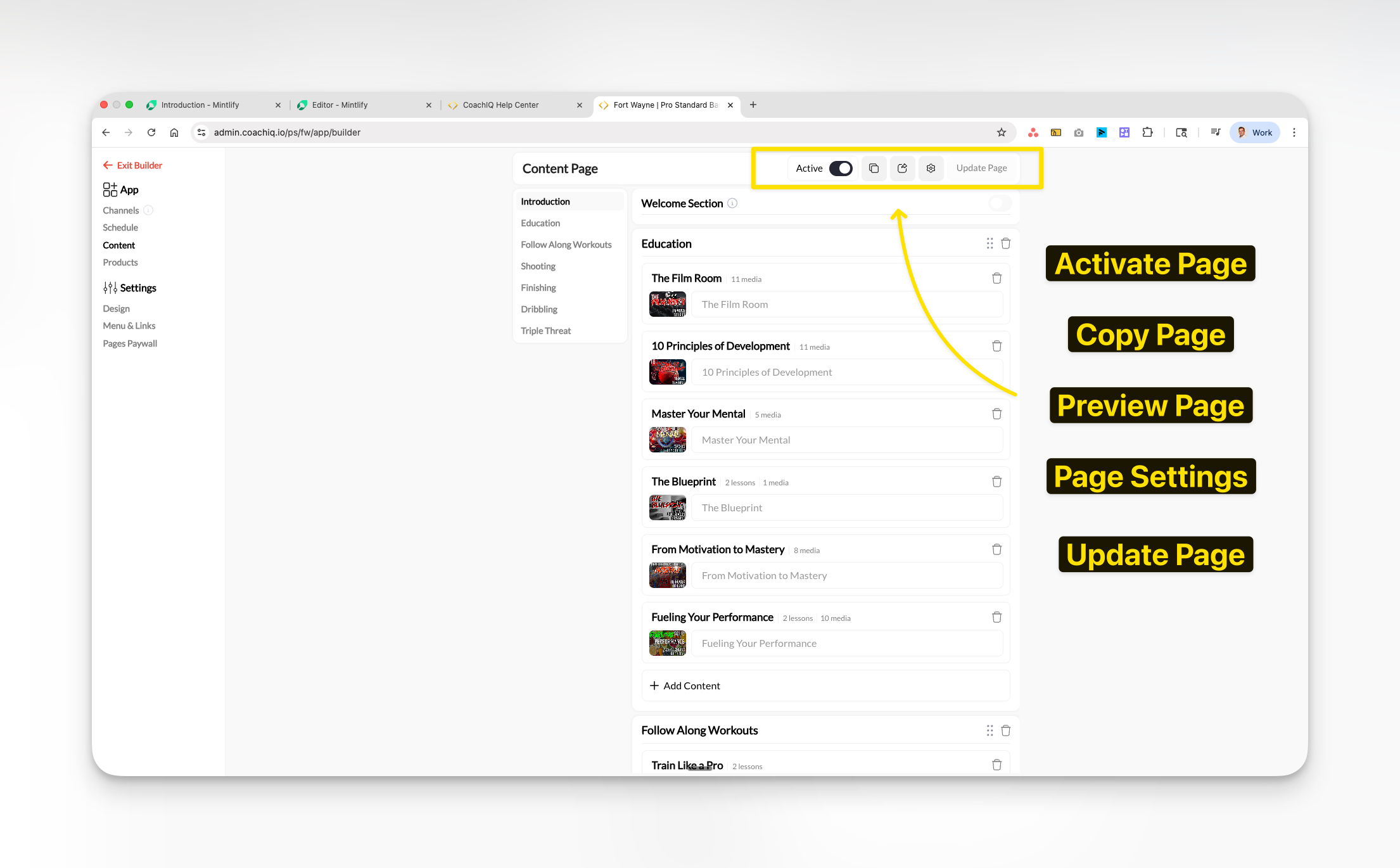
2
Toggle visibility
- ON: Programs visible to all athletes in their portal
- OFF: Programs completely hidden from athlete view
3
Update the page
Click Update Page to save your changes.
Adding individual programs
1
Click Add Content
In any section, click the + Add Content button.
2
Select programs
The selection modal displays:
- Thumbnail image
- Program title
- Lesson and media count
3
Confirm selection
Click Save to add selected programs.
Programs appear immediately with thumbnails and details visible.
Creating and managing sections
Sections organize programs into logical categories for easier navigation.Adding a new section
1
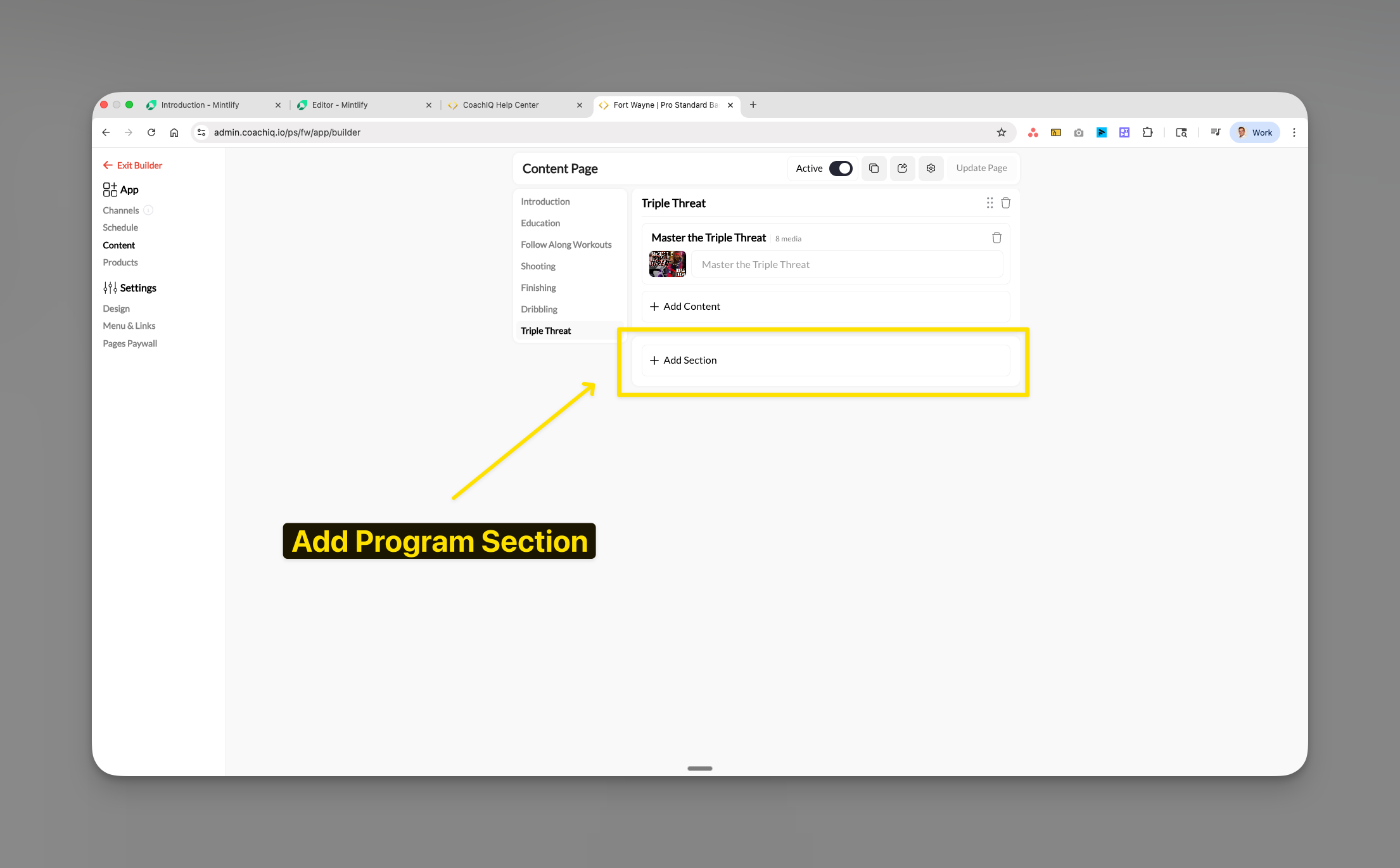
Click Add Section
Click + Add Section at the bottom of your program list.
2
Name your section
Enter a descriptive name. Examples:
- “Education”
- “Triple Threat”
- “Follow Along Workouts”
- “Beginner Fundamentals”
- “Elite Training”
3
Start adding programs
Use + Add Content within the new section to add programs.
Setting up a Welcome Section
The Welcome Section prominently displays one featured program at the top of your Programs page.1
Locate Welcome Section
Find the Welcome Section field at the top of Programs configuration.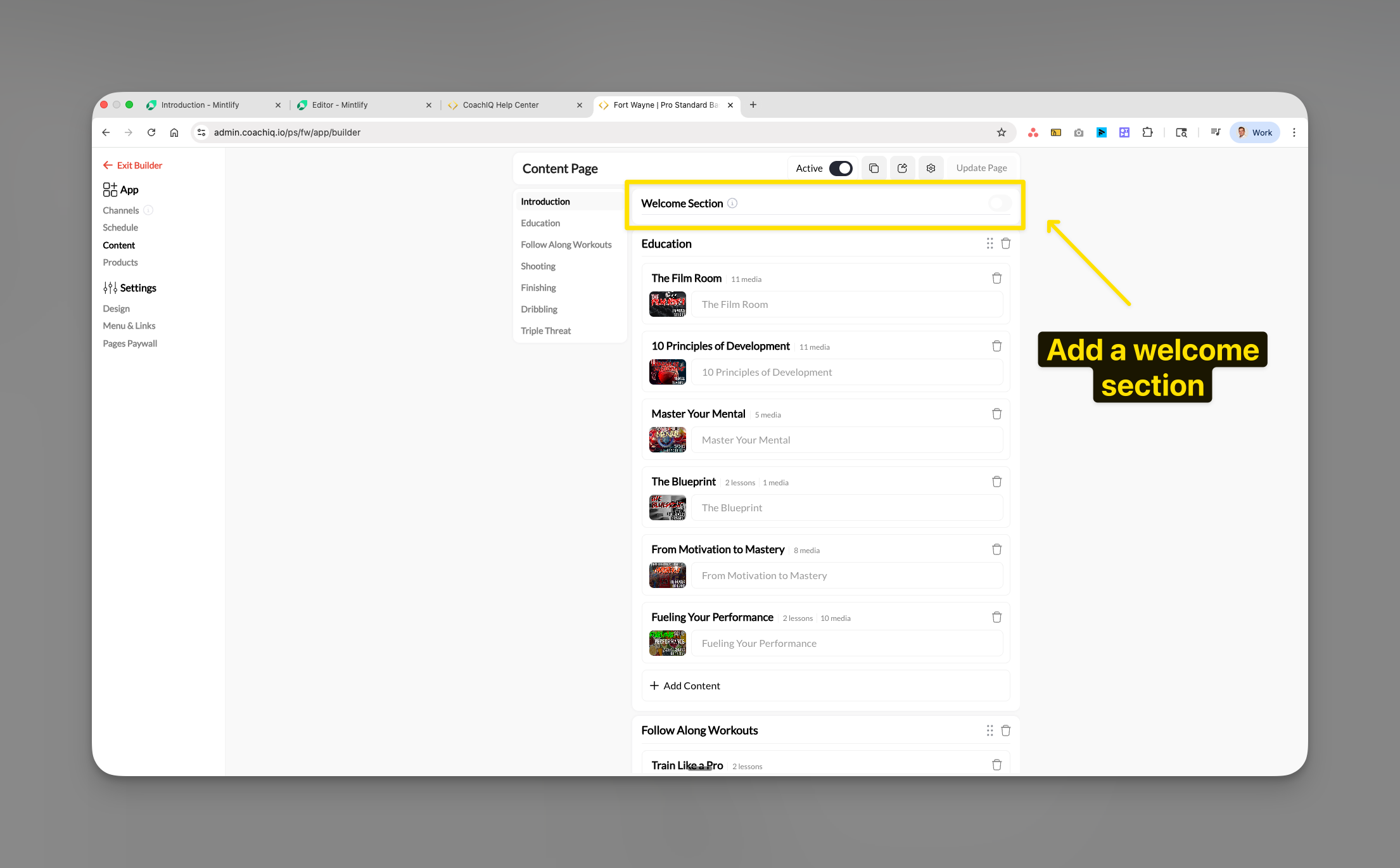
2
Select featured section
Choose which section becomes the welcome section. The first program in this section receives featured treatment.
Organizing your Programs page
Reordering sections
- Hover over the section to move
- Click and hold the drag handle (⋮⋮)
- Drag to new position
- Release to place
Position your foundational content at the top for immediate visibility.
Deleting sections
- Click the trash icon (🗑️) next to section name
- Confirm deletion
Program access and sharing settings
1
Open program settings
Click Share on any program.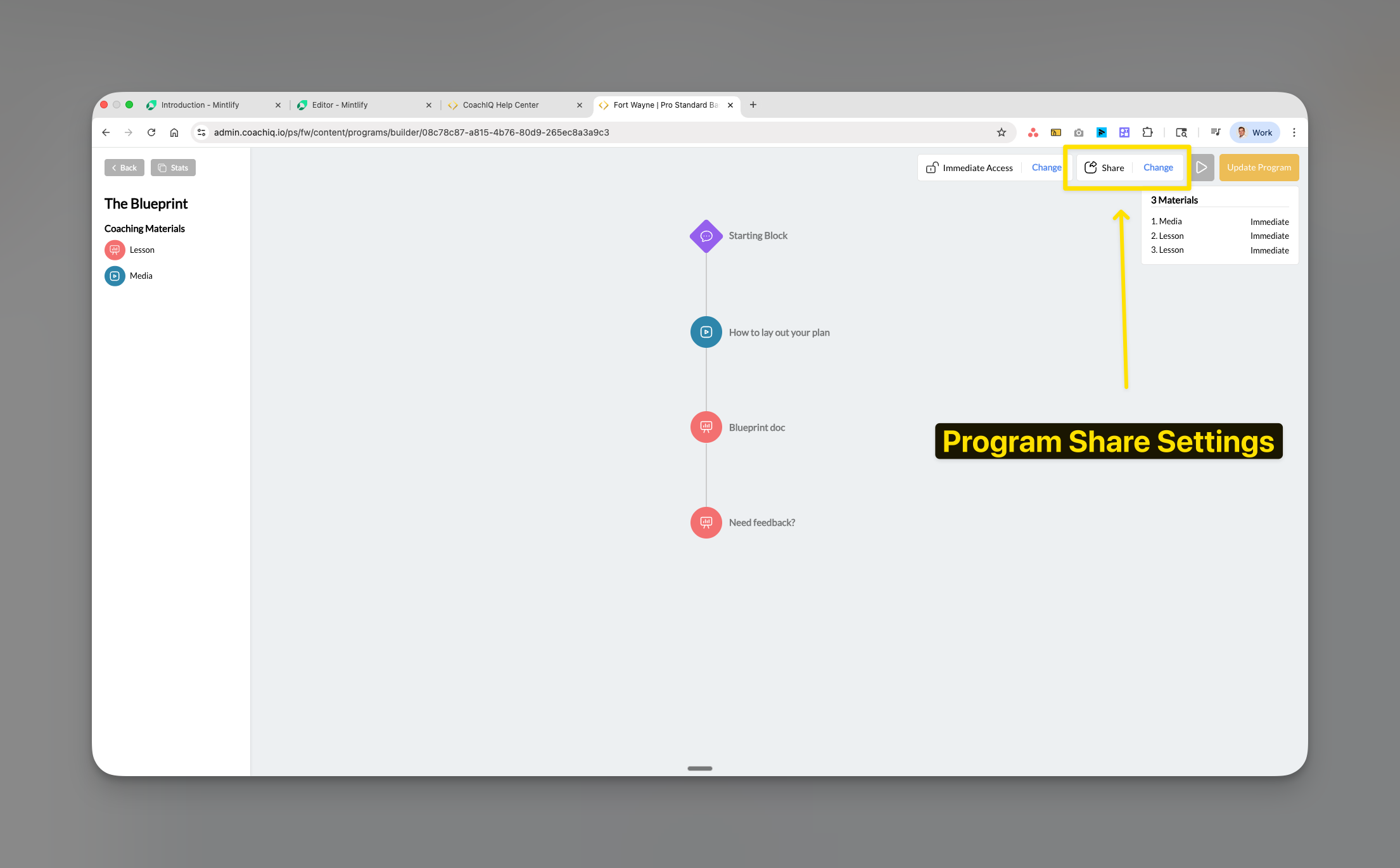
2
Choose access type
- Free
- Paywalled
- Private
Free Access
- Open to all athletes
- No payment required
- Great for introductory content
- Builds trust and engagement
3
Configure private access
For Private programs, toggle ON to restrict visibility to assigned athletes only.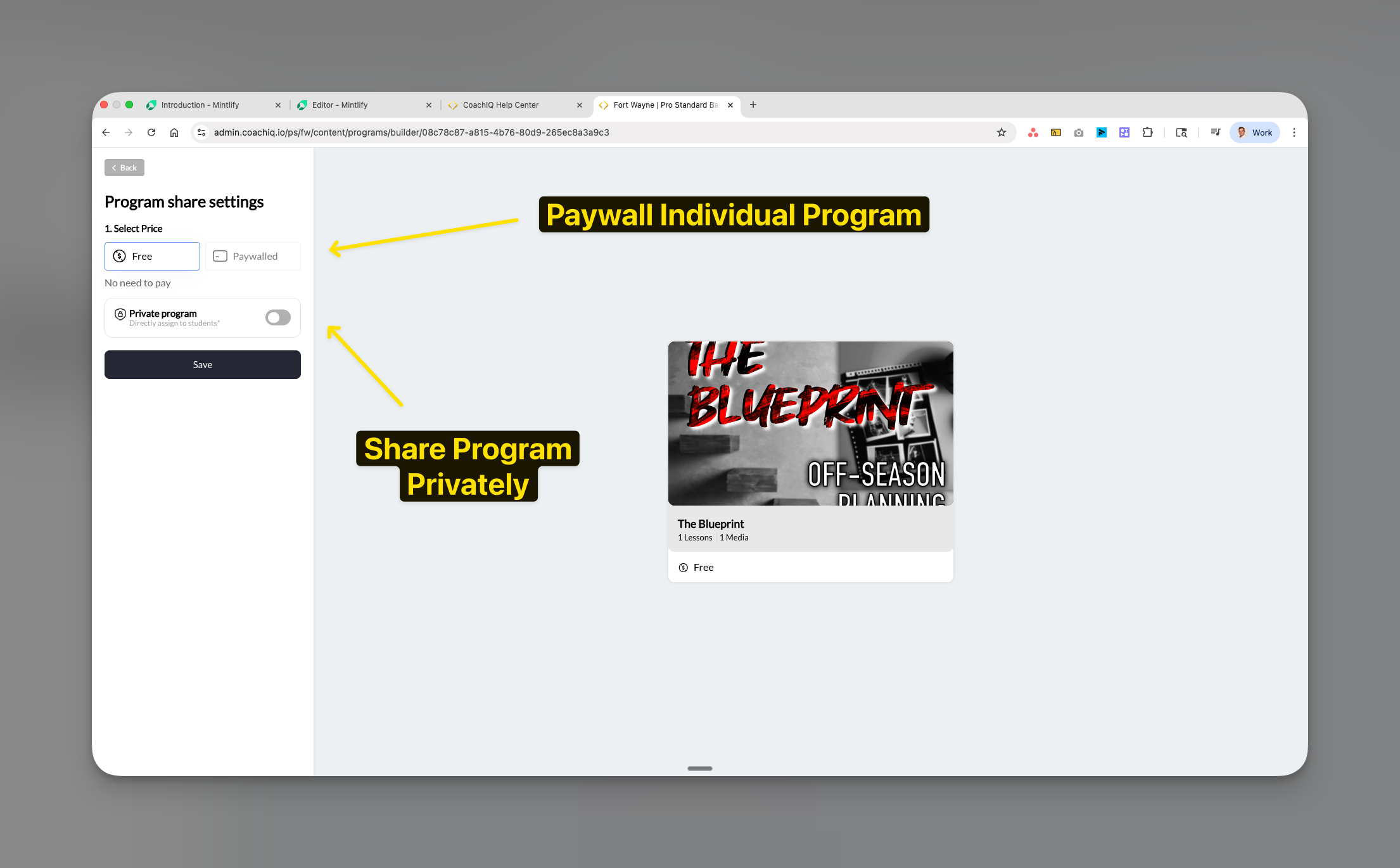
- Elite athlete exclusive content
- Beta testing new programs
- Personalized training plans
- Team-specific content
4
Save settings
Click Save to apply access configuration.
Page settings
Use the Settings panel to rename the Programs tab and update the page URL.1
Open the Settings panel
Click the gear icon in the top right of the Programs page to open the Settings panel.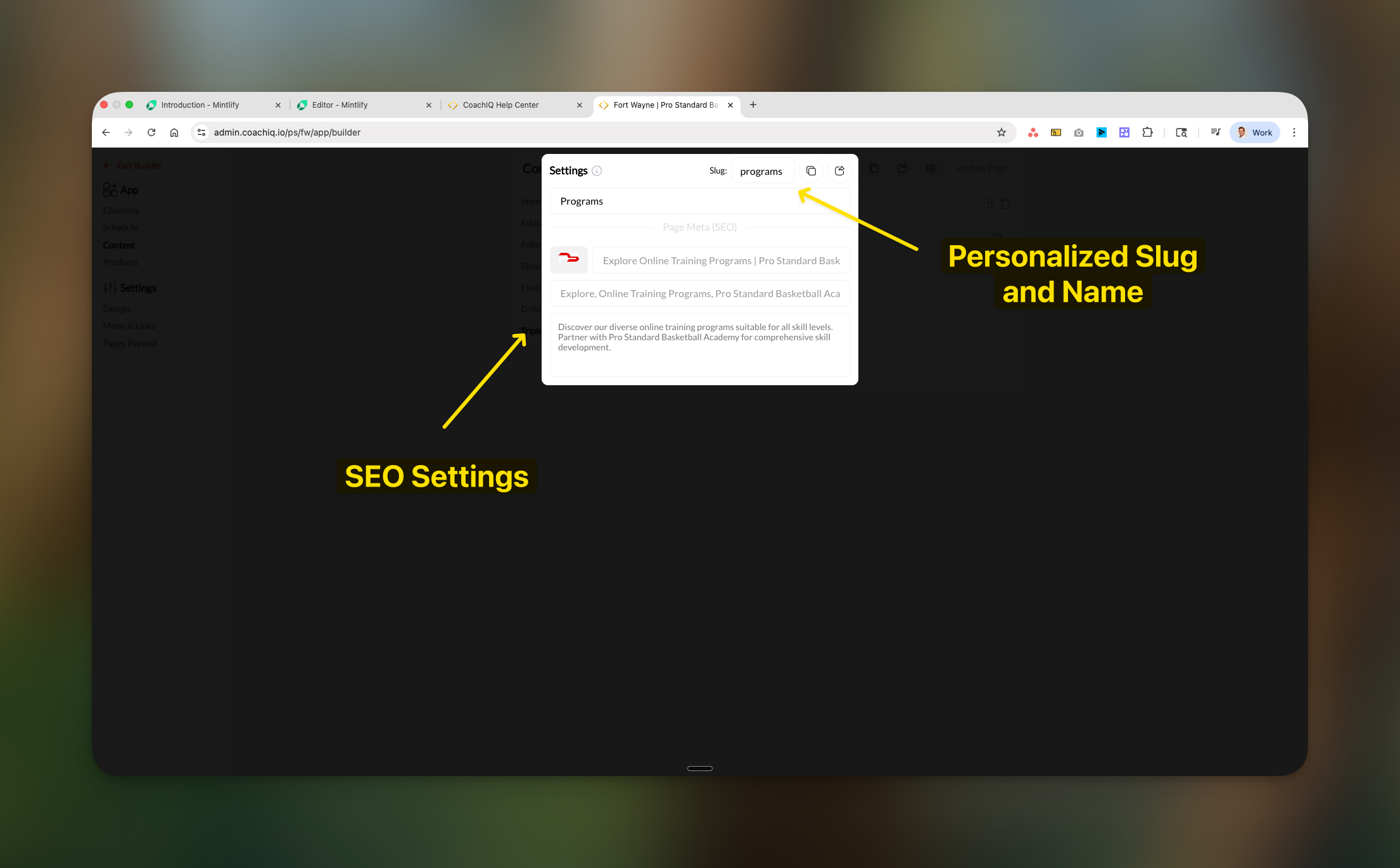
2
Rename the page
The first field at the top of the Settings panel is the Page Name — the display name athletes see as the tab in their portal. Update it to match your branding (e.g., “Training”, “Content”, “Resources”).
3
Update the URL slug
The Slug field controls the URL path for this page (e.g.,
/programs, /training).4
Configure description
Add a Description for SEO context.
5
Save changes
Click Update Page to apply settings.
Previewing the athlete experience
1
Click Preview Page
Select Preview Page from the action menu.
2
Review the layout
Verification checklist:
- Section order correctness
- Thumbnail display quality
- Title and description clarity
- Welcome section prominence
3
Test different devices
Preview on:
- Desktop/laptop
- Tablet
- Mobile phone
Publishing your changes
1
Review all settings
Verify sections, programs, and access levels.
2
Click Update Page
Click Update Page to publish.
Changes apply immediately. Currently logged-in athletes see updates upon refresh or navigation.
Common questions
Where do I create new programs?
Where do I create new programs?
Programs are created in Content → Programs in your main admin dashboard. The App Builder only controls display configuration.
Why can't athletes see certain programs?
Why can't athletes see certain programs?
Diagnostic steps:
- Programs page Active toggle → Must be ON
- Program access setting → Check if Private or Paywalled
- Athlete status → Verify purchase or assignment
- Platform → iOS/Android have purchase restrictions
Can athletes search or filter programs?
Can athletes search or filter programs?
No search/filter capability currently exists. Structure your sections thoughtfully for easy navigation.
How does progress tracking work?
How does progress tracking work?
Progress percentage = (completed items ÷ total items) × 100Each lesson or media file completed counts toward the total.
Can I assign different programs to different athletes?
Can I assign different programs to different athletes?
Yes. Private program setting enables athlete-specific assignment for personalized content delivery.
Do sections collapse or expand?
Do sections collapse or expand?
Sections remain expanded for immediate content visibility on all devices.
Troubleshooting
Programs not appearing in selection modal
- Verify: Programs exist in Content → Programs
- Confirm: Programs are published (not draft)
- Action: Refresh App Builder page
Athletes report missing programs
- Check: Programs page Active toggle → Must be ON
- Check: Program access type → Not Private without assignment
- Check: Payment status → Purchase complete for paywalled
- Check: Platform restrictions → iOS/Android restrict in-app purchases
Thumbnails not displaying correctly
- Thumbnails configured in Program Builder only
- Cannot override in App Builder
- Verify proper aspect ratio in source
Section organization issues
- Confirm drag handle engagement
- Test in different browser if needed
- Always Update Page after reorganizing