

Where to find this: Dashboard → People → Clients → New User button (top right)
What you’ll accomplish
Learn how to add individual clients to CoachIQ, bulk import your entire roster from a spreadsheet, edit client details as information changes, and add custom fields to track what matters most to your business.When to add clients manually vs bulk import
Choose your method based on your situation:- Manual Entry (Best for...)
- Bulk Import (Best for...)
Use the “New User” button when:
- Adding 1-5 clients at a time
- Someone just signed up on your website
- You’re onboarding a trial client
- You need immediate access to book them into a session
- You want to assign specific tags and roles during creation
Adding clients manually
1
Click 'New User' button
From People → Clients, click the New User button in the top-right corner.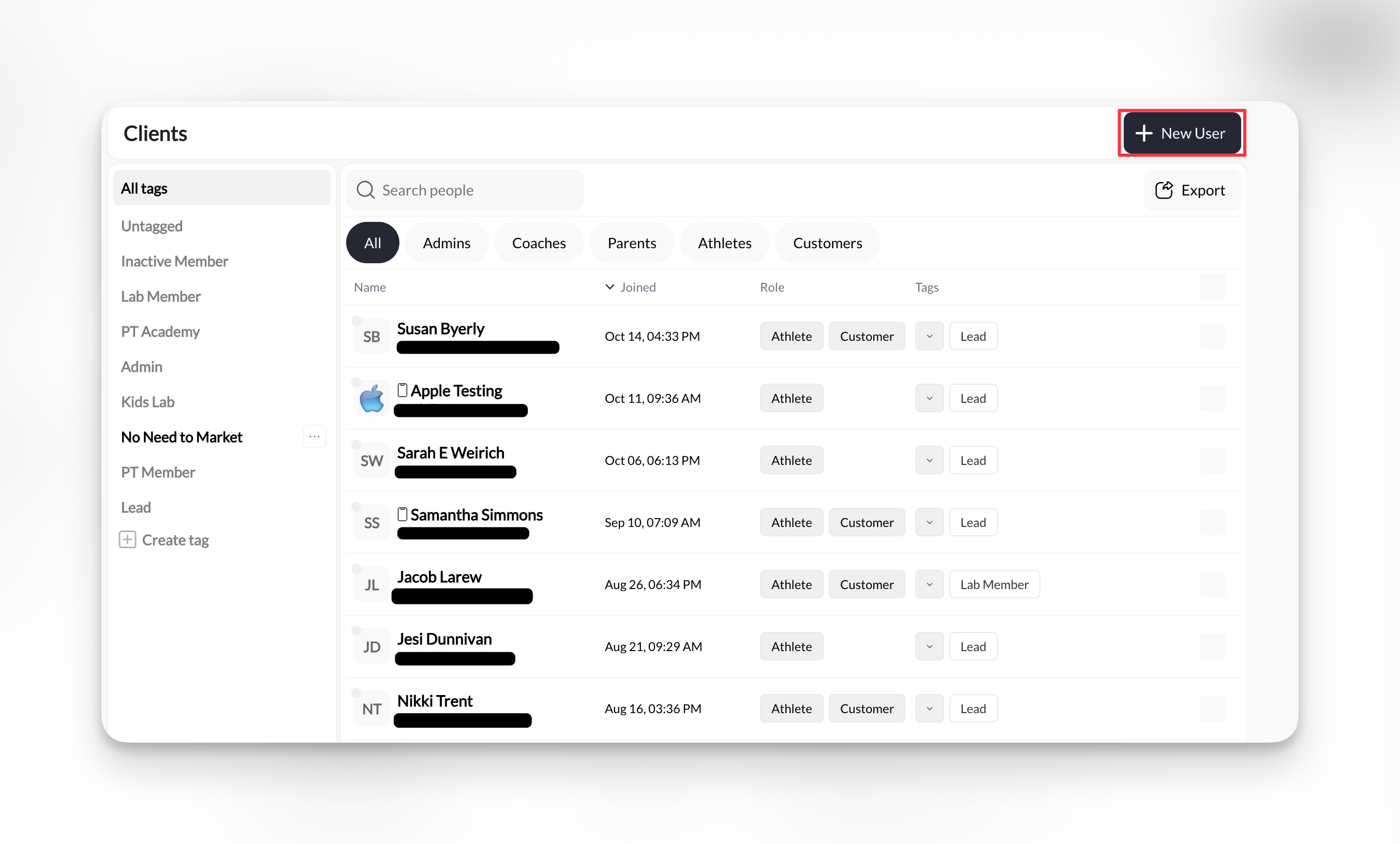
2
Enter required information
Fill in the essential fields:Required fields:
- First Name - Client’s first name
- Last Name - Client’s last name
- Email - Primary email address (used for login and communications)
- Phone - Mobile phone number for SMS (include country code)
Phone number format: Use international format with country code, e.g.,
+1 234 567 8900 for US numbers. This ensures SMS messages deliver correctly.3
Assign role(s)
Select at least one role for this person:Common role selections:
- Athlete - For anyone who trains with you (most common)
- Parent - For guardians of youth athletes
- Coach - If they also help deliver training (limited admin access)
- Admin - Full platform access (use sparingly)
- App access: Athletes/Parents see the athlete portal, Coaches/Admins see the coaching dashboard
- Permissions: What they can view, book, and manage
- Filtering: How they appear in your People list filters
4
Add tags (optional but recommended)
Tags help you organize and filter clients. Add relevant tags during creation:Examples:
- Program/group: “Elite Program”, “Beginner Group”, “Rising Stars”
- Status: “Trial”, “Active Member”, “Monthly Subscription”
- Location: “Downtown Facility”, “North Campus”
- Custom: Whatever makes sense for your business
5
Save and confirm
Click Create New User button.The client will receive an email with instructions to set their password and access your app/portal.
Success! The new client:
- Appears immediately in your People → Clients list
- Receives an email invitation to access your Athlete Portal
- Can now be booked into sessions, assigned products, and messaged
Bulk importing from a spreadsheet
When you need to add many clients at once, bulk import saves hours of manual data entry.1
Prepare your spreadsheet
Create a CSV or Excel file with these columns (headers must match exactly):Required columns:
first_namelast_nameemailphone
tags(comma-separated, e.g., “Elite Program, Trial”)role(e.g., “athlete”, “parent”)
2
Access import feature
From People → Clients, look for the Import button or navigate to Settings → Import & Export → Import Athletes.
Location varies: Some CoachIQ accounts have the import button directly in the People section, others access it through Settings. Check both locations.
3
Upload and map fields
- Upload your CSV or Excel file
- Map your spreadsheet columns to CoachIQ fields
- Preview the first few rows to verify correct mapping
- Choose whether to send invitation emails (recommended: No for bulk imports, send manually later)
4
Review and import
CoachIQ will show:
- How many clients will be imported
- Any errors or duplicates detected
- Which fields are missing
Import complete! Your clients now appear in the People list. You can filter by the tags you imported to verify everything processed correctly.
5
Follow up after import
After bulk importing:
- Verify the import: Filter by imported tags to check client count
- Send welcome messages: Use Inbox to send a group message to all imported clients
- Provide login instructions: Send app download links and first-time login guidance
- Assign products/programs: If they should have access to content or credits, add those next
Editing client information
Client details change—email addresses, phone numbers, roles, tags. Here’s how to keep information current:1
Open the client profile
From People → Clients, click the client’s name to open their full profile.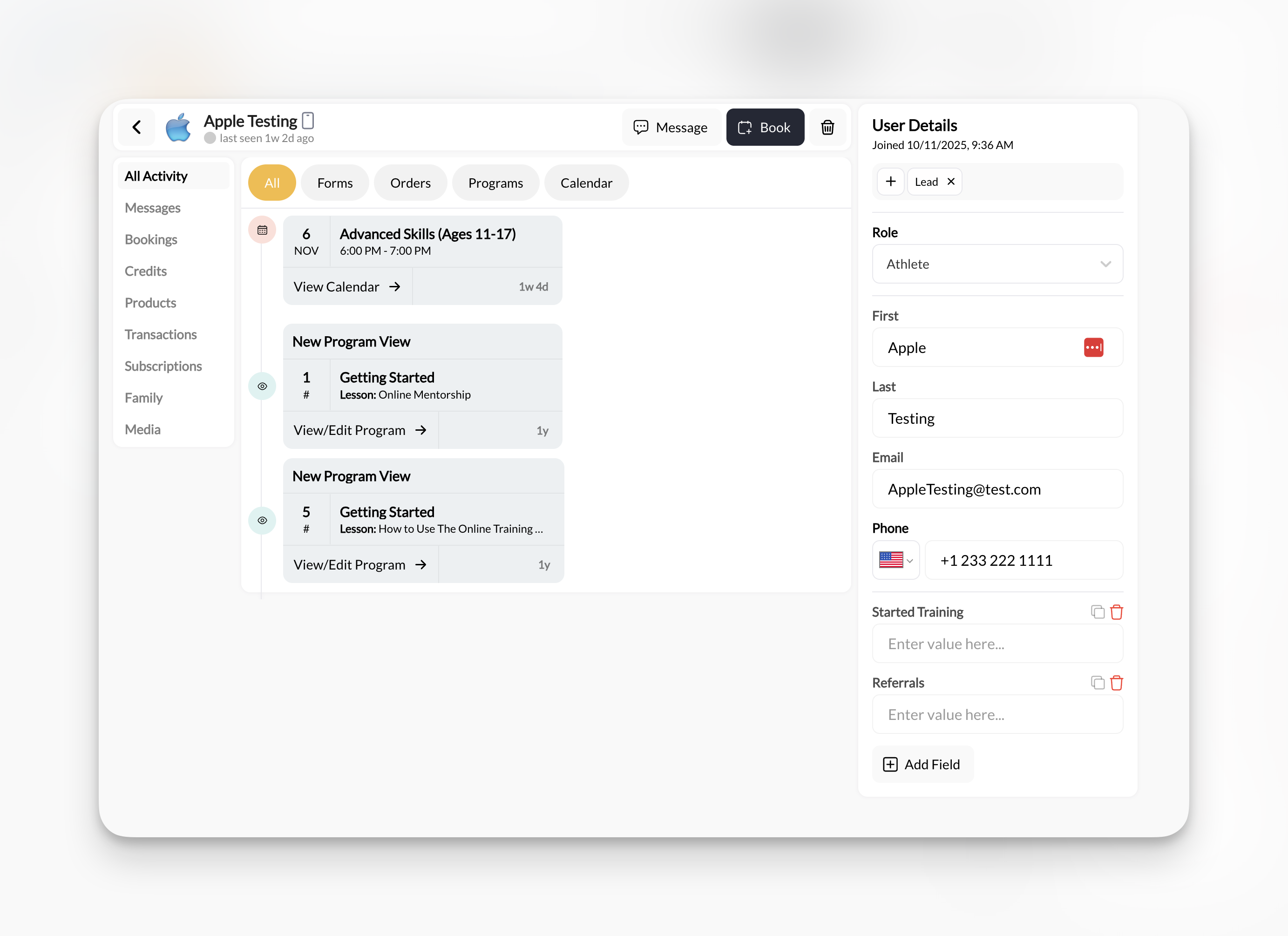
2
Use the User Details sidebar
On the right side of the profile, you’ll see the User Details panel with:
- Role dropdown
- First name field
- Last name field
- Email field
- Phone number field
- + Add Field button (for custom fields)
3
Update role or tags
To change roles:
- Click the Role dropdown in User Details
- Select/deselect roles as needed
- Changes save automatically
- Scroll to the Tags field in User Details
- Add or remove tags (type to search existing tags)
- Changes save immediately
Bulk tag updates: To change tags for multiple clients at once, use the Clients list view—select multiple clients, then use bulk actions to add/remove tags. Details in Organizing Clients with Tags & Filters.
Adding custom fields
Beyond the standard fields (name, email, phone), you can track custom information specific to your business. Common custom field examples:- Emergency contact name/phone
- School or team affiliation
- Jersey number
- Graduation year
- Parent’s work phone
- Medical conditions or allergies
- Referral source
1
Click '+ Add Field'
In the User Details sidebar of any client profile, click + Add Field at the bottom.
2
Name and populate the field
- Enter a field name (e.g., “Emergency Contact”)
- Enter the value for this specific client
- Click save
3
Use custom fields for filtering
After creating custom fields, you can:
- View them in the User Details sidebar for each client
- Edit values at any time
- Use them for reporting or segmentation
Limitation: Custom fields appear in client profiles but aren’t currently available as filter options in the main Clients list. Use tags for filterable organization.
Exporting client data
Need your client list in a spreadsheet? Use the export feature for backups, external tools, or reporting. To export:- Go to People → Clients
- Apply any filters (optional—export only filtered results)
- Click Export button (top right)
- Download the CSV file
- Name (first and last)
- Email address
- Phone number
- Role(s)
- Tags
- Join date
- Custom field values
Common questions
What happens after I add a new client?
What happens after I add a new client?
Immediately after creation:
- Client appears in your People → Clients list
- They receive an email invitation to access your Athlete Portal
- You can now book them into sessions, message them, and assign products
- They can download your mobile app or access the web portal using the email you entered
Can I add a client without an email address?
Can I add a client without an email address?
No—email is required because it serves as their login credential for your Athlete Portal.Workarounds for special cases:
- Youth athletes without email: Use a parent’s email and set Role as “Parent”, then link the child later
- Team accounts: Create a temporary email (e.g.,
team-placeholder@yourfacility.com) but you’ll need to update it later for them to access the portal
What if I import duplicate clients?
What if I import duplicate clients?
CoachIQ checks for duplicate email addresses during import. If a duplicate is detected:
- That row is skipped (not imported)
- You’ll see an error message identifying the duplicate
- Other non-duplicate clients in the file still import successfully
Can clients edit their own information?
Can clients edit their own information?
Yes, partially. Clients can update their own:
- Name
- Email address
- Phone number
- Password
- Profile photo
How do I delete a client?
How do I delete a client?
From the client’s profile, click the Delete button (trash icon) in the top-right corner near “Message” and “Book” buttons.What happens:
- Client is removed from your People list
- They lose access to your Athlete Portal immediately
- Historical data (past bookings, transactions, messages) is preserved for your records
- They WILL be charged for any upcoming subscriptions. Subscriptions and billing are handled via Stripe. Be sure to cancel any active subscriptions before deleting a user.
Can I change someone from Client to Staff?
Can I change someone from Client to Staff?
Yes! Roles can be changed at any time:
- Open their profile (People → Clients or Staff)
- In the User Details sidebar, update the Role dropdown
- Changes save automatically
Pro tips for client management
Tag During Creation
Always add at least 2 tags when creating clients: their program/group and their status (Trial, Member, etc.). Makes filtering and messaging much easier later.
Verify Contact Info
Double-check email and phone before saving. Typos in email = client can’t log in. Wrong phone = SMS won’t deliver.
Use Consistent Naming
Decide on a format for names (First Last, or Nickname Full Last) and stick to it. Makes your client list clean and searchable.
Add Notes Immediately
Right after creating a client, open their profile and add a comment in their Activity with context: how you met, what they’re training for, referral source. Future-you will thank you.
What’s next
Now that you know how to add and edit clients, explore what you can do with their profiles:Client Profiles Overview
Understand the complete activity dashboard and all profile tabs
Organizing with Tags
Master filtering, segmentation, and using tags for group messaging
Booking Clients
How to book clients into sessions from their profile
Messaging Clients
Send individual or group messages to your client base
Related articles
People Overview
Back to main People section guide
Managing Staff
Adding and managing coaching team
Credits Management
View and adjust client credit balances
Connect children
Connect an athlete or create a managed child from the client Family section
Bulk Operations
Update multiple clients at once with tags
Import & Export
Advanced import/export settings
You now know how to: Add individual clients manually, bulk import from spreadsheets, edit client information, add custom fields, and manage client data responsibly.