

Where to find this: open Tools → Assistant when available in your organization. Copilot also appears inside supported availability and booking builders.
What Copilot is
Copilot is CoachIQ’s built-in assistant. Ask a question about your business or describe the change you want to make. It answers from your own CoachIQ data and prepares supported changes as approval cards. Nothing saves until you approve. For an external assistant connected through MCP, follow Use CoachIQ with AI and AI workflows. The two experiences do not expose the same tools or controls.Ask questions about your business
Copilot reads your own records rather than giving general how-to steps. For example, it can answer:- Schedule: “What does my week look like?”, “And Saturday?”, “What times are open on Friday?”, “Who is in the Oct 25 lesson?”, “Who cancelled or rescheduled this week?” (the 50 most recent changes), or “What are our busiest days?” (a pattern from past bookings, not a forecast).
- Schedulers and Availability: the number of Schedulers, your group’s defaults for new sessions, and each Availability’s open weekdays, hours and timezone.
- People: who someone is, their tags, memberships and family links, recent changes on their profile, and counts by role. A misspelled name gets a “Did you mean…?” suggestion; a short name that matches several people asks for the full name.
- Products, credits and payments: a product’s price, payment type and included credits; a client’s credit balances and history; this month’s, last month’s or the last 30 days’ transactions.
- Forms, waivers, programs and media: forms with their question and response counts, who has signed a waiver and which products it is linked to, what is in a lesson, and where a Media Hub file is used. Typed form answers stay out of the chat; Copilot points you to Responses.
- Website, automations and notifications: your active domain, the sections on a page, your header and footer links, your automations, and which notification settings you changed from the defaults.
What are the saved price, payment type, and credits for [product name]? Do not change anything.A follow-up can refer to the record you just worked on (“make it $20”, “book her again”), but check that the card still names the correct target.
Prepare a supported change
These are examples, not actions that run by reading this page. If information is missing, Copilot asks for it; answer the question before approving a change.
Scheduler settings
Admins and coaches can ask Copilot to change a Scheduler’s minimum notice, places per time slot or session length. The card names the Scheduler and shows the current and new value. Other Scheduler settings still need the Scheduler builder.Lesson slide text
Ask Copilot to add a slide with specific text to a lesson. The card shows the lesson, the slide position and the exact text. It takes two approvals: the first creates the slide, the second adds the text. Slide text is plain text up to 255 characters. For longer text or formatting such as bold, use the lesson builder.Review and approve
A proposed change appears as a card marked Needs your approval.- Read the card’s headline and target. When you edit something, the fields that are changing come first, each with its old value (Was) and new value (Now). Everything that stays the same, such as the other weekdays, timezone and specific dates, sits behind View unchanged details, which shows how many items are inside. A new record is shown as one list of all its values.
- Choose Approve only if the card matches your request. Choose Decline if it doesn’t. A declined card reopens as a single line saying nothing was changed.
- Read the completion message and open the saved record to verify it. A conversational explanation alone is not proof that the change saved.
- Ask for a read-only summary if you need to confirm what changed and what stayed the same.
Stop a reply
Press Stop while Copilot is still working to end the reply. It is marked Stopped, nothing is added to it later, and your next question gets its own answer. If the answer had already finished, it stays as it was. Saying “cancel that” or “never mind” with no card waiting gets a short reply that there is nothing to cancel.Flag a wrong answer
Under every finished reply on the Assistant page there is a That was wrong control. One tap sends that question and answer to the CoachIQ team for review, with names removed, and the control changes to Flagged. Tapping again or reloading the page does not send a second report. Flagging changes nothing in your account.What Copilot won’t do
- Pages blocked in Staff Access. Copilot follows a coach’s staff access and picks up changes right away, in the same chat. A question about a blocked area gets a message to ask an admin; other questions are still answered.
- Some changes need an admin or another screen. A coach who asks Copilot to cancel a booking is pointed to that booking on the Schedule calendar. Only an admin can add people through Copilot. Importing people is done from Settings → Data → Import People.
- Bookings outside open hours. Copilot explains when bookings end and lists that day’s open times. To book outside them, use Book anyway in the booking builder on the Schedule calendar.
- Editing an existing coupon. Coupons can’t be edited; create a new one from Payments → Coupons → Create coupon. A single client’s credit expiry follows the product’s rule under Payments → Products.
- Bulk deletes. A request like “delete all our forms” is offered one item at a time.
- Another group’s data. Switch to that group first.
- Medical advice. Copilot declines medical and injury-rehab questions and suggests a doctor, physical therapist or athletic trainer. If the same message also asks for a booking, it still handles the booking.
- Unrelated writing. General writing that isn’t about your account, such as a week-long training plan, is declined.
Privacy
Before your message reaches the AI model, Copilot hides contact details such as phone numbers and addresses. Approval cards still show the full details so you can check them before approving.Inside builders
The Copilot panel in supported availability and booking builders helps fill structured settings from plain-language requests. Review the resulting fields and use that builder’s Save, Create, or Update control to finish.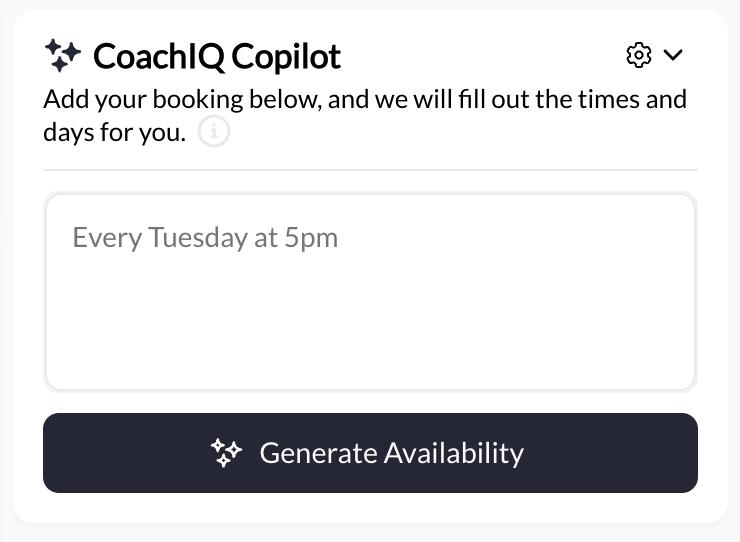
Copilot inside a builder. This is separate from the full Assistant conversation.
Getting good results
Name the exact record, use concrete dates and times, and state what should remain unchanged. Work through one change at a time and check the saved result before building on it. If one message asks for two booking changes, Copilot names both and asks which to do first. For a blackout, specify the template, date, hours, and timezone. For a scheduler, distinguish the new scheduler’s name from the existing availability it should use.Common questions
The assistant asks me to choose a record
The assistant asks me to choose a record
Confirm the intended match. Give the exact name or record identifier if the available choices are ambiguous. Do not approve a change to a different record just because its name is similar.
Copilot says an area is blocked for my staff account
Copilot says an area is blocked for my staff account
An admin has blocked that page for you in Staff Access. Ask an admin to review your access. Once they unblock it, your next question in the same chat can use it.
I reached a request limit
I reached a request limit
Follow the displayed retry countdown, then use Try again. Check the chat’s outcome before sending the same change again; avoid duplicating work that already completed.
The saved result doesn't match my request
The saved result doesn't match my request
Open the affected record and check its actual settings. State the specific difference and ask for a correction that preserves the rest. Review that proposal before approving. If the answer itself was wrong, use That was wrong under the reply.
Can athletes use Copilot?
Can athletes use Copilot?
Copilot is a staff tool. Athletes continue to use the booking and account features provided to them in the portal or app.