Documentation Index

Fetch the complete documentation index at: https://help.coachiq.io/llms.txt

Use this file to discover all available pages before exploring further.

Quick navigation: Schedule → Calendar → Book Session → Enable “Recurring” toggle

What are recurring bookings?

Recurring bookings allow you to schedule multiple sessions for an athlete automatically by defining a repeating pattern (weekly, daily, monthly). Instead of manually booking “Tuesday at 6pm” 12 separate times, you create one recurring pattern and CoachIQ generates all 12 sessions instantly. Real-world example: Sarah trains with you every Tuesday at 6:00 PM and Thursday at 5:00 PM for 12 weeks. Instead of creating 24 individual bookings, you create 2 recurring patterns and you’re done in 2 minutes.
Critical limitation: Only coaches can create recurring bookings. Athletes using the booking portal can only book single sessions at a time.

When to use recurring bookings

Ideal scenarios for recurring bookings:
  • Standing appointments: Athlete trains same day/time weekly
  • Committed long-term clients: Athletes with 8+ week programs
  • Team practices: Scheduled team training sessions
  • VIP/Priority clients: Premium athletes with consistent schedules
  • Subscription-based training: Monthly unlimited or package deals
Why it works: Predictable schedules, athlete commitment, easy to plan around

Creating a recurring booking pattern

1

Access the Booking Builder

Navigate to your calendar and initiate a new booking:
  1. Go to Schedule → Calendar
  2. Click Book Session (or the + button)
  3. The Booking Builder modal opens
Alternative access: You can also access Booking Builder from Schedule → Schedulers → Create → “Manually Book an Athlete” option.
2

Select client and scheduler

Step 1: Choose the athlete
  • Search by name or email
  • Filter by tags if needed
  • Select the athlete who will receive recurring sessions
Step 2: Choose the scheduler
  • Select which session type to book (e.g., “60-Min Private Training”)
  • Pricing and duration are determined by the scheduler you choose
Credit-based sessions: If using credit-based schedulers, recurring bookings do NOT automatically deduct credits. You’ll handle credits separately per your configuration.
3

Enable the Recurring toggle

In the Date & Time section, you’ll see a toggle labeled “Recurring”.
  1. Toggle it ON to reveal recurring options
  2. Toggle it OFF to book just a single session
What happens when enabled: Additional configuration options appear:
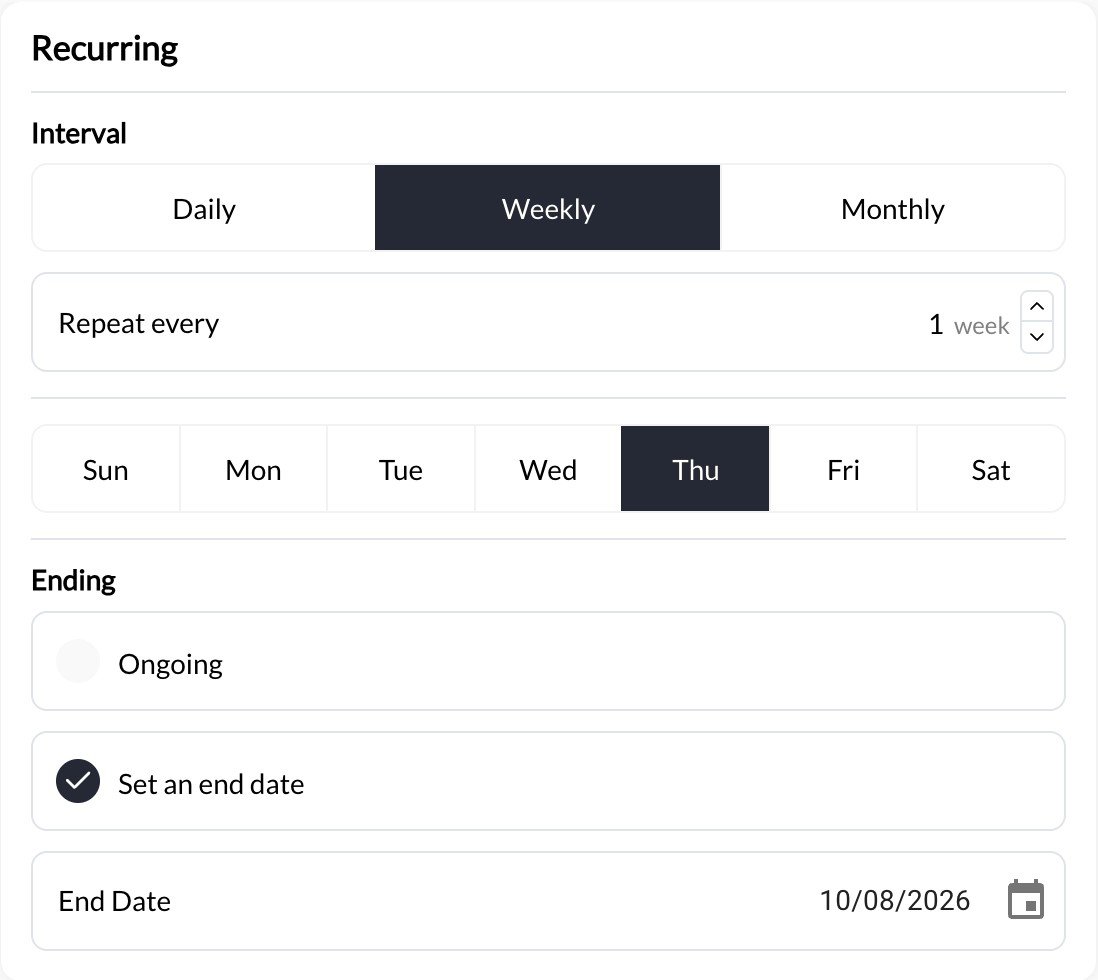
  • Repeat pattern (daily, weekly, monthly)
  • Repeat interval (every 1 week, every 2 weeks, etc.)
  • Days of the week (for weekly patterns)
  • Ending options (ongoing vs specific end date)
Recurring toggle enabled in Booking Builder
4

Configure the repeat pattern

Choose your repeat frequency:
Use for: Standard training schedulesConfiguration:
  1. Select “Weekly” from dropdown
  2. Choose “Repeat every: 1 week” (or 2 weeks, 3 weeks, etc.)
  3. Select days: Check Monday, Wednesday, Friday, etc.
  4. Set time: Choose session start time
Example: “Every Tuesday and Thursday at 6:00 PM”
Most coaches use this: 80% of recurring bookings are weekly patterns for consistent training schedules.
5

Set the ending (ongoing vs specific date)

Choose how long the recurring pattern continues:
What it means: Bookings continue indefinitely until you manually stop themWhen to use:
  • Long-term committed athletes (6+ months)
  • Monthly subscription clients
  • Athletes with unlimited session packages
  • When end date is uncertain
How to stop later:
  • Click any session in the recurring series
  • Delete the entire recurring pattern
  • Or skip/change individual sessions as needed
Example: “Jake has an annual training package—set his sessions as ongoing, adjust as his schedule changes”
Watch out: Ongoing bookings can fill your calendar far into the future. Review and adjust monthly to prevent over-scheduling.
6

Use CoachIQ Copilot for quick setup (optional)

Time-saving feature: Instead of manually clicking through options, use natural language.How it works:
  1. Find the “CoachIQ Copilot” panel (right sidebar)
  2. Type your desired schedule in plain English
  3. Click “Generate Availability”
  4. Copilot automatically fills out the recurring configuration
Examples of what to type:
  • “Every Tuesday at 5pm”
  • “Monday Wednesday Friday at 6:00 AM”
  • “Every other Thursday at 7pm for 12 weeks”
  • “Daily at 8am for 2 weeks”
CoachIQ Copilot panel for generating recurring booking schedules
Result: Copilot translates your text into:
  • Repeat pattern (weekly, daily, etc.)
  • Days of week
  • Time
  • Interval
You can then fine-tune manually if needed.
Time saved: Copilot reduces recurring setup from 2 minutes to 15 seconds. Use it!
7

Preview occurrences before creating

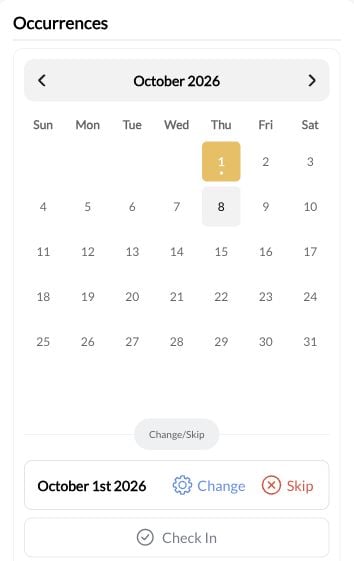
Before you hit “Create”, use the Occurrences preview calendar to verify your pattern.What you’ll see (right sidebar):
  • Calendar showing all future session dates
  • Visual confirmation of your recurring pattern
  • Dates highlighted for each occurrence
Why this matters: Catch mistakes before creating dozens of bookings.Common things to verify:
  • ✅ Correct days of week selected
  • ✅ Sessions land on expected dates
  • ✅ No conflicts with known athlete vacations
  • ✅ End date is correct (if using set end date)
  • ✅ Total number of sessions makes sense
Example: “I set up ‘every Tuesday and Thursday for 12 weeks’—preview shows 24 total sessions, last one on Nov 21. Perfect!”
Double-check before creating: Once you create recurring bookings, there’s no “undo” button. You’d need to delete and recreate.
8

Click Create and confirm

Once everything looks correct:
  1. Click the “Create” button
  2. CoachIQ generates all recurring bookings instantly
  3. All sessions appear on your calendar
  4. Athlete receives notification (if notifications enabled)
What happens next:
  • Each session appears as individual booking on calendar
  • No special “recurring” indicator visible to athletes
  • You can manage each session individually
Success! Your athlete is now scheduled for all sessions in the recurring pattern. Calendar confirms all bookings created.

Managing individual occurrences after creation

Once recurring bookings are created, you have full control over each individual session.

Accessing the Occurrences calendar

To view and manage all occurrences in a recurring series:
  1. Go to Schedule → Calendar
  2. Find any session from the recurring series
  3. Click on that booking
  4. The Occurrences view opens, showing:
    • Calendar with all recurring dates
    • “Change” and “Skip” buttons for each occurrence
    • Full visibility into the entire pattern
Use case: Quick access when you’re already viewing calendar
Occurrences calendar with Change and Skip options

Changing one occurrence

Scenario: Athlete requests a time change for just one session (e.g., Oct 15 needs to move from 6pm to 8pm).
1

Open Occurrences view

Click any session in the recurring series (from calendar or athlete profile).
2

Find the specific date

In the Occurrences calendar, click the date you want to change (e.g., Oct 15).
3

Click 'Change'

The “Change” button appears for that specific occurrence.What happens: Opens date/time picker for that one session only.
4

Select new date/time

  1. Choose the new date and/or time
  2. Confirm the change
  3. Only that one session updates—all other recurring sessions remain unchanged
Result: Oct 15 session moved to 8pm. Oct 22, Oct 29, etc. still at 6pm as scheduled.
Important notes:
  • Changes affect ONLY that specific occurrence
  • No impact on other sessions in the series
  • Athlete receives notification of the time change
  • Calendar reflects the updated time

Skipping one occurrence

Scenario: Athlete is traveling on Oct 22 and needs to skip that session.
1

Open Occurrences view

Click any session in the recurring series.
2

Find the date to skip

In the Occurrences calendar, click Oct 22.
3

Click 'Skip'

The “Skip” button appears.What happens: That occurrence is removed from the recurring series.
4

Confirm the skip

System removes that booking—Oct 22 session is gone.All other sessions remain: Oct 15, Oct 29, Nov 5, etc. still scheduled as normal.
Result: Oct 22 skipped. Recurring pattern continues for all other dates.
Important notes:
  • Skipped sessions are permanently removed (not “paused”)
  • No credit refund triggered (recurring bookings don’t involve automatic credit deductions)
  • Athlete receives cancellation notification
  • Cannot “un-skip” later—you’d need to manually book that date if athlete wants it back

Making changes to the entire recurring pattern

The limitation: No “edit all” function

Critical restriction: CoachIQ does not support editing all future occurrences at once. You cannot change the entire pattern (e.g., move all from Tuesday 6pm → Thursday 7pm) after creation.
Why this matters: If an athlete’s schedule permanently changes, you’ll need to delete and recreate.

Deleting the entire recurring pattern

When to delete:
  • Athlete’s schedule permanently changes
  • Athlete discontinues training
  • You need to recreate pattern with different settings
  • Mistake made during initial setup
How to delete all occurrences:
1

Open Occurrences view

Click any session in the recurring series (from calendar or athlete profile).
2

Delete the pattern

Look for the “Delete” option within the Occurrences view.What happens: Deletes the entire recurring booking pattern—all future sessions removed.
This action is permanent: All remaining sessions are deleted. Cannot be undone.
3

Confirm deletion

System asks for confirmation—click “Delete All” to proceed.All recurring sessions disappear from calendar instantly.
After deletion:
  • Create a new recurring pattern if needed
  • Or switch to manual booking going forward
  • Or athlete stops training entirely

Workaround: Recreating the pattern

Scenario: You need to change recurring pattern (e.g., Tuesday 6pm → Thursday 7pm for all remaining sessions). The process:
1

Note the existing pattern

Before deleting, record:
  • Original pattern details (days, times)
  • How many sessions remain
  • Any already-completed sessions
Example: “Chris has 18 sessions left, currently Tuesday/Thursday 6pm, wants to switch to Wednesday/Friday 7pm.”
2

Delete existing recurring pattern

Follow the “Delete all” process above.Result: All 18 remaining sessions removed from calendar.
3

Create new recurring pattern

Open Booking Builder and create new recurring bookings:
  1. Select same athlete (Chris)
  2. Select same scheduler
  3. Enable Recurring toggle
  4. Configure NEW pattern (Wednesday/Friday 7pm)
  5. Set end date to capture remaining sessions (~9 weeks)
  6. Click Create
Result: New 18-session recurring pattern created with updated schedule.
4

Communicate with athlete

Critical step: Let athlete know their schedule changed.Template message: “Hey Chris, I’ve updated your recurring sessions to Wed/Fri 7pm as requested. All 18 remaining sessions are now on the new schedule. Let me know if you have any conflicts!”
Notification best practice: Even though system sends automatic notifications, personally confirm major schedule changes with athletes to prevent confusion.
Time commitment: Deleting and recreating can take 3-5 minutes. Factor this into your process when athletes request pattern changes.

Best practices for recurring bookings

Always Use Preview

Before clicking Create, review the Occurrences preview calendar. Catch mistakes before generating dozens of bookings.Check: Days of week, times, total sessions, end date.

Start with End Dates

For first-time recurring clients, always set a specific end date (8-12 weeks). You can extend later.Why: Prevents over-commitment and gives natural check-in points.

Communicate Schedule Changes

When you Change or Skip sessions, personally confirm with athlete (don’t rely solely on auto-notifications).Template: “FYI, moved your Oct 15 session to 8pm. See you then!”

Review Monthly

First of each month, review all recurring patterns. Check for:
  • Patterns ending soon (extend if needed)
  • Athlete vacations/conflicts
  • Your own availability changes
Result: Proactive management prevents last-minute chaos.

Use Copilot for Speed

Save time by using natural language in Copilot panel: “Every Tuesday and Thursday at 6pm”Result: 15 seconds vs 2 minutes of manual clicking.

Delete vs Skip Strategy

Skip individual sessions for one-off exceptions.Delete entire pattern when permanent schedule change needed.Rule: 3+ skips in a row = consider deleting and recreating pattern.

Credit handling with recurring bookings

Important clarification: Recurring bookings in CoachIQ do NOT automatically deduct credits when sessions are created. Credit handling depends on your specific scheduler configuration.
What this means:
  • Creating recurring bookings doesn’t immediately consume athlete credits
  • Credit deduction happens per your scheduler’s credit settings
  • Skipping a session doesn’t trigger credit refunds
Recommendation: If a client is only on a recurring booking then credits are not necessary. Instead just collect payment and set up there recurring schedule once.
For detailed credit system information, see Credit System Explained and Credit Usage Limits.

When NOT to use recurring bookings

Recurring bookings aren’t always the answer. Sometimes manual booking is better.
Use manual booking instead when:
Athlete situation: Shift worker, travel-heavy job, inconsistent availabilityProblem with recurring: Constant Changes and Skips = admin overheadBetter approach: Client book sessions 2-4 weeks in advance as athlete confirms availabilityExample: “Maria’s nursing schedule changes monthly. She book her sessions 3 weeks out once her shifts are posted.”

Next steps

Manual Booking Guide

Learn the complete manual booking process for non-recurring sessions

Canceling Bookings

Understand cancellation policies and how to handle booking cancellations

Calendar Management

Master calendar navigation and filtering for managing all your bookings

Credit System Guide

Deep dive into how credits work with bookings and schedulers

Creating Schedulers

Set up bookable session types before creating recurring bookings

Scheduler Settings

Configure capacity, limits, and permissions for schedulers

You now understand: How to create recurring booking patterns, manage individual occurrences, and decide when recurring bookings are the right solution vs manual booking.
Questions about recurring bookings? Our support team can help you design the optimal scheduling strategy for your athletes. Contact Support