

Where to find Forms: Tools → Forms → + Create Form
Start with a template or blank form
When you create a new form, you choose your starting point: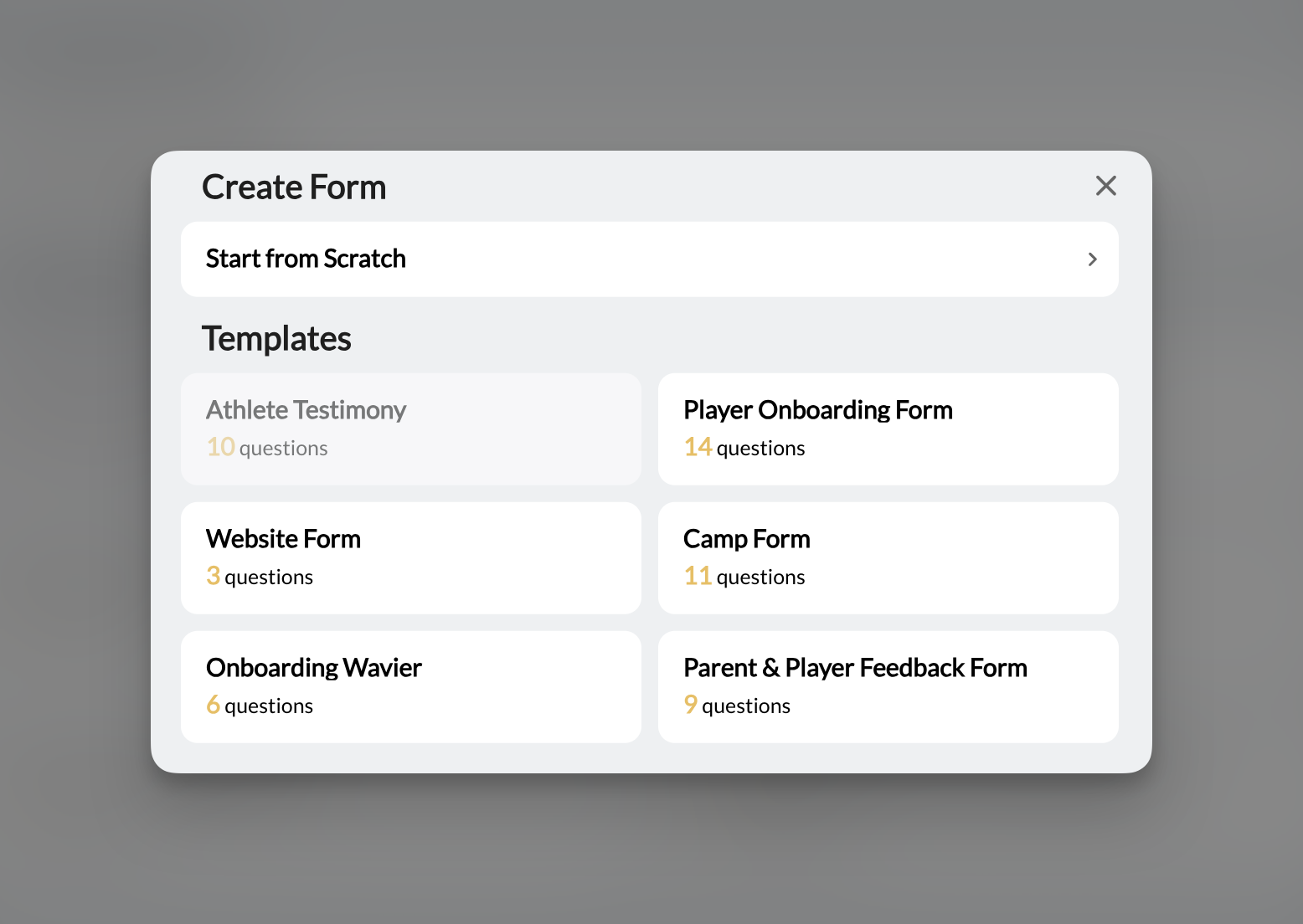
The form builder interface
Once inside the builder, you’ll see three areas: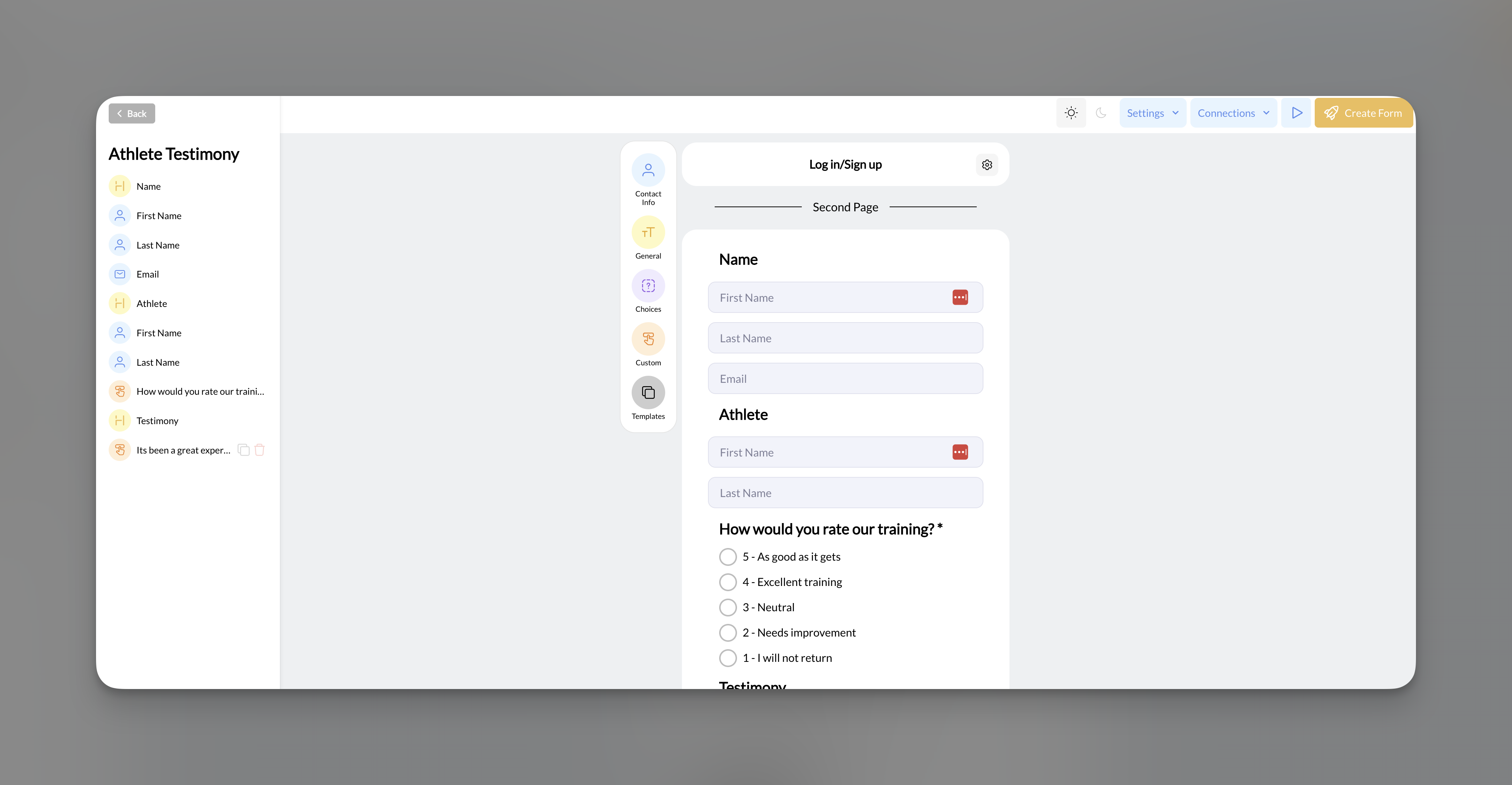
- Settings — Button colors, multiple response toggle
- Connections — Add products, schedulers, or require login
- Responses — View submissions (after publishing)
- Share — Get your form link
- Update Form — Save and publish changes
Field types reference
Fields are organized into 5 categories. Click a category icon in the center panel to see available fields.Contact Info fields
Pre-built fields designed for athlete and parent data. When you require login/signup (in Connections), these fields sync to the athlete’s profile in People.Profile sync only works when Login/Signup is required. Without it, Contact Info fields capture data but don’t automatically connect to People profiles.
Custom Field — map to your People custom fields
The Custom Field option (at the bottom of the Contact Info category) lets a form write to your organization’s People custom fields — the same custom fields on an athlete’s profile in People, like “Started Training” or “Child Name”.- In the form builder, open the Contact Info category and select Custom Field.
- In the Custom Field dropdown, choose which custom field to map to (e.g., “Child Name”).
- Toggle Required? if the answer is mandatory.
General fields
Content elements that add structure and context to your form — not questions.Choices fields
Pre-built selection questions.Custom fields
Build your own questions with these input types:Templates category
This shows the same template options from form creation — useful if you started blank and want to reference a template’s structure.Build a form step-by-step
1
Create a new form
Go to Tools → Forms and click + Create Form. Choose a template or start blank. Give your form a name.
2
Add fields
Click a category in the center panel, then click a field to add it. The field appears in your left sidebar and right preview.For custom fields, you’ll see a modal to configure:
- Field type (Text, Select Box, etc.)
- Label (the question text)
- Default value (optional)
3
Reorder fields
Drag fields in the left sidebar to change their order. The preview updates automatically.
4
Set required fields
Click a field to select it, then mark it as required. Required fields show an asterisk (*) and must be completed to submit.
5
Add headings and instructions
Use Heading fields to create sections (e.g., “Athlete Information”, “Parent/Guardian Details”). Use Plain Text to add instructions or context.
6
Preview your form
Click the preview button to see exactly what respondents will see. Test the flow before publishing.
7
Save and publish
Click Update Form to save. Your form is now live and ready to share.
Customize form design
Match your form to your brand using the Settings menu: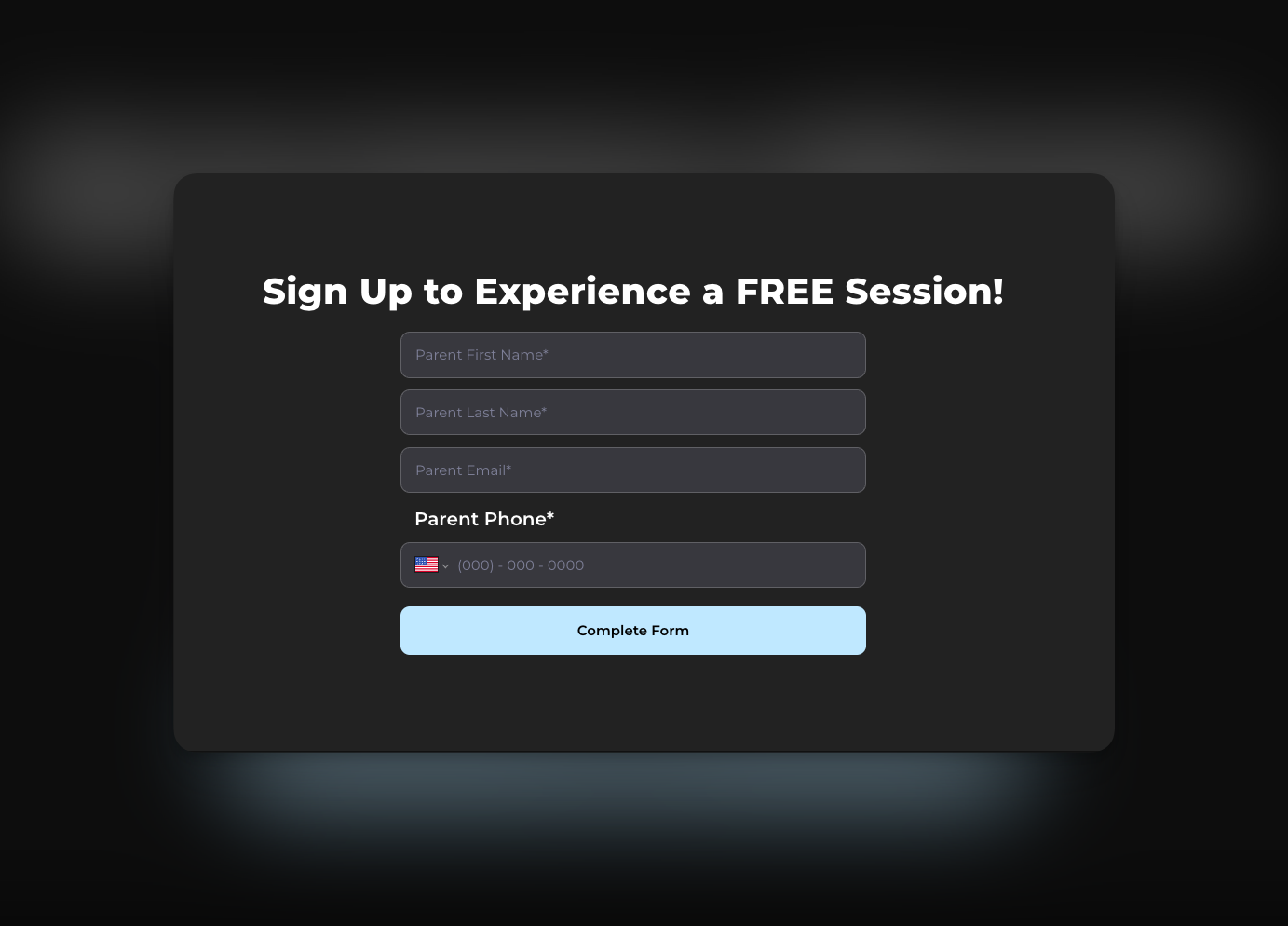
Form settings
Access these in the Settings dropdown:Multiple responses
- ON — Same person can submit the form multiple times
- OFF — One submission per person (requires login)
- ON: Feedback forms, session check-ins
- OFF: Registration forms, waivers (one per athlete)
How connections add pages
When you add Products, Schedulers, or Login/Signup via the Connections menu, each becomes a separate page in the form flow:This is the only way to create multi-page forms. There’s no manual page break option — the pages come from connections you add.
Form building tips
Keep forms short
Keep forms short
Every additional field reduces completion rates. Ask only what you need. You can always collect more info later.
Lead with easy questions
Lead with easy questions
Start with simple fields (name, email) before asking longer questions (goals, experience). This builds momentum.
Use headings to organize
Use headings to organize
For longer forms, break content into clear sections: “Athlete Info”, “Parent Info”, “Training Preferences”. Makes scanning easier.
Preview before sharing
Preview before sharing
Always preview your form. Check that required fields are marked, questions make sense, and the flow feels natural.
Match your website branding
Match your website branding
Consistent colors build trust. If athletes click a form link from your site, it should feel like the same experience.
What you can’t do (yet)
- Duplicate forms — Each form must be built individually
- Conditional logic — Can’t show/hide fields based on answers
- Manual page breaks — Multi-page only comes from connections
- Save partial responses — Respondents must complete in one session
Next steps
Collect Payments & Bookings
Add products and schedulers to your forms
Share Your Forms
Get your link, embed on your website, and configure completion actions
Related articles
Product Overview
Understand the products you can connect to forms for payment collection
Creating Your First Scheduler
Build a scheduler to embed in your form flow for session bookings
What Are Automations?
Trigger automated actions when forms are submitted
People Overview
See how form submissions connect to athlete profiles when login is required