

Set up a paid booking
- Connect Stripe if you are collecting card payments.
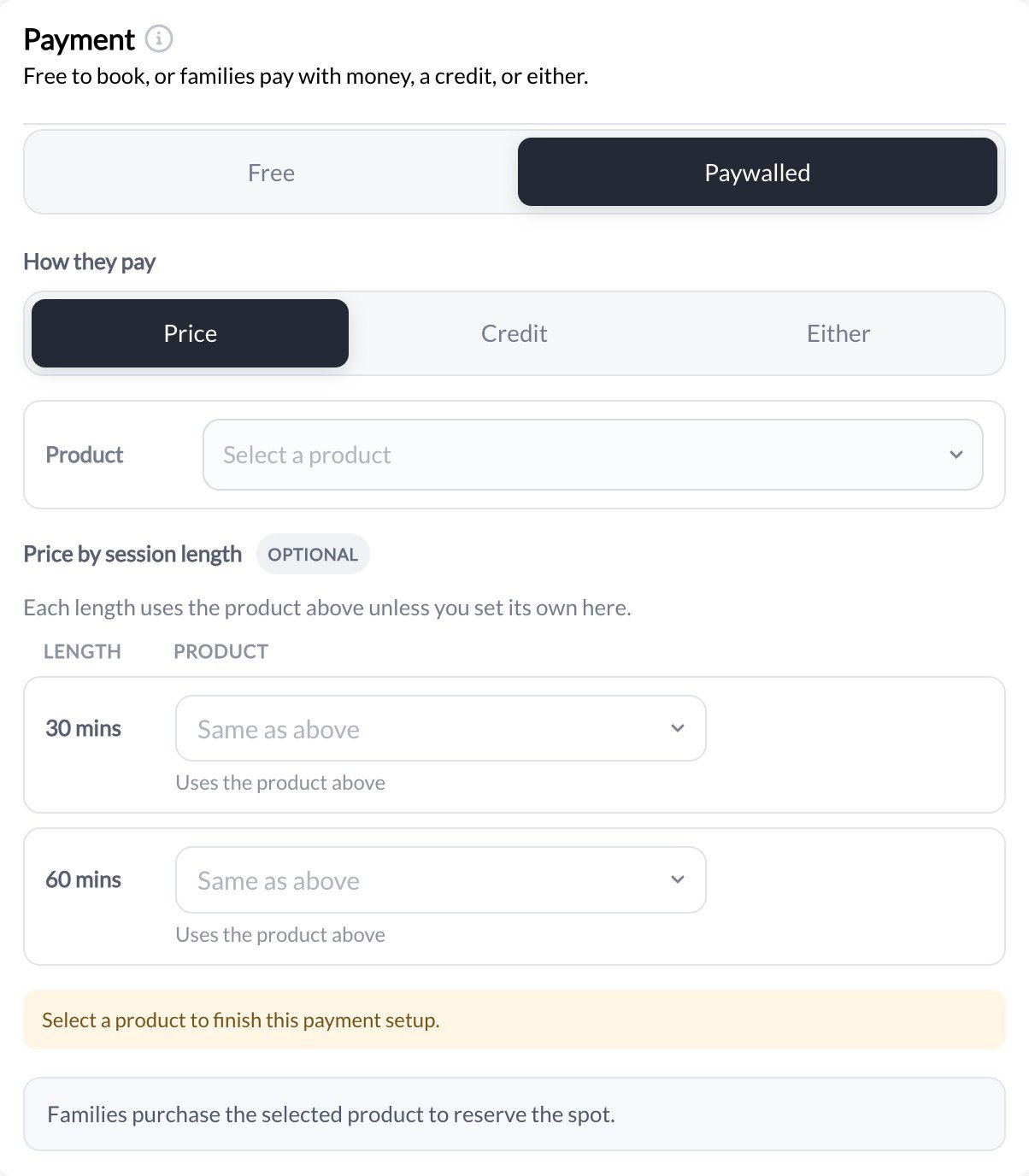
- Open the scheduler’s Payment section and choose Paywalled.
- Set How they pay to Price or Either and configure the price/product used for checkout.
- If you offer several session lengths, review each length’s price before saving.
- Save the scheduler and check the customer booking flow through the link or page you will share.
Set up credit booking
Choose Paywalled → Credit or Either, then enter the credit cost. Add a Buy more credits link to a relevant product so families know where to replenish their balance. The product issues credits and determines which schedulers accept them. The scheduler determines how many credits the booking costs. Check both sides before publishing.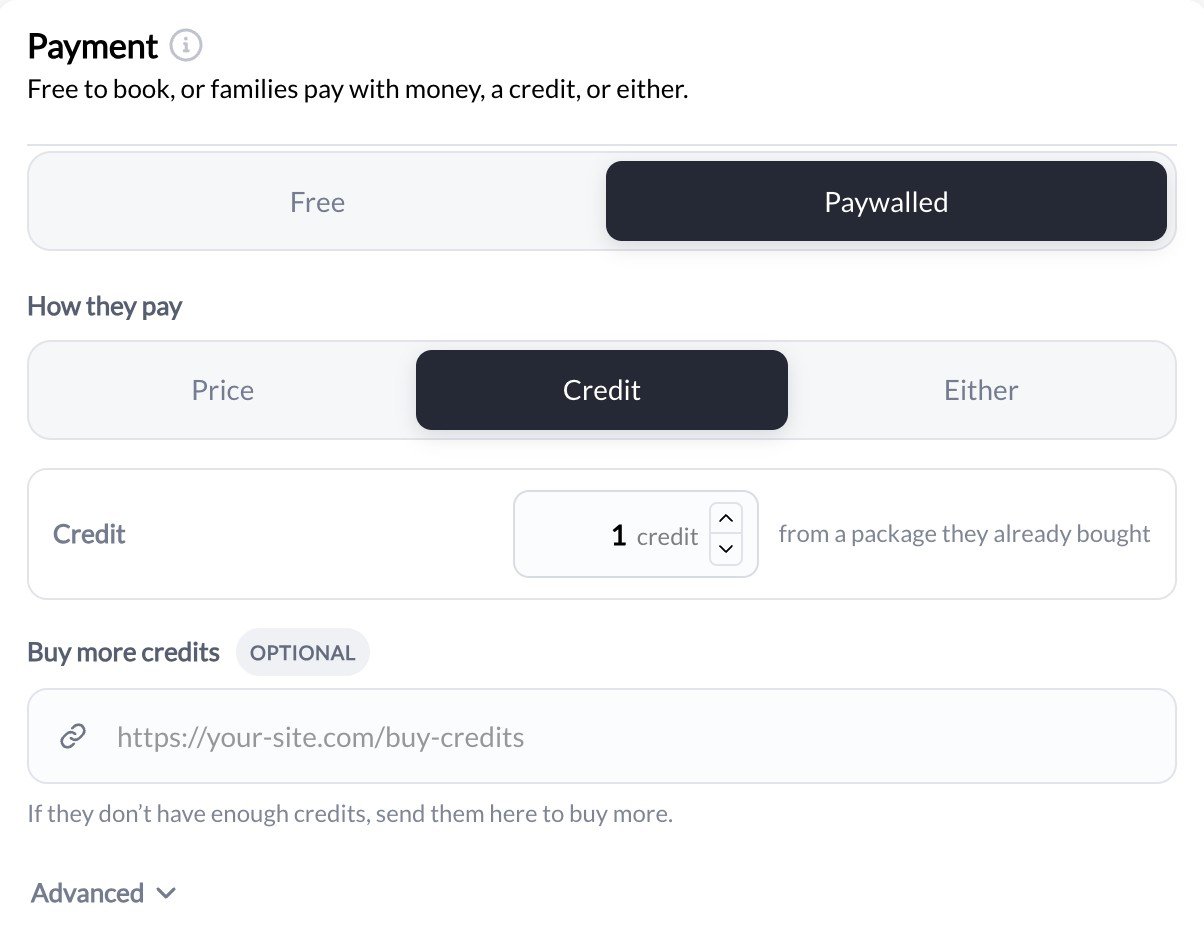
Set a price for each session length
One scheduler can offer multiple session lengths with different prices or credit costs. In Payment → Price by session length, enter overrides for the lengths that need them. A blank override uses the scheduler’s base payment setting. You do not need a separate scheduler just to offer a 30-minute and a 60-minute version of the same service. See Pricing by session length.Publish and verify checkout
Saving payment settings does not add the scheduler to your app or website. Follow Publish and share schedulers, then check:- The correct session lengths and payment choices appear.
- The credit product accepts this scheduler.
- A parent can select the intended child.
- The booked athlete, credit history, and payment record match the transaction.