

Where to find this: Dashboard → Inbox
What is the Inbox?
Your Inbox is the central communication hub where you manage all messages with athletes and parents. Think of it as your coaching command center - every conversation, announcement, and text message flows through here.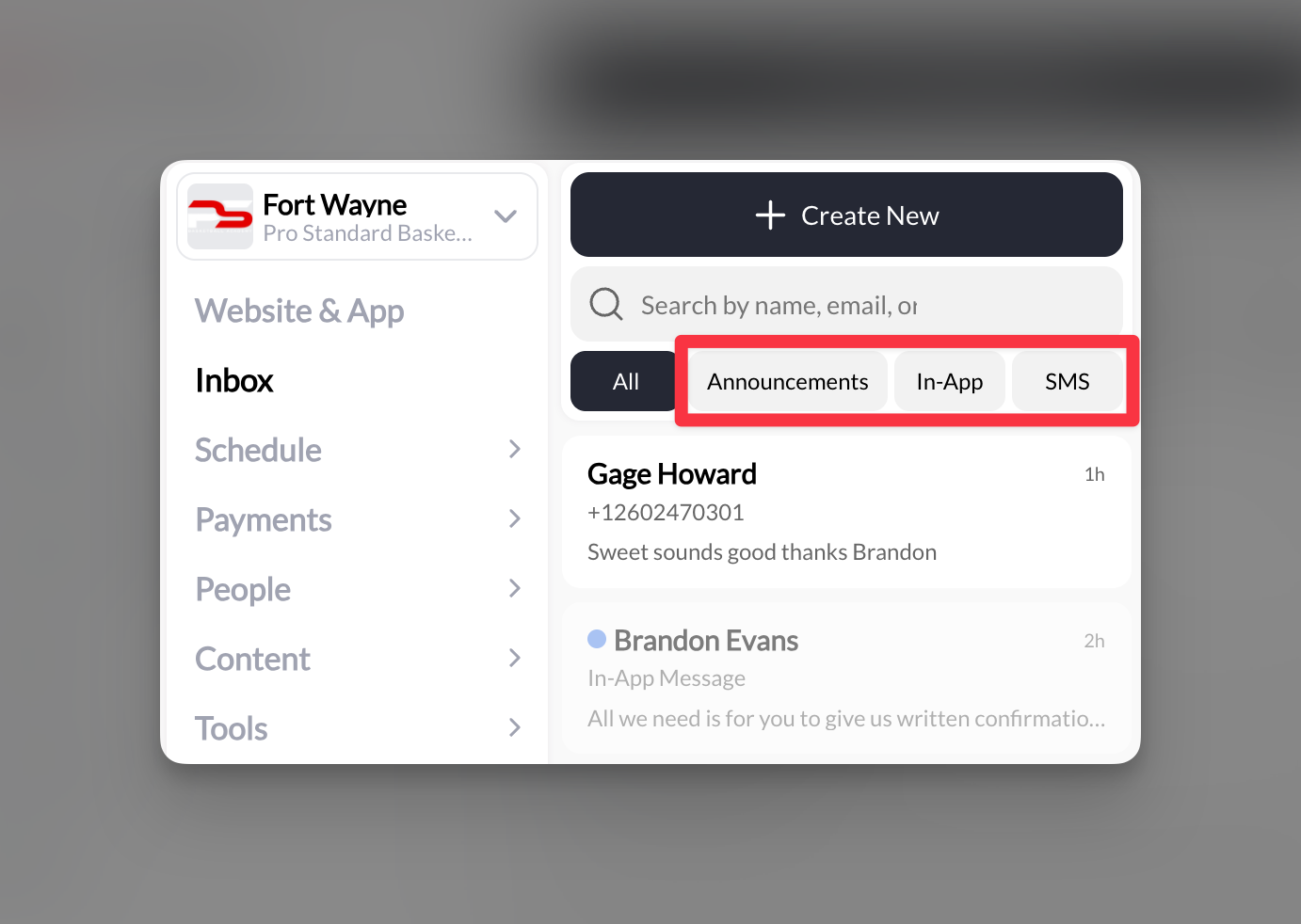
Four ways to communicate
CoachIQ gives you four messaging channels, each designed for specific communication needs:In-App Messages
Direct messages to specific athletes that appear in their app and portal
SMS Messages
Text messages sent to athletes’ phones for urgent or time-sensitive info
Announcements
Broadcast messages to groups that appear as emails and in the app
A formatted, branded email to one person or a list of addresses, written right from the Inbox
Understanding message types
In-App Messages
Best for: Personal communication, session reminders, individual feedback- Athletes must have the app installed or portal access
- No additional cost
- Supports attachments (forms, sessions, media, products)
- Athletes can reply directly
- Character limit: 15,000
SMS Messages
Best for: Urgent updates, last-minute changes, reaching parents- Requires SMS setup (see Setting Up SMS Messaging)
- Cost: about 1 credit per short text you send (100 credits = $1); incoming replies are free. See How SMS credits work
- Supports attachments as clickable links
- Athletes can reply via text
- Character limit: 155 for mass texts, 1400 for individual conversations
Announcements
Best for: Team updates, schedule changes, general information- Sends as both email and app notification
- The in-app announcement is free; each email copy uses 0.1 credit. See Messaging credits.
- One-way communication (no replies in Inbox)
- Email replies go to your configured reply-to address
- Contact limit: 400 recipients per announcement (raise it with the User Limit Expansion Power-Up)
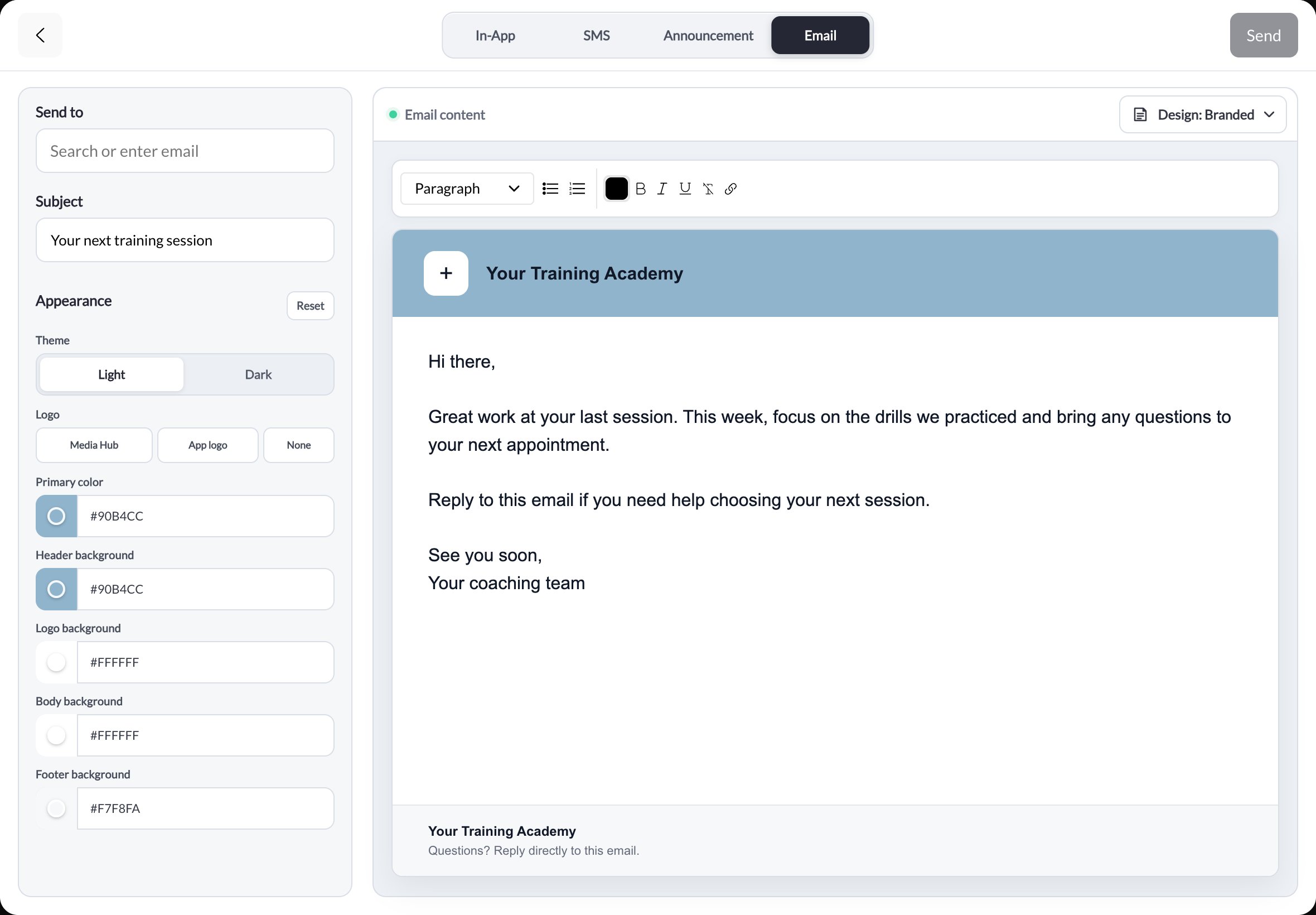
Email is a message type in Create New. Branded and Spotlight designs add appearance controls beside the editor.
Key Inbox features
1
Unified conversation view
All message types appear in one place. The left rail has Folders (Open, Archive, Automated) and Channels (All, Announcements, In-App, SMS, Email); above the list, All / Unread tabs narrow it further, and the search box takes a name, email, or phone number. Unread stays selected while new messages arrive and while you reply, so you can work down the list. Searching for someone you have never messaged shows No messages yet with no time, and real conversations sort above them. The Email channel lists emails you have sent; see Find emails you’ve sent.
2
Smart recipient selection
Send to individuals, use tags for groups, or message by role (Admin, User, Customer).
3
Rich attachments
Attach forms for data collection, sessions for booking, products for purchase, or media for instruction.
4
Archive system
Keep your Inbox clean by archiving old conversations while maintaining full history.
5
Automated folder
System messages such as booking confirmations and session reminders are kept apart from athlete conversations in the Automated folder, so real replies are never buried under notifications. See Automated reminders below. (One exception: when an athlete is short on credits for a booking, CoachIQ sends you an In-App request from their account; see In-App messages.)
6
Search functionality
Find contacts and conversations with Inbox search. Sent emails are not included in search yet; browse Channels → Email to find them.
Mark a conversation as unread
Marking a conversation as unread flags it so you remember to follow up later — it resurfaces under the Unread filter at the top of your Inbox. Sent email records never count as unread. Use Channels → Email or All to review them.- In your Inbox, right-click the conversation in the list.
- Select Mark as unread from the menu.
Mark as unread is currently available on desktop only (right-click). The same right-click menu also lets you Archive the conversation.
Automated reminders
The session reminders CoachIQ sends to athletes before a booking are hidden from your Inbox by default. They are still delivered to the athlete; they just do not appear as threads in the athlete’s conversation with you, so a chat with a regular client is not padded with reminder after reminder. If you want to see them, turn on Show booking reminders in inbox under Settings → Communication → Inbox Preferences. Reminders then appear as threads in the Automated folder rather than in the athlete’s In-App conversation. Details are in Communication settings.Quick decision guide
Which message type should I use?
Which message type should I use?
Use In-App Messages when:
- Communicating with athletes who regularly use the app
- Sending detailed instructions or feedback
- Cost is a concern (free messaging)
- You need back-and-forth conversation
- You need immediate attention
- Reaching parents who don’t use the app
- Sending last-minute schedule changes
- Athletes might not check the app regularly
- Broadcasting to the entire team
- Sending weekly schedules or updates
- Making general announcements
- You don’t need replies in CoachIQ
- One person deserves a longer, formatted message with a subject line
- You want your branding on it (Branded or Spotlight design)
- The recipient isn’t in your group yet, or doesn’t use the app
Important limitations to know
SMS costs apply: Each short text you send uses about 1 credit, and 100 credits = 1). Incoming replies are free.
Announcement limit: Maximum 400 recipients per announcement by default. The User Limit Expansion Power-Up raises it.
Getting started
Ready to start communicating? Here’s your path:- Set up SMS messaging to enable text communication
- Send your first message to athletes
- Use tags for group messaging to save time
- Send a branded email with a subject and customized design
- Set up a professional email address for your business mailbox
- Attach forms and sessions to drive action