

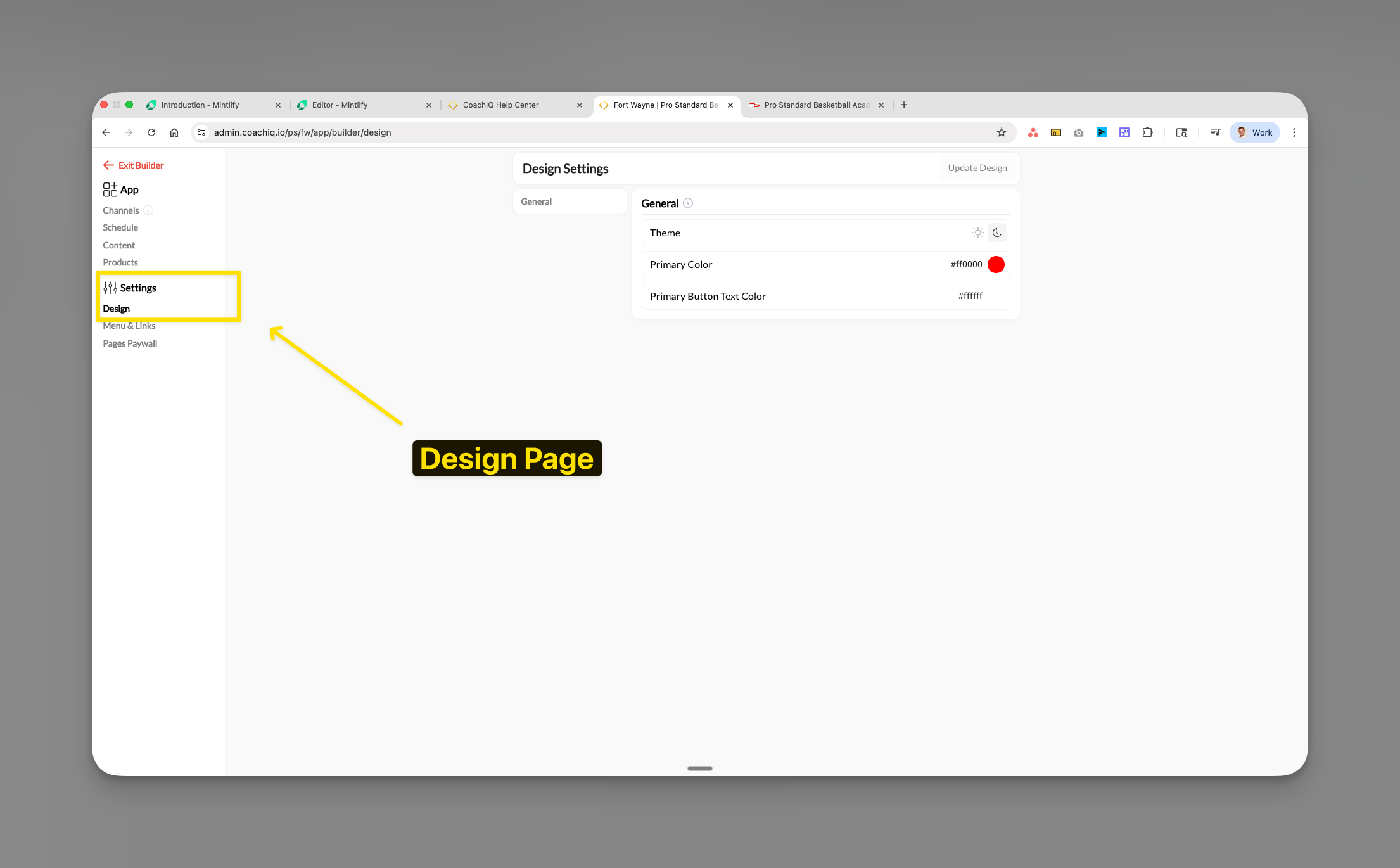
Where to find this: Dashboard → App Builder → Settings → Design
What you’ll accomplish
Customize your Athlete Portal’s visual appearance to match your brand. You’ll configure the theme (dark or light mode), set your primary brand color, and customize button text colors.Accessing design settings
1
Navigate to App Builder
From your dashboard, select App in the left sidebar.
2
Go to Settings
Click on Settings in the navigation menu.
3
Select Design
Choose Design to access your portal’s visual customization options.
Configuring your design
Theme selection
1
Choose your theme
In the Theme dropdown, select either: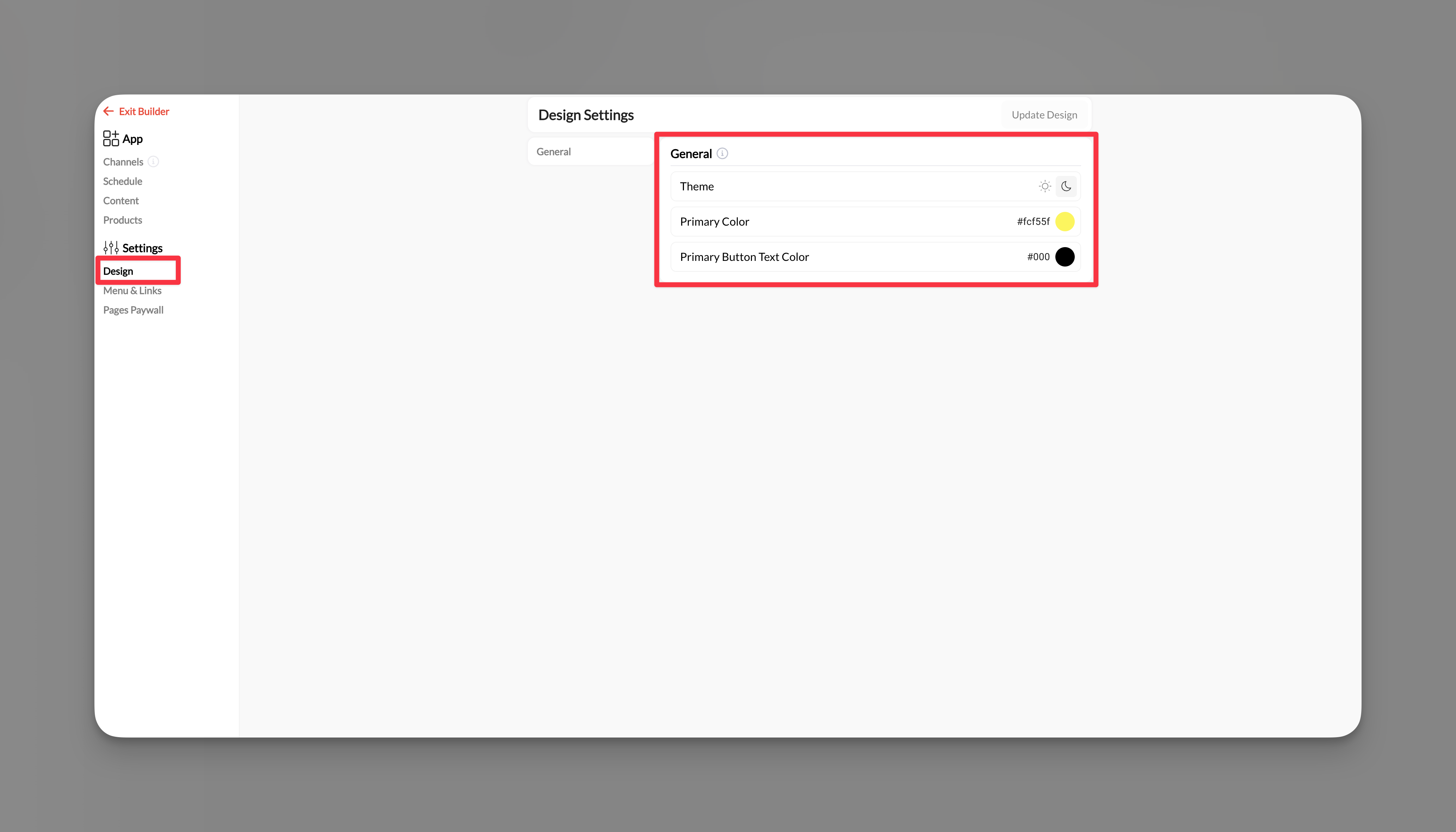
- Light mode - Clean, bright interface ideal for daytime use
- Dark mode - Reduced eye strain, modern appearance
2
Preview changes
Your selection updates the preview immediately. Athletes will see this theme when they access your portal.
Brand colors
1
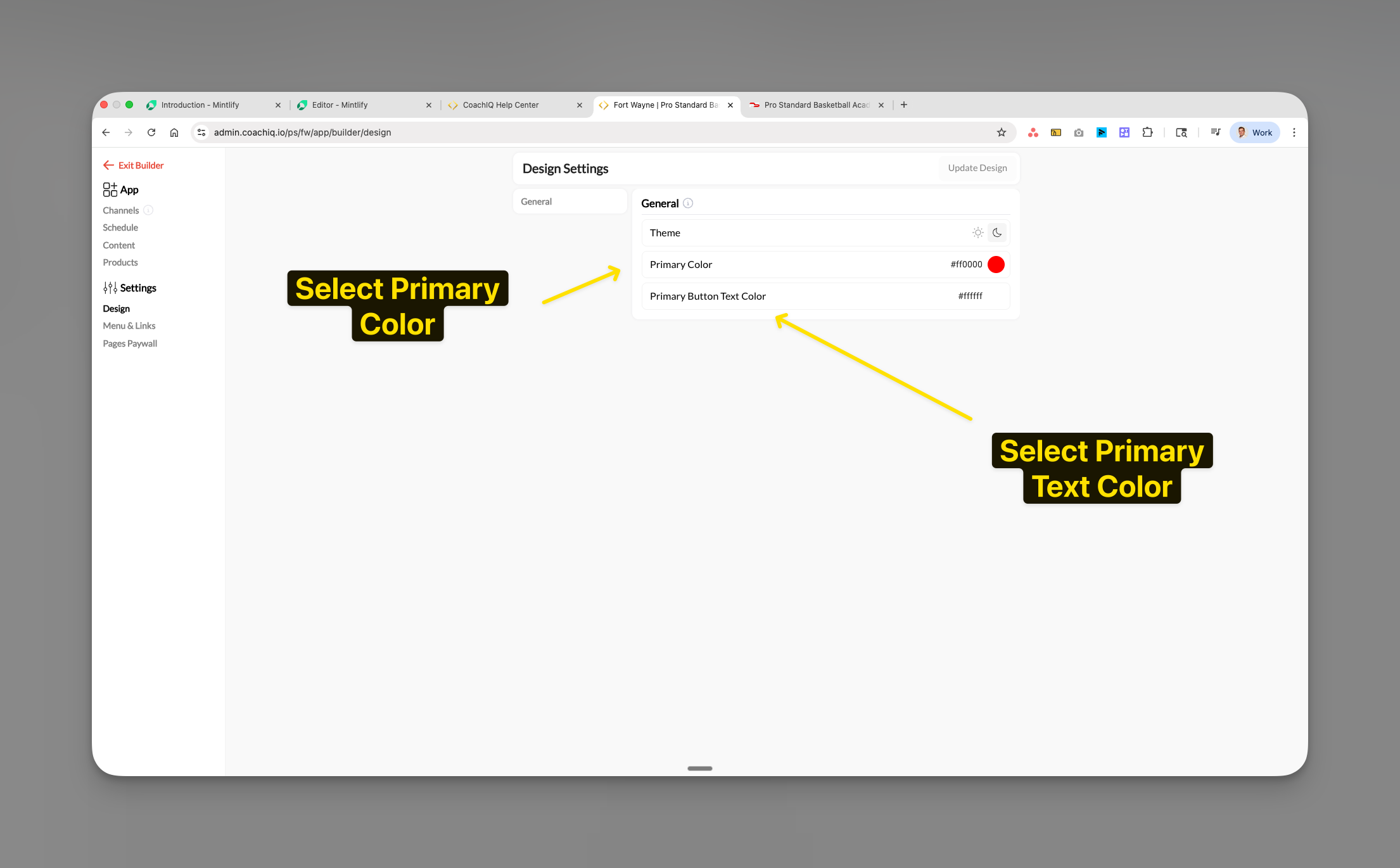
Set Primary Color
Click the Primary Color selector and choose your main brand color. This affects:
- Navigation highlights
- Active buttons
- Links and accents
- Selected items
2
Set Button Text Color
Choose the Primary Button Text Color to ensure readable text on your buttons.
- Use white (#ffffff) for dark primary colors
- Use black (#000000) for light primary colors
Saving your design
1
Review your choices
Check that your theme and colors work well together.
2
Update Design
Click Update Design to save and apply your changes.
Changes apply immediately. Athletes see the new design on their next login or refresh.
Design best practices
Common questions
Can athletes choose their own theme?
Can athletes choose their own theme?
No, the theme you select applies to all athletes. This ensures brand consistency across your portal.
How do I find my brand's hex color?
How do I find my brand's hex color?
You can:
- Ask your designer for brand hex codes
- Use online color pickers
- Extract colors from your logo using free tools
- Common format: #ff0000 (red) or #000000 (black)
Will this affect my website too?
Will this affect my website too?
No, these settings only apply to your Athlete Portal (App Builder). Website design is configured separately in Website Builder.
Can I use different colors for different sections?
Can I use different colors for different sections?
The primary color applies globally throughout the portal. Individual section customization is not currently available.