

Where to find this: Athlete Portal → Settings → Family
How a family is structured
- Parent holds the login, the payment method, and the inbox. Their role in People is Parent.
- Athlete is the person who attends sessions. An athlete connected to a parent can be a full account with its own login, or a managed child with no login at all.
- The parent-to-athlete link is stored on both profiles. Reminders, booking views, and automations follow that link (details below).
The Family tab only appears on profiles with the Parent role. If a parent tells you they cannot find it, check their role in User Details and change it to Parent if needed. See Sign-up & Profile to make new sign-ups land on the right role from the start.
What parents can do
1
Open Settings
From the athlete portal, the parent selects Settings.
2
Go to Family
They select Family, where they’ll see the athlete they’re currently managing.
3
Add a family member
Selecting Add Athlete lets them add another child to the account. They can also select an existing athlete listed there to switch to managing them.
What you can do as a coach
Where to find this: People → open the client → PROFILE → Family
- Helper: “The child is added without a login. You can enable login later.”
- First name (required) (placeholder First) and Last name (placeholder Last)
- Cancel and Create child
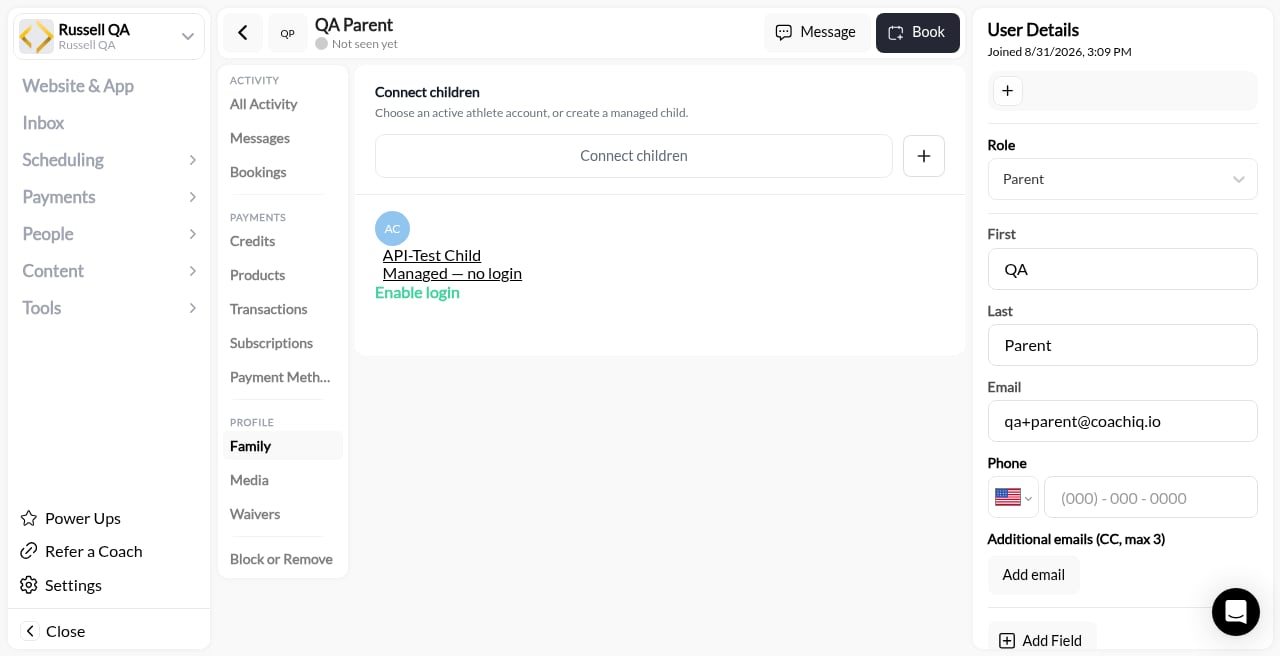
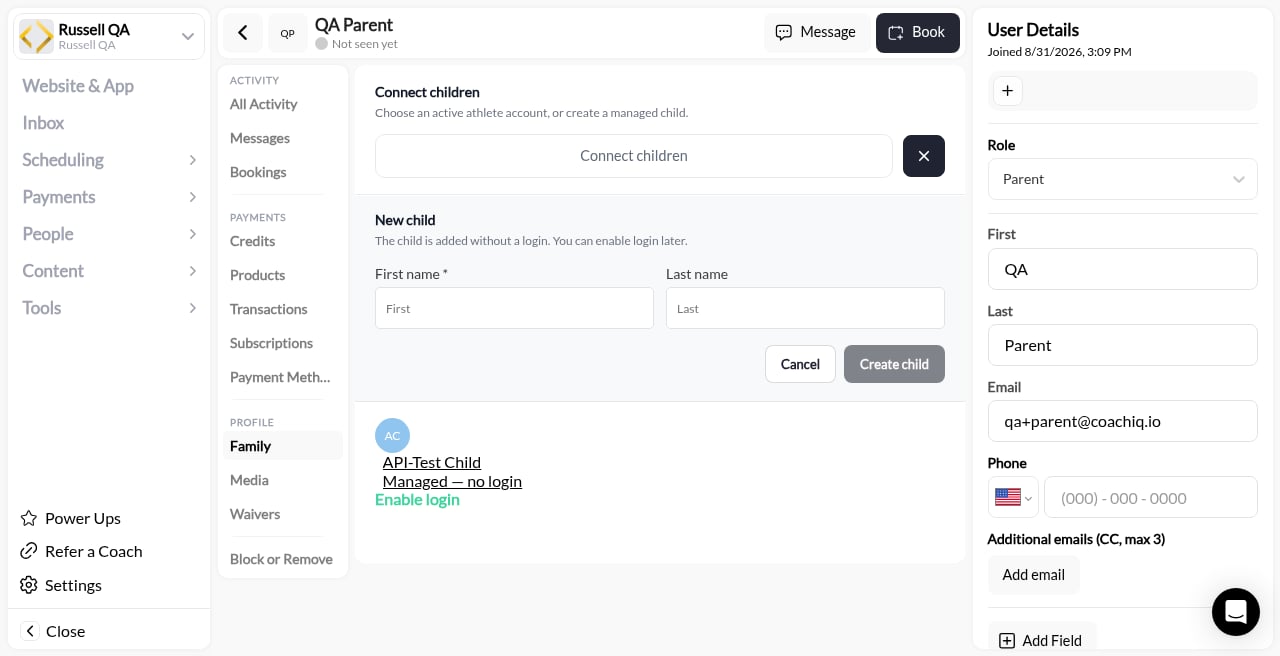
Managed children with no login
A managed child has a profile, bookings, credits, and tags like any athlete, but no email and no password. That is the right shape for most youth athletes: the parent does everything on their behalf, and nothing is ever sent to an inbox the child does not have.- Anything addressed to a managed child (reminders, announcements, in-app messages) is delivered to their parent. See Who receives reminders and notifications.
- When the athlete is old enough to run their own account, click Enable login on the child’s row. They keep their history.
- Automations can target a managed child’s parent explicitly with the trigger user and their guardians option on Target User. See Triggers and actions.
Who receives reminders and notifications
Practice reminders and notifications for an athlete go to that athlete and to their connected parent. For a managed child with no login, the parent is the only reachable destination, so the parent is who gets the reminder. This is what makes a booking reminder land with the person who is actually driving to the field. A parent with two athletes is connected to both, so they receive both athletes’ reminders from one account. You do not need to tag or message the parent separately.Booking for a specific family member
Once family members are added, booking a session includes a Select Athlete step. The parent picks which athlete the session is for — themselves or any linked family member — before checkout.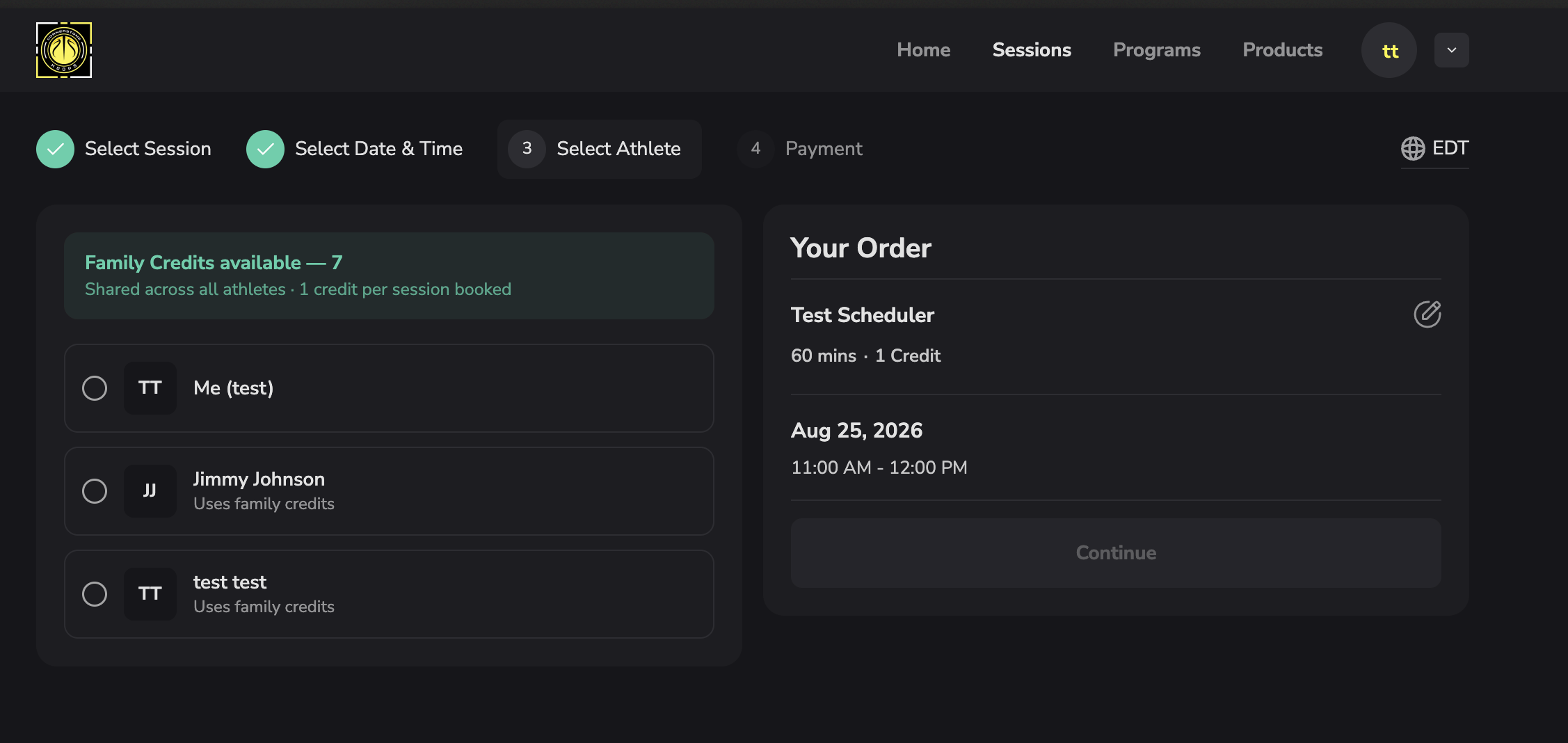
Changing a child’s booking
A linked parent can reschedule or cancel their child’s lesson from Bookings, including a lesson you or your staff booked for the child. Rescheduling needs Allow athletes to reschedule turned on for the scheduler. Cancel isn’t offered inside the cancellation notice window, and rescheduling there follows the scheduler’s Block rescheduling within cancellation window setting.- Single lessons: the parent picks a new time and sees Reschedule Confirmed. The lesson stays under the child’s name. A parent who cancels gets the cancellation email.
- Weekly series: the parent can move or cancel one date in the series. Only that date changes; the rest of the series stays booked.
- When the change is blocked: the parent sees a readable reason, for example “You can only book a time slot once.” when the child already has a lesson at that time. Inside the notice window, the booking explains why Cancel isn’t available and suggests contacting you.
How a parent sees their athletes’ bookings
A parent’s own Bookings view in the athlete portal, and in the native iOS and Android apps, lists every connected athlete’s sessions grouped by athlete. The parent never has to switch into each child to check who has practice tonight. Session location shows on each booking in the app, so a per-date venue change is visible where the parent looks. You see the same thing from the coach side: opening the parent in People → Bookings shows all bookings under that parent, sorted by which athlete they belong to. Opening the athlete shows only that athlete’s bookings. See Bookings tab.A child’s credits in the parent’s Billing
A parent’s Settings → Billing → Credits lists their own credits first, then each managed child’s credits marked For and the child’s name. Credits from a membership bought for a child always belong to the child; this is where the parent can see them. Booking for that child uses the child’s credits.Registering an athlete at checkout
Buying a team registration, camp, or membership for a child is a purchase, not a booking, so it goes through checkout rather than the Select Athlete step above. When the purchasing parent has more than one athlete on the account, checkout asks Who are you registering? before payment. What attaches to the athlete they pick:- The purchase itself, so you can see which child a registration paid for
- Any team tag the product’s automation applies
- Any credits the product grants
- Date of birth, which is collected per athlete rather than once per family
Whether a product is bought for the buyer themselves or for a managed athlete is a setting on the product. See Product Builder for the buyer vs. managed athlete option and how it changes checkout for adults buying for themselves.
Check which athlete a purchase is for
Before paying, parents can confirm the selected athlete’s name on the final Review & payment screen for a product, or the Payment screen when booking a session with credits or a card. If they change children during checkout, the review updates to the newly selected athlete. Review any required registration answers again after switching. After purchase, Orders and Billing Archive show a For: line naming the athlete when the purchase recorded one. Older purchases that did not record an athlete may not show this line; its absence alone does not tell you who received the purchase. Check the relevant athlete’s profile before asking a parent to buy again.One membership for multiple athletes
A shared family membership can connect eligible athlete purchases to one paid subscription. It is different from booking with a parent’s own credit pack: the subscription’s paid quantity must cover the linked athletes, and each eligible purchase receives its own membership benefits. Coaches should follow Shared family memberships to connect purchases, check renewal credits, or remove one child while keeping siblings active. Families should contact their coach to change or cancel a shared membership so that one child’s request does not end the subscription for everyone. For paid session bookings, the parent remains the payer and the selected child is the attending athlete. Check both names when matching the family’s order with the transaction in admin; the payer’s name does not mean the parent is attending.When two parents share an athlete
More than one parent can connect to the same athlete. There is no designated primary parent. Each sees the athlete’s schedule, including bookings made by the other parent.- Booking changes: Either parent can book. For a one-time booking a parent made, that parent must cancel or reschedule it. Recurring-booking cancellation currently also allows another connected parent. Bookings staff made for the athlete can be rescheduled or canceled by a connected parent (see Changing a child’s booking).
- Credits: Purchases assigned to the athlete can supply credits when either parent books for that athlete. A parent’s own credit pack is not spendable by the other parent. Refunds return to the original payment source.
- Notifications: Booking confirmations and cancellation notices go to the parent who made the booking; session reminders go to connected parents. For automations, choose the athlete-and-parents audience when both should receive the action. Purchase receipts go to the parent who paid.
- Account changes: Either connected parent can edit the athlete’s details or remove another parent’s connection. There is no separate approval step for those changes.
Opening a link for another business
Signing in through another CoachIQ group’s link does not automatically join that group. If the page says You’re a member of a different group, use the option to go to your group, or ask the intended business for its registration instructions. Within one organization, someone who already belongs to one of its groups and opens another group’s app gets one clear choice: go to their own group, or join this one. Someone who is signed in but hasn’t joined sees a single Join card with your logo and a Join Now button. A parent who signs in on a group’s booking page joins that group as a parent and gets the welcome email, the same as with Join this group.Common questions
Does a managed child need an email address?
Does a managed child need an email address?
No. A managed child has no login and no email. Everything meant for them is delivered to the connected parent. Add an email and click Enable login only when the athlete should run their own account.
Can two parents be connected to the same athlete?
Can two parents be connected to the same athlete?
Connect each parent to the athlete from that parent’s Family section in admin. Both then see the athlete’s bookings and receive their reminders. If you run into a case that does not behave this way, contact support with the family’s names.
A parent bought a registration but the child has no practices on their schedule
A parent bought a registration but the child has no practices on their schedule
Check which athlete the purchase is attached to: open the parent in People → Products. If the purchase landed on the parent rather than the child (this happened before the Who are you registering? step existed), book the child into the team’s practice sessions manually and move the tag to the child. Registrations made after August 2026 attach to the selected athlete automatically.
Can a parent or coach remove a managed child?
Can a parent or coach remove a managed child?
Only if the child has no history. A managed child who has any booking, purchase or activity can’t be removed by a parent or staff member; the message reads “Can’t remove: this athlete has booking, purchase, or activity history.” This keeps the child’s memberships and records attached to a real profile.
Do parents see their athletes' bookings in the native app?
Do parents see their athletes' bookings in the native app?
Yes. The iOS and Android apps show a parent every connected athlete’s bookings, grouped by athlete, with the session location. See Booking in the native app.
Related articles
Booking for Multiple Athletes
How shared credits and family booking work today
Client Profiles
Family is under PROFILE on the client
Bookings tab
A parent’s bookings grouped by athlete
Sign-up & Profile
Force new sign-ups to the Parent/Guardian account type
Triggers and actions
Target an athlete and their guardians from an automation
Booking in the native app
Pay-or-credit prompt, purchases in the browser, session location