

Where to find this: Dashboard → People (main navigation)
What is the People section?
The People section is your client relationship management (CRM) hub—a single place to view, organize, and manage everyone in your coaching business. Think of it as your digital contact list combined with a complete activity history for each person. Every client interaction, booking, payment, message, and credit transaction lives here. Whether you need to check what sessions someone has attended, see their credit balance, or find all clients tagged “Elite Program,” the People section gives you instant answers.Two ways to view people
CoachIQ organizes people into two main categories:- Clients
- Staff
Athletes, parents, customers—anyone who books sessions, purchases products, or trains with you. This is where you’ll spend most of your time managing your coaching relationships.You’ll see:
- Athletes and their parents
- Trial clients
- Active members
- Past customers
Understanding the client list
When you open People → Clients, you’ll see a searchable table with everyone in your business: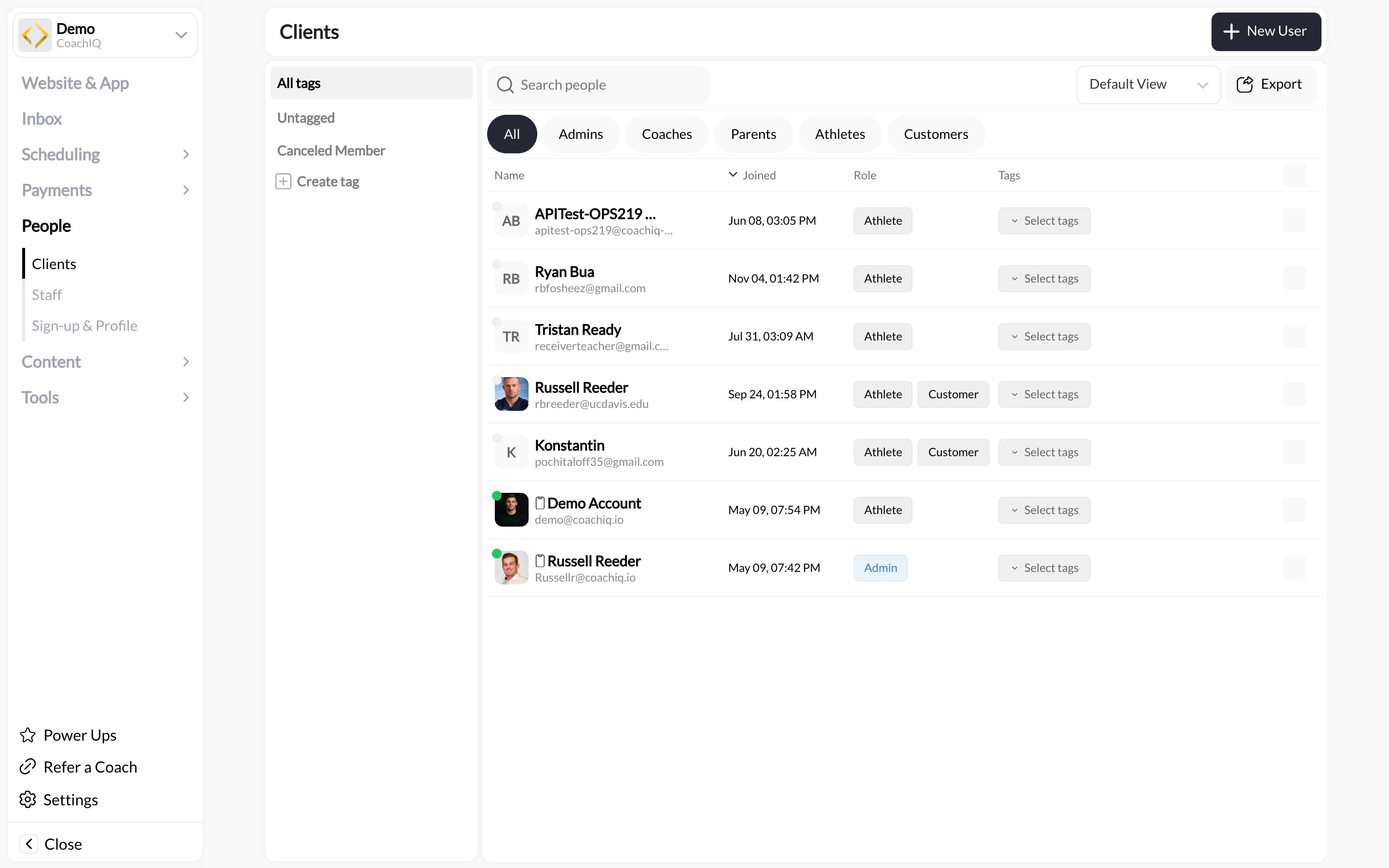
- Name with avatar or initials
- Joined date (when they were added to CoachIQ)
- Role badges (Athlete, Coach, Admin, Parent, Customer)
- Tags for organization (“Elite Program”, “Trial”, custom tags)
- Click role tabs (All, Admins, Coaches, Parents, Athletes, Customers)
- Use tag sidebar to show specific groups
- Search by name, email, or tag in the search bar
Adding Clients
Learn how to manually add clients or bulk import from a spreadsheet
Organizing with Tags
Master tags and filters to segment your client base for messaging and management
Parents and athletes in the client list
Parents and their connected athletes appear together, expanded by default. Use the chevron on a parent’s avatar to collapse or expand that family independently. Searching for an athlete keeps their connected parent visible for context.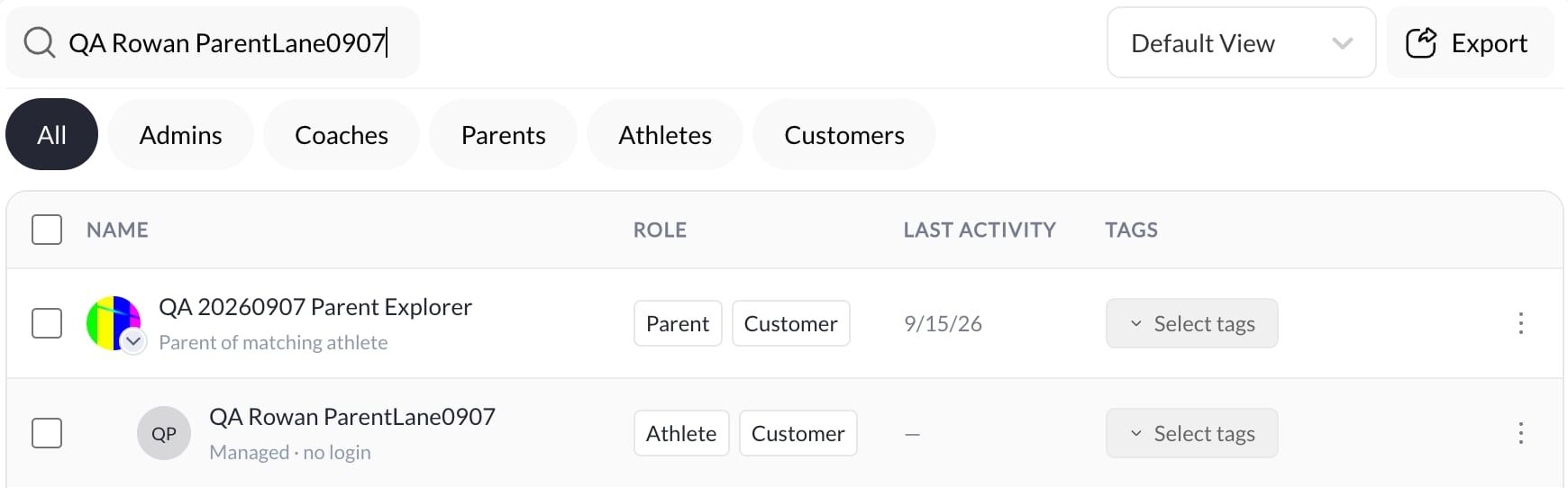
Find the right family record
- Search for the athlete in People → Clients.
- Open the athlete’s row for training activity, bookings, and athlete-owned credits. Managed · no login identifies an athlete without an independent login.
- Open the parent row for the parent’s own purchases and contact details. A parent retained only for search context is labeled Parent of matching athlete.
- Use Profile → Family to review the actual connections before linking another parent or enabling an athlete’s login.
Understanding roles
Every person in CoachIQ has at least one role. Many clients have multiple roles (for example, someone could be both an “Athlete” and a “Customer”). Common roles explained:Important: Roles affect what people can see and do in your Athlete Portal (mobile app/web). Admins and Coaches see the full coaching interface, while Athletes and Parents see only their booking and training content.
Managing Your Staff
Set up your coaching team with the right permissions and access levels
Client profiles: The complete picture
Click any client’s name to open their full profile—a comprehensive dashboard showing everything about that person’s relationship with your business.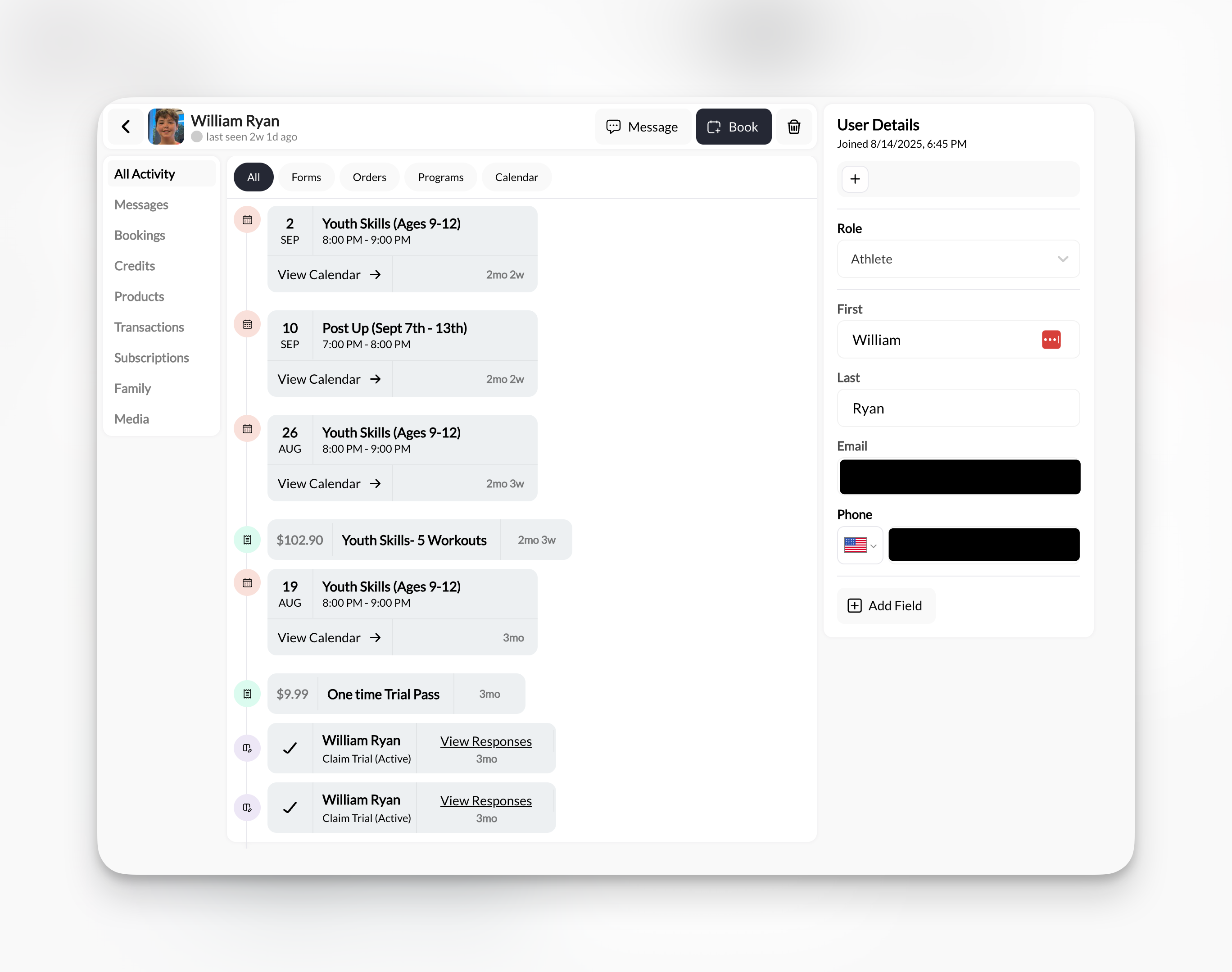
Profile Header & Quick Actions
Profile Header & Quick Actions
- Client photo, name, and “last seen” status
- Message button → Opens conversation in Inbox
- Book button → Manually book them into a session
- Delete button → Remove client from system
- User Details sidebar → Edit contact info, role, custom fields
9 Activity Tabs (The Full Story)
9 Activity Tabs (The Full Story)
Each tab gives you a different view of the client’s history:
- All Activity - Unified timeline of everything (bookings, purchases, programs)
- Messages - In-App and SMS conversation history
- Bookings - Upcoming, past, and canceled sessions
- Credits - Complete credit transaction log (purchases, redemptions, expirations)
- Products - What they’ve purchased and when
- Transactions - Payment history and revenue tracking
- Subscriptions - Active memberships and recurring billing status
- Family - Parent/child account linking for youth training
- Media - Programs and lessons you’ve shared with them
Explore Client Profiles
Complete guide to every tab and feature in client profiles
What you can accomplish in People
The People section lets you handle every aspect of client relationship management:Find Anyone Instantly
Search by name, email, filter by role or tag, or use the tag sidebar to segment your client base.
Track Complete History
See every booking, purchase, message, and credit transaction in one unified timeline.
Organize with Tags
Create custom tags like “Trial”, “Elite Program”, or “Overdue” and filter your entire client list instantly.
Manage Credits
View balances, see redemption history, understand expiration dates, and manually adjust credits when needed.
Monitor Revenue
Check transaction history, track subscription status, and see total revenue per client across any time period.
Quick Actions
Message, book sessions, or add products directly from any client profile with one click.
Quick navigation guide
Not sure which article you need? Use this guide:1
I need to add clients
Go to: Adding & Editing Client InformationCovers manual creation, bulk import, editing details, and custom fields.
2
I need to understand a specific profile tab
Go to: Client ProfilesDeep dive into All Activity, Messages, Bookings, Credits, Products, Transactions, Subscriptions, Family, and Media tabs.
3
I need to organize and filter my clients
Go to: Organizing Clients with Tags & FiltersLearn to create tags, apply them, filter your list, and use tags for group messaging.
4
I need to add or manage coaching staff
Go to: Managing Your Coaching StaffSet up team members, assign permissions, and control access levels.
Common questions
What's the difference between Clients and Staff tabs?
What's the difference between Clients and Staff tabs?
Clients = People who book sessions, purchase products, and train with you (athletes, parents, customers)Staff = People who help run your business and need access to the CoachIQ platform (coaches, admins, team members)Most of your time will be spent in the Clients tab managing your training relationships.
Can I have someone who is both a client AND staff?
Can I have someone who is both a client AND staff?
Yes! Someone can be tagged as both “Athlete” and “Coach” if they train with you AND help coach others. They’ll appear in both tabs and have access to both the coaching interface and their own athlete profile.
How do I export my client list?
How do I export my client list?
Click the Export button in the top-right corner of the Clients list. This generates a CSV file with names, emails, phone numbers, roles, tags, and join dates. Useful for backups or importing into external tools.
What happens when I delete a client?
What happens when I delete a client?
Deleting a client removes them from your People list but preserves their historical data (past bookings, transactions, messages) for record-keeping. They lose access to your Athlete Portal immediately.Tip: Consider using a “Inactive” tag instead of deleting if you think they might return.
Can clients see other clients in my system?
Can clients see other clients in my system?
No. Clients only see their own profile, bookings, and content you’ve shared with them. They cannot view or search for other athletes in your business. Only Admins and Coaches with proper permissions can see the full client list.
Manage season teams
When Teams is enabled for your organization, open People → Teams to connect an athlete roster with staff, registration, practices, games, and communication.Teams overview
Create a team and learn how its roster, registration, and scheduling work together.
Related articles
Adding Clients
Manual creation and bulk import
Client Profiles
Complete activity dashboard guide
Tags & Filters
Organization and segmentation
Managing Staff
Coaching team setup
Inbox Overview
How to message clients
Calendar Overview
See bookings by athlete
You now understand: What the People section is, how it’s organized, what you can accomplish, and where to find detailed guides for specific tasks.