

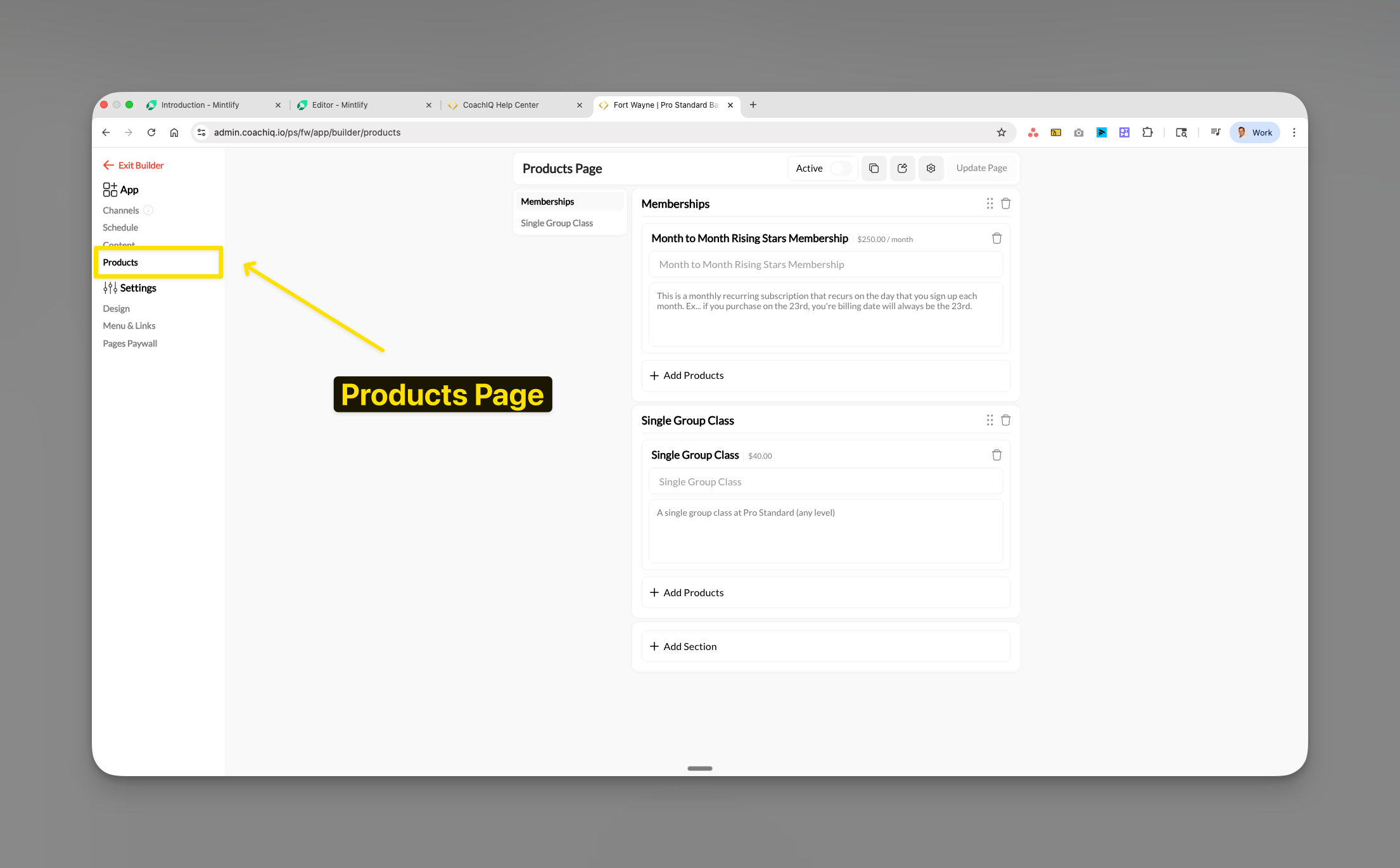
Where to find this: Athlete Portal → Edit → Products
What you’ll accomplish
Set up your products page to display memberships, packages, and services for purchase through your web portal. You’ll learn how to organize products into sections, manage visibility settings, and understand critical platform limitations that affect how athletes access your payment options.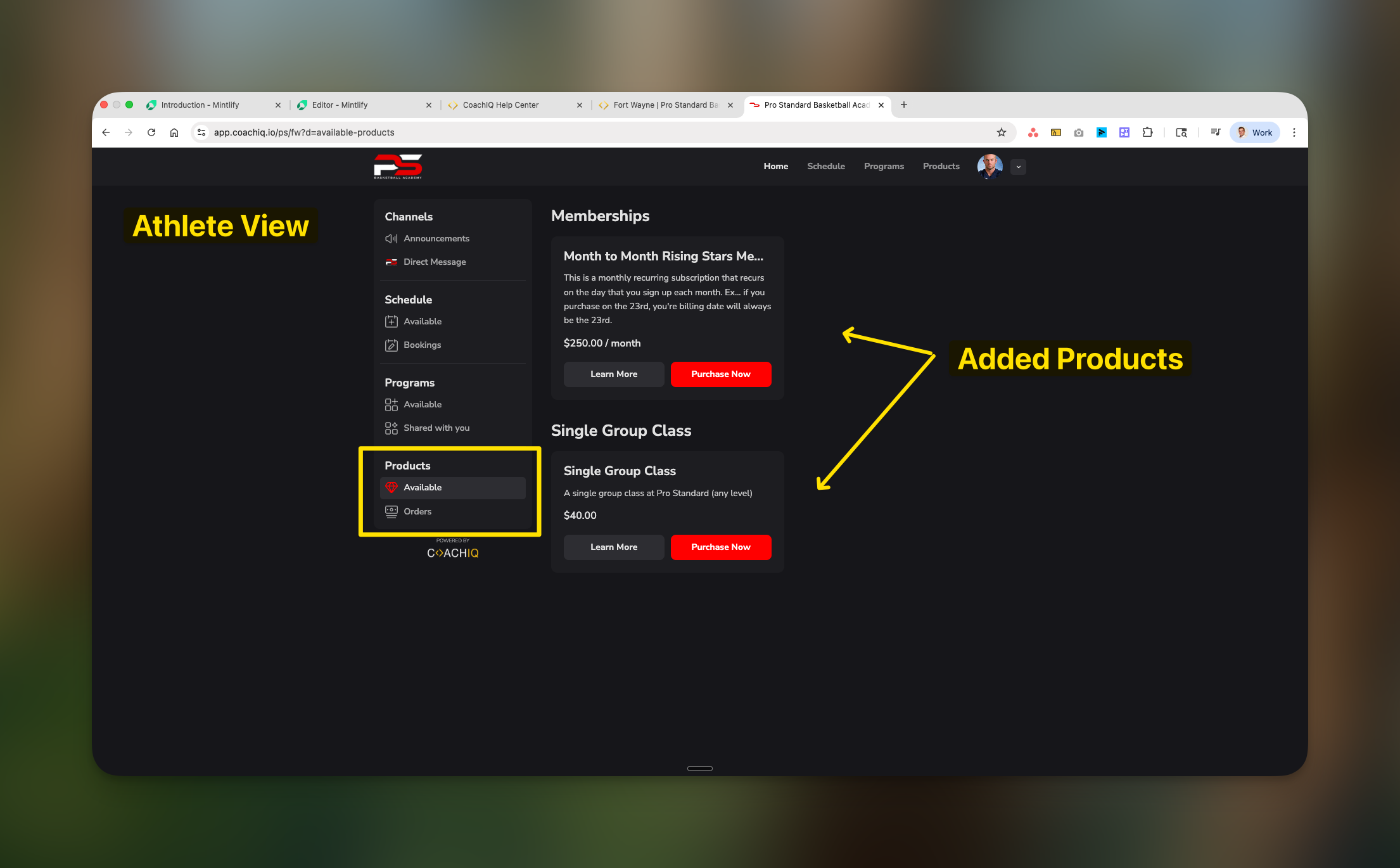
Web and mobile apps
- Mobile apps
- Web
iOS and Android appsSupported app versions can display configured products and offer eligible native checkout. Other app versions or purchases use browser checkout. Check your actual released app; a new native payment capability does not automatically make every product visible.See Native app booking.
Understanding the Products page
The Products page displays your payment options, memberships, and packages that athletes can purchase to access your services. It functions identically to the Programs page in terms of organization, but focuses on payment products rather than content.Overview
- Purpose: Payment collection vs. content delivery
- Access: Purchase required vs. content access rules
- Platform availability: Web plus supported native app versions and configuration
- Primary action: Buy button vs. view content
Before you begin
Required:
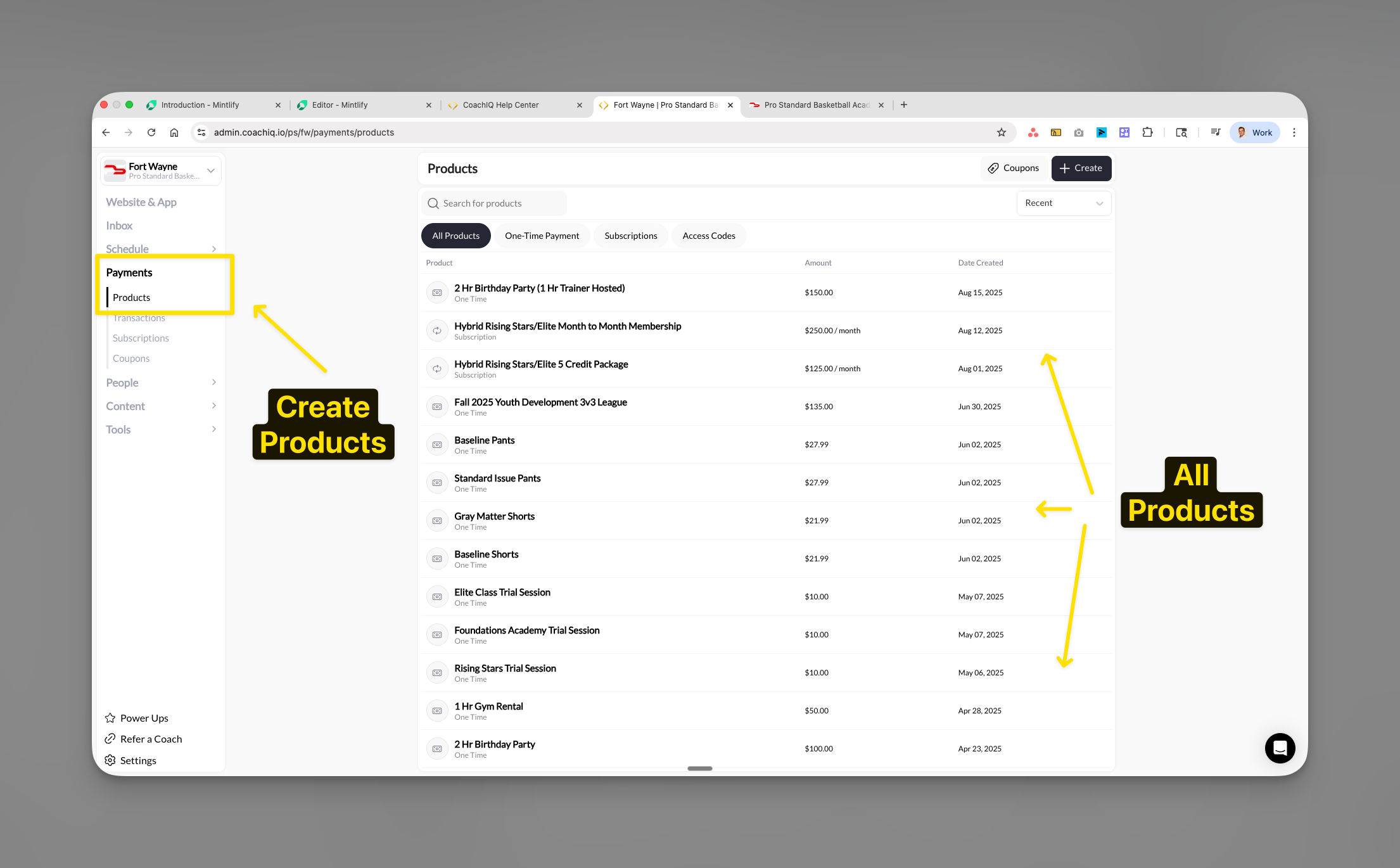
- At least one product must exist in Payments → Products
- Stripe account must be connected for payment processing
Products are hidden by default: Creating a product in Payments → Products doesn’t automatically make it visible to athletes. You must explicitly add products to this page (or attach them to schedulers/forms) for athletes to discover them. This lets you set up products before you’re ready to launch. Learn more about product visibility →
Accessing product settings
Open Athlete Portal → Edit, then select Products in the builder’s left navigation.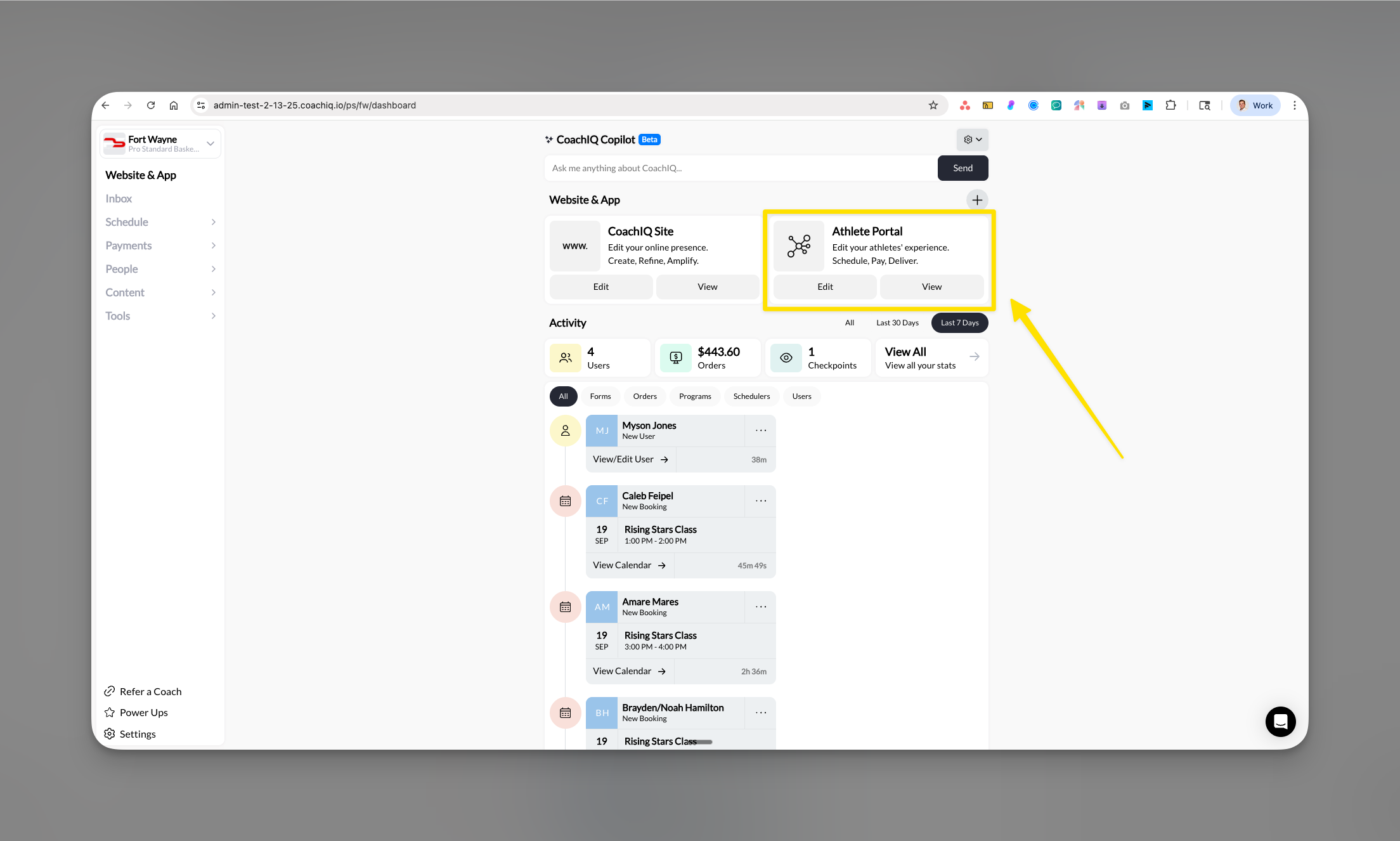
Activating the Products page
1
Locate the Active toggle
Find the Active toggle in the top right corner of the Products page.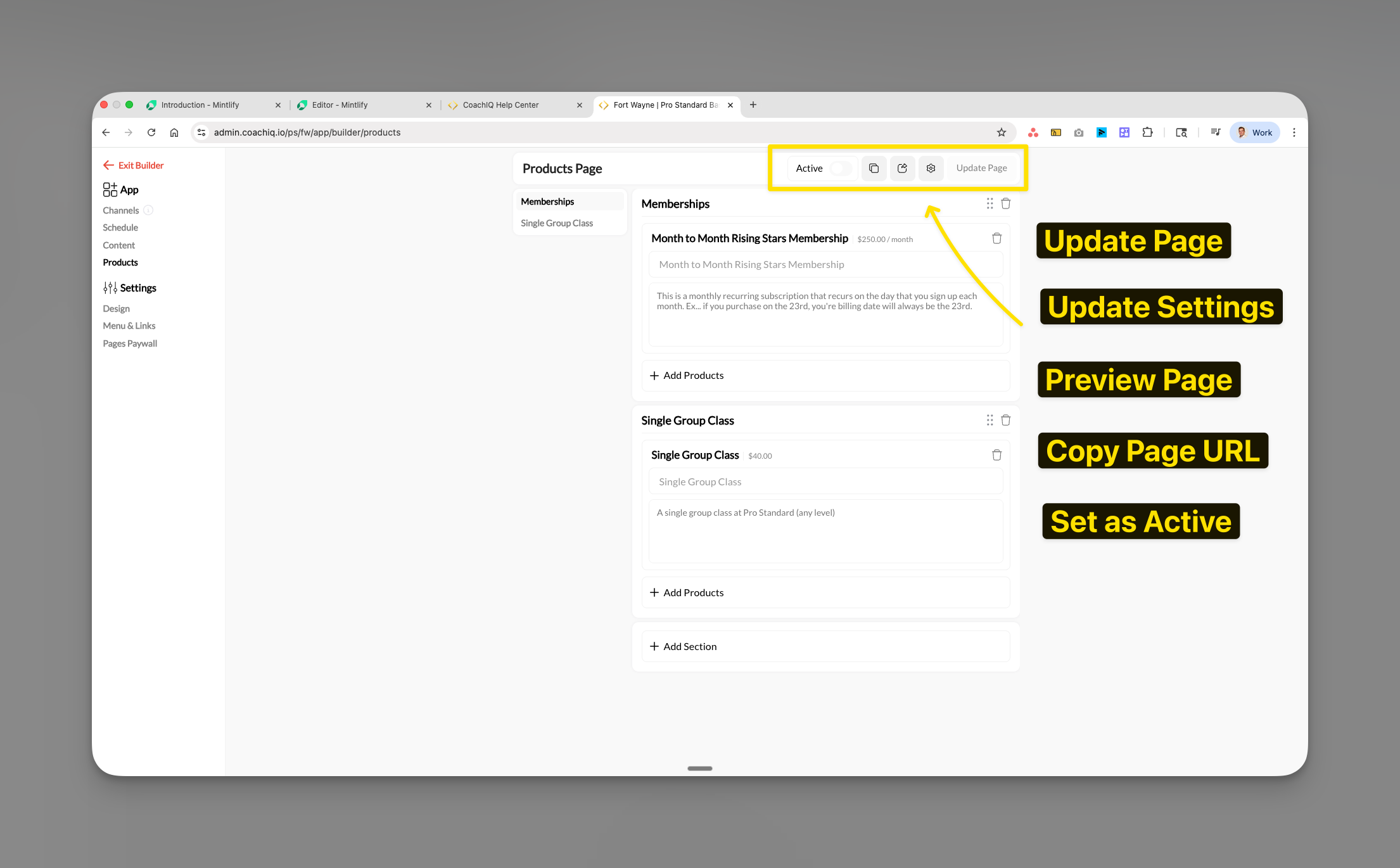
2
Toggle visibility
- ON: The Products page is shown in your web app, and in mobile app versions that support it
- OFF: The Products page is hidden
Check both the page configuration and the installed app version when verifying mobile visibility.
3
Save your changes
Click Update Page to save the active status.
Adding products to sections
1
Click Add Products
Within any section, click the + Add Products button.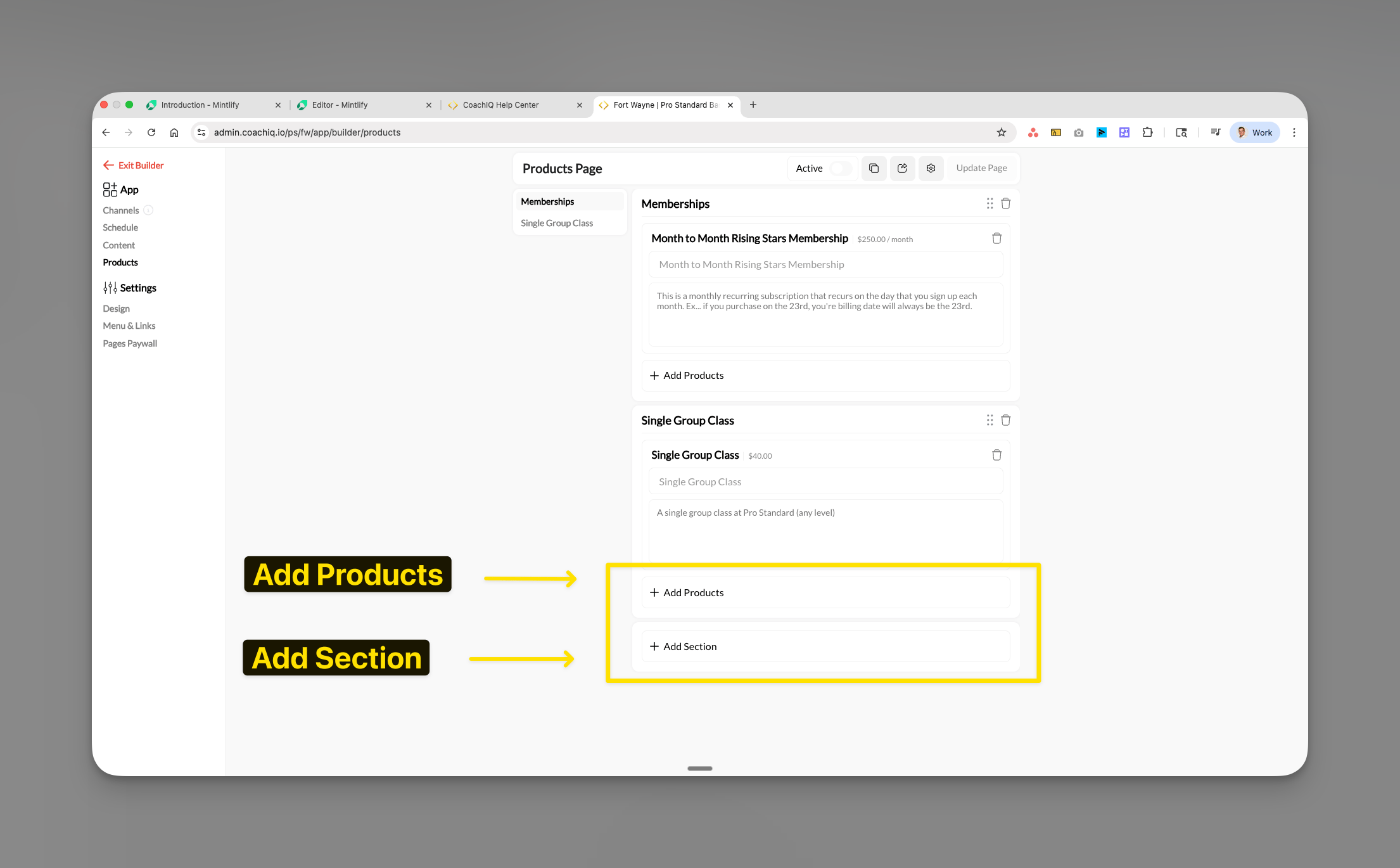
2
Select products to display
Choose from your available products:
- Memberships (recurring subscriptions)
- One-time packages
- Session bundles
- Credit packages
- Product name
- Price
- Billing frequency (if subscription)
- Description preview
3
Confirm selection
Click Save to add selected products to the section.
Products appear with their pricing and purchase buttons once you publish the page.
Creating and organizing sections
Sections help organize your products into logical categories for easier shopping.Adding new sections
1
Click Add Section
Click + Add Section at the bottom of your product list.
2
Name your section
Use clear, descriptive names:
- “Memberships”
- “Single Group Class”
- “Training Packages”
- “Elite Programs”
- “Beginner Packages”
3
Add products to section
Use + Add Products to populate the new section.
Section organization best practices
- Place most popular products at the top
- Group by commitment level (monthly, yearly, one-time)
- Separate memberships from individual purchases
- Consider price-point organization (budget to premium)
Configuring page settings
Use the Settings panel to rename the Products tab and update the page URL.1
Open the Settings panel
Click the gear icon in the top right of the Products page to open the Settings panel.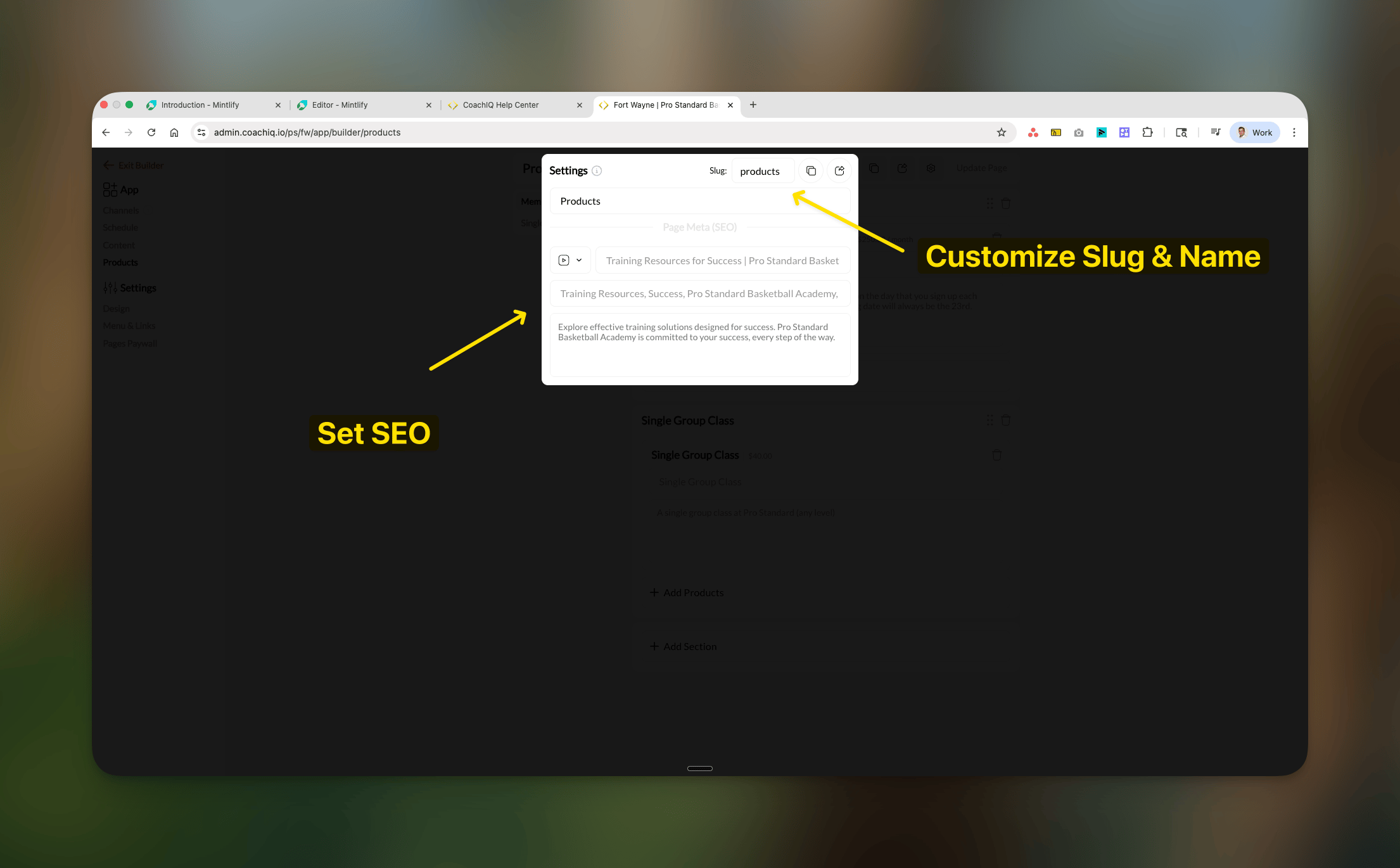
2
Rename the page
The first field at the top of the Settings panel is the Page Name — the display name athletes see as the tab in their portal. Update it to match your branding (e.g., “Shop”, “Memberships”, “Purchase”).
3
Update the URL slug
The Slug field controls the URL path for this page (e.g.,
/products, /memberships, /pricing).4
Configure description
Add a Description for SEO context explaining your offerings.
5
Save configuration
Click Update Page to apply settings.
When an app doesn’t offer checkout
Share direct web purchase links when athletes cannot access the required checkout in their installed app.Recommended workarounds
- Direct Link Strategy
- Communication Strategy
- Alternative Sales
Send athletes to web portal
- Share your portal link via SMS/email
- Include link in app announcements
- Add “Purchase on Website” message in app
- Use QR codes at facility
Preview and testing
1
Click Preview Page
Select Preview Page to see the athlete view.
2
Test on web browser
Verify display and functionality:
- Product cards show correctly
- Prices display accurately
- Purchase buttons work
- Sections organized properly
3
Confirm mobile app behavior
Check the released iOS/Android apps to verify the intended product visibility and checkout.
Publishing changes
1
Review all settings
Double-check sections, products, and pricing.
2
Click Update Page
Click Update Page to publish changes.
Changes apply to your published portal. Native visibility also depends on the installed app version and enabled purchase experience.
What families see at checkout
Families should check the initial charge separately from the recurring membership price. A setup fee or coupon can make the first payment different from renewals. A membership that starts billing later shows a scheduled billing date; that is not necessarily a free trial. See Product payment amounts. An eligible saved card can be selected during checkout. A card saved with a different seller may require a new payment method for this purchase. If saved payment methods fail to load, use Retry rather than assuming there are no saved cards. Check the selected card before confirming payment.Common questions
Why can't my athletes see products on the mobile app?
Why can't my athletes see products on the mobile app?
Check that the Products page is enabled and published, then check the athlete’s installed app version and supported payment experience. Native payments do not automatically turn on your Products page. If checkout is unavailable in that app, share the product’s web purchase link.
How do I sell to athletes who only use the app?
How do I sell to athletes who only use the app?
Best practices:
- Send purchase links via SMS or email
- Add announcements in the app directing to web portal
- Include instructions in your welcome message
- Process payments in person or over the phone
- Share QR codes that link to your web products page
Can I accept payments through the app at all?
Can I accept payments through the app at all?
Native payment availability depends on the released app and eligible purchase. When it is unavailable, you can:
- Use credits (pre-purchased on web)
- Book sessions that require payment later
- Send payment links through in-app messaging
How do I explain this to frustrated athletes?
How do I explain this to frustrated athletes?
Sample message:
“If you do not see the purchase option in your app, use our web portal to buy your membership or package. Then return to the app to use it.”
Do credits purchased on web work in the app?
Do credits purchased on web work in the app?
Yes. Credits bought on the web can be used to book in the mobile app, and the other way around.
Troubleshooting
Products not appearing in selection
- Verify products exist in Payments → Products
- Check the product isn’t archived (use the status filter dropdown to check)
- Confirm Stripe is properly connected
- Refresh the App Builder page
Athletes report they can’t find products
- Check the athlete’s app version and whether it supports the intended purchase; offer the web purchase link when needed.
- Check Products page Active toggle is ON
- Verify their account has access
- Test the web portal link yourself
Purchase buttons not working (web)
- Verify Stripe integration is active
- Check product configuration in Payments
- Ensure product has valid pricing
- Test in incognito/private browser
Pro tips
Critical reminders
Related articles
Creating Products
Build memberships, packages, and one-time products in the Product Builder
Setting Up Stripe
Connect your Stripe account for payment processing
Understanding the Athlete Portal
Learn how the Athlete Portal works for coaches and athletes
Paywall Settings
Restrict page access until athletes purchase a qualifying product
Product Types
Understand the different product types available in CoachIQ
Communicating with Athletes
Send messages and announcements through your Inbox