Use this checklist before going live
Before you share your booking link with athletes, use this checklist to verify everything is configured correctly. Catching issues now prevents confusion, failed bookings, and frustrated athletes later.Estimated time: 5-10 minutes to complete this checklist
Phase 1: Account & Platform Setup
These are one-time setup items that affect all your scheduling.✅ Account & Payment Processing
✅ Account & Payment Processing
What to verify:
- CoachIQ account is active and accessible
- Payment processing is connected (if using paid sessions)
- Bank account linked for payouts (if using paid sessions)
- Test payment processed successfully (if using paid sessions)
✅ Timezone Settings
✅ Timezone Settings
What to verify:
- Your timezone is set correctly in account settings
- Calendar displays times in your correct timezone
- Go to Settings → Account Settings
- Verify timezone matches your location
- Check calendar to confirm displayed times are correct
✅ Athlete List
✅ Athlete List
What to verify:
- At least one test athlete added to your system
- Test athlete has valid email address
- You can access athlete portal/app to see their view
Create a test athlete: Use your own email (or a test email) to create a fake athlete so you can test bookings without bothering real athletes.
Phase 2: Scheduler Configuration
Verify your scheduler (session type) is configured correctly.✅ Session Details Are Clear & Compelling
✅ Session Details Are Clear & Compelling
What to verify:
- Session name is descriptive and includes duration
- Description explains what athletes will get/learn
- Duration is set correctly (30, 45, 60 min, etc.)
- Session type matches your coaching style (1-on-1 vs group)
- ✅ “60-Minute Private Hitting Lesson”
- ✅ “45-Minute Small Group Speed Training”
- ✅ “30-Minute Free Assessment Session”
- ❌ “Session 1”
- ❌ “Training”
- ❌ “PT-60-A”
✅ Availability Is Set Correctly
What to verify:
- Days and times match when you actually want to coach
- Availability extends far enough into the future
- No accidental gaps or missing days
- Blackout days are set for known time off (vacation, holidays)
- Setting availability only 1-2 weeks out (athletes can’t book far ahead)
- Forgetting to block vacation days
- AM/PM confusion (setting 3:00 AM instead of 3:00 PM)
- Not accounting for time zone differences
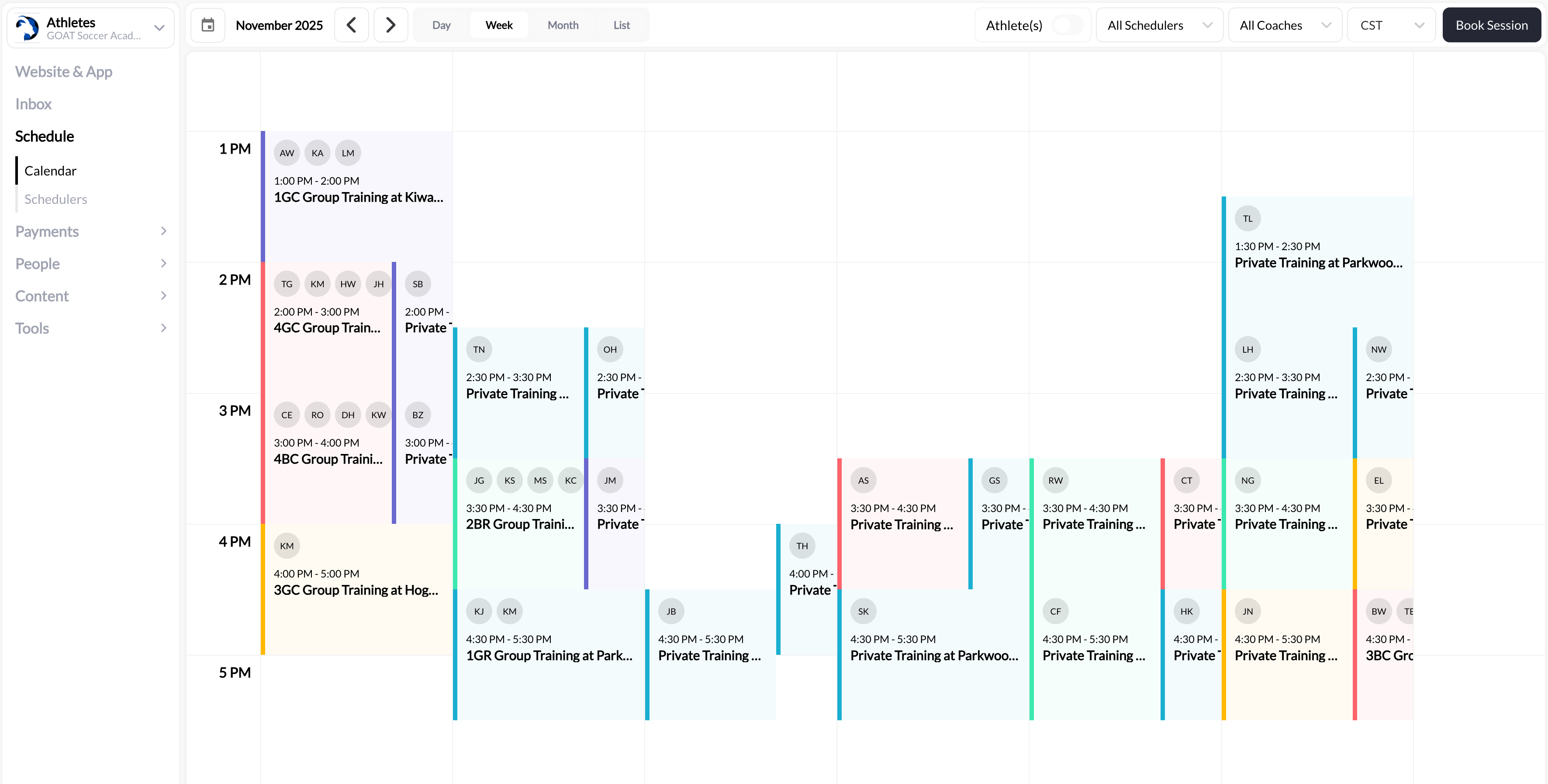
- Go to Schedule → Calendar
- Switch to Week or Month view
- Verify available slots appear on correct days/times
✅ Buffer Time Is Set (Recommended)
What to verify:
- 10-15 minutes of buffer time between sessions
- Buffer accounts for your setup/cleanup needs
- Back-to-back sessions have adequate spacing
- 1-on-1 sessions: 10-15 minutes
- Group sessions: 15-20 minutes
- Complex setups (video, equipment): 20-30 minutes
✅ Capacity Settings Match Your Intent
What to verify:
- Max athletes per session is correct (1 for private, 4-20 for groups)
- Group size matches your facility/equipment capacity
- You’re comfortable coaching that many athletes simultaneously
Phase 3: Payment Configuration
Critical verification if you’re charging for sessions.✅ Payment Method Is Configured Correctly
✅ Payment Method Is Configured Correctly
What to verify:
- Free vs Paid vs Credit-based is set as intended
- Price/credit cost is correct
- Payment product is connected (if using direct payment)
- Credits are issued properly (if using credit-based)
| Use Free When… | Use Direct Payment When… | Use Credits When… |
|---|---|---|
| Trial sessions | Drop-in/one-time bookings | Ongoing relationships |
| Team practices | New/unproven athletes | Monthly memberships |
| Assessments | Event registrations | Session packages |
| Makeup sessions | Testing pricing | Subscription models |
✅ Credit System Is Set Up (If Using Credits)
What to verify:
- Credit-issuing product exists (session package or subscription)
- Credit price is set on scheduler (e.g., 1 credit per session)
- Test athlete has credits to test booking
- Credit restrictions are configured (if any)
- Go to Payments → Products
- Verify you have a product that issues credits
- Manually grant test credits to your test athlete
- Attempt a test booking with credits
Credit setup is complex: If using credits for your first session, expect to spend extra time learning the credit system. Consider starting with free or direct payment first.
✅ Pricing Makes Sense
What to verify:
- Price matches your market and experience level
- Price is competitive with local coaches
- You’re comfortable charging this rate
- Group pricing reflects per-athlete value vs 1-on-1
- Would you pay this price for this session?
- Is this sustainable for your business?
- Does this match or beat your previous hourly rate?
- For groups: Is the per-athlete price compelling?
- Underpricing to attract athletes (hurts perceived value)
- Overpricing without proven results (discourages bookings)
- Same price for 1-on-1 and group sessions (should differ)
- Forgetting to account for your time, travel, equipment costs
Phase 4: Booking Experience Testing
The most critical phase—see what athletes see and experience.✅ Booking Link Works
✅ Booking Link Works
What to verify:
- Booking link opens correctly
- Page loads without errors
- Session information displays properly
- Available times are showing
- Copy your scheduler’s booking link
- Open in a new browser tab (or incognito/private window)
- Verify everything displays as expected
✅ Athlete View Is Clear & Professional
What to verify:
- Session name and description are compelling
- Price or credit cost is clear
- Duration is obvious
- No confusing or technical jargon
- Mobile-friendly display
- What they’re booking (session type)
- How long it lasts (duration)
- What it costs (price or credits)
- What they’ll get out of it (value)
✅ Test Booking Completes Successfully
What to verify:
- Can select an available time slot
- Can complete the booking process
- Receive booking confirmation (email/notification)
- Booking appears on your calendar correctly
- Test athlete receives confirmation
- As your test athlete, book a session
- Complete the full booking flow
- Verify confirmation notifications
- Check your calendar for the booking
- Verify all information is correct (time, athlete name, session type)
- Payment processes successfully
- Amount charged is correct
- Receipt is generated
- Funds appear in your account (or marked as pending)
- Credits are deducted properly
- Credit balance updates correctly
- Booking confirmation shows credit usage
✅ Cancellation Flow Works (If Enabled)
What to verify:
- Athletes can cancel (if you allow it)
- Cancellation policy is clear
- Credits refund properly (if applicable)
- Cancellation notifications are sent
- Calendar updates after cancellation
Phase 5: Calendar & Management
Ensure you can effectively manage bookings once they start coming in.✅ Calendar Is Accurate & Readable
✅ Calendar Is Accurate & Readable
What to verify:
- Bookings display correctly in calendar
- Day/Week/Month views all work
- Session information is complete
- Athlete names are visible
- Times are correct (timezone check)
✅ You Can Manually Book Athletes
What to verify:
- Can access booking builder
- Can select athletes, sessions, and times
- Manual bookings appear on calendar
- Notifications are sent to athletes
- Go to Schedule → Calendar
- Click Book Session
- Walk through the manual booking process
- Verify the booking appears correctly
✅ Notifications Are Working
What to verify:
- Booking confirmations sent to athletes
- Booking notifications sent to you
- Reminder notifications configured (if desired)
- Cancellation notifications work
Reminder setup: If you want automated reminders (1 day before, 1 hour before, etc.), configure these in your scheduler settings under “Reminders.”
Phase 6: Sharing & Distribution
Make your booking link accessible to athletes.✅ Sharing Strategy Is Ready
✅ Sharing Strategy Is Ready
✅ Website Integration (If Applicable)
What to verify:
- Scheduler embedded on your CoachIQ website
- Booking section appears correctly
- Athletes can book without leaving your site
- Website is published and live
Common Setup Mistakes (And How to Avoid Them)
1. No Availability Set
Symptom: Booking link shows “No available times” Fix: Edit your scheduler and add availability (days/times you coach)2. Availability Too Far in Past/Future
Symptom: No slots showing even though availability exists Fix: Check your scheduler’s date range—ensure it includes today and extends into future3. Minimum Notice Too High
Symptom: Athletes complain they can’t book Fix: If you set “24-hour minimum notice,” athletes can’t book sessions within 24 hours. Reduce or remove this restriction.4. Wrong Timezone
Symptom: Sessions booked at weird times, athletes/coaches confused Fix: Verify timezone in Settings → Account Settings matches your actual location5. Payment Not Configured
Symptom: Athletes can’t complete booking Fix: If requiring payment, ensure payment processor is connected and products are set up6. Buffer Time Too Long
Symptom: Very few available slots showing Fix: 60+ minutes of buffer time dramatically reduces available slots. Keep buffer to 10-20 minutes.7. Capacity Set Incorrectly
Symptom: Multiple athletes booking same “private” session slot Fix: Verify “Max Athletes Per Session” is set to 1 for private sessions8. Credits Not Issued
Symptom: Athletes with credit-based sessions can’t book Fix: Ensure test athletes have credits granted, or credit-issuing products are set upDecision Framework: Credits vs. Direct Payment
- Start with FREE
- Use DIRECT PAYMENT
- Use CREDITS
Best for:
- Your very first session while learning CoachIQ
- Testing the system before charging
- Building initial athlete relationships
- Trial sessions for new athletes
- Zero setup complexity
- Focus on learning the scheduling mechanics
- No payment processor configuration needed
- Easy to upgrade to paid later
- No immediate revenue
- May attract less committed athletes
- Need to add payment later when ready
Final Pre-Launch Checklist
Before you share your booking link with real athletes, confirm:Critical Must-Haves
- ✅ Test booking completed successfully
- ✅ Booking appears on calendar correctly
- ✅ Confirmations/notifications are working
- ✅ Availability shows correct days/times
- ✅ Pricing/payment is configured properly
- ✅ Session name and description are clear
- ✅ Tested on mobile device
Important Nice-to-Haves
- Buffer time set (10-15 min recommended)
- Blackout days added for known time off
- Reminders configured for athletes
- Cancellation policy set
- Booking limits configured (if needed)
- Program groupings created (if multiple schedulers)
Launch Readiness
- Booking link saved and ready to share
- Communication plan for sharing with athletes
- First week availability looks good
- Mentally prepared for bookings to come in
- Know how to manually book if needed
- Support contact saved (if you need help)
All set? You’re ready to launch! Share your booking link and start accepting bookings.
What to monitor after launch
After sharing your booking link, keep an eye on these for the first week: Daily checks:- Are bookings coming through?
- Do bookings appear correctly on your calendar?
- Are athletes receiving confirmations?
- Any error messages or athlete complaints?
- Booking volume (higher or lower than expected?)
- Popular time slots (adjust availability if needed)
- No-show rate (may need to adjust policies)
- Athlete feedback about booking process
Troubleshooting Quick Reference
| Problem | Most Likely Cause | Quick Fix |
|---|---|---|
| No available times showing | Availability not set | Add availability to scheduler |
| Athletes can’t book | Payment/credits not configured | Set session to free, or fix payment setup |
| Wrong times displaying | Timezone incorrect | Fix timezone in account settings |
| Too few slots available | Buffer time too long | Reduce buffer time to 10-15 min |
| Multiple athletes in “private” session | Capacity set wrong | Set max capacity to 1 |
| Booking confirmation not received | Notifications disabled | Check notification settings |
| Can’t share booking link | Scheduler not saved/active | Save scheduler and get fresh link |
Next steps
Create Schedulers
Add more session types with different durations, prices, or formats
Set Up Credits
Learn how to create credit-based packages and subscriptions
Calendar Management
Master your scheduling command center
Related articles
Your First Session
Step-by-step guide to creating your first bookable session
Understanding Scheduling
Complete overview of how scheduling works
Availability Setup
Set up your coaching availability
Still not sure if you’re ready? Walk through this checklist with our support team. Contact Support