

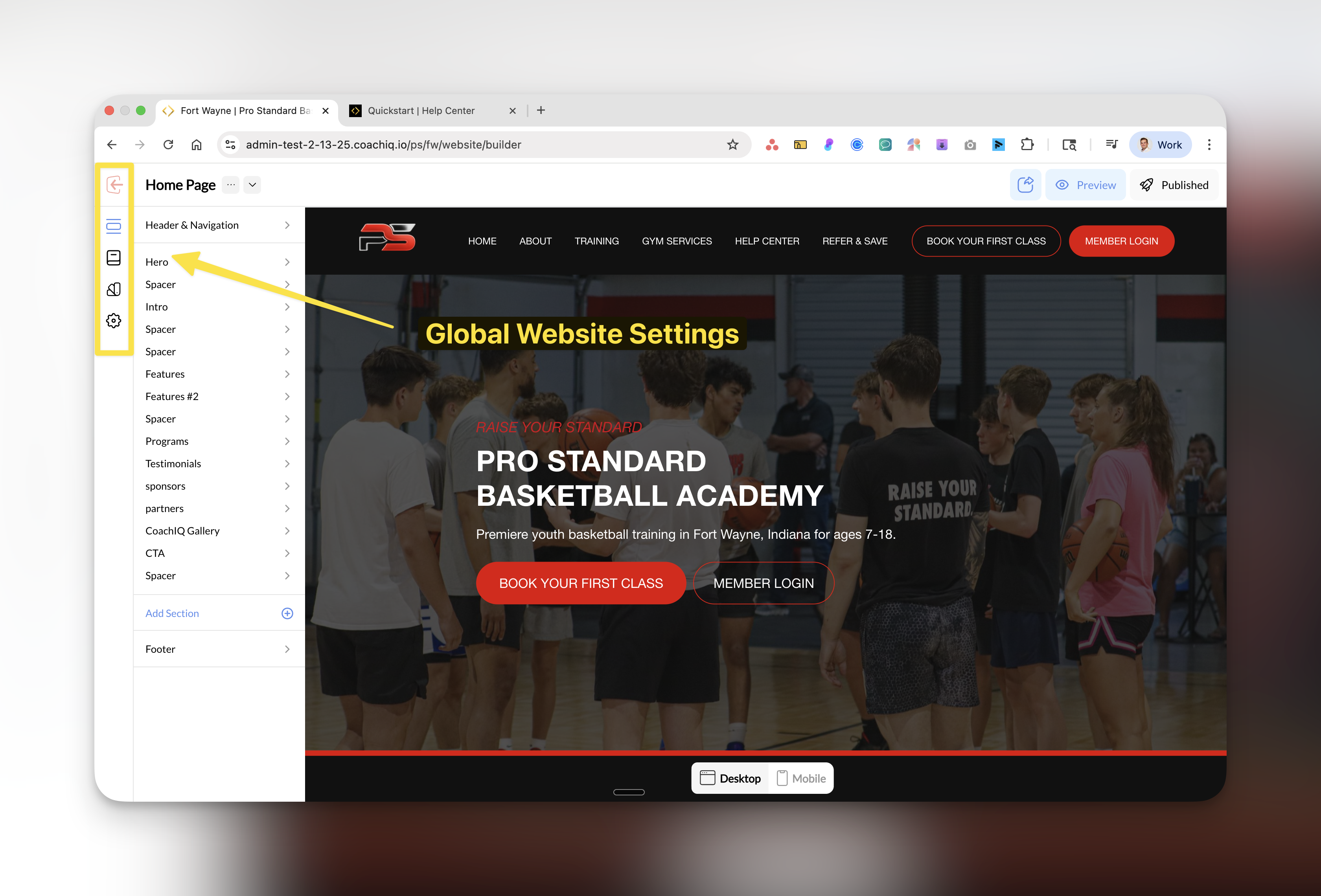
Where to find this: Dashboard → Website Builder → Settings (left sidebar)
What you’ll accomplish
Learn how to configure your website’s global settings including custom fonts, text colors, blog pages, domain management, and troubleshoot common text display issues to create a professional coaching website.Design settings
Theme selection
1
Access design settings
Navigate to Website Builder and click on Design in the left sidebar.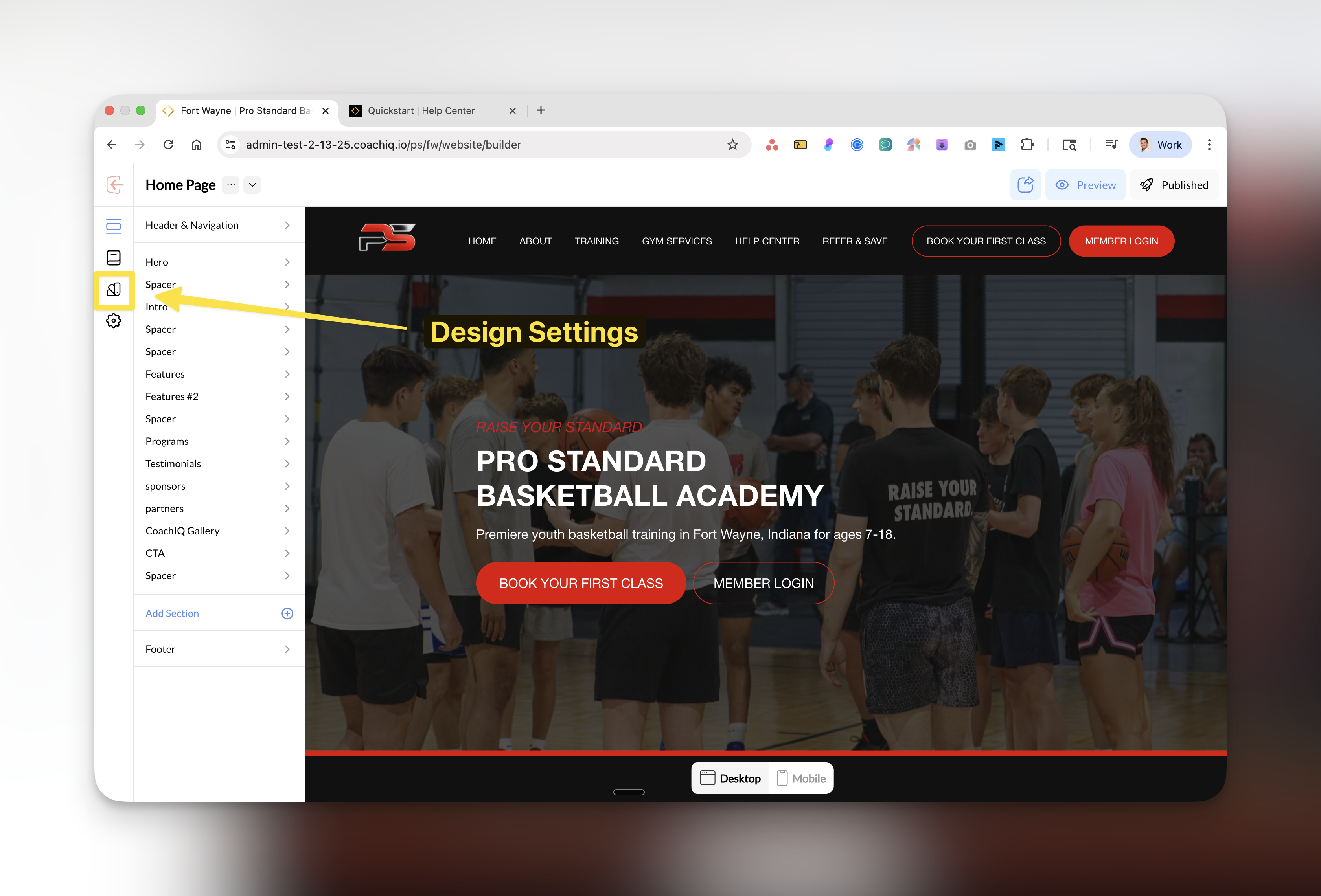
2
Choose your theme
Select between Light and Dark themes using the theme selector.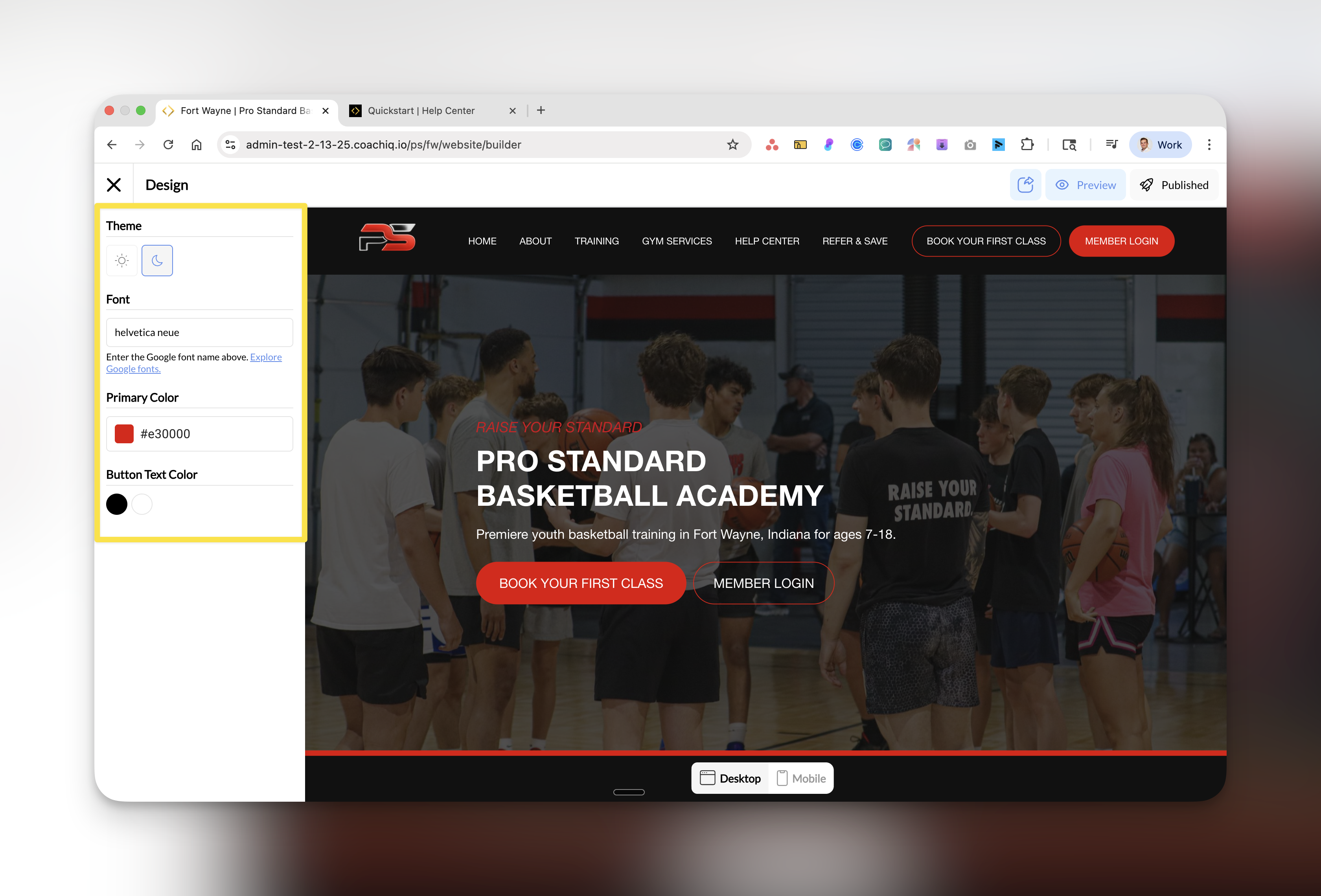
3
Set custom fonts
Enter a Google Font name in the font field to customize your site’s typography.To use a Google Font:
- Visit Google Fonts
- Choose your font
- Enter the exact font name (e.g., “Helvetica Neue”)
- Click outside the field to save
4
Configure colors
- Primary Color: Set your brand’s main color using the color picker
- Button Text Color: Choose a contrasting color for button text visibility
Your design changes save automatically and apply site-wide.
How custom sections use Design settings
Custom and AI-generated sections use your site’s Design settings as their default styling. Update the site theme, fonts, and colors here to keep pages consistent. A style set explicitly on an individual section overrides its inherited default; check the section’s settings if it does not follow a sitewide change. Preview and publish after changing styles, then check the live page on desktop and a phone.Troubleshooting text display issues
Common text visibility problems
If your published site has missing or invisible text that appears in the editor, you likely have one of these issues:How to fix invisible text
1
Identify the problem
Check if your text is visible in the editor but not on the published site. This indicates a color conflict.
2
Fix white text on white background
This commonly happens when:
- You’re using dark mode (which defaults to white text)
- Your section background is set to white
- Copy your heading text
- Paste it back in place
- Highlight the text
- Click the text color tool
- Select black or another dark color (not white)
- Repeat for all affected text
3
Fix transparent text
If your text color shows “transparent” in the hex code field:
- Highlight the affected text
- Click the color picker
- Choose any visible color (black, dark gray, etc.)
- Ensure the hex code field does NOT say “transparent”
- Apply to all affected text elements
Quick check: Look for “transparent” in the hex code field - this means your text has no color and won’t be visible.
4
Verify and publish
After fixing text colors:
- Click Publish
- Check your live site
- Text should now appear as it does in the editor
Success: Your text is now visible on both the editor and live site!
Best practices for text visibility
Favicon
Your favicon is the small icon that appears in browser tabs, bookmarks, and mobile home screens. Set it up in the Settings panel under Add Favicon. For complete setup instructions including social share images (Open Graph), see the Favicon & Share Images guide.Site configuration
Blog archive setup
1
Select your blog page
In the Settings panel, find Blog Archive Page and select which page will display your blog posts.
You must create a page first before you can designate it as your blog archive.
Scripts & analytics
Configure tracking and custom scripts:Google Analytics
Google Analytics
Add your Google Analytics tracking ID to monitor visitor behavior.
See full guide →
Facebook Pixel
Facebook Pixel
Install Facebook Pixel for ad tracking and retargeting.
See full guide →
Custom Scripts
Custom Scripts
Add custom JavaScript for third-party integrations or advanced functionality.
Domain management
Active domains
View and manage all domains connected to your website:1
View active domains
Check the Active Domains section to see all connected domains with their status indicators.
2
Add a domain
Click Need another domain? to:
- Purchase a new domain
- Connect an existing domain
Domain status indicators
- ✅ Active: Domain is live and working
- ⏳ Pending: DNS propagation in progress (can take 24-48 hours)
- ❌ Error: Check DNS settings
Advanced settings
Sitemap builder
Control which pages appear in search engine results. You can hide pages from Google (like thank you pages or drafts) while keeping them accessible via direct link. Complete Sitemap Builder guide →URL redirects
Prevent broken links when you rename or delete pages. Supports wildcards for bulk redirects. Complete URL Redirects guide →Site cache
Manage your website’s cache for optimal performance:1
When to purge cache
Use Purge Cache button when:
- Design changes aren’t showing
- Content updates aren’t visible
- Text color fixes aren’t appearing
- After major site updates
2
Cache best practices
- Cache automatically refreshes every 24 hours
- Only purge manually when necessary
- Allow 5-10 minutes for full cache clear
Troubleshooting
Text not visible on published site
Text not visible on published site
- Check if text is white on white background
- Look for “transparent” in hex code field
- Switch themes may require text color updates
- Always test after theme changes
Custom font not displaying
Custom font not displaying
- Verify exact font name from Google Fonts
- Check for typos in font name
- Some fonts require specific weights (e.g., “Roboto:400,700”)
- Clear browser cache after font changes
Colors not updating
Colors not updating
- Ensure you’re using valid hex codes (#000000 format)
- Some sections may override global colors
- Check that text isn’t set to transparent
- Purge site cache if changes don’t appear
Blog page not working
Blog page not working
- Confirm you’ve selected a valid page as blog archive
- Ensure you have at least one published blog post
- Check that blog sections are added to your pages