

Setup time: 5 minutes
Cost: Free
What you’ll track: Visitors, traffic sources, conversions, and user behavior
Cost: Free
What you’ll track: Visitors, traffic sources, conversions, and user behavior
What is Google Analytics?
Google Analytics is a free tool that shows you how people find and use your coaching website. Track how many visitors you get, which pages they view, and whether they book sessions or sign up for programs.Get your Google Analytics ID
1
Create a Google Analytics account
- Go to analytics.google.com
- Click Start measuring
- Enter your coaching business name as the account name
- Click Next
2
Set up your property
- Enter your website name as the property name
- Select your time zone and currency
- Choose Sports & Fitness as your industry
- Select your business size
- Click Create
3
Create a web data stream
- Choose Web as your platform
- Enter your website URL (e.g.,
yourcoaching.coachiq.io) - Name your stream (e.g., “CoachIQ Website”)
- Click Create stream
4
Copy your Measurement ID
Your Google Analytics 4 Measurement ID will appear at the top of the page. It looks like: G-XXXXXXXXXX
Add Google Analytics to CoachIQ
1
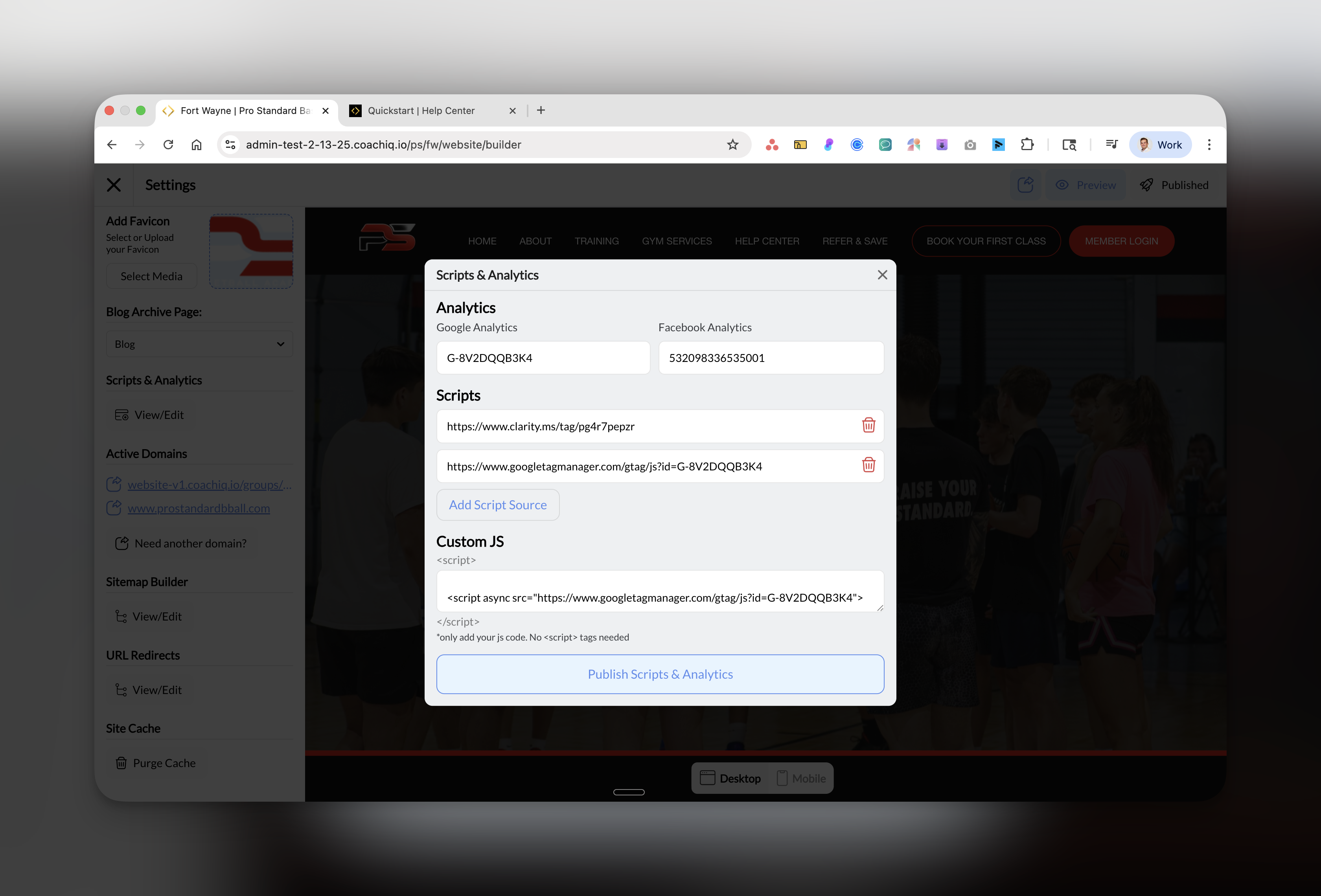
Open Scripts & Analytics
- Go to Dashboard → Website Builder
- Click Scripts & Analytics in the left sidebar
2
Paste your Analytics ID
- In the Google Analytics field, paste your Measurement ID (G-XXXXXXXXXX)
- The field will show your ID once entered correctly
3
Publish your changes
Click the blue Publish Scripts & Analytics button at the bottom of the modal.
Success! Google Analytics is now tracking your website. Data will start appearing in 24-48 hours.
Verify it’s working
- Quick Check
- Use GA Debugger
- Open your website in a new browser tab
- Go back to Google Analytics
- Click Reports → Realtime
- You should see yourself as an active user
What to track for coaching businesses
Essential metrics to monitor:
- Users: How many people visit your site
- Acquisition: Where visitors come from (Google, Facebook, direct)
- Engagement: Which pages get the most views
- Conversions: Track bookings and signups
Set up conversion events:
- Track “Book Session” button clicks
- Monitor form submissions
- Measure program signups
- Track phone number clicks
Common questions
Why isn't my data showing?
Why isn't my data showing?
New Google Analytics accounts can take 24-48 hours to start displaying data. If you just added the code, check back tomorrow.
What's the difference between GA4 and Universal Analytics?
What's the difference between GA4 and Universal Analytics?
GA4 is Google’s newest analytics platform (IDs start with G-). Universal Analytics (IDs start with UA-) was discontinued in July 2023. Always use GA4 for new setups.
Can I track multiple websites?
Can I track multiple websites?
Yes, but each website needs its own unique Google Analytics ID. Create separate properties in your GA account for each coaching website.
Is Google Analytics GDPR compliant?
Is Google Analytics GDPR compliant?
Yes, but you should update your privacy policy to mention you use Google Analytics and consider adding a cookie consent banner to your website.
Troubleshooting
Next steps
Set conversion goals
Learn to track bookings and signups as conversions in GA4
Add Facebook Pixel
Track your Facebook ad performance
Install Microsoft Clarity
See heatmaps and session recordings
View your analytics
Need help? Join our Office Hours for live Google Analytics setup assistance.