

Where to find this: Dashboard → Website Builder → Settings (gear icon) → URL Redirects → View/Edit
Why redirects matter
When you change a page URL or delete a page, anyone with the old link gets a “Page Not Found” error. This includes:- Google search results still pointing to old URLs
- Social media posts you’ve shared
- Backlinks from other websites
- Bookmarks parents have saved
- QR codes on printed materials
Setting up redirects
1
Open Website Settings
In the Website Builder, click the Settings gear icon in the left sidebar.
2
Open URL Redirects
Scroll to URL Redirects and click View/Edit. The redirect manager opens.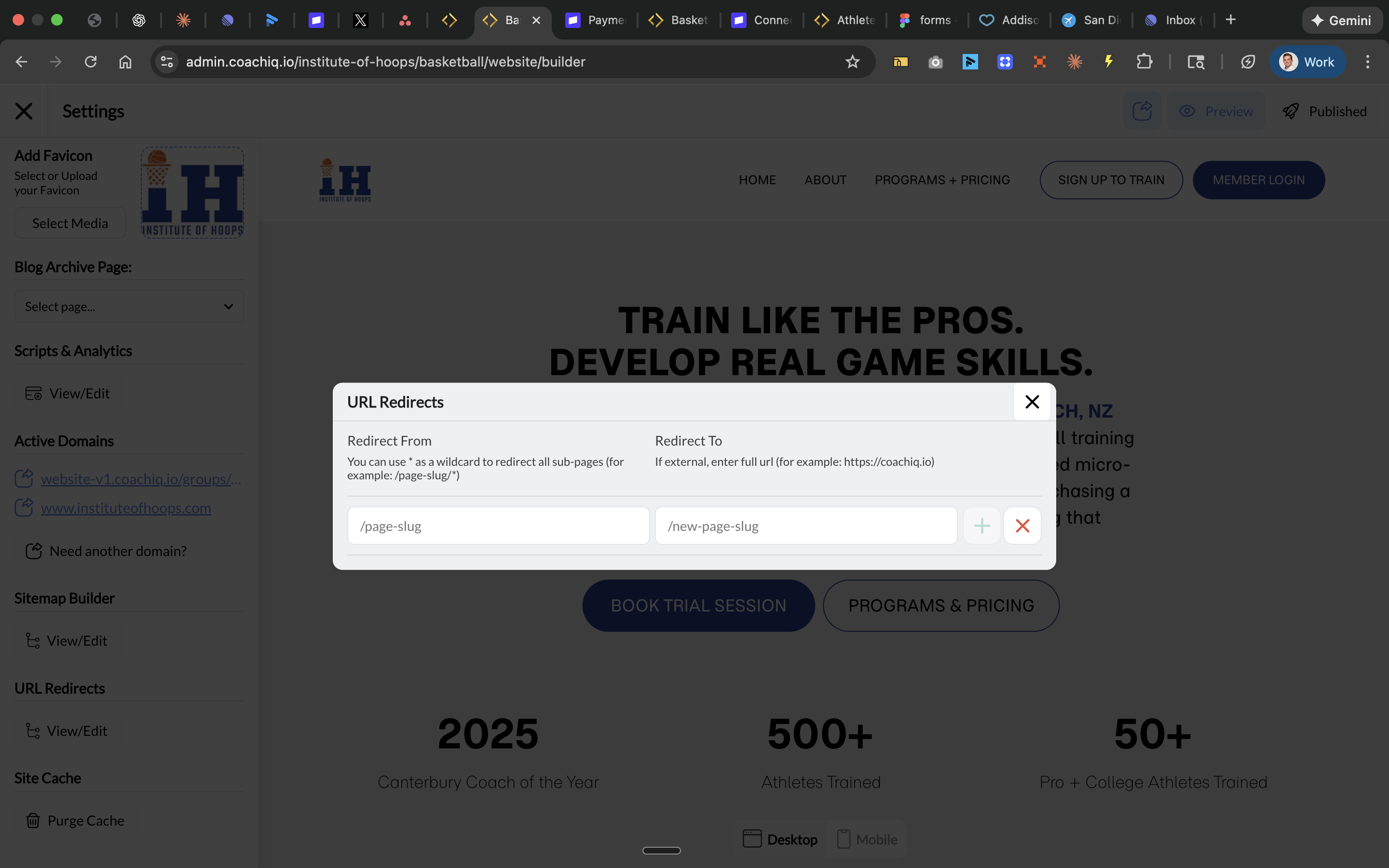
3
Add a Redirect
Fill in both fields:
Click the + button to add another redirect if needed.
4
Save and Publish
Close the modal and click Publish to activate your redirects.
Redirect examples
Renaming a page
You renamed “Summer Camp” to “Summer Camp 2026”:Deleting a page
You removed your “Evaluations” page and want visitors to see “Programs” instead:Redirecting to external site
You want an old page to go to your booking calendar:Using wildcards
Wildcards let you redirect multiple pages at once using* as a placeholder.
Example: You restructured your site and moved all camp pages under a new path:
This redirects:
/camps/summer→/programs/camps/summer/camps/winter→/programs/camps/winter/camps/spring-break→/programs/camps/spring-break
Wildcard syntax: Use
/* at the end of a path to match all sub-pages. For example, /old-section/* catches everything under that section.When to use redirects
Common mistakes to avoid
Redirect chains (A → B → C)
Redirect chains (A → B → C)
Don’t create chains where one redirect leads to another redirect. This slows down page loading and confuses search engines. Always redirect directly to the final destination.Bad:
/old → /temporary → /final
Good: /old → /finalRedirect loops (A → B → A)
Redirect loops (A → B → A)
Never create a loop where pages redirect to each other. This breaks the page completely. Double-check your redirect destinations.
Forgetting the leading slash
Forgetting the leading slash
Always include the
/ at the start of your paths.Correct: /summer-camp
Incorrect: summer-campRedirecting your home page
Redirecting your home page
Be very careful redirecting
/ (your home page). This affects your entire site’s entry point. Only do this if you’re absolutely sure.Testing your redirects
After publishing, test your redirects:- Open an incognito/private browser window
- Visit your old URL directly (e.g.,
yourdomain.com/old-page) - Verify you land on the new page
- Check that the browser URL shows the new address
Common questions
How many redirects can I create?
How many redirects can I create?
There’s no hard limit, but keep your redirect list manageable. Too many redirects can slow site performance and become difficult to maintain.
Do redirects affect page speed?
Do redirects affect page speed?
Slightly. Each redirect adds a small delay (usually milliseconds). This is almost always worth it compared to broken links, but avoid unnecessary redirect chains.
Can I redirect to a specific section of a page?
Can I redirect to a specific section of a page?
Yes, you can include anchor links. For example:
/old-faq → /about#faq would redirect to the FAQ section of your About page.How do I remove a redirect?
How do I remove a redirect?
In the URL Redirects modal, click the X button next to the redirect you want to remove, then publish your changes.
Will Google update its search results?
Will Google update its search results?
Yes, but it takes time. Google will eventually crawl the redirect and update its index. You can speed this up by requesting re-indexing in Google Search Console.