

Where to find this: This guide helps you set up Google Business Profile, which works alongside your CoachIQ website to maximize your online visibility.
Why Google Business Profile matters for coaches
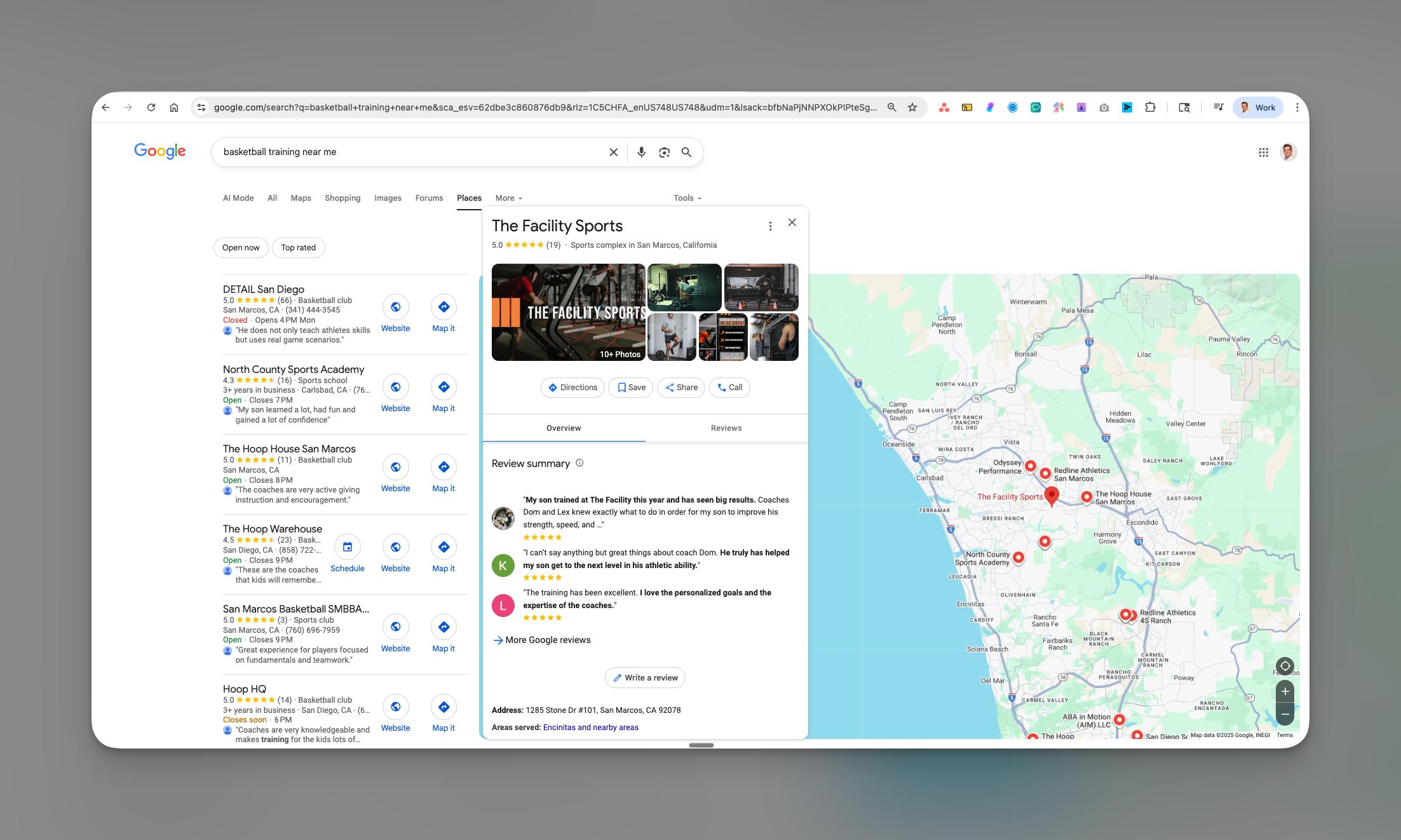
When parents search for “basketball training near me” or “soccer coach [your city],” Google Business Profile determines whether they find you or your competition. Your Business Profile appears in three critical places: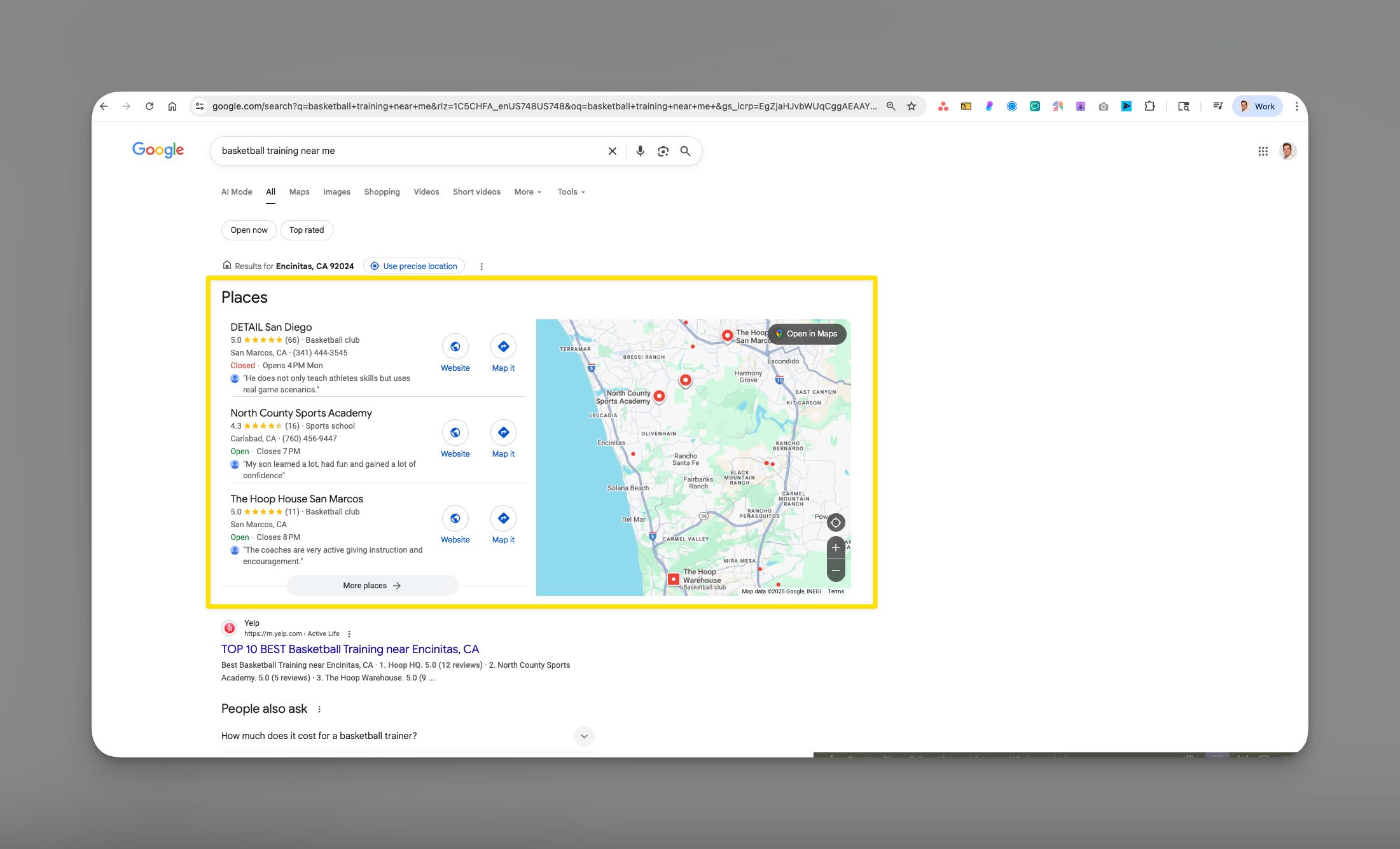
- Google Maps - Where parents look for nearby training facilities
- Local Pack - The top 3 businesses shown in search results
- Knowledge Panel - The info box that appears when someone searches your business name
Formerly Google My Business. Google renamed the product in 2021. You’ll still see the old name in older guides and videos; it’s the same thing.
How Business Profile drives new athlete signups
Your Google Business Profile acts as your 24/7 sales rep:- Instant credibility: Reviews and ratings build trust before parents even visit your website
- Direct bookings: Athletes can click to call, visit your website, or get directions immediately
- Free advertising: Posts and updates appear directly in search results at no cost
- Competitive edge: Many coaches set up a profile once and never touch it again
Setting up your Google Business Profile
1
Create or claim your business
Visit business.google.com and sign in with a Google account.If you’re brand new:
- Click “Add your business to Google”
- Enter your exact business name (e.g., “Elite Basketball Training LLC”)
- Search for your business name
- If found, click “Claim this business”
- If not found, click “Add your business to Google”
2
Choose your business type
Select the option that best fits your coaching business:
- Have a physical location customers visit - If you have a dedicated gym or facility
- Deliver services to customers - If you travel to athletes or use various locations
If you train at multiple locations (parks, school gyms, clients’ homes), choose “Deliver services” and set your service area.
3
Enter your business information
Fill in these critical details exactly as they appear on your CoachIQ website:Business Name: Use your official coaching business name Category: Start typing and select the most specific option:
- First choice: “Basketball coach” or “[Your sport] coach”
- Alternative: “Sports coaching” or “Athletic training”
- Add secondary categories later for more visibility
https://www.yourcoachingname.com)4
Verify your business
Google needs to confirm you’re the real owner. It shows you the options available for your business, which may include a video recording, a phone call or text, email, or a postcard. Google sets the method and the timing, and it can take anywhere from minutes to a couple of weeks.
Optimizing your profile for maximum visibility
Essential information to complete
- Business Details
- Photos & Videos
- Services
Hours of Operation
- List your actual training availability
- Include “Special hours” for camps or clinics
- Update for holidays to maintain accuracy
- “Appointment required”
- “Good for kids”
- “Wheelchair accessible” (if applicable)
- “Online classes offered” (for virtual training)
- Your coaching specialties
- Years of experience
- Notable achievements
- Training philosophy
- What families can expect at a first session
Creating posts that drive bookings
Posts appear on your Business Profile in Search and Maps. Post regularly, for example once a week: Post Types & Examples:Offers
“Early Bird Special: Book 10 sessions, get 2 free! Limited spots for January. Sign up through our CoachIQ scheduling system.”
Updates
“New session times available! We’ve added evening slots Monday-Thursday. Check availability on our website.”
Events
“Spring Break Basketball Camp - March 18-22. Ages 10-14. Register now through our online portal. Only 20 spots!”
Products (separate section)
Packages like a monthly unlimited membership go in the profile’s Products or Services section, not in a post.
Building a 5-star review strategy
A steady review plan
1
Week 1-2: Set up your review funnel
- Create a direct review link:
- Open your Business Profile in Google Search or Maps while signed in
- Click Ask for reviews (shown as Get more reviews in some versions)
- Copy the short link
- Add to CoachIQ automations (see Triggers & Actions):
- Use the Booking Ended trigger, then a Wait/Delay action set to 24 hours
- Add a message action with your review link
- Personalize with the athlete’s name
2
Week 3-4: Create review triggers
Physical triggers at your facility:
- QR code poster at exit (“Rate your session!”)
- Business cards with QR code
- Sign on equipment area
- Email signature with review link
- Monthly progress reports with review request
3
Ongoing: Make asking a habit
- Ask at natural moments for every family, such as the end of a program or a season
- Mention reviews in your newsletter or end-of-season email
- Thank everyone who leaves one, and respond to every review
Responding to reviews like a pro
5-Star Review Response Template: “Thanks so much, [Name]! It’s been amazing watching [specific achievement mentioned in review]. We’re excited to keep pushing [athlete’s name] to the next level! 🏀” 3-4 Star Review Response Template: “Thank you for the honest feedback, [Name]. We appreciate you highlighting [positive aspect]. We’d love to discuss [concern] and see how we can earn that 5th star. Please reach out at [phone] so we can make this right!” 1-2 Star Review Response Template: “Thank you for sharing your experience, [Name]. This isn’t the standard we aim for, and I’d like to make this right immediately. Please contact me directly at [phone/email] so we can resolve this and ensure every athlete gets our best.”Tracking your Business Profile success
Key metrics to monitor weekly
Open the Performance view on your Business Profile to track:Search Performance
Search Performance
- Searches: The search terms people used to find your profile
- Profile views: How many people saw your profile, and whether on Search or Maps
- Trend: Whether these numbers are rising month over month
Customer Actions
Customer Actions
- Website visits: Clicks to your CoachIQ site
- Phone calls: Direct call button clicks
- Direction requests: People getting directions
Use it on your website
Use it on your website
The search terms people use to find your profile are good wording for your CoachIQ website pages. See Meta Titles & Keywords.
Monthly optimization checklist
- Add 3-5 new photos
- Publish a few posts
- Respond to all reviews
- Update hours for holidays/camps
- Review insights and adjust strategy
- Verify NAP consistency across all platforms
- Add any new services or programs
Common questions
Can I have multiple locations on one Business Profile account?
Can I have multiple locations on one Business Profile account?
Yes! If you train at different facilities, you can create separate listings for each location. However, if you’re mobile and travel to clients, use one listing with service areas instead.
How long before I see results?
How long before I see results?
There’s no fixed timeline, and Google doesn’t guarantee placement. A complete, verified profile with steady reviews and fresh photos tends to show up more over the following weeks and months.
What if someone left a fake negative review?
What if someone left a fake negative review?
First, respond professionally. Then flag it for Google if it violates policies (fake, spam, or from competitor). Document everything and consider having satisfied clients leave positive reviews to offset it.
Should I pay for Google Ads too?
Should I pay for Google Ads too?
Business Profile is free and should be optimized first. Once you’re getting consistent results, Google Ads can amplify your reach, especially for competitive keywords or seasonal camps.
How do I beat established competitors in rankings?
How do I beat established competitors in rankings?
Focus on what you can control: more reviews, fresher content (posts/photos), complete profile information, and consistent NAP across the web. Newer businesses can outrank established ones with better optimization.
Pro tips for coaches
Take action today
Your Google Business Profile is too valuable to ignore. Here’s your immediate action plan:- Right now (5 minutes): Check if your business exists on Google
- Today (30 minutes): Complete or claim your profile
- This week (1 hour): Add photos, services, and description
- This month (ongoing): Get your first 10 reviews