

Where to find this: Settings → Communication, which holds Notifications, SMS Number, and Inbox Settings.
Notifications
Control which alerts you receive via email and push notifications.Pause staff emails for your group
As an admin, open Settings → Notifications in the group you want to manage and turn Staff email notifications off. The Paused for all staff status confirms that delivery is paused. Turn the setting back on to resume. Changes save automatically. The pause applies to every admin and coach in the selected group, including staff added later. It does not change another group’s settings. Personal Email and Push preferences remain saved and editable while emails are paused. Resuming staff emails uses those saved preferences. Push preferences are preserved, and customer receipts and invitations remain deliverable, including when a staff member is the buyer or inviter. Coaches don’t see the pause control. Their notification preferences show a one-line status (staff emails active or paused) with a Delivery details link, and their own Email and Push choices sit right below it. Use the personal controls below to change only your own notifications.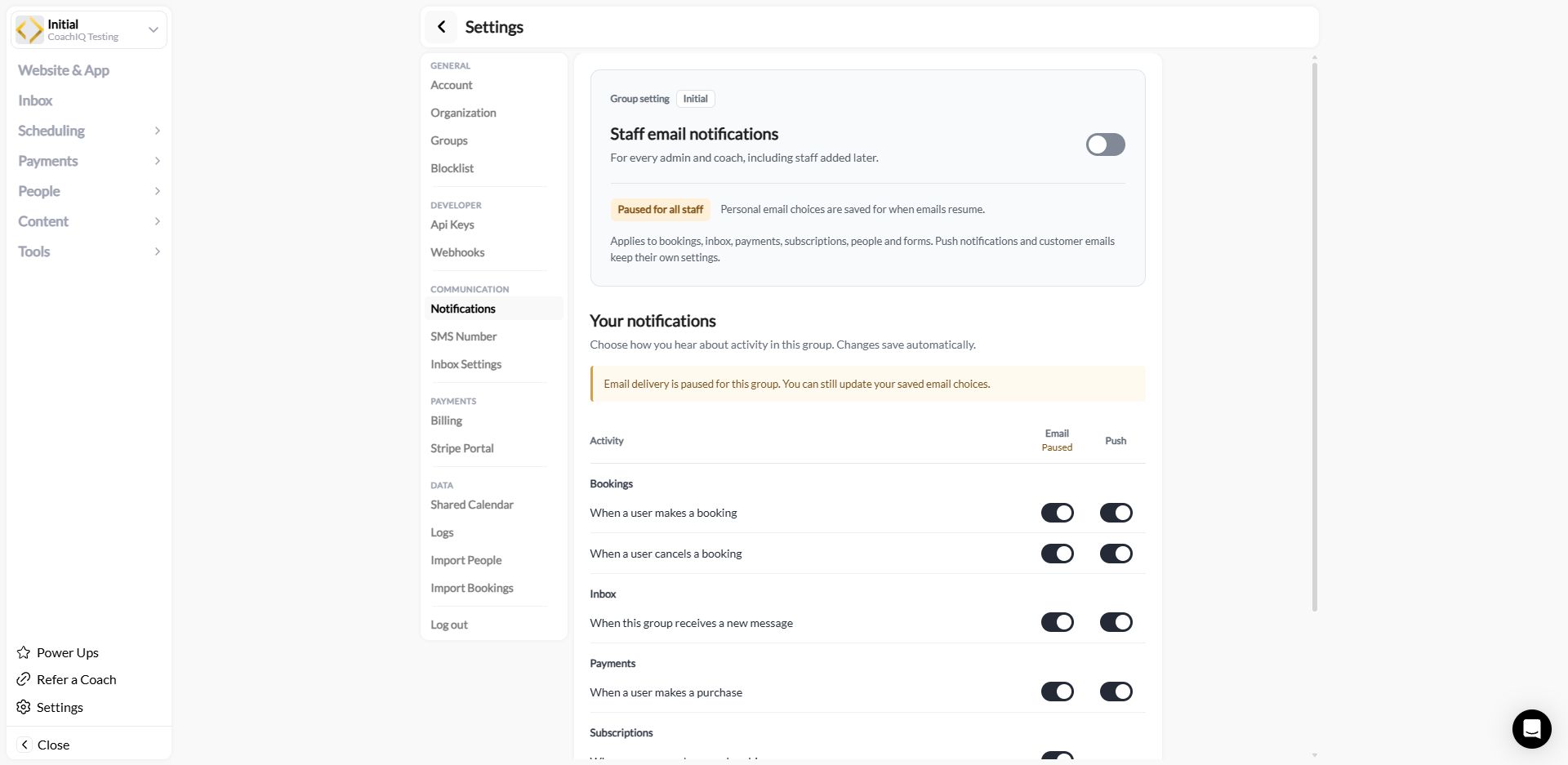
Notification categories
Identify the session in a booking email
Staff New reservation emails include the class or session name in the subject, opening text, and Session row. Use that name together with the athlete and time to identify the booking. Changing an existing session has separate notification choices. See Which edits send messages before changing a location, duration, or booking time.Notification channels
Each category can be toggled independently for:- Email — Sent to your account email address
- Push — Mobile notifications (if you have the CoachIQ app installed)
1
Navigate to Notifications
Go to Settings → Notifications.
2
Toggle your preferences
Check or uncheck the boxes under EMAIL and PUSH for each notification type.
Messaging credits
Open Settings → Communication → Credits to check your messaging balance, buy credits, manage auto-refill, and review usage. Outbound SMS and coach-written emails share this balance. Email copies of announcements and automation Send an Email actions use 0.1 credit per address at the default rate; automatic notifications such as receipts and booking confirmations remain free. When the balance runs out, an email or text that needs credits isn’t sent. The coach sees a message pointing an Admin to Settings → Credits, and the draft stays in the composer so it can be sent once credits are added. These credits are separate from the session credits athletes use for bookings. See How messaging credits work for costs and delivery troubleshooting.SMS Number
Set up your dedicated business phone number for texting athletes through CoachIQ. Texts you send are paid for with SMS credits; see How SMS credits work.10DLC Compliance
CoachIQ uses Twilio for SMS messaging. To send text messages, you’ll need to complete 10DLC (10-digit long code) registration, which is required by mobile carriers to reduce spam.1
Navigate to SMS Number
Go to Settings → SMS Number.
2
Select your business type
Choose whether you’re registering as a Sole Proprietor or a Business.
3
Enter your preferred area codes
Add your primary area code and optionally a secondary area code. CoachIQ will try to assign you a number matching these codes.
4
Begin registration
Click Begin to start the 10DLC compliance process.
The 10DLC registration process typically takes 1-7 business days to complete. Once approved, you’ll be able to send SMS messages to your athletes directly from the CoachIQ Inbox.
Policy pages are handled for you. Carriers check a public Privacy Policy and Terms page as part of 10DLC review. CoachIQ auto-generates both on your athlete portal (
/privacy-policy and /terms-of-condition under your portal address), keeps them public, and includes the SMS clauses carriers require. Nothing to write or upload; see Setting up SMS messaging for what reviewers look at.After your number is assigned
The page shows your SMS Number and lets you set a Call Forwarding Number, so calls to your business texting number ring through to a phone you choose. Texts cost SMS credits — see SMS Credits.Inbox Settings
Inbox Preferences has one toggle today: Show booking reminders in inbox. It is off by default, which keeps the Inbox to conversations athletes started or you started; the reminders are still delivered to athletes, they just do not appear as threads in your Inbox or in the athlete’s conversation with you. Turn it on to see the automated session reminders as threads in the Automated folder. See Automated reminders in the Inbox overview.Common questions
How long does SMS setup take?
How long does SMS setup take?
The 10DLC compliance registration typically takes 1-7 business days. You’ll receive a notification once your number is ready to use.
Related articles
SMS Messaging
Send text messages to athletes
Inbox Overview
Folders, channels, and how messages flow