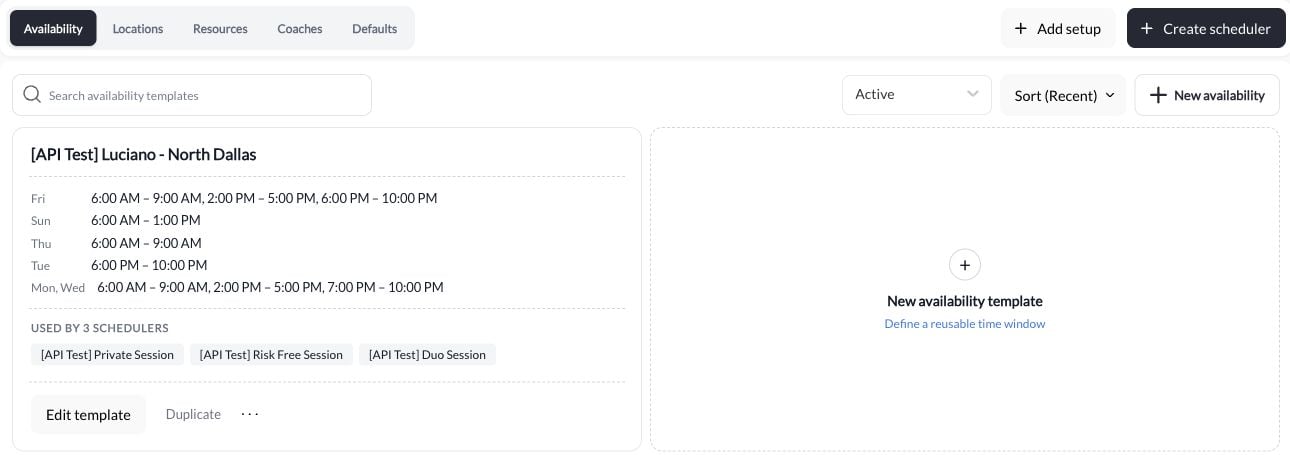
Open Scheduling → Setup → Availability. Choose New availability to create a template, or open an existing template to edit it. Give the template a name that describes its hours or purpose, such as “Weekday afternoons.” Check the schedulers using an existing template before changing it.
Availability templates with their connected schedulers

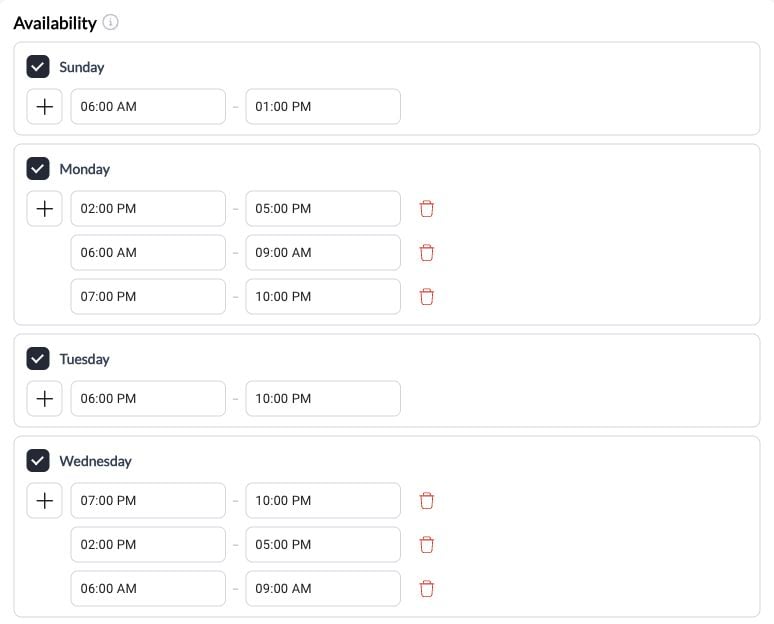
Weekly recurring availability

  1. Select the days you work.
  2. Set each day’s start and end times. Use separate ranges when you have a break in the day.
  3. Review AM/PM and the timezone shown in the editor.
  4. Choose Update to save the template.
Weekly availability with selected days and time ranges
Choose hours that match when you can deliver the service. Duration, buffers, and start-time spacing are set on the connected scheduler and affect which slots fit inside these hours.

Specific-date availability

Use Specific Dates for irregular practices, clinics, or a limited run of sessions. The desktop editor shows a table; on a phone, each date appears as a card. Use the date filter and Select dates for bulk edits, or Add date to enter a new one.
  1. Add a date or open an existing date.
  2. Enter its start and end times. Set Type to Availability to offer time or Unavailability to block it.
  3. Set a per-date location where needed.
  4. Finish the date editor with Done, then choose Update to save the availability. Done alone does not save the template.
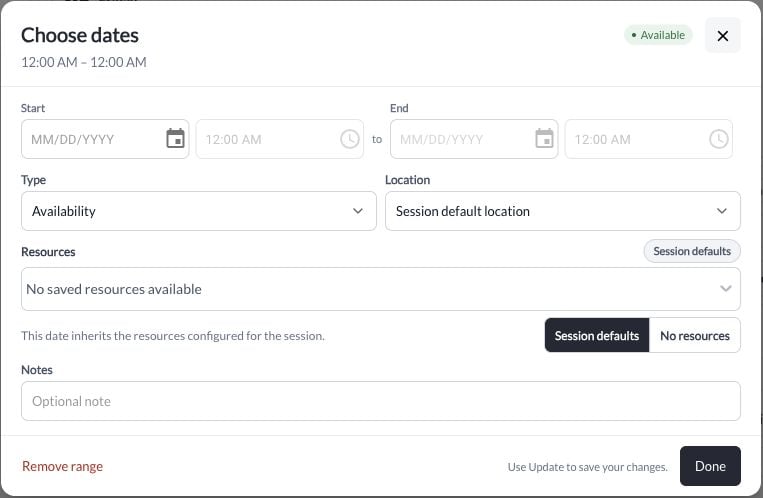
Specific-date editor showing hours, availability, location, and resources
Review each date before saving. Incomplete entries must be completed or removed. Specific dates do not add later dates automatically. For a different length or resource assignment on one configured date, open the connected scheduler’s Specific Dates. See per-date settings.

Connect the template to a scheduler

Open Scheduling → Schedulers, select the service, and open Availability. Select the saved template under Current Availability. Add start and end dates if this service should only use the hours during a particular period. Use Additional Availability for another block. Check both date ranges, review the preview, and choose Update on the scheduler. If the template is missing from the picker, confirm it was saved, then reopen the scheduler. See seasonal transitions for a dated example.

Generate a pattern with Copilot

The availability builder’s CoachIQ Copilot can fill in a pattern from a description such as “Monday and Wednesday, 3 PM to 7 PM.” Review the generated days, hours, timezone, and exceptions before saving. Generation is not verification that every offered time matches your intended schedule.

Start dates and minimum notice

The scheduler’s start date is a calendar-date boundary. Minimum notice is a separate rule controlling how close to the session an athlete can book. Early times on the first date may be available when all other rules allow them.

Shared availability and different session lengths

A specific-date window shared by several schedulers can save when at least one linked session length fits. A 90-minute window can offer a 60-minute lesson but no 180-minute camp. A window that fits none of the linked sessions is rejected. Past dates do not prevent saving new availability. Explicit per-date duration overrides still need to fit their own windows.

Verify the result

Preview a day that should be open and one that should be closed. Select each offered session length. Check open availability in the calendar or the athlete booking page. If the times differ from what you expect, use Troubleshooting. For time off, add an unavailable date or range. Existing bookings require a separate move or cancellation.