

Check which schedulers are affected
Unavailable periods belong to the availability you edit. Check which schedulers use that template before changing it. Repeat for other templates if the closure should affect them too. If only one service is stopping, consider its scheduler’s date range or active status instead of closing hours shared by other services.Add the unavailable period
- Open the availability template and its Specific Dates section.
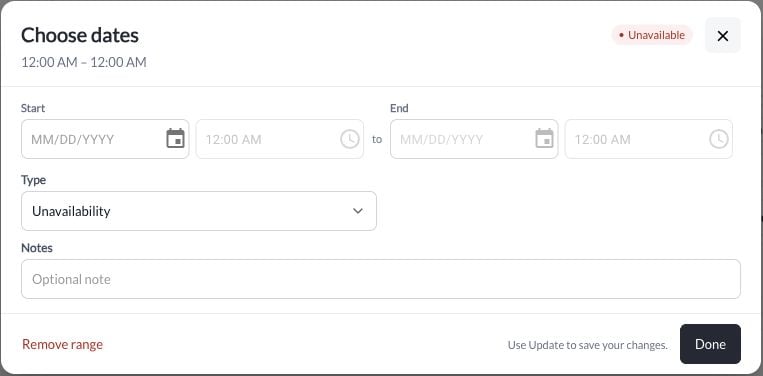
- Choose Add date and set Type to Unavailability.
- Enter the start and end date/time. For a partial-day closure, enter only the period you need to block.
- Review the interval, choose Done, then Update to save the template.
Handle existing bookings separately
A blackout prevents new bookings. It does not cancel or move athletes who already booked. After saving the unavailable period:- Open Scheduling → Calendar and check the affected dates.
- Use Move Session to move an entire occurrence, or Cancel Session to close it and cancel every participant.
- For one athlete only, open that athlete’s booking instead.
- Review credit refunds and notification choices before confirming.