

What are Resources?
Resources are physical assets your facility uses to run sessions — courts, batting cages, training rooms, or any space or equipment that can only support one session at a time. When you attach a resource to a scheduler, its reservation rules help prevent competing bookings. Leave Allow resource double booking off when the space must be exclusive.Resources are visible to admins and coaches only. Athletes do not see resource names or assignments during booking. A single scheduler can reserve more than one resource per session — see Attach multiple resources to one scheduler.
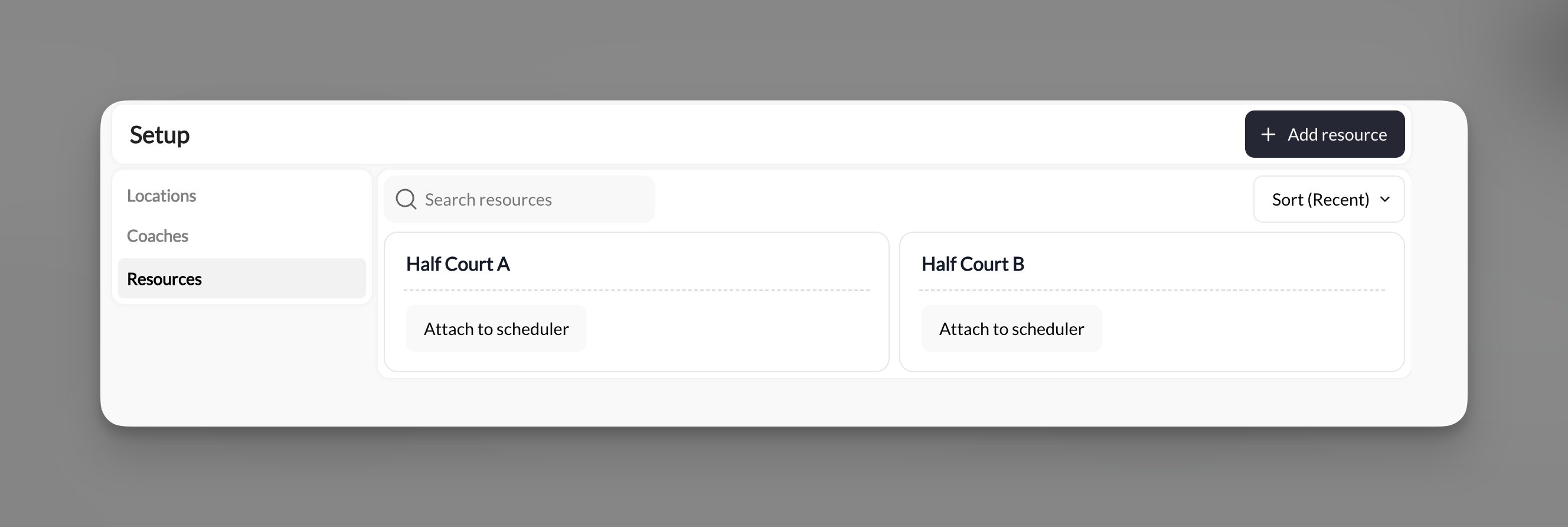
Creating a resource
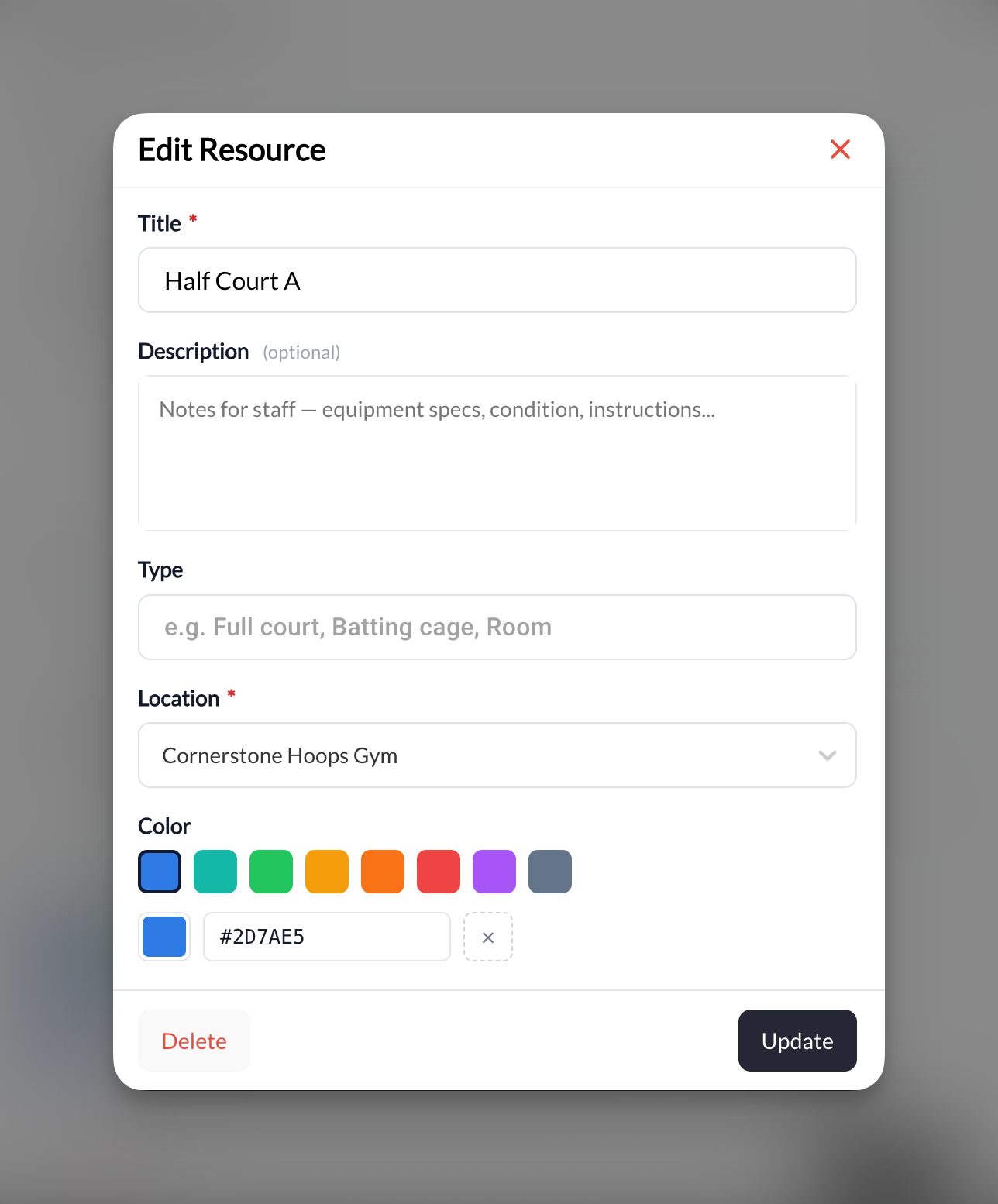
Go to Scheduling → Setup → Resources and click Add setup. Fill in:- Title (required) — e.g. “Half Court A”
- Description (optional) — internal notes for staff
- Type (optional) — e.g. “Full court”, “Batting cage”, “Room”
- Location (required) — which location this resource belongs to
- Color — identifies the resource on your calendar
Attaching a resource to a scheduler
Two paths, same result:- From Setup → Resources: click Attach to scheduler on the resource card
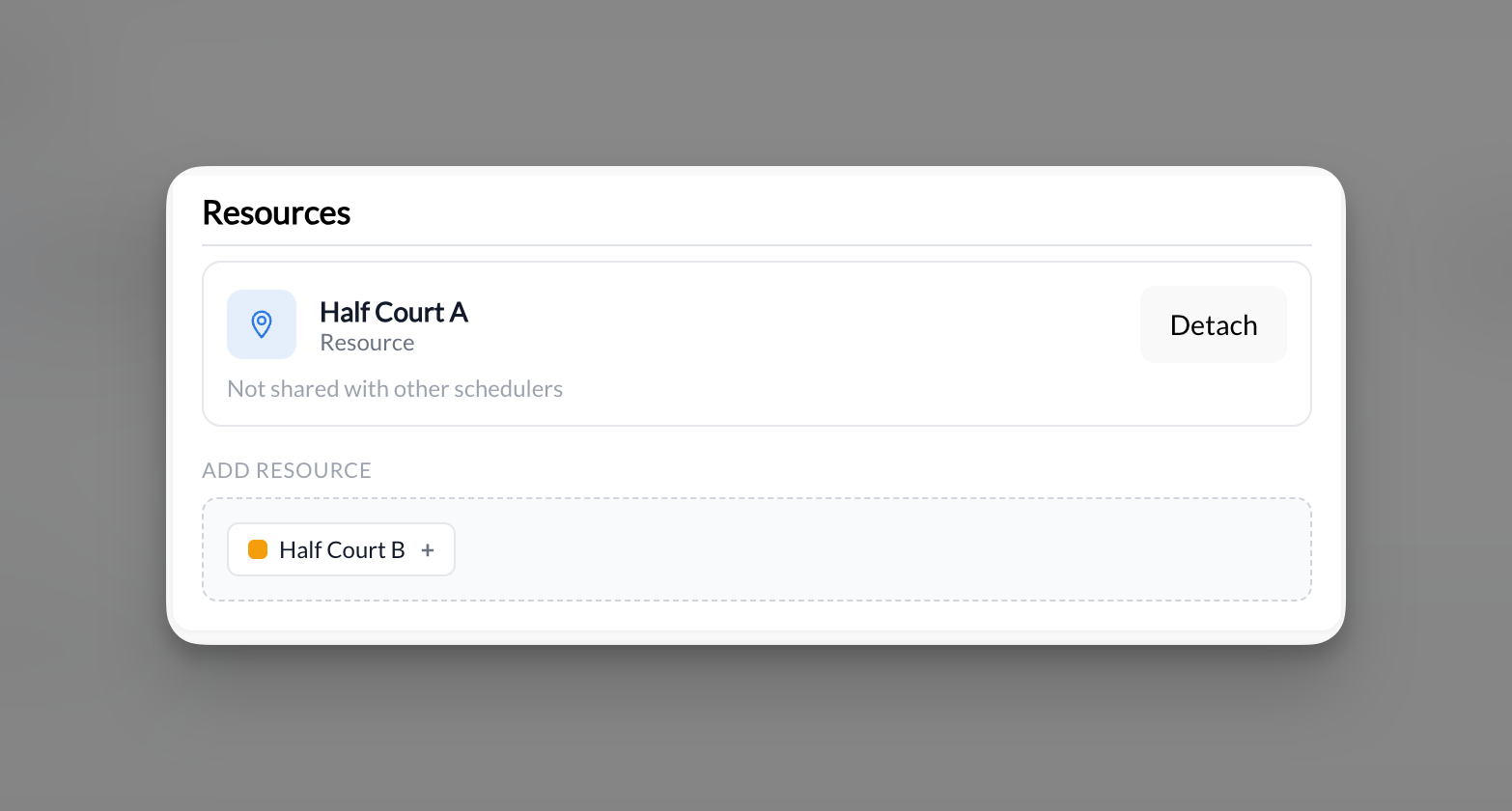
- From inside a scheduler: open the Resources section and pick a resource under Add a resource
Attach multiple resources to one scheduler
A single scheduler can hold more than one resource at a time — useful when a session needs several spaces at once, like a team practice that reserves multiple batting cages, or when several interchangeable spaces could host the session. In the scheduler’s Resources section, each attached resource appears as a card with a Detach option under Attached resources. If a resource is also used by other schedulers, the card shows Shared with X schedulers and lists them. To attach another, pick it under Add a resource. What happens when a session is booked depends on the Reservation behavior you choose (next section).Reservation behavior: Reserve all or Use first available
Once more than one resource is attached, the Resources section asks how a booking should pick a space:
Reserve all is the default and matches how resources worked before this option existed. Existing schedulers with several resources attached are unchanged.
How Use first available plays out
A facility attaches Cage 1 and Cage 2 to a “Hitting Lesson” scheduler set to Use first available:- The first 4:00 booking takes Cage 1.
- A second 4:00 booking takes Cage 2, so both lessons can run.
- A third 4:00 request finds no open cage, so 4:00 is no longer offered.
- A “Pitching” scheduler that only uses Turf is unaffected either way, because it never competes for a cage.
Allow resource double booking
By default an attached resource blocks a booking when it is already reserved at that time. The Allow resource double booking checkbox in the scheduler’s Resources section turns that protection off for this scheduler, the same way the connected-coaches checkbox lets a coach be booked in two places at once.- Off (default): required resources must be available. With Reserve all, every attached resource is required; with Use first available, one available resource is enough.
- On: bookings from this scheduler go through even when the resource is in use elsewhere.
Different resources on different dates
A resource attached to a scheduler is the default for its dates unless overridden. If one date needs different equipment (the Tuesday indoor practice uses Cage 1, the Saturday field practice uses the turf mound), give that date its own resources instead of building a second scheduler:- Open the scheduler and go to Specific Dates.
- Pick the configured date you want to change. Dates come from the specific-date availability on the connected availability template; if the list is empty, add specific dates to the template first, then refresh the scheduler.
- Set the resources for that date and use the resources Save action. Every other date keeps the scheduler’s attached resources.
How double-booking prevention works
Once a resource is attached to a scheduler, CoachIQ locks that resource for the duration of each booked session. If that time slot is already filled by another session using the same resource, it becomes unavailable — even if the second scheduler still has open capacity. With Use first available, the lock applies to the one resource that was assigned to the booking. If two groups in your organization share a building, link them under Settings → Shared Calendar with the Resources only share mode so a cage booked in either group blocks it for the other. See Sharing a calendar across groups.Example use cases
- Basketball facility: “Half Court A” and “Half Court B” attached to one group training scheduler with Use first available, so two groups can run side by side
- Training room: “Speed & Agility Room” on a conditioning scheduler prevents two coaches from booking the same room at the same time
- Batting cage: “Cage 1” on a hitting session scheduler ensures each session has a dedicated lane
- Team practice: Cage 1, Cage 2, and Cage 3 on a “Team Practice” scheduler with Reserve all, so the whole facility is held for the practice
Related articles
Locations
The building each resource belongs to, and per-date venues
Advanced scheduler settings
Connected coaches, locations, duration, and per-date duration
Shared calendar across groups
Share a resource list between two groups
Calendar overview
See coach and resources on Day and Week view