What you’ll accomplish
Learn how to book athletes directly into sessions using CoachIQ’s Booking Builder—perfect for VIP clients, makeup sessions, and special scheduling situations that require your direct involvement./schedule/booking/builder/newWhen to use manual booking
Manual booking is your tool for handling scheduling situations that don’t fit the standard athlete self-booking flow:VIP & High-Touch Clients
Makeup Sessions
Special Requests
Walk-Ins & Phone Calls
Complimentary Sessions
Administrative Corrections
Opening the Booking Builder
There are three ways to access the manual booking interface:- From Calendar
- From Schedulers Page
- From Client Profile
- Go to Schedule → Calendar
- Click the “Book Session” button (top right)
- Booking Builder opens

Step-by-step: Creating a manual booking
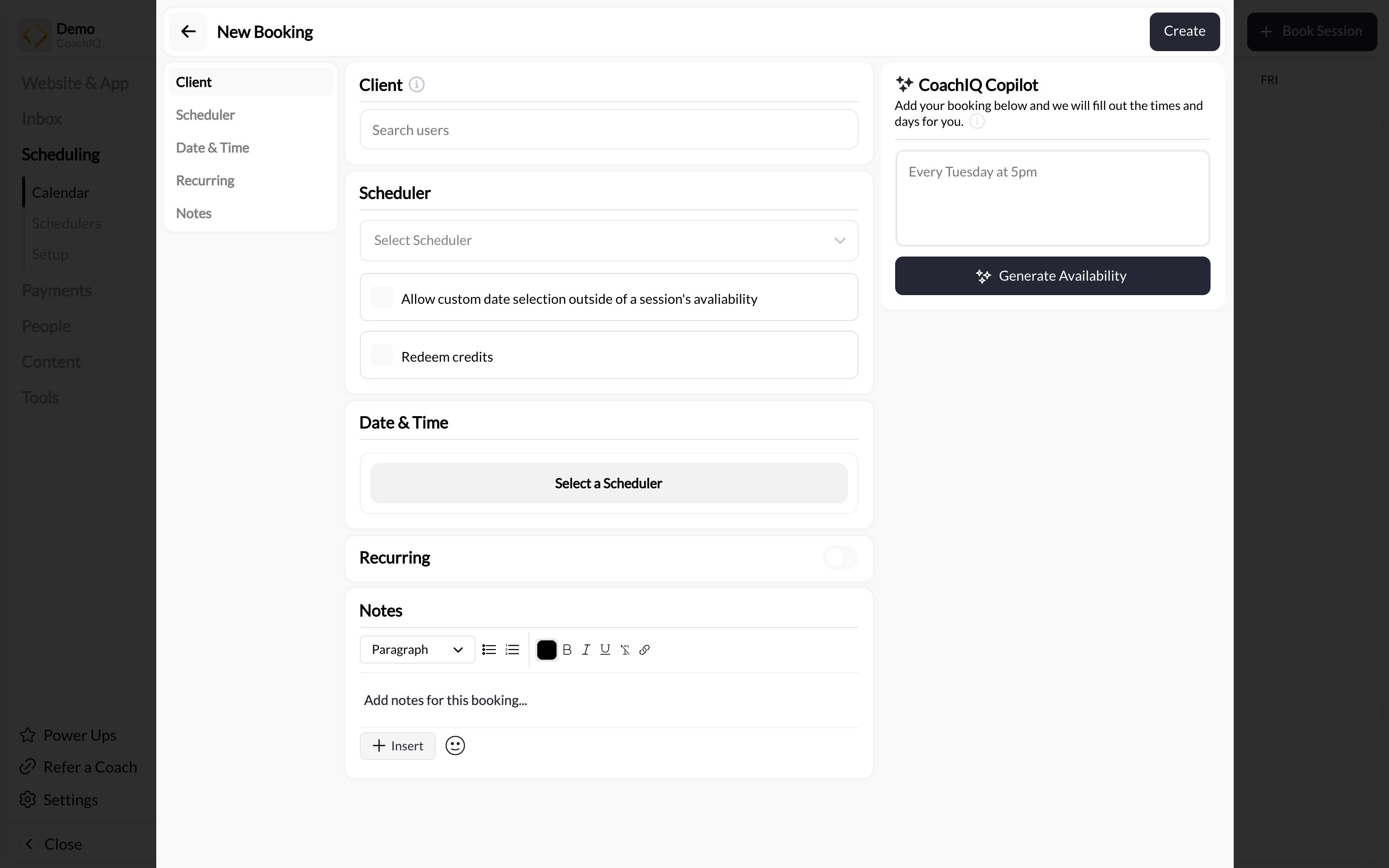
The Booking Builder has four main sections you’ll complete in order:
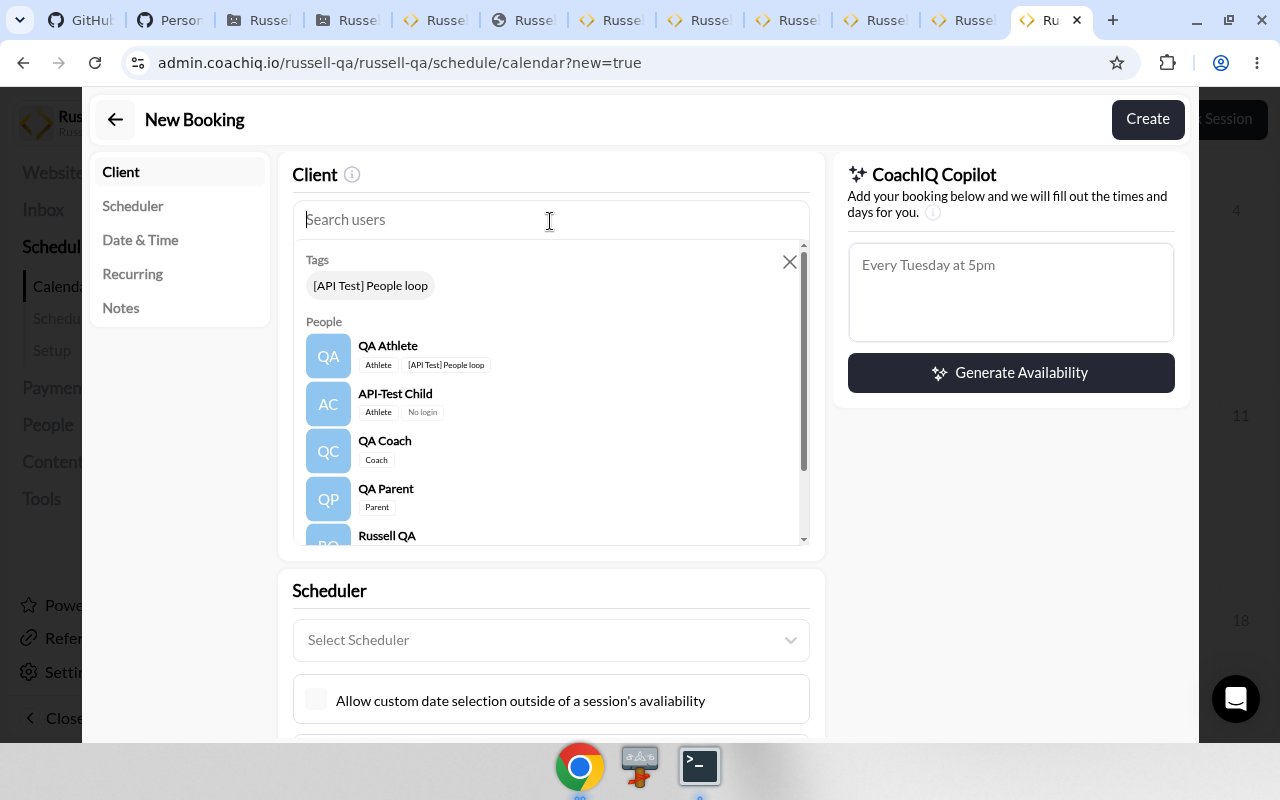
Select the client
- Search by name: Start typing athlete/parent name
- Search by email: Type their email address
- Client name
- Email address
- Associated tags
- Profile picture (if set)
Choose the scheduler
- Scheduler name
- Duration (e.g., “60 min”)
- Pricing (e.g., “$75.00” or “1 Credit”)
Allow custom date selection
What this does
What this does
- Checked → Special accommodation outside normal hours
- Unchecked → Standard booking within your schedule
Redeem credits
What this does
What this does
Select date and time
- Booking Within Availability
- Booking Outside Availability
- Calendar shows only available dates (dates with open slots appear clickable)
- Select a date
- Choose from available time slots
- Duration options: 15 min, 30 min, 60 min, or custom
- Click 15, 30, or 60 for quick duration selection
- Or set custom duration for non-standard session lengths
Review and create booking
- Athlete name
- Scheduler name
- Date and time
- Duration
- Credit consumption status (if applicable)
- Any warnings or conflicts
What happens after booking
Immediate actions
- Calendar updated: Booking appears on your calendar immediately
- Athlete notification: Athlete receives confirmation via:
- In-app notification
- Email (if enabled)
- SMS (if reminder settings configured)
- Credit deduction: If “Redeem credits” was checked, credits are deducted from athlete’s balance
- Availability blocked: That time slot is now unavailable for other bookings (unless double-booking is enabled)
Athlete receives
The athlete gets a booking confirmation that includes:- Session date and time
- Session type (scheduler name)
- Duration
- Location (if set on scheduler)
- Your contact information
- Cancellation policy (if applicable)
- “Add to Calendar” option
Using Copilot for faster booking
CoachIQ Copilot can speed up the booking process by interpreting natural language:Describe the booking
- “Every Tuesday at 5pm”
- “Next Monday at 3pm”
- “Fridays at 10am for 4 weeks”
Common manual booking scenarios
Makeup session after athlete cancels
- Open Booking Builder
- Select athlete
- Choose same scheduler as original session
- Uncheck “Redeem credits” (so they’re not charged twice)
- Select new date/time
- Create booking
VIP client who wants you to schedule
- Open Booking Builder
- Select VIP athlete
- Choose their preferred scheduler
- Leave “Redeem credits” checked (normal credit consumption)
- Select their preferred day/time
- Create booking
Walk-in or phone booking
- Check calendar for conflicts at 4pm
- If available, open Booking Builder
- Search for athlete by phone number or email
- Select appropriate scheduler
- Choose today’s date, 4pm time
- Create booking
Special request outside normal hours
- Open Booking Builder
- Select athlete
- Choose scheduler
- Check “Allow custom date selection”
- Select Tuesday, manually enter 7:00 AM
- Verify no conflicts on calendar
- Create booking
Complimentary or free session
- Open Booking Builder
- Select athlete
- Choose the credit-based scheduler
- Uncheck “Redeem credits”
- Select date/time
- Create booking
Fixing athlete's booking error
- Cancel the incorrect booking (Article #21)
- Open Booking Builder
- Select athlete
- Choose correct scheduler
- Check “Redeem credits” if the original booking refunded credits
- Book at the same or corrected time
- Communicate the fix to athlete
Troubleshooting manual booking issues
Athlete says they didn't receive confirmation
- Athlete’s notification settings disabled
- Email in spam folder
- Incorrect contact information in athlete profile
- System notification delay
- Verify booking appears on YOUR calendar
- Check athlete’s profile has correct email/phone
- Ask athlete to check spam/junk folder
- Manually send them confirmation (screenshot or message)
- Have athlete check notification settings in their account
Credits weren't deducted when they should have been
- “Redeem credits” checkbox was unchecked
- Athlete credit balance wasn’t refreshed after booking
- Check booking details to verify credit redemption setting
- View athlete’s credit transaction history
- If credits weren’t deducted but should have been:
- Go to athlete’s profile
- Manually deduct appropriate credits
- Add note explaining the manual adjustment
Can't find athlete in search
- Athlete hasn’t been added to system yet
- Typing name/email incorrectly
- Athlete account is deactivated
- Try searching by email instead of name
- Go to People → Clients and search there
- If athlete doesn’t exist: Add Client to create their profile first
- If athlete exists but still not showing: Clear search and try again
- Check if athlete has “Customer” role assigned
Booked outside availability but shouldn't have
- Delete the incorrect booking
- Create new booking WITHOUT “Allow custom date selection” checked
- Notify athlete of time change
- Double-check calendar for actual availability
Manual booking best practices
Verify Before Booking
Communicate Clearly
Document Special Cases
Consistent Credit Handling
Related articles
- Setting Up Your First Scheduler - Learn about scheduler configuration and settings
- Managing Athlete Credits - Understanding credit balances, transactions, and manual adjustments
- Calendar Management - Tips for avoiding conflicts and managing your schedule
- Cancellation & Rescheduling Policies - Setting up and enforcing cancellation rules
- Creating Recurring Bookings - Automate standing appointments for regular athletes