

Where to configure credits: Payments → Products → [Product] → Section 3 (Credits)
What credits are
Credits are pre-purchased session bookings that work like punch cards or class passes. How it works:- Client buys a product that includes credits
- Credits appear in their account
- Client uses credits to book sessions
- Credit count decreases with each booking
Credits are configured in products
Enable credits when creating or editing a product: Product Builder → Section 3: Credits- Toggle credits ON
- Specify number of credits (e.g., 10 credits)
- Set expiration (30 days, 90 days, never, etc.)
- Choose which schedulers accept these credits (Section 4)
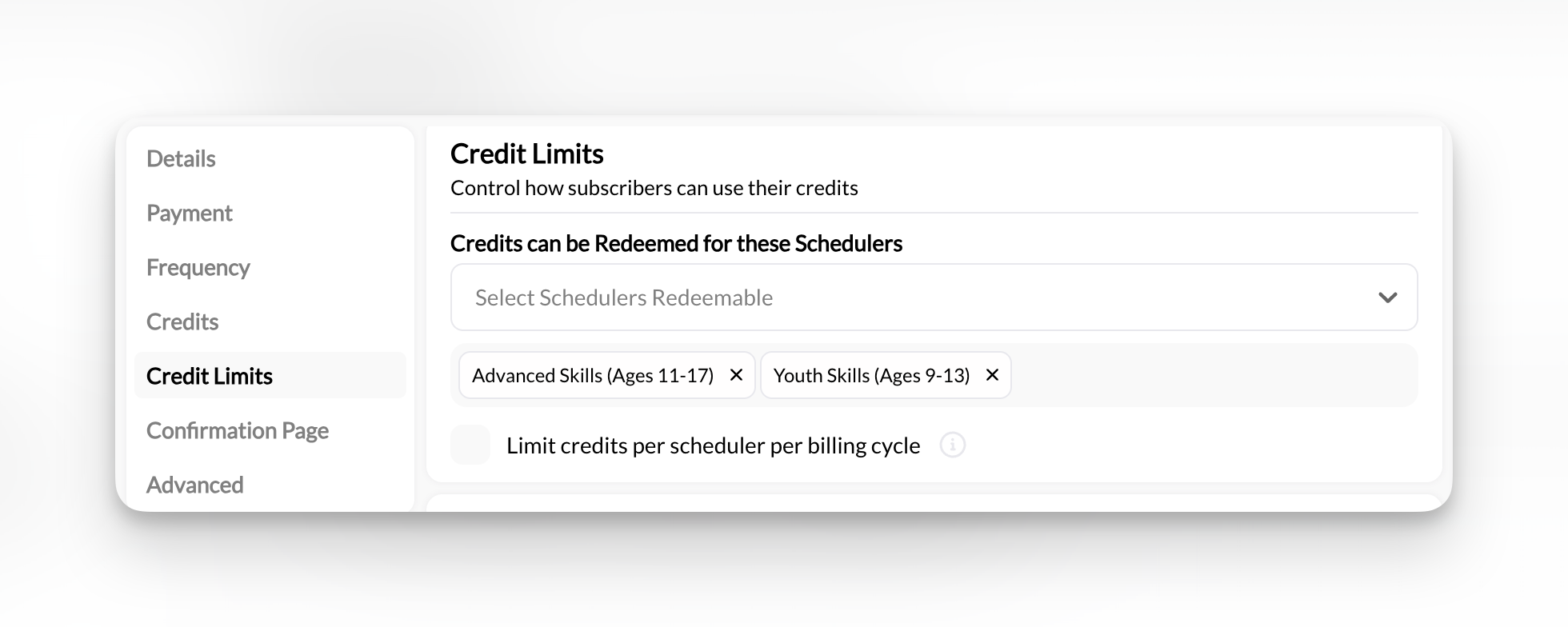
Credits are optional. Not every product needs to issue credits. Many coaches use products for payment-only without credit systems.
Two types of credits
- Master Credits
- Product-Specific Credits
Can be used for any session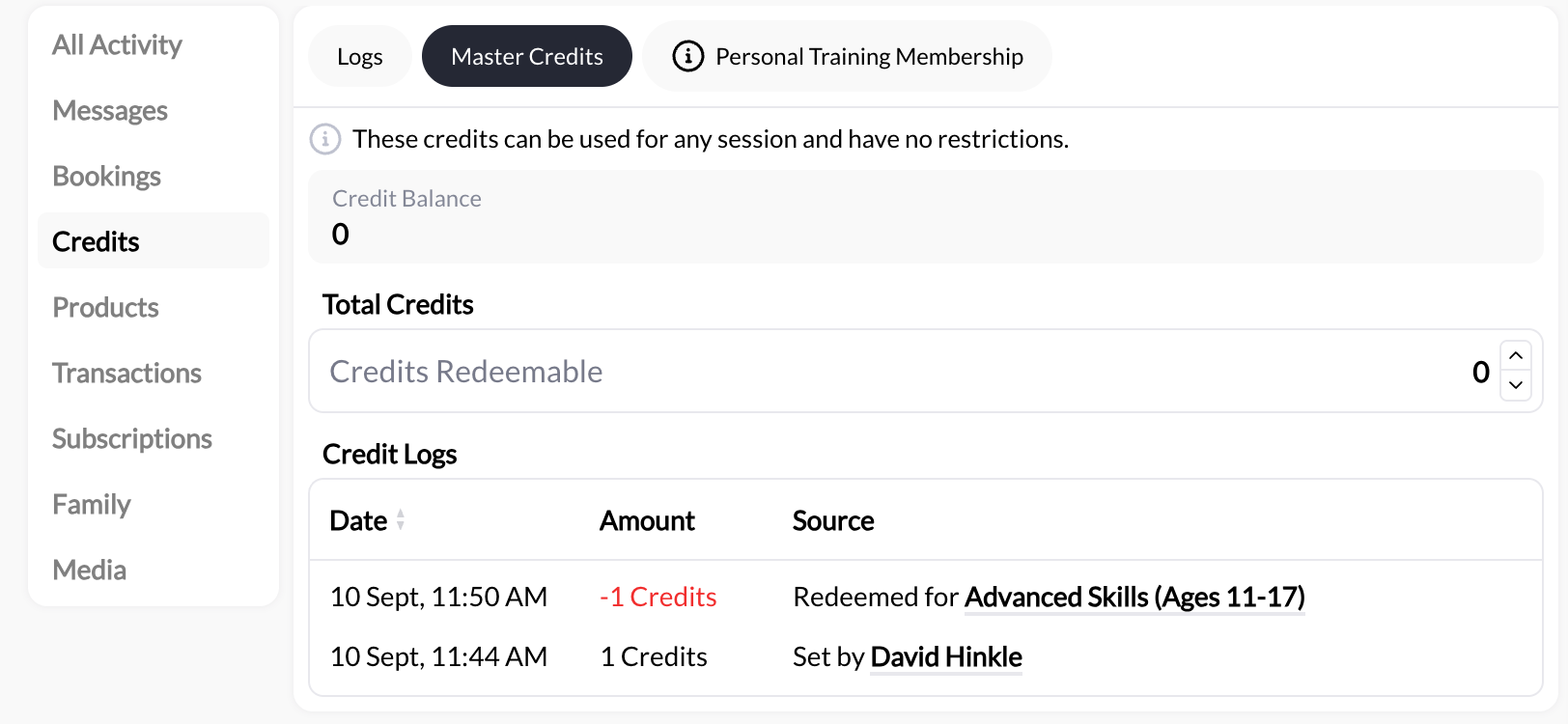
- No scheduler restrictions
- Maximum flexibility for clients
- Most common type
- Can only be set under a person’s account under the credit tab
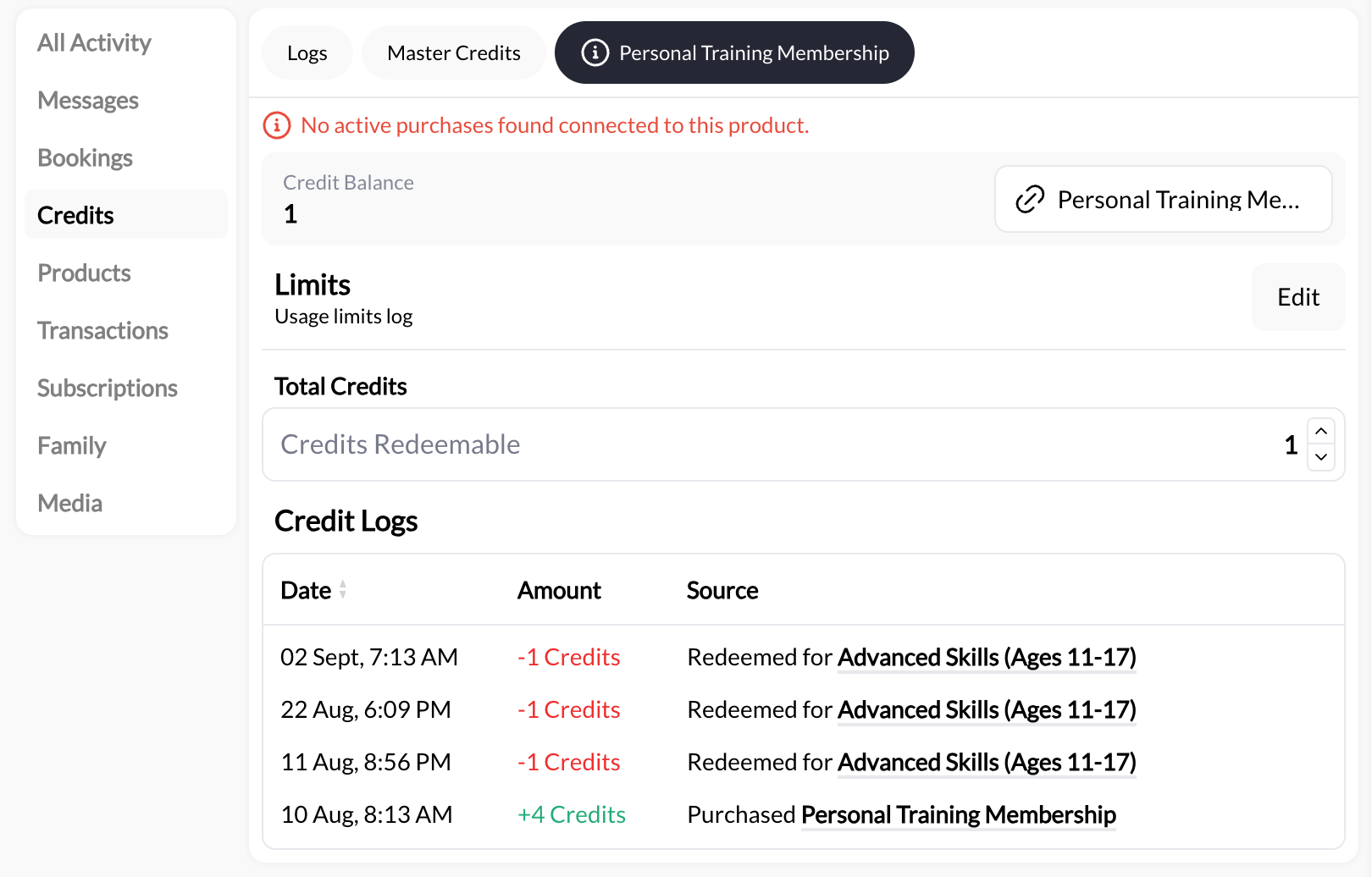
Credit notation
Credits display with special notation in client profiles: Basic format:5= 5 credits available0= No credits remaining∞= Unlimited credits
3/∞ Rising Stars= 3 of unlimited credits for “Rising Stars” scheduler5/10 Youth Training= 5 of 10 credits for “Youth Training” scheduler
This notation appears in client profiles under the Credits tab and during booking flows.
How clients use credits
1
Client purchases product with credits
Client buys “10-Session Package” for $650. Receives 10 credits.
2
Client books session
Client goes to booking page and selects session type.
3
Payment screen shows credit option
Instead of paying, client sees “Use 1 Credit” option.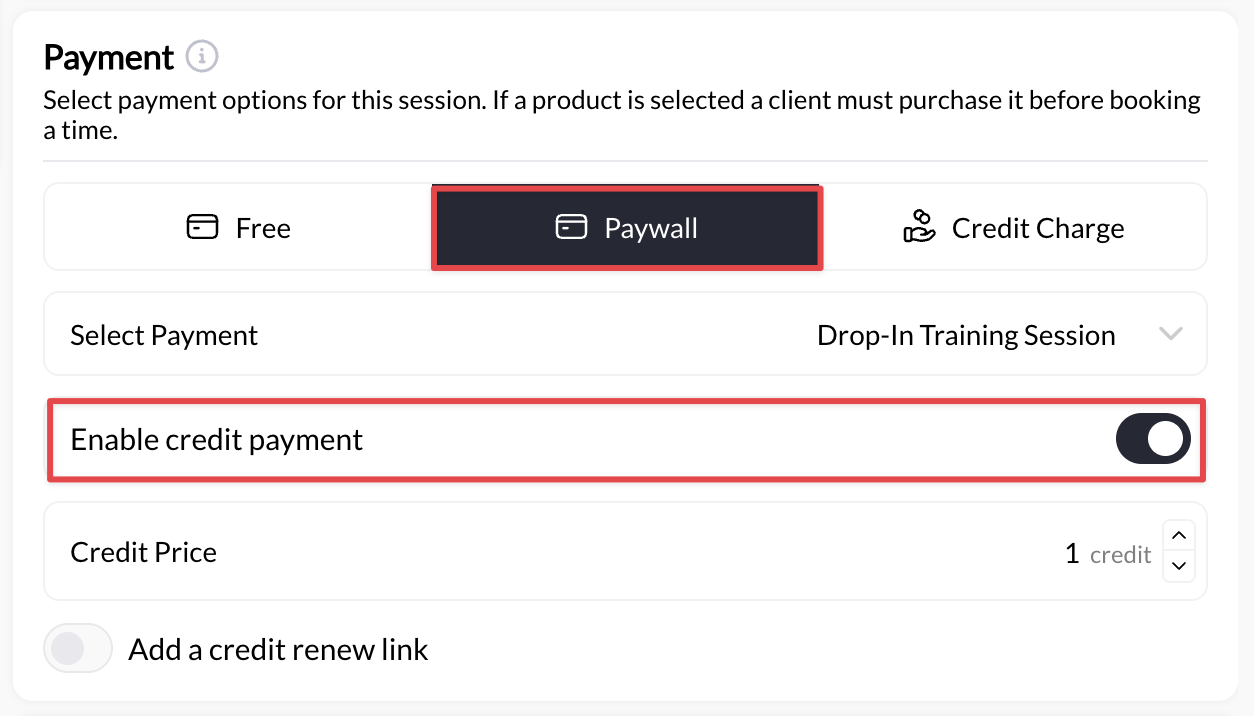
4
Client selects use credits
Client clicks “Use Credits & Book”. Credit count decreases by 1.
5
Session confirmed
Booking confirmed without payment. Client now has 9 credits remaining.
Credit management happens in Schedule section of the Help Center
While credits are configured in Products, they’re managed in the Schedule section: For complete credit documentation, see:- Viewing client credit balances
- Manually adding or removing credits
- Credit expiration tracking
- Credit usage reports
- Troubleshooting credit issues
Important: This Payments section covers credit configuration in products only. For viewing balances, manual adjustments, usage tracking, and troubleshooting, see the Schedule section of the help center.
Common credit configurations
- Simple session package
- Monthly membership
- Specialized package
10-Session PackageProduct setup:
- Type: One-Time
- Price: $650
- Credits: 10
- Expiration: 90 days
- Usage: Master Credits (any scheduler)
Credits vs. direct payment
With credits:- Client pays upfront for multiple sessions
- Reduces friction at booking time
- Encourages package purchases
- Creates commitment to training
- Client pays per booking
- No credit tracking needed
- Simpler system if you don’t want credit management
Key points about credits
Credits are product-based: Enable credits in Product Builder when creating products Optional feature: Not required. Products don’t have to award credits at all Expiration matters: Set realistic expiration dates. Too short frustrates clients, too long reduces urgency Subscription credits renew: Subscription products issue new credits each billing period Master vs. restricted: Choose based on whether you want maximum flexibility or controlled usage Management lives elsewhere: View balances, make adjustments, and troubleshoot in Schedule sectionWhen NOT to use credits
Skip credits if:- You only offer single sessions (direct payment is simpler)
- You don’t want to track credit balances
- Your pricing is too variable for packages
- You prefer pay-per-session model
- Clients are set up on the same recurring schedule (client purchases membership plan but create recurring booking on your calendar as an admin)
Next steps
Configure credits in products: Product Builder → Manage credit system: See Schedule section for:- Viewing client balances
- Manual credit adjustments
- Usage tracking and reports