

Using the Content & Media Block in CoachIQ’s Web Builder
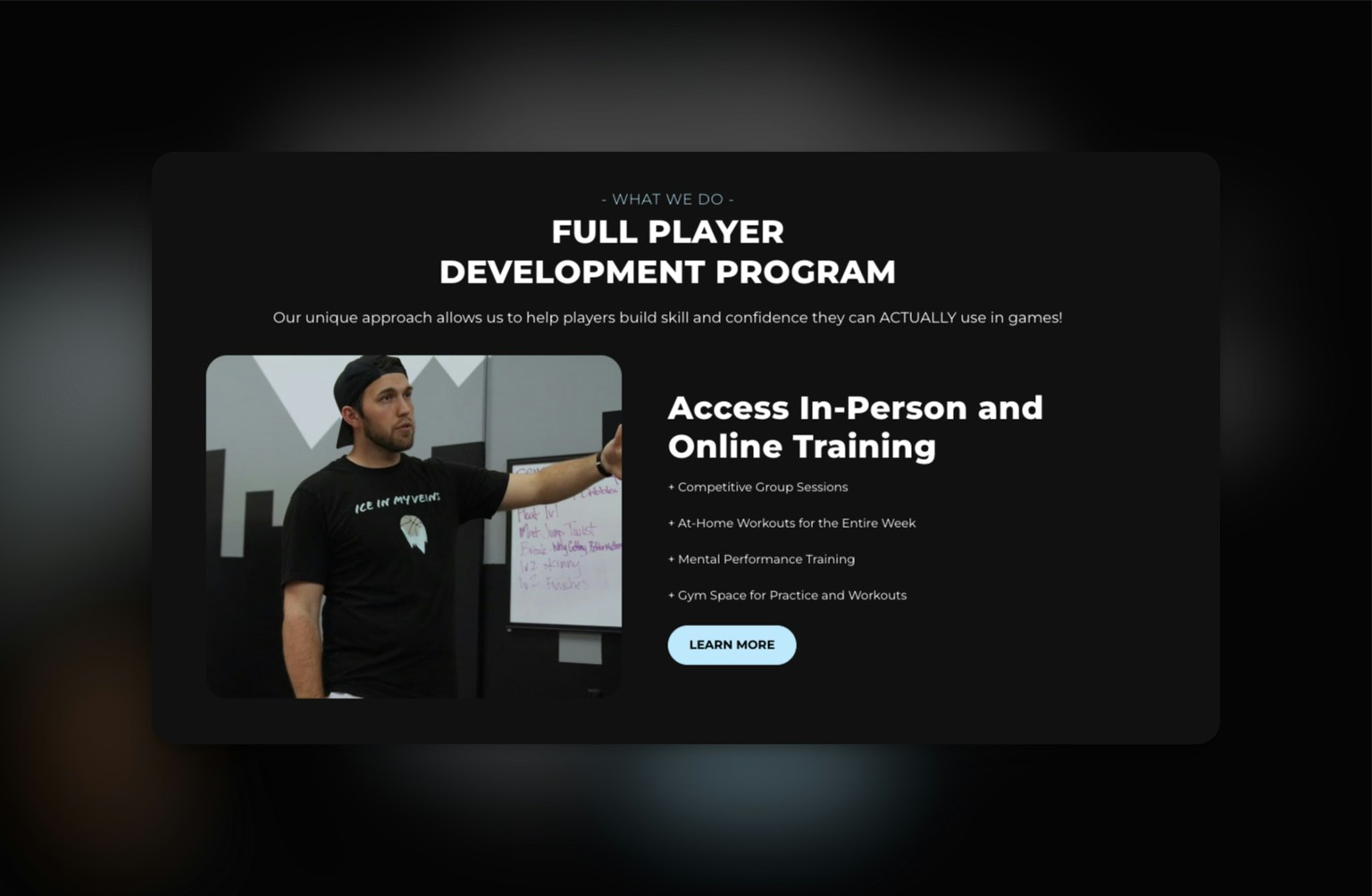
Introduction
Whether you’re a private sports coach looking to make a great first impression or promote your services, this feature can be utilized as a hero section, CTA section, or for various other purposes to drive conversions.Use Cases for Private Sports Coaches
- Hero Section for Your Homepage
- Purpose: Make a strong initial impact by highlighting your unique coaching program or training approach.
- Example: Use an engaging photo of you coaching, along with a brief description of your expertise and a “Learn More” button linking to program details.
- Call-to-Action for Program Enrollment
- Purpose: Encourage visitors to sign up for your programs or memberships.
- Example: Display your main offerings, such as in-person and online training, with a clear CTA button like “Join Now” or “Get Started”.
- Feature Key Training Services
- Purpose: Highlight the specific benefits of training with you, such as group sessions or access to gym facilities.
- Example: Use a compelling image and list your top services with brief descriptions to attract attention.
- Promote Upcoming Events or Camps
- Purpose: Announce dates and details for upcoming sports camps, clinics, or special events.
- Example: Include a banner image, event details, and a “Sign Up” button linking to the registration page.
- Display Testimonials with Visual Impact
- Purpose: Showcase testimonials or success stories from athletes or parents.
- Example: Pair client feedback with a relevant image, adding a CTA like “See More Success Stories” to build credibility.
Steps to Add a Content & Media Block
- Access the Web Builder:
- Log in to CoachIQ, navigate to your dashboard, and open the Web Builder.
- Select the Content & Media Block:
- Click “Add Block” and choose “Content & Media” from the options.
- Upload Media:
- Image/Video: Choose an image or video that complements your message, such as a coaching session or an athlete in action.
- Add Headline & Description:
- Headline: Write a concise, attention-grabbing headline (e.g., “Full Player Development Program”).
- Description: Provide a brief explanation of the benefits or purpose of the content.
- Insert a Call-to-Action Button:
- Button Text: Customize the button text to align with your goal, such as “Learn More” or “Join Now”.
- Link: Connect the button to the relevant page on your website.
- Customize Design:
- Adjust colors, font, and alignment to match your brand style.
- Preview and Publish:
- Review how the block appears on different devices, then click “Save” and “Publish” to make it live.
By effectively using the Content & Media block, you can engage visitors, highlight your unique offerings, and encourage action.
Tips and Best Practices
- Consistency: Keep your branding consistent across all blocks to create a cohesive look.
- Engaging Visuals: Use high-quality images and videos to capture attention.
- Clear CTAs: Ensure your CTAs are visible and clearly lead to the next step for users.