

How to Use Number Blocks in CoachIQ’s Web Builder
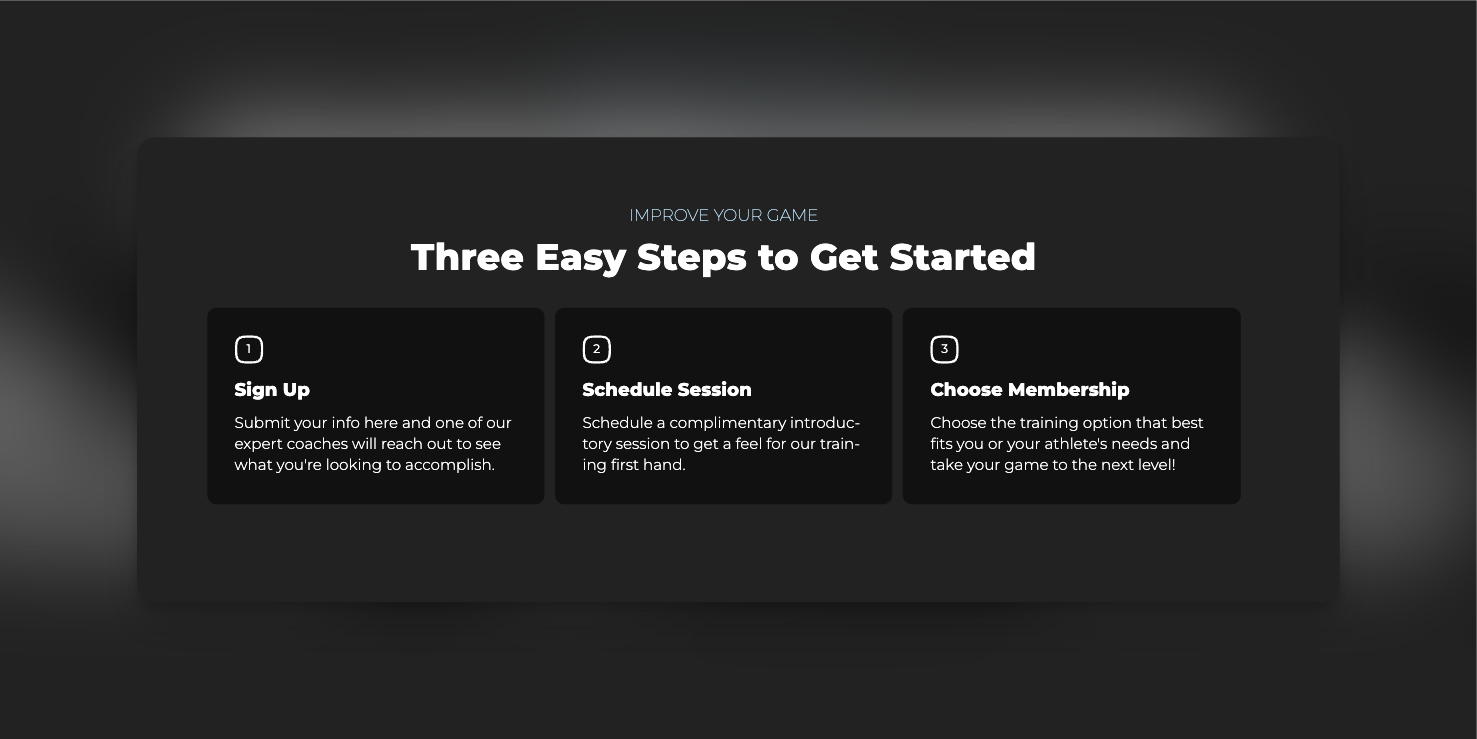
Steps to Add and Customize Number Blocks
- Access the Web Builder
- Log in to your CoachIQ account.
- Open the Web Builder from your dashboard.
- Select the Number Block
- Click on “Add Section.”
- Choose “Number Steps Section” from the available options.
- Add Your Content
- Title: Keep it simple and engaging (e.g., “Three Easy Steps to Get Started”).
- Step Headings: Use clear, action-oriented phrases for each step.
- Descriptions: Provide concise details that guide the user through your process.
- Customize the Design
- Background & Colors: Adjust to match your brand identity.
- Icons & Numbers: Choose icons or customize the style of the numbers.
- Spacing & Alignment: Ensure the block fits seamlessly within your page layout.
- Preview and Publish
- Check how your number block appears on different devices.
- Save and publish your changes.
Example Number Blocks
Here are some examples of how you can use number blocks to enhance your web content:- Simple Enrollment Process
- Register Online
- Book Your Free Evaluation
- Join a Training Program
- Skill Development Pathway
- Assess Your Skills
- Create a Custom Plan
- Track Your Progress
- Athlete Onboarding Experience
- Fill Out Your Athlete Profile
- Meet Your Coach
- Start Training
- Training Program Selection
- Choose Your Focus
- Select Your Schedule
- Unlock Premium Tools
- Steps to Level Up Your Game
- Sign Up for a Membership
- Attend Weekly Training
- Review and Improve
Tips and Best Practices
- Consistency: Ensure that the style and tone of your number blocks match the rest of your website.
- Clarity: Use straightforward language and action-oriented headings.
- Visual Appeal: Select colors and icons that enhance readability and engagement.