

Where to find this: Client Profile → Media tab
What it shows
All training content you’ve shared with this specific client:- 🎓 Programs - Multi-lesson courses or training series
- 📹 Lessons - Individual videos or instructional content
- 🎥 Video Analysis - Recorded sessions with your annotations
- 📸 Media - Individual video files or images
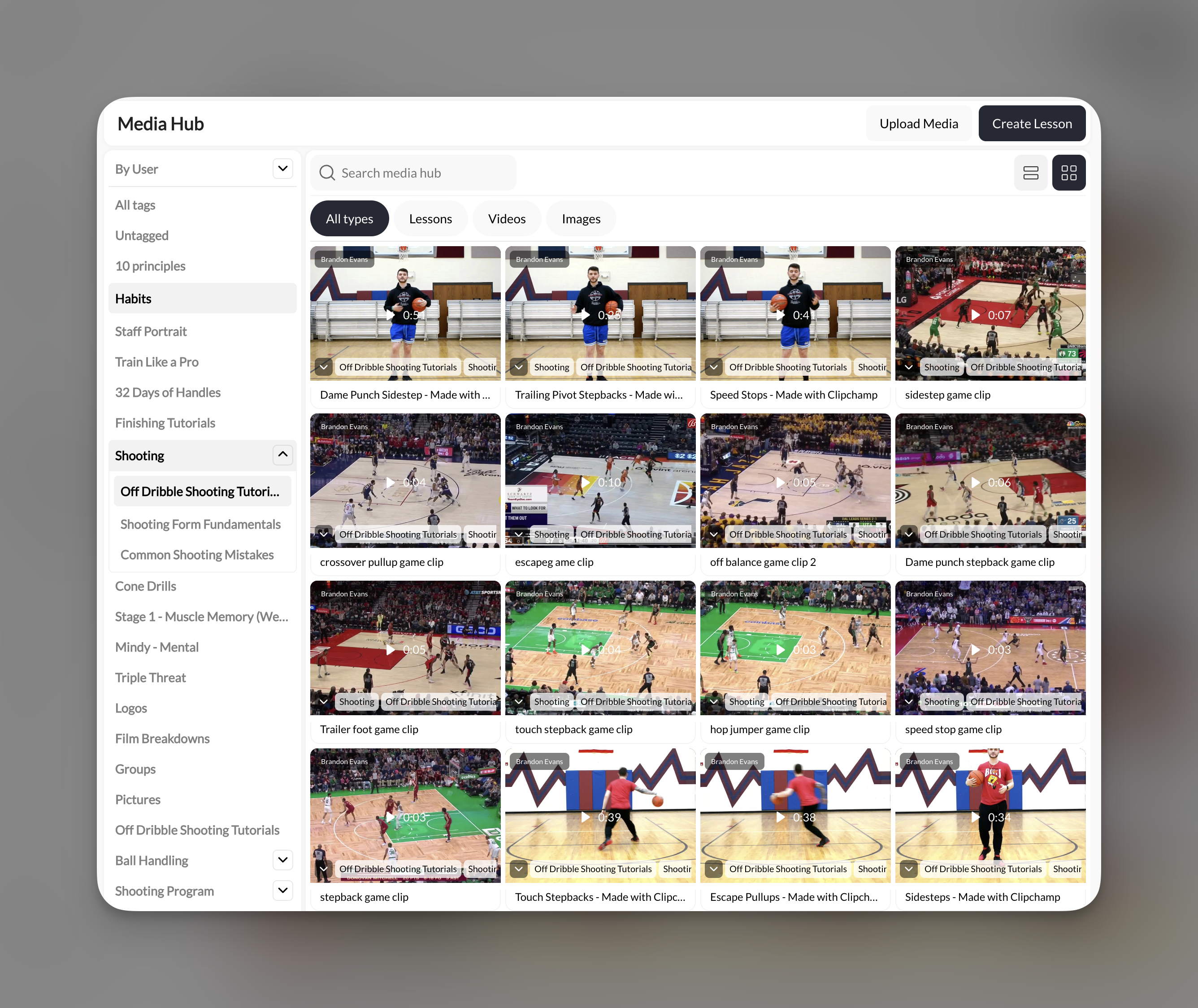
Filter by content tags
Left sidebar shows all content tags you’ve created:- Click any tag to show only content with that tag
- “All tags” = show everything (default)
- “Untagged” = content without any tags
- 10 principles
- Habits
- Staff Portrait
- Train Like a Pro
- 32 Days of Handles
- Finishing Tutorials
- And many more…
View toggles
Top-right icons let you switch display modes:Grid view is better for video-heavy content where thumbnails help identify content. List view is better for program names and quick scanning.
What you CAN do here
From the Media tab:- ✅ View all content assigned to this client
- ✅ Filter by tags to narrow results
- ✅ Switch between list and grid view
- ✅ See content names and organization
- ❌ Assign new content (do this from Content → Programs/Media)
- ❌ Remove content access (do this from Content section)
- ❌ Play videos (this is view-only for coaches)
- ❌ Edit content (do this in main Content section)
Common uses
What programs have I assigned to them?
What programs have I assigned to them?
- Look at the Media tab (no filters needed)
- Scan the list for program names
- Count how many programs they have access to
They can't find content in their Portal
They can't find content in their Portal
Troubleshooting checklist:
- Go to their Media tab
- Check if content appears here
- If YES, it’s assigned → problem is on their end (app refresh needed)
- If NO, it’s not assigned → go to Content section and assign it
Empty media tab?
If you see no content, you haven’t assigned any programs, lessons, or media to this client yet. To assign content:- Go to Content → Programs or Media
- Open the program/lesson you want to share
- Add this client to the “Shared with” list
- Return to their profile—content now appears in Media tab
Understanding content types
In the client’s Portal: They see programs as organized courses. Programs contain lessons. Media files appear as standalone content.
Pro tips
Tag everything: The more consistently you tag content, the more useful this filter becomes. Create tags like “Warm-up”, “Drills”, “Game Film”, “Homework” and use them religiously. Use this for check-ins: Before a session, pull up their Media tab and ask: “Did you watch the 3 videos I shared?” Now you can actually see which 3 videos you’re referring to. Grid view for visual clients: Some clients respond better to thumbnails. Show them their Media tab in grid view during sessions: “See these 6 videos? That’s your homework for next week.” Content visibility ≠ completion: Just because content appears in their Media tab doesn’t mean they watched it. You’ll need to ask or check engagement analytics (if available). Search bar exists: Use the “Search media hub” bar to find specific content by name rather than scrolling.Related articles
Creating Programs
Build multi-lesson training courses
Sharing Content
Assign programs and lessons to clients
Media Hub Guide
Complete media management system