

When to use this guide: A client says they’re subscribed but can’t access your calendar, you see duplicate subscriptions in Stripe, or payment status doesn’t match between systems.
How CoachIQ and Stripe connect
Every client who makes a payment through CoachIQ gets a record in both systems:
These systems sync automatically, but occasionally they can get out of alignment—especially after card changes, failed payments, or manual adjustments.
Finding a client in both systems
1
Start in CoachIQ
Go to People → Clients and find the client. Open their profile.Note their email address—this is the key identifier that links both systems.
2
Check their subscription status in CoachIQ
Click the Subscriptions tab on their profile.Look for:
- Active subscriptions (green) = Should have access
- Canceled subscriptions (gray) = Should not have access
- Past Due subscriptions (yellow) = Payment failed, may have limited access
3
Open the subscription in Stripe
From the client’s Subscriptions tab, click Open under the Source column. This takes you directly to that subscription in Stripe.Alternatively, go to Stripe Dashboard → Customers and search by the client’s email.
4
Compare the status
In Stripe, verify: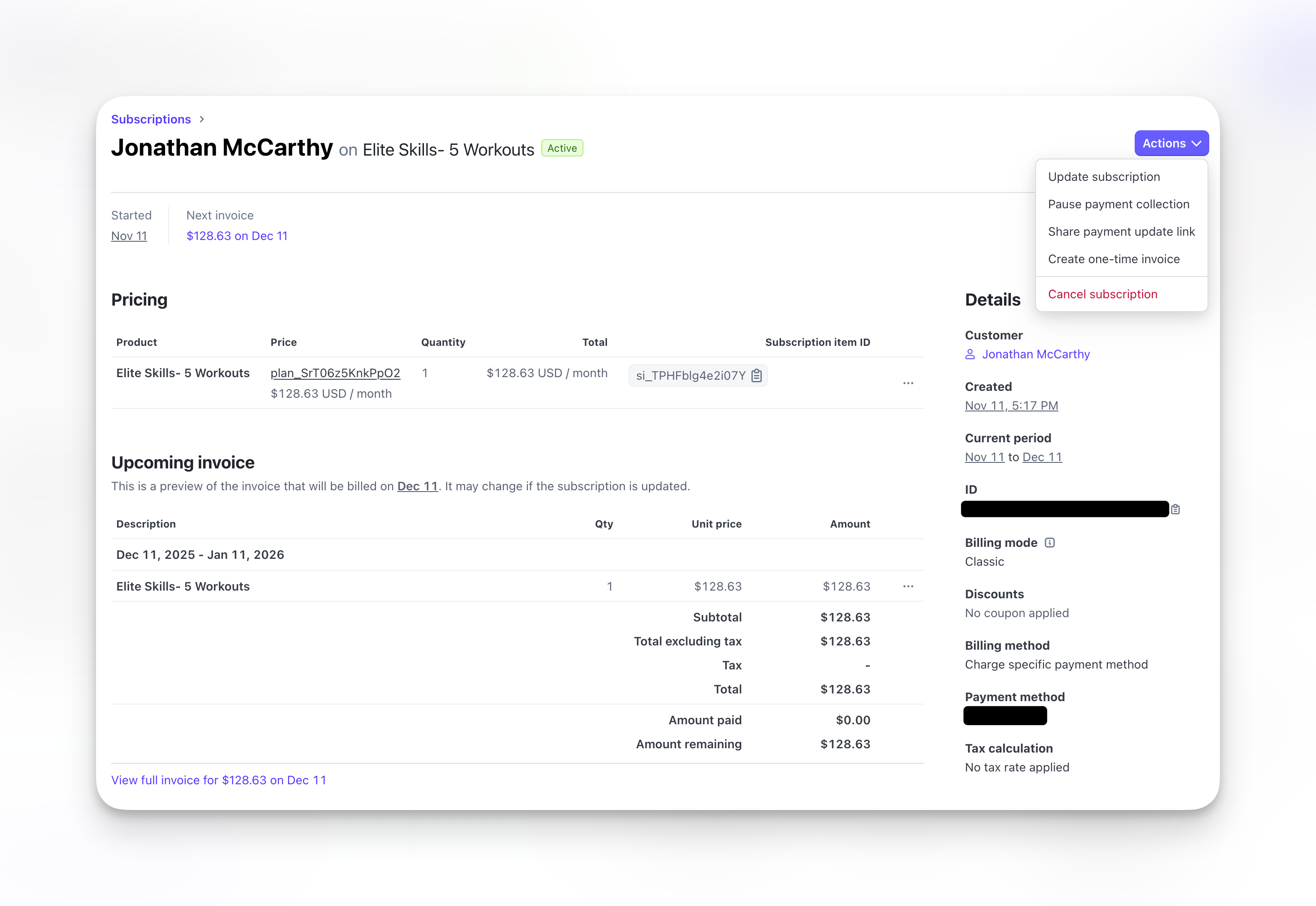
- Status matches CoachIQ (Active, Canceled, Past Due)
- Current period dates are correct
- Payment method is valid (not expired)
Common mismatch scenarios
Client is Active in Stripe but can't book sessions
Client is Active in Stripe but can't book sessions
The subscription exists but access isn’t working.Check these in CoachIQ:
- Subscriptions tab: Is the subscription showing as Active here too?
- Products tab: Does the subscription product appear in their purchased products?
- Credits tab: If the product grants credits, do they have a balance?
- Client used a different email in Stripe than CoachIQ
- Subscription was created manually in Stripe (not through CoachIQ checkout)
- Client created a new account instead of logging in
Two subscriptions appear for the same product
Two subscriptions appear for the same product
Duplicate subscriptions in Stripe.This happens when a client accidentally subscribes twice, often because:
- Payment failed, they retried with a new card, creating a second subscription
- They clicked “Subscribe” multiple times during checkout
- Card was replaced after compromise, and they resubscribed instead of updating
- Go to Stripe Dashboard → Subscriptions
- Search by client email
- Compare the two subscriptions:
- Which one has recent successful payments?
- Which one is the client actually using?
- Confirm which subscription is linked to the athlete’s CoachIQ purchase, whether it covers other family members, and which charges were intended. Cancel only the confirmed duplicate; low recent activity alone does not identify it.
- Verify only one Active subscription remains
Subscription canceled but client still has access
Subscription canceled but client still has access
CoachIQ shows Active but Stripe shows Canceled.Why this happens:A cancellation scheduled for the end of the billing period can legitimately remain active until that date. If Stripe shows it has already ended but CoachIQ still shows active access, a synchronization issue or a different linked subscription may need investigation. Canceling in Stripe does not by itself prove that a webhook was missed.How to fix:
- Check the subscription’s actual status and end date in Stripe.
- In CoachIQ, open the athlete’s Products tab and compare its linked subscription and membership end date.
- Check whether the purchase is part of a shared family membership.
- If the same subscription has ended but access is still wrong, contact CoachIQ support with those details before canceling or replacing anything else.
Client paid but subscription shows Incomplete
Client paid but subscription shows Incomplete
Payment succeeded but subscription never activated.Why this happens:The initial setup didn’t complete properly. The charge went through but the subscription status got stuck.How to verify:
- In Stripe → Payments, search for the client’s email
- Find the charge—did it succeed?
- If yes, check Stripe → Subscriptions for “Incomplete” or “Incomplete Expired” status
- In Stripe, cancel the incomplete subscription
- Have client purchase again through CoachIQ
- Or manually add the product to their CoachIQ profile (People → Client → Products tab → Add Product)
Card was replaced and now subscriptions are duplicated
Card was replaced and now subscriptions are duplicated
Client’s card was compromised, they got a new one, and now things are messy.This is a common scenario. Here’s the correct workflow:What the client should have done:
- Log into Athlete Portal
- Go to Billing settings
- Update payment method
- Existing subscription continues with new card
- Client can’t figure out how to update card
- Client purchases subscription again with new card
- Now they have two subscriptions
- Identify which subscription is the “real” one (usually the older one with more payment history)
- Cancel the duplicate in Stripe
- Ensure the remaining subscription has the new card attached
- Verify CoachIQ shows only one Active subscription
Quick reference: Where to find what
Check for unsynced subscriptions
If you suspect subscriptions aren’t connected to Stripe — especially after a transfer or bulk import — use the Unsynced filter on the Subscriptions dashboard to find them all at once. How to check for unsynced subscriptions →When to contact support
Contact CoachIQ support if:- Subscription status is different between systems and won’t sync
- Client was charged but product/credits never appeared
- You need to merge duplicate client accounts
- Webhook errors are preventing sync (you’ll see repeated issues)
- Client’s email address
- Screenshot of CoachIQ subscription status
- Screenshot of Stripe subscription status
- Description of what’s not matching