

Where to find this: Dashboard → Website Builder → Select any page → Click on a section → Look for “Buttons” panel
What you’ll accomplish
Learn how to add, customize, and manage buttons within your website sections to guide visitors toward key actions like booking sessions, signing up for programs, or contacting you.Adding buttons to sections
1
Select a section with button capability
Click on a section that supports buttons (like Hero, Content + Media, or Features sections).
2
Locate the Buttons panel
In the section settings, scroll down to find the Buttons section in the left panel.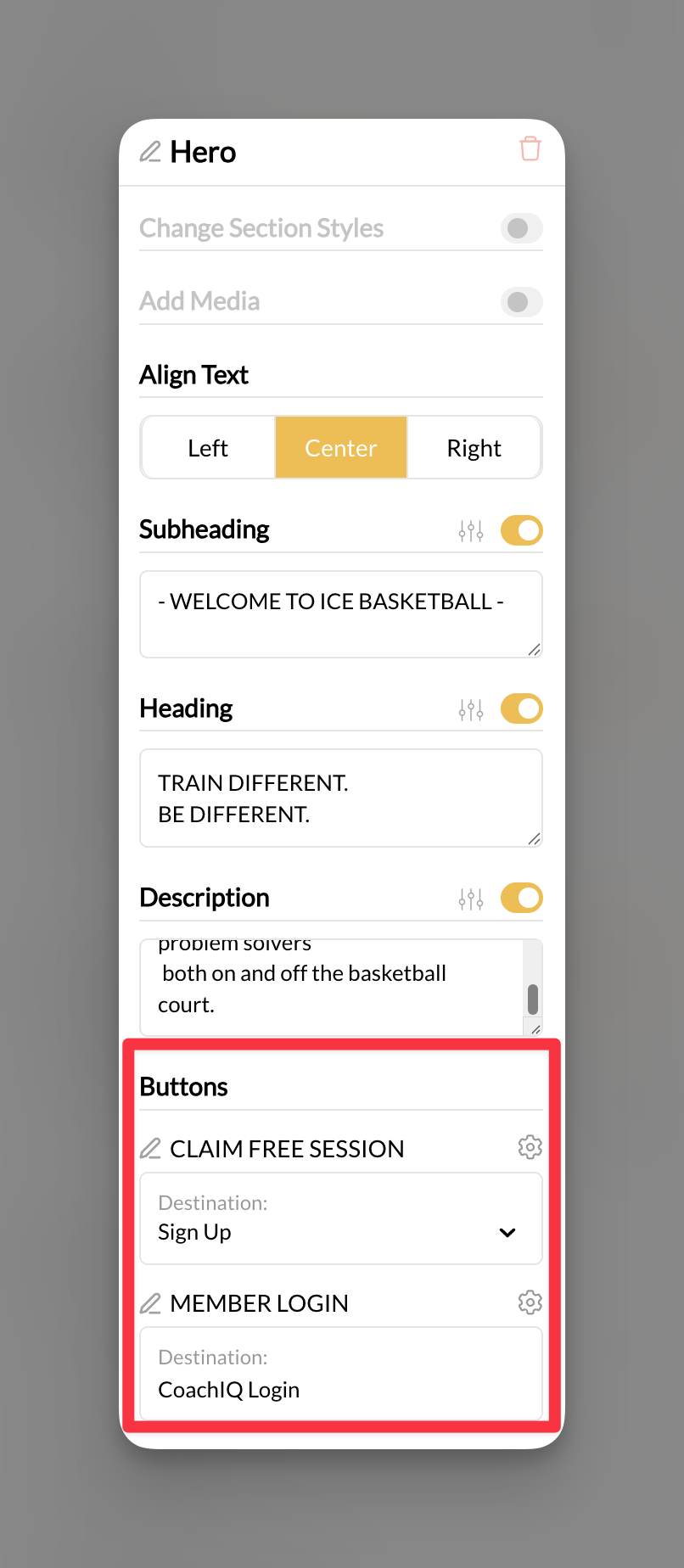
3
Add or edit a button
Click on an existing button to edit it, or look for an “Add Button” option to create a new one.
Your button will appear in both the settings panel and on your website preview.
Setting button destinations
Choose where you want visitors to go when they click your buttons.1
Access button destination options
With a button selected, look for the destination or link settings.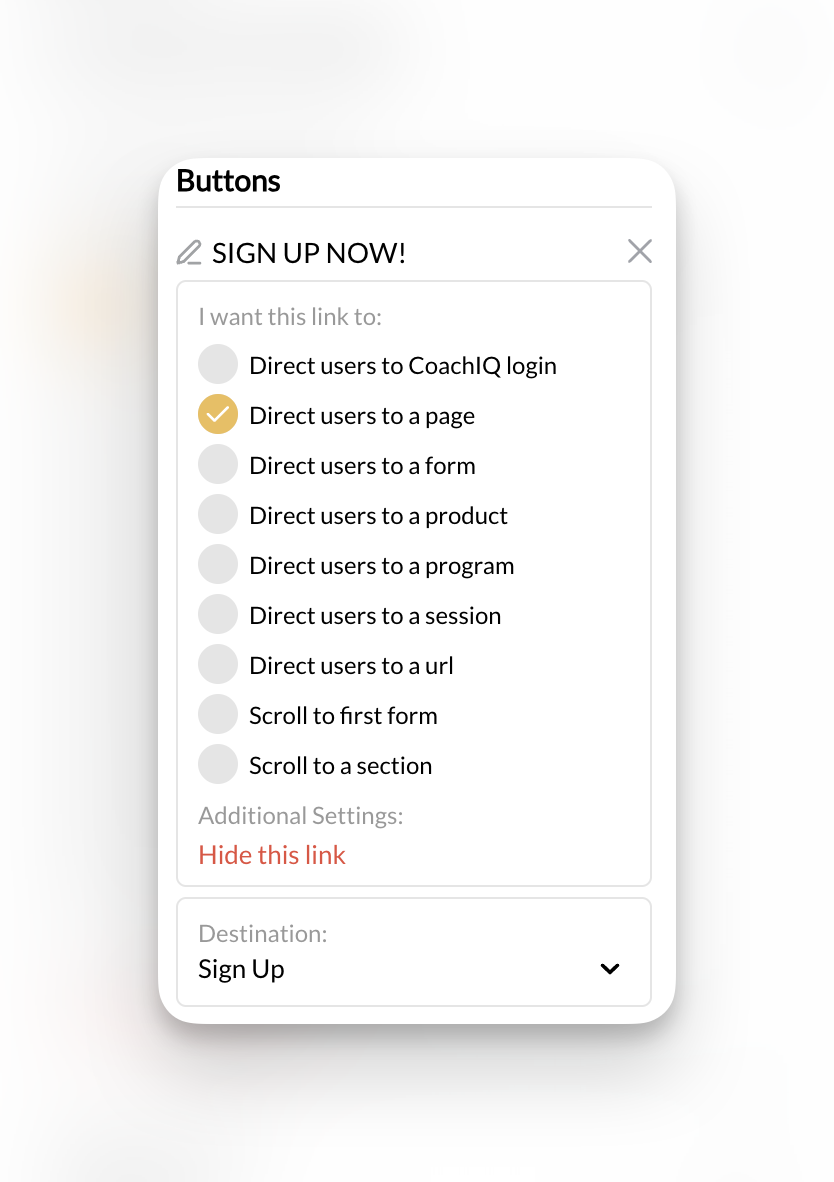
2
Choose your destination type
Select from the available destination options:
- Direct users to CoachIQ login - Send visitors to your member portal
- Direct users to a page - Link to another page on your website
- Direct users to a form - Send visitors to a contact or signup form
- Direct users to a product - Link directly to a service or product for purchase
- Direct users to a program - Connect to a training program or course
- Direct users to a session - Link to session booking or scheduler
- Direct users to a url - Link to any external website
- Scroll to first form - Automatically scroll to the first form on the page
- Scroll to a section - Jump to a specific section on the same page
3
Configure destination details
Depending on your choice, you may need to:
- Select a specific page, form, product, or session
- Enter a URL for external links
- Choose which section to scroll to
Your button now has a clear destination and purpose.
Button display settings
1
Set opening behavior
Choose whether links open in the same window or a new window:
- Same window: Keeps visitors on your site (recommended for internal links)
- New window: Opens external links without losing your visitors
The “In a new window” toggle is especially useful for external links to maintain visitor engagement on your site.
2
Control button visibility
Use the Hide this link option to temporarily remove a button without deleting it:
- Visible: Button appears to all visitors
- Hidden: Button is temporarily hidden but settings are preserved
Button text and styling
1
Edit button text
Update the text that appears on your button to be clear and action-oriented:
- Good examples: “BOOK YOUR FIRST CLASS”, “START TRAINING”, “GET STARTED”
- Avoid: Generic text like “Click here” or “Learn more”
2
Keep text concise
Button text should be short and clearly communicate the action:
- Use 1-4 words when possible
- Make the benefit clear
- Create urgency when appropriate
Common questions
What's the difference between scrolling to a form vs linking to a form?
What's the difference between scrolling to a form vs linking to a form?
“Scroll to first form” moves visitors down to a form on the same page, while “Direct users to a form” can link to a form on a different page or a standalone form.
Should I open external links in a new window?
Should I open external links in a new window?
Yes, use “In a new window” for external links to keep visitors from leaving your site completely. Keep internal links in the same window for better user flow.
Pro tips
Related articles
- Adding and Managing Sections - Learn how to add sections that support buttons
- Section Styling and Layout - Customize the overall appearance of sections with buttons
- Forms Integration - Set up forms to use as button destinations