

Connect registration products and forms
- Open the team’s Registration tab.
- Select Connect products & forms.
- Search and select the existing products or forms intended for this team.
- Review the selection, then connect it.
- Check the connected list and copy the appropriate link to share with families.
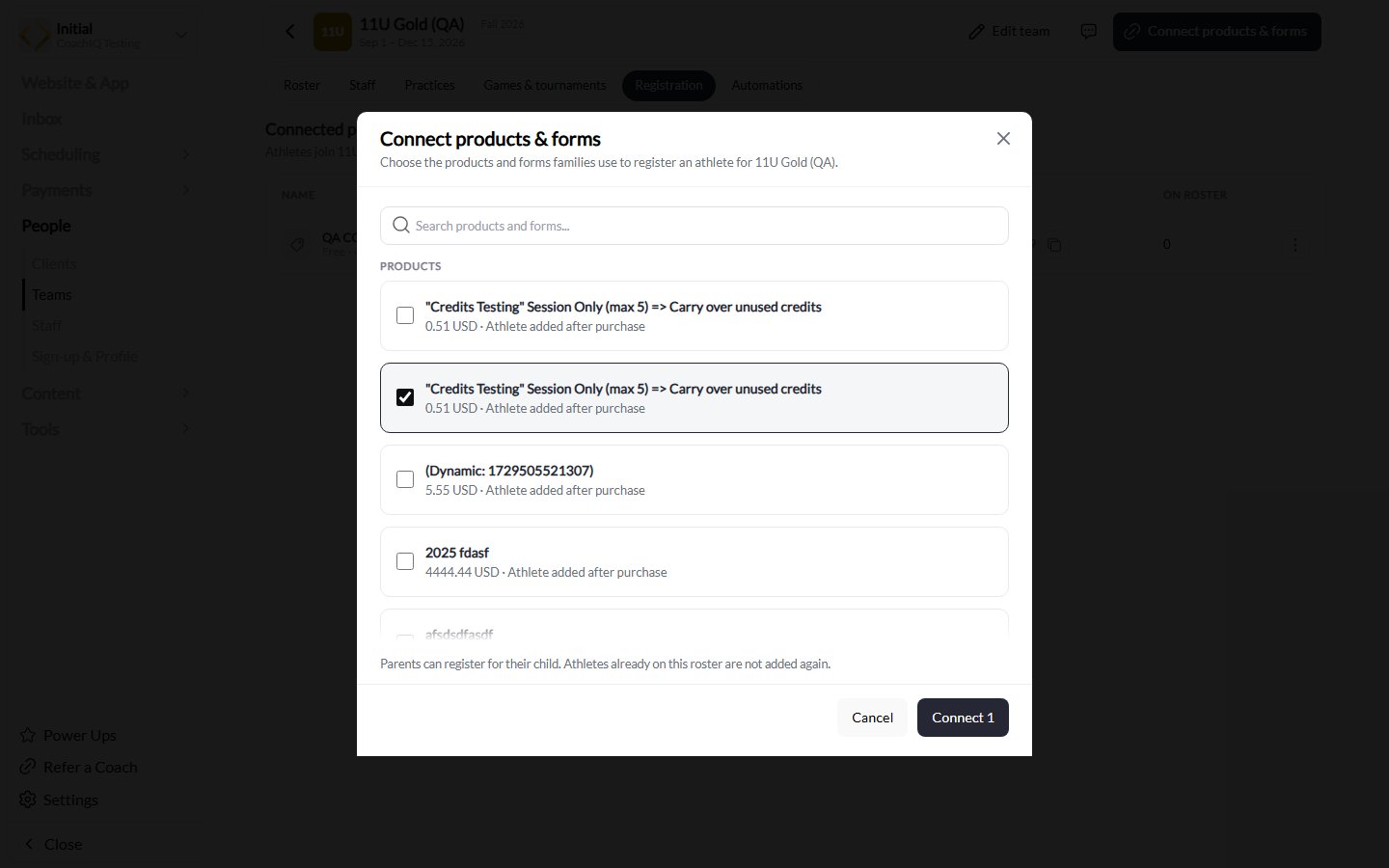
Select the product or form, then check the count on Connect before saving. Products and prices shown here are testing examples.
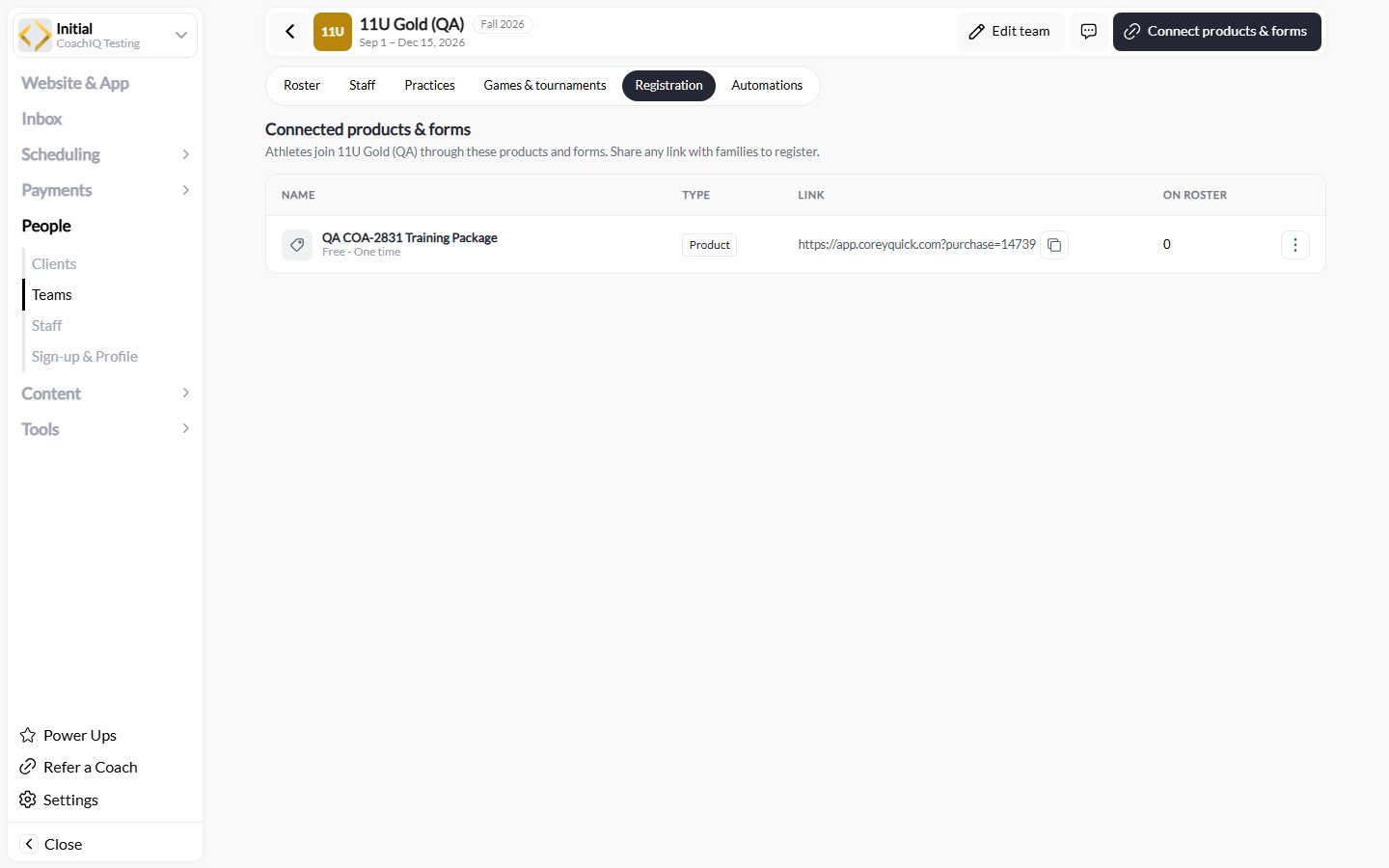
After connecting, use the copy control beside the intended registration link. The URL and product in this testing screenshot are examples; copy the link from your own team.
The family must register the participating athlete. Where a parent has multiple children, confirm the intended child in the registration or checkout flow. A payer’s profile is not interchangeable with the athlete’s profile.
Check that registration worked
After the family completes registration, check the athlete’s Roster entry, how they joined, and the relevant purchase or form response. A product purchase, a submitted form, a roster membership, and a successful session booking are separate results. The On roster count belongs to a particular connection. The same athlete can be associated with more than one connection, so do not add those counts together to calculate unique roster size or money collected. Adding an athlete manually does not create a purchase. Likewise, a registration connection does not replace checking roster-booking status.Use dedicated registration paths
Choose a product or form that clearly represents the team families intend to join. Do not assume one form can route athletes among teams based on an answer. The current connected-registration workflow should be set up and checked for the intended team. After connecting an existing product or form, review the roster. If athletes who registered earlier are missing, add them through the Roster tab.Disconnect registration
Use the connection’s menu when you need to stop future additions through that product or form. Disconnecting preserves existing team memberships. Manage a roster removal separately if an athlete should leave the team. Payment changes also need their own review. Do not assume a refund or subscription cancellation automatically removes an athlete from the roster.Message the team
Use the message action in the team header. Review the audience before sending: team messages resolve eligible roster athletes and their linked guardians, with duplicate recipients removed. Check any reported unreachable families instead of assuming everyone received the message. Use Inbox for the normal composition and sending experience. Delivery still depends on valid contact details, channel availability, and messaging preferences. SMS can use messaging credits.Create a team automation
Open Automations in the team, then choose Create automation or Templates. Starting from the team keeps its context in the existing automation builder. The current team flow includes an Athlete joins team trigger.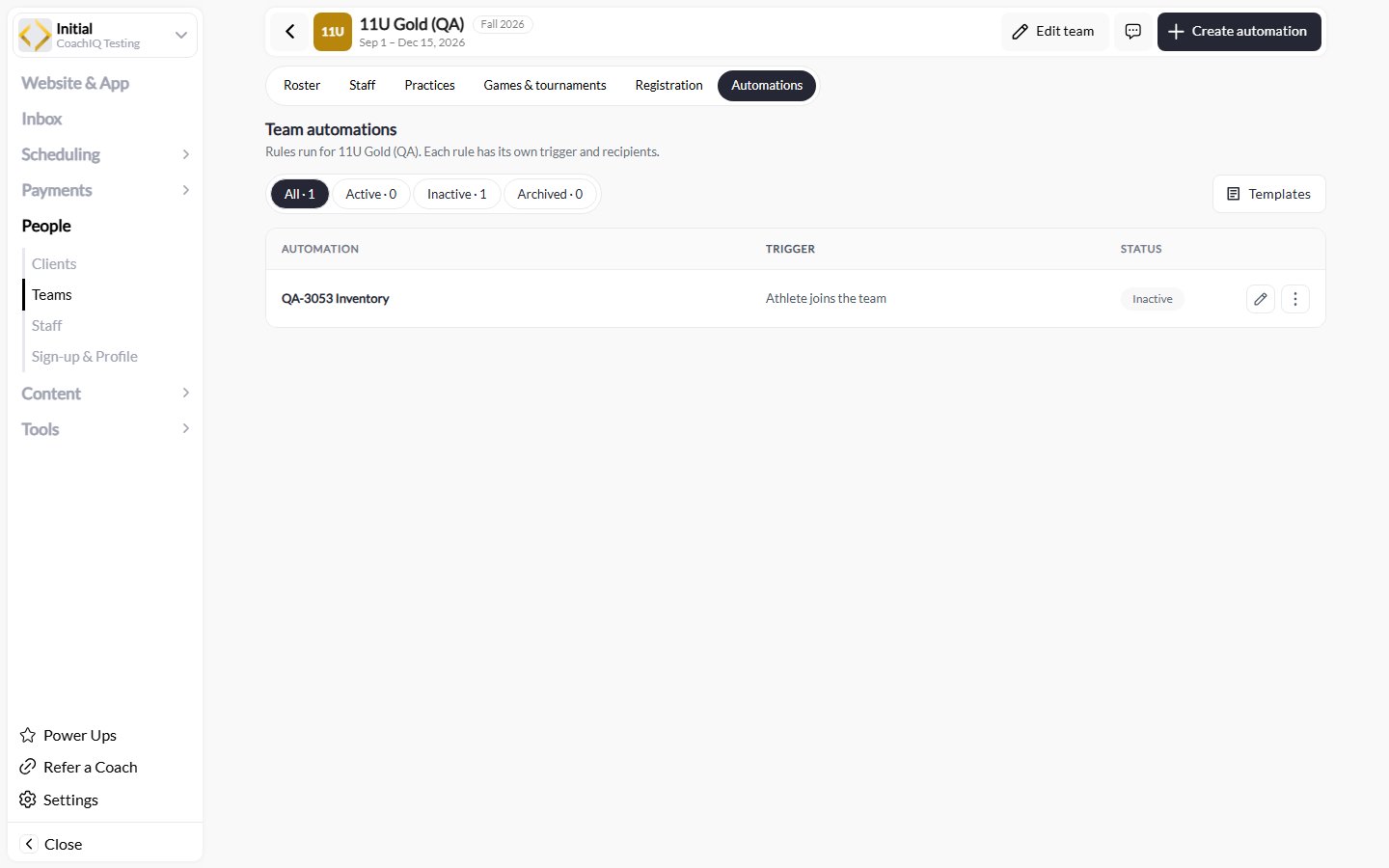
Team automations show each rule's trigger and status. This testing example is Inactive; use the filters to find active, inactive, or archived rules.