

Where to find this: Tools → Automations
Several of these use Scheduled Automations, which run on a schedule (daily, weekly, monthly, or once on a specific date) instead of reacting to an event. If you’re new to those, check out Scheduled Automations for a deeper explanation. Every trigger, condition, and action named below is listed in the Triggers & Actions Reference.
{{field.user.firstName}}. Type @ in a message field to insert one from a list, or copy them exactly as shown, braces included.
Converting Leads & Trials
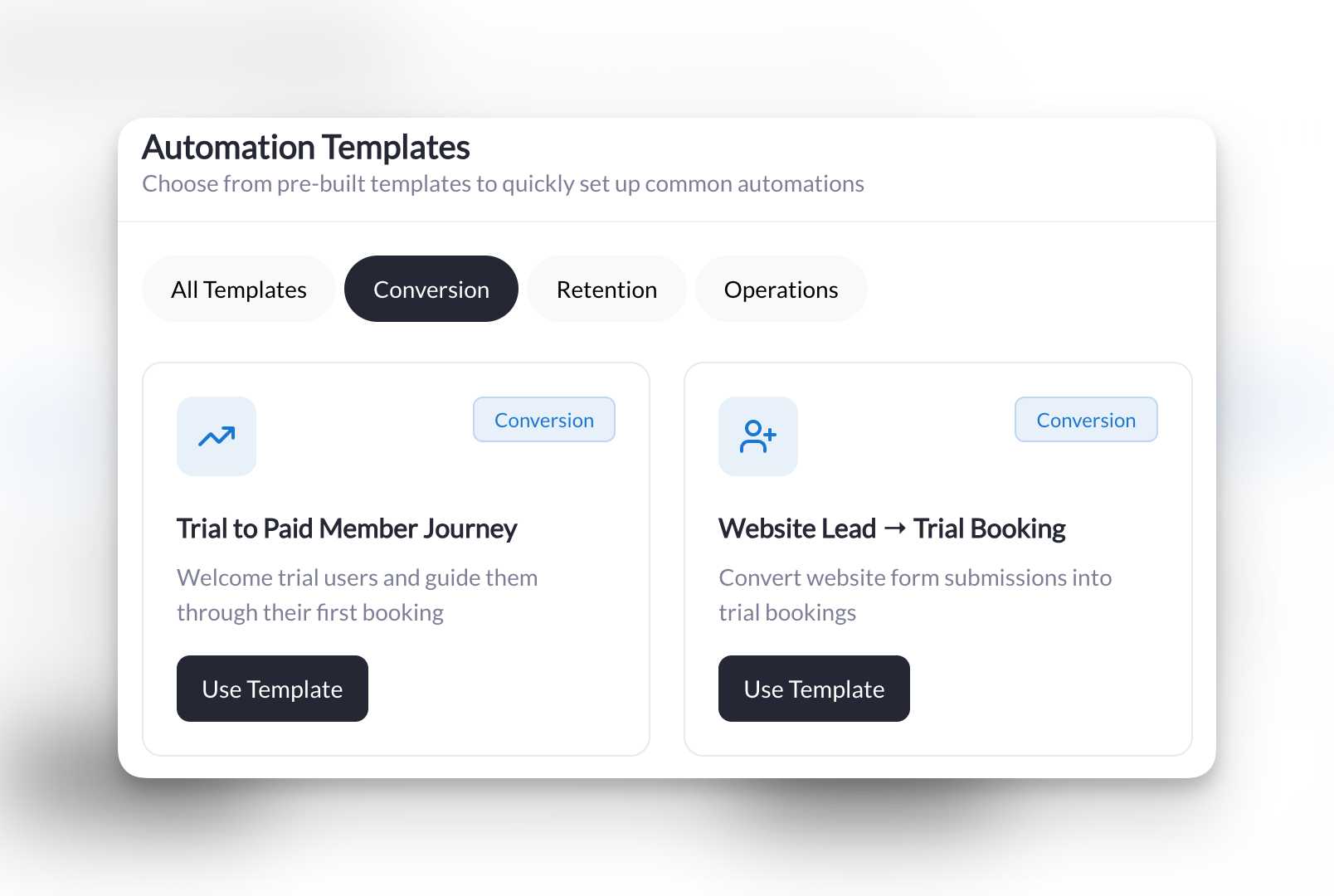
Turn website visitors into trial bookers, and trial bookers into paying members.Website Lead to Trial Booking
Website Lead to Trial Booking
What it does: When someone fills out your trial request form, automatically send them an email with a link to book their free session.
Manual prerequisites: a published trial request or contact form, and the booking link for your trial session.Setup:
- Trigger: Form Submitted
- Condition: Is a specific form → Select your trial request or contact form
- Action: Send an Email
- Target User: User from trigger
- Subject:
Your trial session at [Your Business Name]
Welcome First-Time Trial Bookers
Welcome First-Time Trial Bookers
What it does: When someone books their very first session (a trial), send them a personal welcome message to get them excited.
Manual prerequisites: your trial session/scheduler.Setup:
- Trigger: Booking Created
- Conditions (one And group):
- User’s first booking ever → Yes
- Is for a specific session → Select your trial session
- Action: Send an In-App Message
- Target User: User from trigger
Convert Trial Users Who Haven't Joined
Convert Trial Users Who Haven't Joined
What it does: Every week, check for people who attended a trial but haven’t booked again in 7+ days—then send them a nudge to come back.
Manual prerequisites: a “Trial Attendee” tag, and a way to apply it (see the tip below). Your main session, to attach.Setup:
- Trigger: Scheduled Check
- Schedule: Weekly, Monday, 9:00 AM, in your timezone
- Conditions (one And group):
- Has a specific tag → “Trial Attendee”
- Days since last booking is → Greater than 7
- Action: Send an In-App Message
- Target User: User from trigger
- Attach Session: Select your main session
Welcoming New Members
Make every new member feel like they made the right decision.New Member Welcome
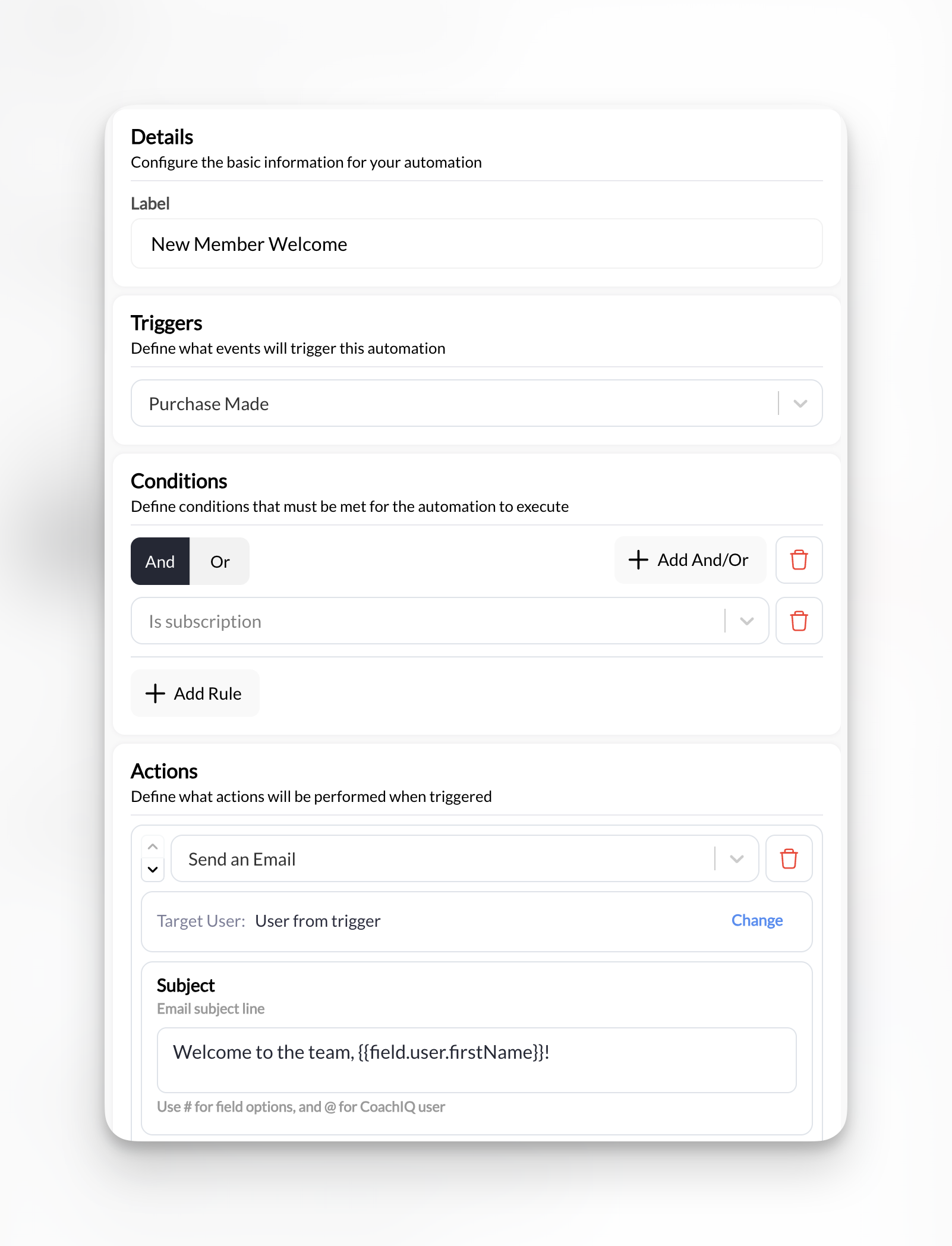
New Member Welcome
What it does: When someone purchases a subscription, automatically send a welcome email with booking instructions and tag them as an active member.
Manual prerequisites: an “Active Member” tag (or create it from the action), and the booking link for your intro or main session.Setup:
- Trigger: Purchase Made
- Condition: Is a subscription → Yes
- Action 1: Send an Email
- Target User: User from trigger
- Subject:
Welcome to the team, {{field.user.firstName}}!
- Action 2: Add a Tag to a User
- Target User: User from trigger
- Tag: “Active Member”
Keeping Members Active
Catch disengaged members before they cancel and keep your credit users booking sessions.Weekly Inactive Member Check
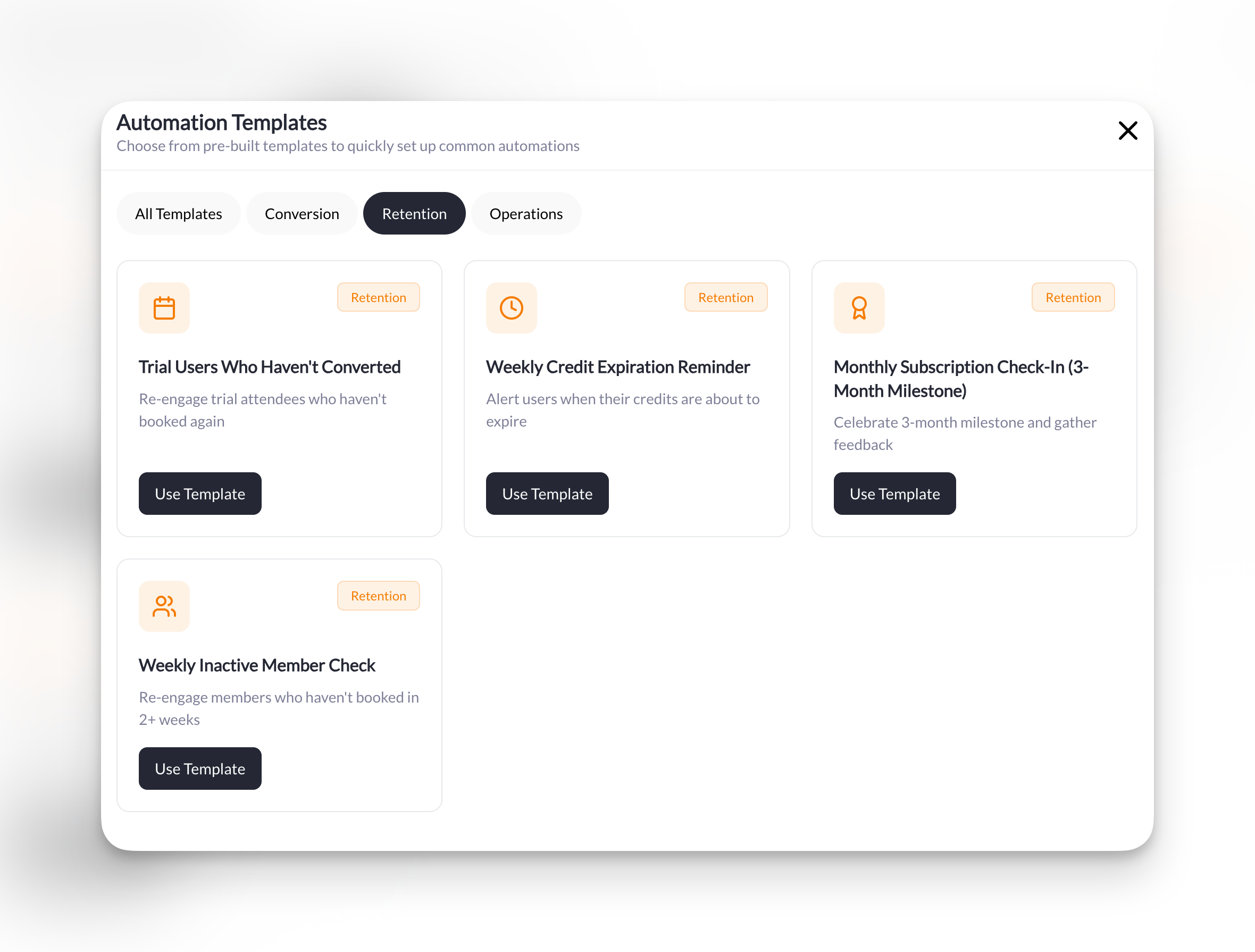
Weekly Inactive Member Check
What it does: Every week, find members who haven’t trained in 14+ days and send them a friendly nudge to book a session.
Manual prerequisites: your primary session, to attach. Fully automatic once enabled.Setup:
- Trigger: Scheduled Check
- Schedule: Weekly, Sunday, 6:00 PM, in your timezone
- Conditions (one And group):
- Days since last booking is → Greater than 14
- Has active subscription → Yes
- Action: Send an In-App Message
- Target User: User from trigger
- Attach Session: Select your primary session
Weekly Credit Expiration Reminder
Weekly Credit Expiration Reminder
What it does: Every week, find members whose credits expire in less than 7 days and remind them to book before they lose them.
Manual prerequisites: any session, to attach. Fully automatic once enabled.Setup:
- Trigger: Scheduled Check
- Schedule: Weekly, Monday, 9:00 AM, in your timezone
- Condition: Days until credits expire is → Less than 7
- Action: Send an In-App Message
- Target User: User from trigger
- Attach Session: Select any session
3-Month Member Milestone
3-Month Member Milestone
What it does: On the 1st of each month, find members who have been subscribed for at least 90 days and haven’t been congratulated yet, send them a celebration message, and tag them so they never get it twice.
Manual prerequisites: a “3-Month Celebrated” tag (or create it from the action). Nothing to pre-seed—the automation finds milestone members on its own.Setup:
- Trigger: Scheduled Check
- Schedule: Monthly, day 1, 10:00 AM, in your timezone
- Conditions (one And group):
- Has active subscription → Yes
- Subscription active for X days → 90
- Doesn’t have a specific tag → “3-Month Celebrated”
- Action 1: Send an In-App Message
- Target User: User from trigger
- Action 2: Add a Tag to a User
- Target User: User from trigger
- Tag: “3-Month Celebrated”
Why the tag: the tag is what makes this one-and-done. Anyone who already has it is filtered out on the next run, so the message goes out once per member regardless of the trigger’s send mode. Because it runs monthly, members are congratulated on the first run after they pass 90 days—up to a few weeks after the exact anniversary.
Camps & Events
Streamline registration confirmations and pre-event communication.Camp Registration Confirmation
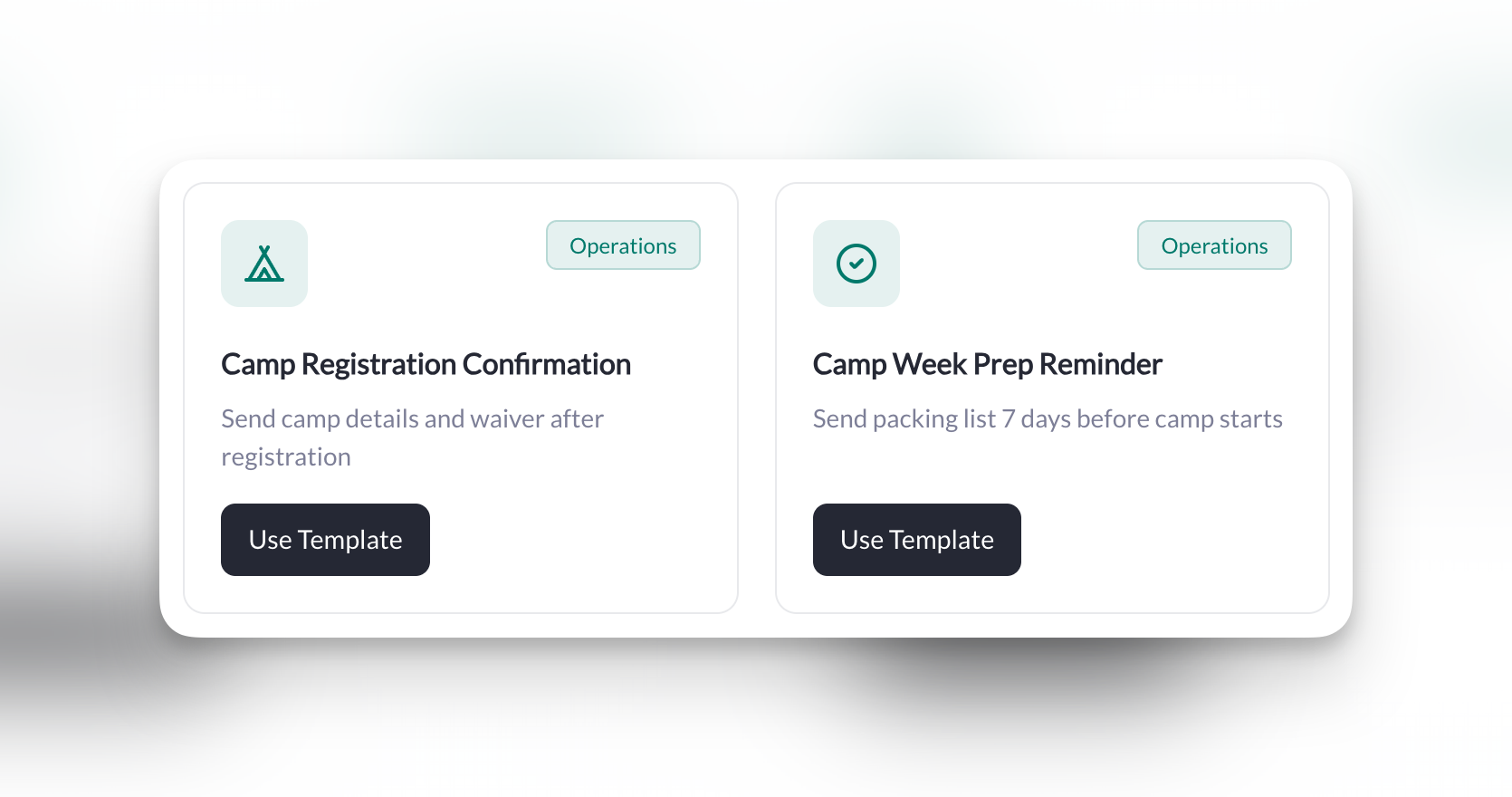
Camp Registration Confirmation
What it does: When someone purchases a camp, automatically send a confirmation email and tag them for future camp communications.
Manual prerequisites: the camp product, and a “Camp Attendee” tag (or create it from the action).Setup:
- Trigger: Purchase Made
- Condition: Is a specific product → Select your camp product
- Action 1: Send an Email
- Target User: User from trigger
- Subject:
You're registered for camp!
- Action 2: Add a Tag to a User
- Target User: User from trigger
- Tag: “Camp Attendee”
Camp Week Prep Reminder
Camp Week Prep Reminder
What it does: One week before camp starts, send registered families a prep email with packing list and schedule.
Manual prerequisites: the “Camp Attendee” tag applied to every camper (the Camp Registration Confirmation recipe above does this for you), and the link to your camp info form.Setup:
- Trigger: Scheduled Check
- Schedule: Specific Date → the date 7 days before camp, 10:00 AM, in your timezone
- Condition: Has a specific tag → “Camp Attendee”
- Action: Send an Email
- Target User: User from trigger
- Subject:
Camp starts in 7 days! Here's what to bring 🎒
How to use this: a Specific Date schedule runs once and then stops, so there’s no tag to remove afterward. Running several camps? Use one tag per camp (e.g., “Summer Camp 2026”) and one prep automation per camp date. To attach the form rather than paste a link, use Send an In-App Message with Attach Form.
Weekly Operations
Automate your recurring announcements and stay on top of your schedule.Weekly Schedule Release
Weekly Schedule Release
What it does: Every Monday morning, announce that the weekly schedule is live and prompt members to book their sessions.
Manual prerequisites: your primary training session, to attach. Because this should go out every week, set the trigger’s send mode to send on every run (see How Scheduled Automations Run).Setup:
- Trigger: Scheduled Check
- Schedule: Weekly, Monday, 8:00 AM, in your timezone
- Condition: Has active subscription → Yes
- Action: Send an Announcement
- Target User: User from trigger
- Title:
This Week's Schedule is LIVE! 🗓️ - Attach Session: Select your primary training session
Daily Trial Alert for Coaches
Daily Trial Alert for Coaches
What it does: Every morning, get a notification about any trial sessions happening today so you’re prepared to convert.
Manual prerequisites: a “Trial User” tag applied to trial athletes, and your own coach profile as the recipient. Set the trigger’s send mode to send on every run, or you’ll only hear about each athlete’s first trial day.Setup:
- Trigger: Scheduled Check
- Schedule: Daily, 7:00 AM, in your timezone
- Conditions (one And group):
- Has upcoming booking → Has booking today
- Has a specific tag → “Trial User”
- Action: Send an In-App Message
- Target User: Change → select yourself (the coach)
This one’s different: Most automations message your members. This one messages YOU—it’s a daily briefing so you never forget about a trial. You’ll get one message per matching athlete. Use Test Run with a tagged test athlete first to confirm the athlete’s name fills in when the message is sent to you rather than to them.
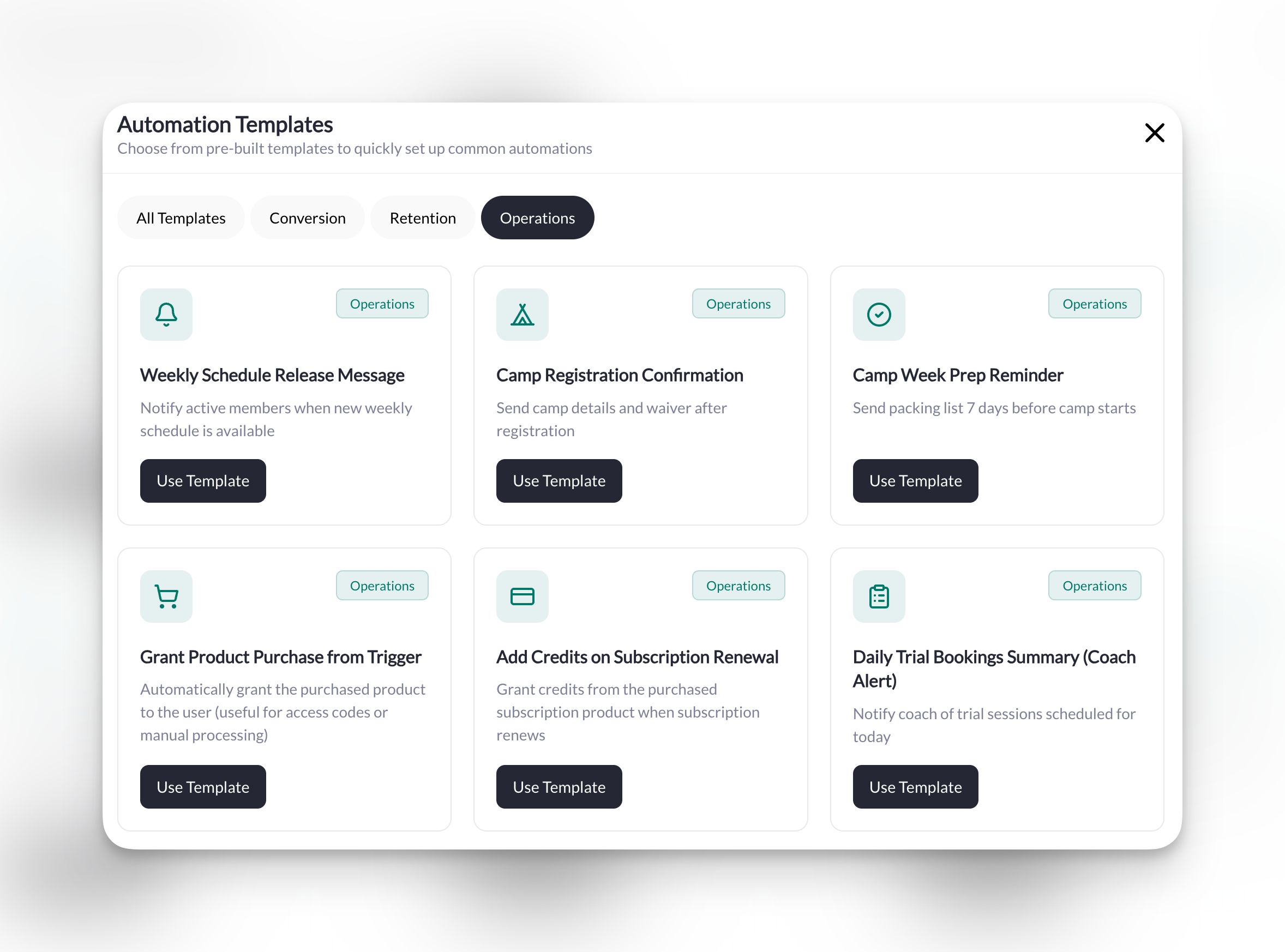
What’s Next?
Scheduled Automations
Learn how scheduled automations work—the trigger behind credit reminders, inactive member checks, and weekly operations.
Triggers & Actions Reference
See every trigger, condition, data source, action, and dynamic field available in CoachIQ automations.
Related articles
Builder Reference
What each section of the builder does, including Test Run and Execution Logs
Forms Overview
Create the forms that trigger lead-capture automations
Product Overview
Set up memberships, credit packs, and camps that trigger purchase automations
Scheduling Overview
Manage sessions referenced in booking automations
Announcements
Learn about the announcement action used in weekly operations automations
Tags and Filters
Organize members with tags used throughout these playbook automations
Responses and Automations
See how form responses connect to automation triggers