> ## Documentation Index
> Fetch the complete documentation index at: https://help.coachiq.io/llms.txt
> Use this file to discover all available pages before exploring further.
# Scheduling Section
> Scheduling blocks in CoachIQ provide a robust tool for organizing and managing sessions effectively.
## **Scheduling Blocks in CoachIQ**
### **Introduction**
This feature is ideal for hosting events, running camps, and addressing various scheduling needs on your webpage. This guide will walk you through the process of adding and customizing a scheduling block, helping you make the most of this powerful feature.
 ### **Adding a Scheduling Block**
To add a scheduling block in CoachIQ, follow these steps:
1. **Navigate to the Scheduling Section**: Begin by accessing the scheduling section within your CoachIQ account.
2. **Edit the Block via the Sidebar**: Use the sidebar to locate and edit the scheduling block options.
3. **Click on "Add a Schedule"**: Initiate the scheduling process by selecting the option to add a new schedule.
### **Selecting a Session**
When selecting a session for your scheduling block, you have two options:
1. **Select from Sessions Built within CoachIQ**: Choose from pre-existing sessions that are already configured in CoachIQ.
2. **Create a Custom Session**: Alternatively, design a custom session tailored to your specific needs.
For this guide, we will choose a pre-built session.
### **Customizing the Scheduling Block**
#### **Session Selection**
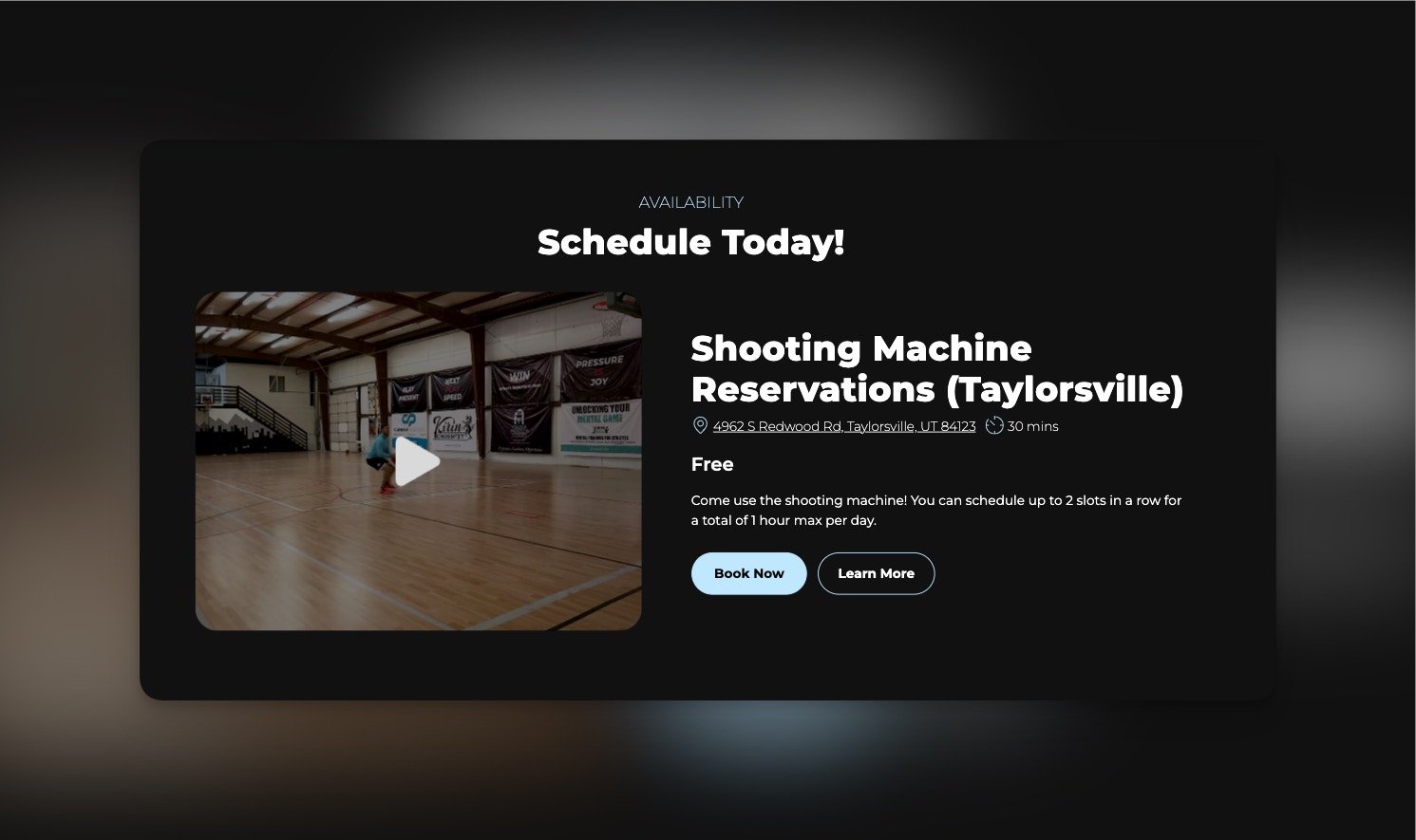
* **Choose Your Session**: For instance, selecting the "shooting machine" session will automatically fill in all relevant information from that session.
#### **Button Functionality**
* **"Book Now" Button**: This button directs users to book the selected session.
* **"Learn More" Button**: Offers users an expanded description of the session, providing additional context and information.
#### **Additional Features**
1. **Media Addition**: Enhance your scheduling block by adding media, such as videos or photos, which is particularly useful for events like camps.
2. **Information Editing**: Customize various aspects of the session, including the title, location, and other pertinent details.
3. **Button Customization**: By default, the button links to the selected session, but you can modify the destination to suit your needs.
### **Use Cases**
This scheduling block feature is particularly beneficial for:
* Running camps and workshops
* Hosting sessions directly on your webpage
* Addressing a variety of scheduling requirements
### **Frequently Asked Questions**
**Q: Can I customize the media content in my scheduling block?**
A: Yes, you can add videos or photos to your scheduling block to enhance its appearance and provide additional information.
**Q: Is it possible to change the default button link?**
A: Absolutely. You can customize the button's destination to direct users to any URL you choose.
### **Adding a Scheduling Block**
To add a scheduling block in CoachIQ, follow these steps:
1. **Navigate to the Scheduling Section**: Begin by accessing the scheduling section within your CoachIQ account.
2. **Edit the Block via the Sidebar**: Use the sidebar to locate and edit the scheduling block options.
3. **Click on "Add a Schedule"**: Initiate the scheduling process by selecting the option to add a new schedule.
### **Selecting a Session**
When selecting a session for your scheduling block, you have two options:
1. **Select from Sessions Built within CoachIQ**: Choose from pre-existing sessions that are already configured in CoachIQ.
2. **Create a Custom Session**: Alternatively, design a custom session tailored to your specific needs.
For this guide, we will choose a pre-built session.
### **Customizing the Scheduling Block**
#### **Session Selection**
* **Choose Your Session**: For instance, selecting the "shooting machine" session will automatically fill in all relevant information from that session.
#### **Button Functionality**
* **"Book Now" Button**: This button directs users to book the selected session.
* **"Learn More" Button**: Offers users an expanded description of the session, providing additional context and information.
#### **Additional Features**
1. **Media Addition**: Enhance your scheduling block by adding media, such as videos or photos, which is particularly useful for events like camps.
2. **Information Editing**: Customize various aspects of the session, including the title, location, and other pertinent details.
3. **Button Customization**: By default, the button links to the selected session, but you can modify the destination to suit your needs.
### **Use Cases**
This scheduling block feature is particularly beneficial for:
* Running camps and workshops
* Hosting sessions directly on your webpage
* Addressing a variety of scheduling requirements
### **Frequently Asked Questions**
**Q: Can I customize the media content in my scheduling block?**
A: Yes, you can add videos or photos to your scheduling block to enhance its appearance and provide additional information.
**Q: Is it possible to change the default button link?**
A: Absolutely. You can customize the button's destination to direct users to any URL you choose.