> ## Documentation Index
> Fetch the complete documentation index at: https://help.coachiq.io/llms.txt
> Use this file to discover all available pages before exploring further.
# Forms Sections
> The Form Section feature in CoachIQ allows you to add and manage forms seamlessly on your website, enhancing user interaction and data collection.
## **CoachIQ: Form Section Guide**
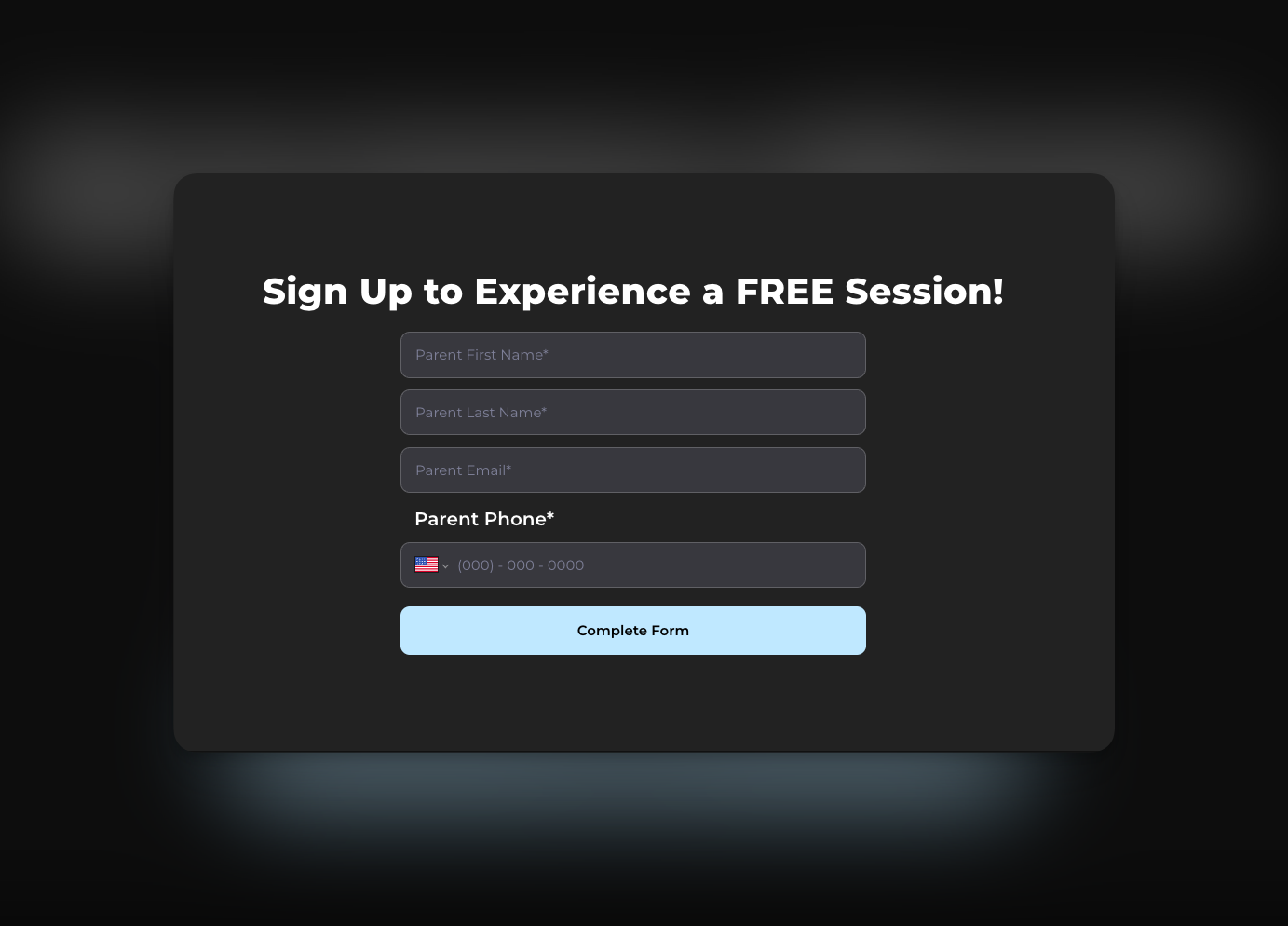 ### **How to Use the Form Section**
#### **Step 1: Add a Subheading**
* Navigate to your form section.
* Add a subheading by clicking on **Add Subheading**. This helps organize your form and provides context to users.
#### **Step 2: Select or Create a Form**
* **To select a form**, click on `Select Form`. Choose from the list of previously created forms.
* **To create a new form**, ensure you first save and publish your current site to avoid losing any edits. Then, click `Create New Form`.
#### **Step 3: Save and Publish**
* Click on **Website Form** to populate the form on your site.
* Once your form is set, click `Publish` to make the changes live.
* You can now view your live site to see the form in action.
> **Note:** Always save your site before creating a new form to prevent any data loss from recent edits.
### **Tips and Best Practices**
* **Organize Forms with Clear Subheadings:** Use subheadings to categorize forms, making them intuitive for users to navigate.
* **Regularly Save and Publish:** Frequently save your progress to avoid data loss and ensure your site is up-to-date.
* **Test Forms Before Going Live:** Preview your forms to ensure functionality and user-friendliness.
### **Frequently Asked Questions**
**Q: How can I ensure my changes are saved before creating a new form?** A: Always click `Save` and `Publish` before initiating the creation of a new form. This process secures your recent edits.
**Q: What should I do if my form does not appear on the live site?** A: Double-check that you have published your changes. If issues persist, contact support for assistance.
### **How to Use the Form Section**
#### **Step 1: Add a Subheading**
* Navigate to your form section.
* Add a subheading by clicking on **Add Subheading**. This helps organize your form and provides context to users.
#### **Step 2: Select or Create a Form**
* **To select a form**, click on `Select Form`. Choose from the list of previously created forms.
* **To create a new form**, ensure you first save and publish your current site to avoid losing any edits. Then, click `Create New Form`.
#### **Step 3: Save and Publish**
* Click on **Website Form** to populate the form on your site.
* Once your form is set, click `Publish` to make the changes live.
* You can now view your live site to see the form in action.
> **Note:** Always save your site before creating a new form to prevent any data loss from recent edits.
### **Tips and Best Practices**
* **Organize Forms with Clear Subheadings:** Use subheadings to categorize forms, making them intuitive for users to navigate.
* **Regularly Save and Publish:** Frequently save your progress to avoid data loss and ensure your site is up-to-date.
* **Test Forms Before Going Live:** Preview your forms to ensure functionality and user-friendliness.
### **Frequently Asked Questions**
**Q: How can I ensure my changes are saved before creating a new form?** A: Always click `Save` and `Publish` before initiating the creation of a new form. This process secures your recent edits.
**Q: What should I do if my form does not appear on the live site?** A: Double-check that you have published your changes. If issues persist, contact support for assistance.