> ## Documentation Index
> Fetch the complete documentation index at: https://help.coachiq.io/llms.txt
> Use this file to discover all available pages before exploring further.
# Install Facebook Pixel on Your Coaching Website
> Add Facebook Pixel to your CoachIQ website in 3 minutes. Track ad conversions, build retargeting audiences, and optimize your coaching business Facebook ads.
**Setup time**: 3 minutes\
**Cost**: Free (you only pay for ads)\
**What you'll track**: Ad clicks, conversions, and website visitors for retargeting
## What is Facebook Pixel?
Facebook Pixel is a tracking code that measures how effective your Facebook and Instagram ads are. It helps you retarget website visitors, track bookings from ads, and optimize campaigns for people most likely to become clients.
## Get your Facebook Pixel ID
1. Go to [Facebook Business Suite](https://business.facebook.com)
2. Click **All tools** (menu icon)
3. Select **Events Manager** under "Measure & Report"
You need a Facebook Business account. If you don't have one, Facebook will prompt you to create it (free).
1. Click **Connect data sources** (green button)
2. Select **Web**
3. Choose **Facebook Pixel**
4. Name your pixel (e.g., "CoachIQ Website")
5. Enter your website URL
6. Click **Create**
Your Pixel ID appears at the top of the setup page.
It's a 15-16 digit number like: **532098336535001**
Save this ID in your notes - you'll need it for all Facebook ad campaigns.
## Add Facebook Pixel to CoachIQ
1. Go to **Dashboard → Website Builder**
2. Click **Scripts & Analytics** in the left sidebar
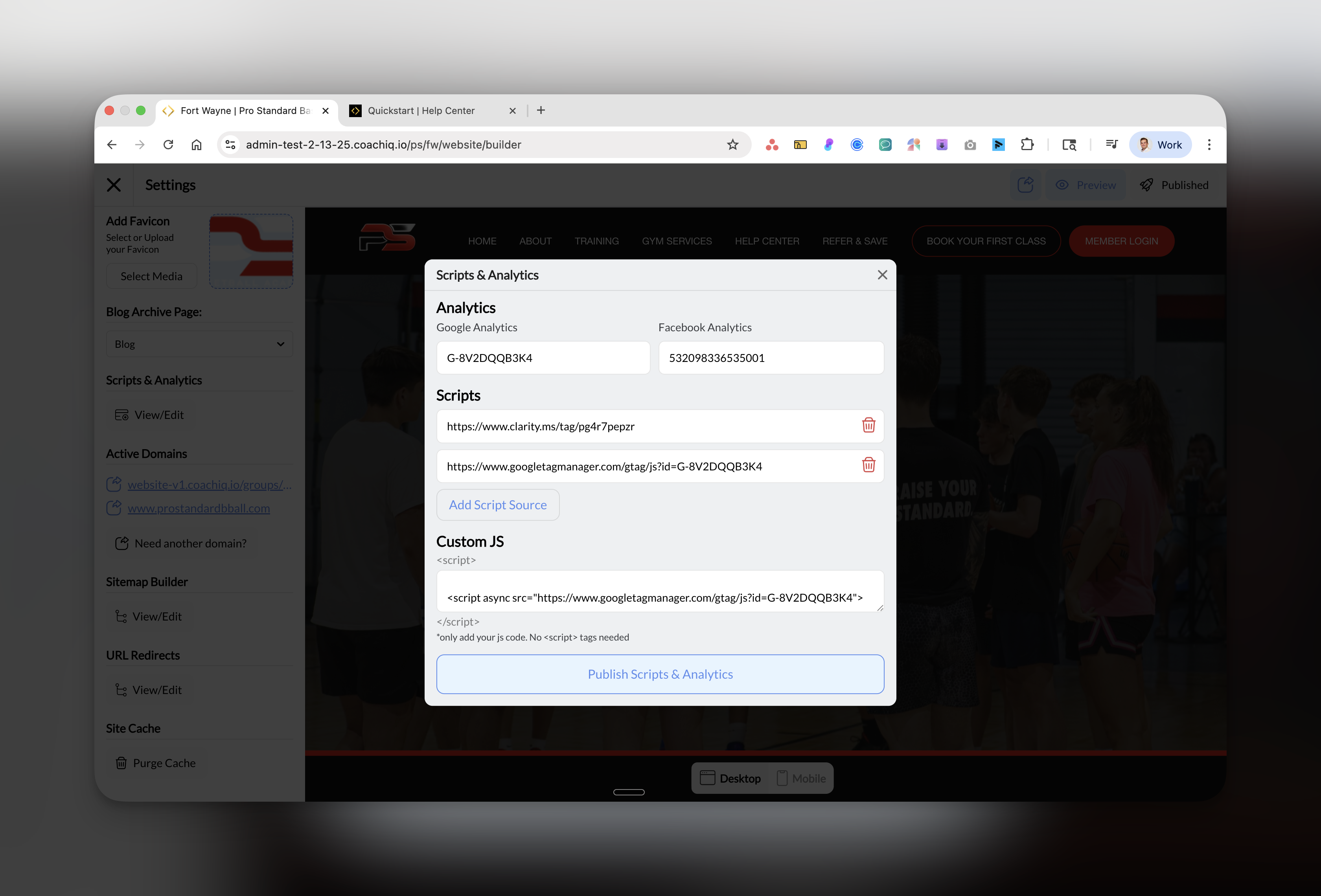 1. In the **Facebook Analytics** field, paste your Pixel ID
2. Only paste the numbers (e.g., 532098336535001)
3. Don't include any extra text or spaces
Click the blue **Publish Scripts & Analytics** button at the bottom.
**Success!** Facebook Pixel is now tracking your website. Test it with Facebook's Pixel Helper.
## Verify Pixel is working
1. Install [Facebook Pixel Helper](https://chrome.google.com/webstore/detail/facebook-pixel-helper/fdgfkebogiimcoedlicjlajpkdmockpc) Chrome extension
2. Visit your website
3. Click the Pixel Helper icon
4. It should show "1 pixel found" in green
1. Go back to Events Manager
2. Click your pixel name
3. Look for "Active" status
4. You'll see activity within 20 minutes
## What Facebook Pixel tracks automatically
Once installed, Facebook automatically tracks:
* **PageView**: Every page visit
* **ViewContent**: When someone views your services
* **Contact**: Form submissions
* **Schedule**: Booking interactions
* **Purchase**: Completed transactions
## Set up retargeting audiences
### Create a website visitor audience:
1. Go to **Ads Manager** → **Audiences**
2. Click **Create audience** → **Custom Audience**
3. Choose **Website**
4. Select "All website visitors"
5. Set retention to 30-180 days
6. Name it "Website Visitors - Retargeting"
**Money-saving tip**: Create a custom audience of people who visited but didn't book. These warm leads convert better than cold traffic.
## Common questions
Yes! Install it now to build your retargeting audience. When you're ready to run ads, you'll already have data on past visitors.
Yes, Facebook Pixel tracks both Facebook and Instagram ads since they use the same advertising platform (Meta).
No, the Pixel loads asynchronously and won't affect your site speed or user experience.
Pixel still works but may track fewer conversions. Facebook's Aggregated Event Measurement handles this automatically.
## Best practices for coaches
### Conversion events to prioritize:
1. **Book a Session** - Most important for tracking ROI
2. **Contact Form** - Track lead generation
3. **View Schedule** - Shows purchase intent
4. **Sign Up** - Newsletter or program registration
### Retargeting strategy:
* **0-7 days**: Show testimonials and social proof
* **8-30 days**: Offer a free consultation or trial
* **31-90 days**: Share success stories and transformations
* **90+ days**: Seasonal promotions or new programs
## Troubleshooting
| Issue | Solution |
| ---------------------- | ------------------------------------------------- |
| Pixel not detected | Clear cache and wait 20 minutes, then check again |
| Wrong pixel firing | Make sure you only have one Pixel ID entered |
| No conversions showing | Conversions can take 24-48 hours to appear |
| Duplicate events | Check you haven't installed Pixel twice |
## Next steps
Launch a Facebook ad campaign targeting your local area
Set up retargeting based on specific page visits
Set up conversion events for bookings and signups
See how users interact with your site
***
**Pro tip**: Run a small \$5/day retargeting campaign to stay top-of-mind with website visitors. This often has the highest ROI for coaching businesses.
1. In the **Facebook Analytics** field, paste your Pixel ID
2. Only paste the numbers (e.g., 532098336535001)
3. Don't include any extra text or spaces
Click the blue **Publish Scripts & Analytics** button at the bottom.
**Success!** Facebook Pixel is now tracking your website. Test it with Facebook's Pixel Helper.
## Verify Pixel is working
1. Install [Facebook Pixel Helper](https://chrome.google.com/webstore/detail/facebook-pixel-helper/fdgfkebogiimcoedlicjlajpkdmockpc) Chrome extension
2. Visit your website
3. Click the Pixel Helper icon
4. It should show "1 pixel found" in green
1. Go back to Events Manager
2. Click your pixel name
3. Look for "Active" status
4. You'll see activity within 20 minutes
## What Facebook Pixel tracks automatically
Once installed, Facebook automatically tracks:
* **PageView**: Every page visit
* **ViewContent**: When someone views your services
* **Contact**: Form submissions
* **Schedule**: Booking interactions
* **Purchase**: Completed transactions
## Set up retargeting audiences
### Create a website visitor audience:
1. Go to **Ads Manager** → **Audiences**
2. Click **Create audience** → **Custom Audience**
3. Choose **Website**
4. Select "All website visitors"
5. Set retention to 30-180 days
6. Name it "Website Visitors - Retargeting"
**Money-saving tip**: Create a custom audience of people who visited but didn't book. These warm leads convert better than cold traffic.
## Common questions
Yes! Install it now to build your retargeting audience. When you're ready to run ads, you'll already have data on past visitors.
Yes, Facebook Pixel tracks both Facebook and Instagram ads since they use the same advertising platform (Meta).
No, the Pixel loads asynchronously and won't affect your site speed or user experience.
Pixel still works but may track fewer conversions. Facebook's Aggregated Event Measurement handles this automatically.
## Best practices for coaches
### Conversion events to prioritize:
1. **Book a Session** - Most important for tracking ROI
2. **Contact Form** - Track lead generation
3. **View Schedule** - Shows purchase intent
4. **Sign Up** - Newsletter or program registration
### Retargeting strategy:
* **0-7 days**: Show testimonials and social proof
* **8-30 days**: Offer a free consultation or trial
* **31-90 days**: Share success stories and transformations
* **90+ days**: Seasonal promotions or new programs
## Troubleshooting
| Issue | Solution |
| ---------------------- | ------------------------------------------------- |
| Pixel not detected | Clear cache and wait 20 minutes, then check again |
| Wrong pixel firing | Make sure you only have one Pixel ID entered |
| No conversions showing | Conversions can take 24-48 hours to appear |
| Duplicate events | Check you haven't installed Pixel twice |
## Next steps
Launch a Facebook ad campaign targeting your local area
Set up retargeting based on specific page visits
Set up conversion events for bookings and signups
See how users interact with your site
***
**Pro tip**: Run a small \$5/day retargeting campaign to stay top-of-mind with website visitors. This often has the highest ROI for coaching businesses.