> ## Documentation Index
> Fetch the complete documentation index at: https://help.coachiq.io/llms.txt
> Use this file to discover all available pages before exploring further.
# Add Microsoft Clarity to Your Coaching Website
> Install Microsoft Clarity on your CoachIQ website in 2 minutes. See heatmaps, session recordings, and understand how visitors use your coaching site - 100% free.
**Setup time**: 2 minutes\
**Cost**: Completely free (no limits)\
**What you'll see**: Heatmaps, session recordings, and user behavior insights
## What is Microsoft Clarity?
Microsoft Clarity is a free tool that shows you exactly how visitors interact with your coaching website through session recordings and heatmaps. Watch real visitors navigate your site, see where they click, and identify what confuses them - all without slowing down your website.
## Get your Clarity tracking code
1. Go to [clarity.microsoft.com](https://clarity.microsoft.com)
2. Click **Sign up** (top right)
3. Sign in with Microsoft, Google, or Facebook account
1. Click **New project**
2. Enter your website name (e.g., "CoachIQ Website")
3. Add your website URL (e.g., `yourcoaching.coachiq.io`)
4. Select **Sports** as your category
5. Click **Create**
1. Go to **Settings** (gear icon)
2. Click **Setup**
3. Select **Install tracking code manually**
4. You'll see a script block — find the URL inside it that looks like:
`https://www.clarity.ms/tag/XXXXXXXXX`
5. Copy that full URL (including `https://`)
The part after `/tag/` is your project ID (e.g., **pg4r7pepzr**). You need the full URL, not just the ID.
## Add Clarity to CoachIQ
1. Go to **Dashboard → Website Builder**
2. Click **Scripts & Analytics** in the left sidebar
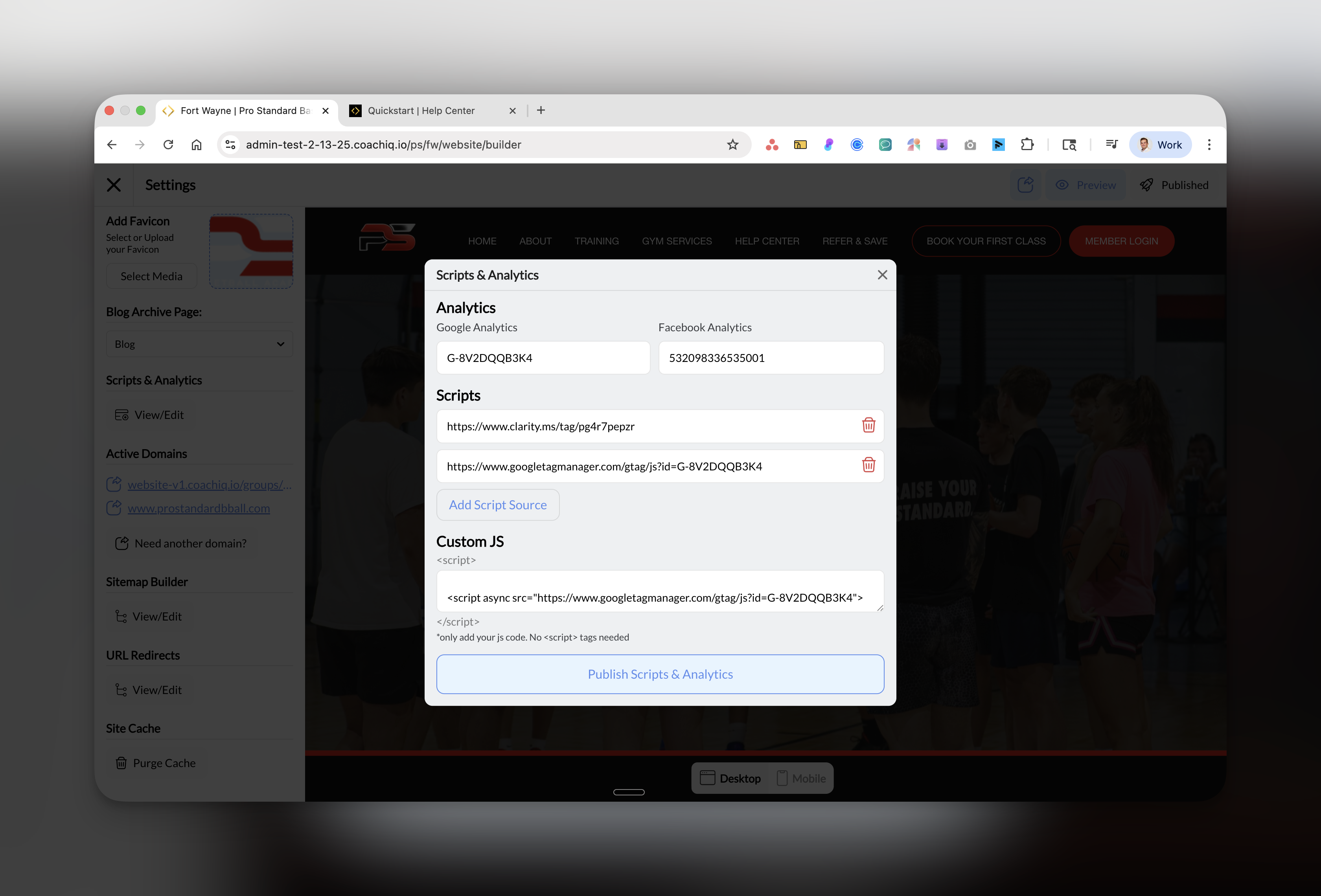 1. In the **Scripts** section, click **Add Script Source**
2. Paste your complete Clarity URL: [https://www.clarity.ms/tag/XXXXXXXXX](https://www.clarity.ms/tag/XXXXXXXXX)
3. You'll see it added to the Scripts list
Click the blue **Publish Scripts & Analytics** button at the bottom.
**Success!** Clarity is now recording sessions. First recordings appear in 2-3 hours.
## Verify Clarity is working
1. Return to [clarity.microsoft.com](https://clarity.microsoft.com)
2. Open your project
3. Look for "Clarity is installed correctly" message
4. Visit your website in another tab
5. Within 2 hours, you'll see your first session recording
## What Clarity shows you
### Heatmaps
Visual maps showing where visitors click, scroll, and move their mouse:
* **Click maps**: See most/least clicked elements
* **Scroll maps**: Discover how far visitors scroll
* **Dead clicks**: Find broken or confusing elements
### Session recordings
Watch anonymous recordings of real visitor sessions:
* See exactly how users navigate
* Identify confusion points
* Understand why visitors leave
* Find broken features or links
### Insights dashboard
Automatic detection of issues:
* **Rage clicks**: Frustrated rapid clicking
* **Dead clicks**: Clicks on non-clickable elements
* **Excessive scrolling**: Users lost on page
* **Quick backs**: Visitors immediately leaving
**Privacy note**: Clarity automatically masks sensitive information like passwords, credit cards, and personal data. Sessions are anonymous.
## How coaches use Clarity
### Find conversion killers:
* Watch where visitors abandon booking forms
* See if CTAs are being missed
* Identify confusing navigation
* Spot mobile usability issues
### Optimize for bookings:
1. Filter recordings to "didn't convert" sessions
2. Watch 10 recordings to find patterns
3. Fix the most common issues
4. Test and measure improvements
**Weekly routine**: Every Monday, watch 5 session recordings of visitors who didn't book. You'll quickly spot what needs fixing.
## Common questions
Yes, Microsoft Clarity is 100% free with no limits on sessions, websites, or features. There's no premium version - everything is free.
No, Clarity uses asynchronous loading and Microsoft's global CDN. It has virtually no impact on site speed.
No, recordings are anonymous and invisible to visitors. Consider mentioning it in your privacy policy for transparency.
Clarity stores recordings for 30 days. You can delete them anytime or disable recording while keeping heatmaps active.
## Best practices
### What to look for in recordings:
* **Booking abandonment**: Why visitors don't complete bookings
* **Form issues**: Fields causing confusion
* **Mobile problems**: Buttons too small or elements overlapping
* **Navigation confusion**: Visitors searching for information
* **Price sensitivity**: Quick exits after seeing pricing
### Heatmap insights:
* Elements with no clicks might be poorly designed
* Heavy clicking on non-links means visitors expect interactivity
* Short scroll depth suggests content isn't engaging
* Mobile vs desktop patterns often differ significantly
## Troubleshooting
| Issue | Solution |
| ---------------------- | ------------------------------------------------ |
| No recordings showing | Wait 2-3 hours after installation |
| Clarity not detected | Make sure you added the full URL with https\:// |
| Can't see heatmaps | Need at least 100 sessions for accurate heatmaps |
| Missing dashboard data | Clear your browser cache and refresh |
## Take action on insights
Review 5 sessions to understand visitor behavior
See where visitors click most and least
Identify and fix non-working elements
Filter recordings by device to improve mobile experience
## Next steps
After installing Clarity:
1. Wait 24 hours to gather initial data
2. Watch 10 recordings of non-converting visitors
3. Create a list of top 3 issues to fix
4. Make improvements and measure results
***
**Coach insight**: Most coaches discover their booking button is hard to find on mobile. Check your mobile heatmaps first - that's where most quick wins hide.
1. In the **Scripts** section, click **Add Script Source**
2. Paste your complete Clarity URL: [https://www.clarity.ms/tag/XXXXXXXXX](https://www.clarity.ms/tag/XXXXXXXXX)
3. You'll see it added to the Scripts list
Click the blue **Publish Scripts & Analytics** button at the bottom.
**Success!** Clarity is now recording sessions. First recordings appear in 2-3 hours.
## Verify Clarity is working
1. Return to [clarity.microsoft.com](https://clarity.microsoft.com)
2. Open your project
3. Look for "Clarity is installed correctly" message
4. Visit your website in another tab
5. Within 2 hours, you'll see your first session recording
## What Clarity shows you
### Heatmaps
Visual maps showing where visitors click, scroll, and move their mouse:
* **Click maps**: See most/least clicked elements
* **Scroll maps**: Discover how far visitors scroll
* **Dead clicks**: Find broken or confusing elements
### Session recordings
Watch anonymous recordings of real visitor sessions:
* See exactly how users navigate
* Identify confusion points
* Understand why visitors leave
* Find broken features or links
### Insights dashboard
Automatic detection of issues:
* **Rage clicks**: Frustrated rapid clicking
* **Dead clicks**: Clicks on non-clickable elements
* **Excessive scrolling**: Users lost on page
* **Quick backs**: Visitors immediately leaving
**Privacy note**: Clarity automatically masks sensitive information like passwords, credit cards, and personal data. Sessions are anonymous.
## How coaches use Clarity
### Find conversion killers:
* Watch where visitors abandon booking forms
* See if CTAs are being missed
* Identify confusing navigation
* Spot mobile usability issues
### Optimize for bookings:
1. Filter recordings to "didn't convert" sessions
2. Watch 10 recordings to find patterns
3. Fix the most common issues
4. Test and measure improvements
**Weekly routine**: Every Monday, watch 5 session recordings of visitors who didn't book. You'll quickly spot what needs fixing.
## Common questions
Yes, Microsoft Clarity is 100% free with no limits on sessions, websites, or features. There's no premium version - everything is free.
No, Clarity uses asynchronous loading and Microsoft's global CDN. It has virtually no impact on site speed.
No, recordings are anonymous and invisible to visitors. Consider mentioning it in your privacy policy for transparency.
Clarity stores recordings for 30 days. You can delete them anytime or disable recording while keeping heatmaps active.
## Best practices
### What to look for in recordings:
* **Booking abandonment**: Why visitors don't complete bookings
* **Form issues**: Fields causing confusion
* **Mobile problems**: Buttons too small or elements overlapping
* **Navigation confusion**: Visitors searching for information
* **Price sensitivity**: Quick exits after seeing pricing
### Heatmap insights:
* Elements with no clicks might be poorly designed
* Heavy clicking on non-links means visitors expect interactivity
* Short scroll depth suggests content isn't engaging
* Mobile vs desktop patterns often differ significantly
## Troubleshooting
| Issue | Solution |
| ---------------------- | ------------------------------------------------ |
| No recordings showing | Wait 2-3 hours after installation |
| Clarity not detected | Make sure you added the full URL with https\:// |
| Can't see heatmaps | Need at least 100 sessions for accurate heatmaps |
| Missing dashboard data | Clear your browser cache and refresh |
## Take action on insights
Review 5 sessions to understand visitor behavior
See where visitors click most and least
Identify and fix non-working elements
Filter recordings by device to improve mobile experience
## Next steps
After installing Clarity:
1. Wait 24 hours to gather initial data
2. Watch 10 recordings of non-converting visitors
3. Create a list of top 3 issues to fix
4. Make improvements and measure results
***
**Coach insight**: Most coaches discover their booking button is hard to find on mobile. Check your mobile heatmaps first - that's where most quick wins hide.