> ## Documentation Index
> Fetch the complete documentation index at: https://help.coachiq.io/llms.txt
> Use this file to discover all available pages before exploring further.
# Scheduled Automations
> Run automations on a schedule to catch expiring credits, inactive members, and more
Most automations react to something happening—a purchase, a booking, a [form](/tools/forms/overview) submission. Scheduled automations are different. They run on a schedule and **proactively find people** who match your criteria.
Think of it this way:
* **Event-based**: The doorbell rings, you answer it
* **Scheduled**: You check the mailbox every morning
This is how you build credit expiration reminders, inactive member outreach, weekly [announcements](/inbox/announcements), and milestone celebrations.
***
## When to Use Scheduled Automations
| Use Scheduled When... | Example |
| -------------------------------------------------- | --------------------------- |
| You need to check for a condition over time | Credits expiring in 7 days |
| You want to catch people who *didn't* do something | Haven't booked in 2 weeks |
| You want recurring announcements | Weekly schedule release |
| You need to celebrate milestones | 3-month member check-in |
| You need a one-time send on a known date | Camp prep email, 7 days out |
**Rule of thumb**: If you're checking *status* rather than reacting to an *event*, use a scheduled automation.
***
## Setting Your Schedule
Choose the **Scheduled Check** trigger. You have four timing options:
| Schedule | What You Set | Best For | Example |
| ----------------- | ----------------------------------------------------- | --------------------- | ------------------------------------------------ |
| **Daily** | Time | Time-sensitive checks | Credit expiration reminders, daily trial alerts |
| **Weekly** | Day of week + time | Weekly operations | Inactive member outreach, schedule announcements |
| **Monthly** | Day of month (1–31, or the last day) + time | Monthly milestones | Subscription anniversaries, monthly check-ins |
| **Specific Date** | One date + time. Runs once on that date, then is done | One-off sends | Prep email a week before camp |
Time is entered as a time of day. Every scheduled trigger also has its own **timezone** setting, so "Monday at 9:00 AM" means 9:00 AM in the timezone you pick on the trigger—not necessarily your account's timezone. Check it when you set up automations for a location in another time zone.
A **Specific Date** automation runs once. After that date passes it stays in your list but never fires again, so disable it or reuse it with a new date.
***
## Conditions: Targeting the Right People
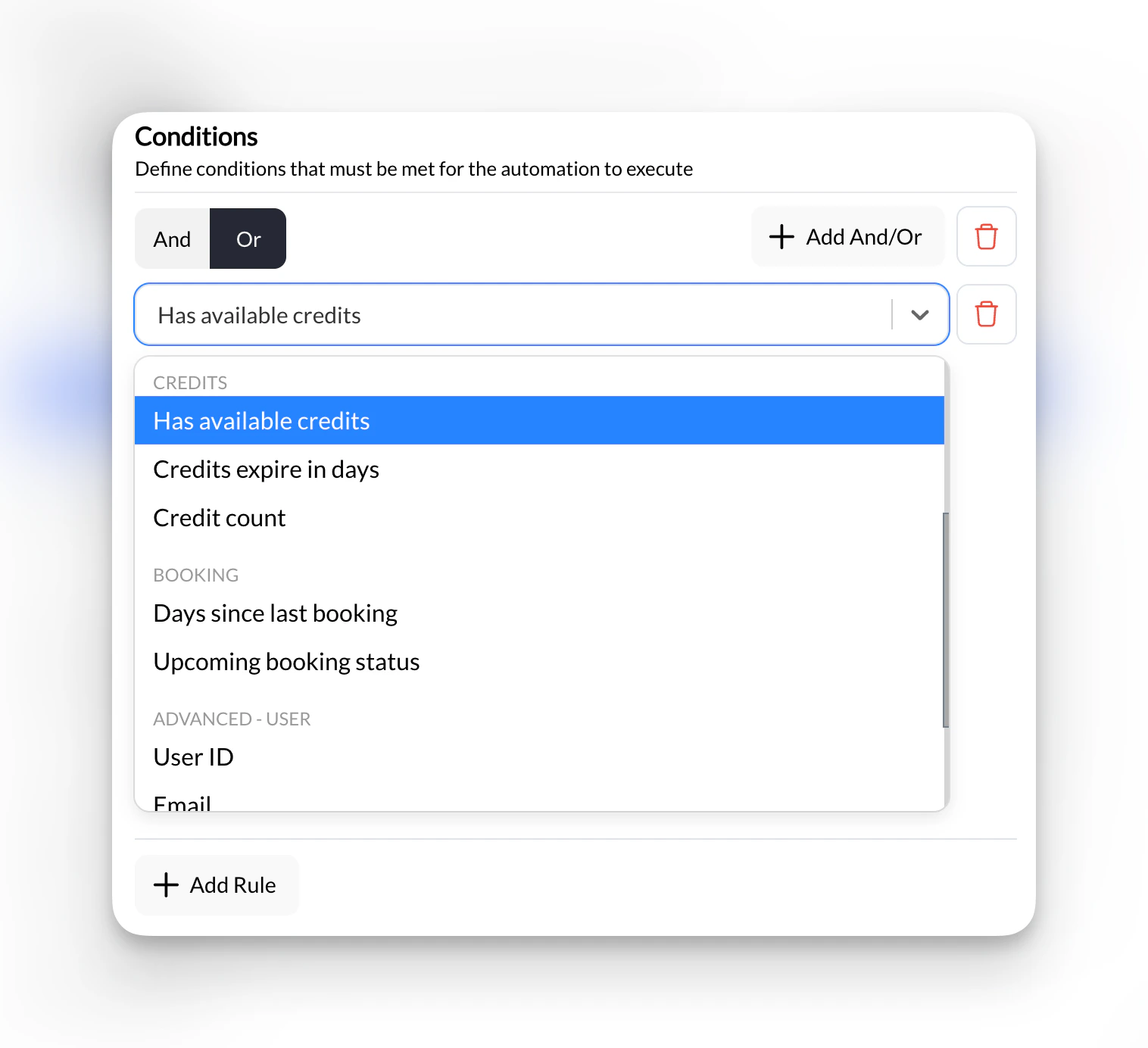
Scheduled automations require at least one condition. This prevents the automation from running for every single user in your system.
**Required**: You must set at least one condition on scheduled automations. The builder won't let you save a Scheduled Check without one.
### Available Conditions
| Condition | What It Checks |
| ---------------------------------------------- | ----------------------------------------------------------- |
| **Has a specific [tag](/people/tags-filters)** | User has this tag |
| **Doesn't have a specific tag** | User doesn't have this tag |
| **Has active subscription** | User is currently subscribed |
| **Does not have an active subscription** | User has no active subscription |
| **Subscription active for X days** | User has been subscribed for at least X days |
| **Has available credits** | User has at least 1 credit |
| **Days since last booking is > X** | User hasn't booked in X+ days |
| **Days until credits expire \< X** | User's credits expire within X days |
| **Credit count is X** | User's credits are less than / greater than / equal to X |
| **Has upcoming booking** | User has a booking today / this week / no upcoming bookings |
You can also filter on the standard user fields (email, phone, first name, last name), and on anything a [data source](/tools/automations/triggers-actions-reference#data-sources) fetches.
### Combining Conditions
Rules live inside **And**/**Or** groups. In an **And** group every rule must be true; in an **Or** group any one rule is enough. Click **Add And/Or** to nest a group inside another, which lets you mix the two.
**Example**: Find members who are at risk of churning (one **And** group)
* Has active subscription = Yes
* Days since last booking > 14
* Doesn't have tag "On Vacation"
**Example**: Nudge anyone on a paid plan who has gone quiet (nested groups)
* **And**
* Days since last booking > 14
* **Or**
* Has active subscription = Yes
* Has available credits = Yes
***
## How Scheduled Automations Run
Here's what happens when your scheduled automation fires:
1. **CoachIQ finds all users** matching your conditions (up to 1,000 per run)
2. **Executes your actions** once for each user found
3. **Logs the results** in **Execution Logs** so you can see who was contacted
**Once or every time?** Each scheduled trigger has a send mode. The default sends to a matching person **only the first time** that condition state is seen—so someone who still has 3 credits expiring next week doesn't get the same reminder two runs in a row. If their situation changes (they book, use credits, then match again) they can be messaged again. Switch the mode to send on **every run** when you want a repeat every time someone matches, such as a weekly "schedule is live" announcement. **Test Run** ignores this setting and always sends.
**Example in action**: Every Monday at 9am, find everyone whose credits expire in less than 7 days → Send each of them a personalized reminder with their credit count and expiration date.
***
## Dynamic Fields for Scheduled Automations
Scheduled automations can personalize messages with each person's credit and booking status. In the message field, type `@` to insert a CoachIQ field or `#` to insert a field option from a data source; the builder inserts the token in the exact `{{field...}}` syntax shown below.
 ### Credit Fields
| Field | What It Inserts |
| -------------------------------------- | ----------------------------- |
| `{{field.user.credits.count}}` | Total available credits |
| `{{field.user.credits.expire_days}}` | Days until credits expire |
| `{{field.user.credits.has_available}}` | Whether they have any credits |
**Example message**:
```
You have {{field.user.credits.count}} credits expiring in {{field.user.credits.expire_days}} days!
Book now before you lose them.
```
### Booking Fields
| Field | What It Inserts |
| ---------------------------------------- | ------------------------------------- |
| `{{field.user.booking.days_since_last}}` | Days since last booking |
| `{{field.user.booking.upcoming}}` | Whether they have an upcoming booking |
**Example message**:
```
We miss you! It's been {{field.user.booking.days_since_last}} days since your last session.
Come back this week?
```
Standard fields like `{{field.user.firstName}}`, `{{field.user.lastName}}`, and `{{field.user.email}}` work in all automations, not just scheduled ones. For the date of someone's next or last booking, or an exact credit balance in a specific bank, add a **User bookings** or **User credits** [data source](/tools/automations/triggers-actions-reference#data-sources) and insert its output with `#`.
***
## Testing Safely
Scheduled automations reach everyone who matches, so test before you enable:
1. Leave **Enabled** off in **Settings** while you build.
2. Add a condition like **Has a specific tag → "Test"** and tag only yourself (or a test account).
3. Click **Test Run** and read the filled-in message. Test Run sends real messages to whoever matches, so keep that test tag in place.
4. Check **Execution Logs** to confirm who matched and what each action returned.
5. Remove the test condition, then switch **Enabled** on.
***
## Common Scheduled Automations
These are the most popular scheduled automations coaches use. Full setup instructions are in the [Automation Playbook](/tools/automations/automation-playbook).
| Automation | Schedule | What It Does |
| ------------------------------------------------------------------------------------------- | -------------------- | ------------------------------------------------------ |
| [Credit Expiration Reminder](/tools/automations/automation-playbook#keeping-members-active) | Weekly, Monday 9am | Alerts members whose credits expire within 7 days |
| [Inactive Member Check](/tools/automations/automation-playbook#keeping-members-active) | Weekly, Sunday 6pm | Re-engages members who haven't booked in 14+ days |
| [Weekly Schedule Release](/tools/automations/automation-playbook#weekly-operations) | Weekly, Monday 8am | Announces that the week's schedule is open for booking |
| [3-Month Milestone](/tools/automations/automation-playbook#keeping-members-active) | Monthly, 1st at 10am | Celebrates members hitting their 3-month anniversary |
| [Daily Trial Alert](/tools/automations/automation-playbook#weekly-operations) | Daily, 7am | Notifies you about trial sessions happening today |
***
## Tips for Scheduled Automations
**Pick smart timing**. Send messages when people are likely to see them—not at 3am. Sunday evening works great for "plan your week" messages. Monday morning works for schedule announcements.
**Use tags to control frequency**. For milestone messages, add a tag like "3-Month Celebrated" as the last action and exclude anyone who has it. Then the message can never go out twice, whichever send mode you pick.
**Start weekly, go daily only if needed**. Weekly checks work for most use cases. Daily checks are best for time-sensitive things like credit expirations or trial session alerts.
***
## What's Next?
Ready-to-copy scheduled automations for credits, retention, announcements, and more.
Complete list of all triggers, conditions, data sources, actions, and dynamic fields.
## Related articles
What each section of the automation builder does, including Test Run and Execution Logs
Where automated in-app messages and emails are delivered to members
Send broadcast messages to groups of members via scheduled automations
Use tags to control which members scheduled automations target
Manage the member profiles that scheduled automations check against
### Credit Fields
| Field | What It Inserts |
| -------------------------------------- | ----------------------------- |
| `{{field.user.credits.count}}` | Total available credits |
| `{{field.user.credits.expire_days}}` | Days until credits expire |
| `{{field.user.credits.has_available}}` | Whether they have any credits |
**Example message**:
```
You have {{field.user.credits.count}} credits expiring in {{field.user.credits.expire_days}} days!
Book now before you lose them.
```
### Booking Fields
| Field | What It Inserts |
| ---------------------------------------- | ------------------------------------- |
| `{{field.user.booking.days_since_last}}` | Days since last booking |
| `{{field.user.booking.upcoming}}` | Whether they have an upcoming booking |
**Example message**:
```
We miss you! It's been {{field.user.booking.days_since_last}} days since your last session.
Come back this week?
```
Standard fields like `{{field.user.firstName}}`, `{{field.user.lastName}}`, and `{{field.user.email}}` work in all automations, not just scheduled ones. For the date of someone's next or last booking, or an exact credit balance in a specific bank, add a **User bookings** or **User credits** [data source](/tools/automations/triggers-actions-reference#data-sources) and insert its output with `#`.
***
## Testing Safely
Scheduled automations reach everyone who matches, so test before you enable:
1. Leave **Enabled** off in **Settings** while you build.
2. Add a condition like **Has a specific tag → "Test"** and tag only yourself (or a test account).
3. Click **Test Run** and read the filled-in message. Test Run sends real messages to whoever matches, so keep that test tag in place.
4. Check **Execution Logs** to confirm who matched and what each action returned.
5. Remove the test condition, then switch **Enabled** on.
***
## Common Scheduled Automations
These are the most popular scheduled automations coaches use. Full setup instructions are in the [Automation Playbook](/tools/automations/automation-playbook).
| Automation | Schedule | What It Does |
| ------------------------------------------------------------------------------------------- | -------------------- | ------------------------------------------------------ |
| [Credit Expiration Reminder](/tools/automations/automation-playbook#keeping-members-active) | Weekly, Monday 9am | Alerts members whose credits expire within 7 days |
| [Inactive Member Check](/tools/automations/automation-playbook#keeping-members-active) | Weekly, Sunday 6pm | Re-engages members who haven't booked in 14+ days |
| [Weekly Schedule Release](/tools/automations/automation-playbook#weekly-operations) | Weekly, Monday 8am | Announces that the week's schedule is open for booking |
| [3-Month Milestone](/tools/automations/automation-playbook#keeping-members-active) | Monthly, 1st at 10am | Celebrates members hitting their 3-month anniversary |
| [Daily Trial Alert](/tools/automations/automation-playbook#weekly-operations) | Daily, 7am | Notifies you about trial sessions happening today |
***
## Tips for Scheduled Automations
**Pick smart timing**. Send messages when people are likely to see them—not at 3am. Sunday evening works great for "plan your week" messages. Monday morning works for schedule announcements.
**Use tags to control frequency**. For milestone messages, add a tag like "3-Month Celebrated" as the last action and exclude anyone who has it. Then the message can never go out twice, whichever send mode you pick.
**Start weekly, go daily only if needed**. Weekly checks work for most use cases. Daily checks are best for time-sensitive things like credit expirations or trial session alerts.
***
## What's Next?
Ready-to-copy scheduled automations for credits, retention, announcements, and more.
Complete list of all triggers, conditions, data sources, actions, and dynamic fields.
## Related articles
What each section of the automation builder does, including Test Run and Execution Logs
Where automated in-app messages and emails are delivered to members
Send broadcast messages to groups of members via scheduled automations
Use tags to control which members scheduled automations target
Manage the member profiles that scheduled automations check against