> ## Documentation Index
> Fetch the complete documentation index at: https://help.coachiq.io/llms.txt
> Use this file to discover all available pages before exploring further.
# Automation Builder Reference
> What each section of the automation builder does: Details, Triggers, Data Sources, Conditions, Actions, Execution Logs, Settings, and Test Run.
**Where to find this**: **Tools → Automations**, then click any automation or **Create Automation**
## The builder, top to bottom
The builder is one long page with a section for each part of the automation, and a side menu (**Details · Triggers · Data Sources · Conditions · Actions · Logs · Settings**) that jumps to each. The header holds **Test Run** and **Update** (labelled **Create** for a new automation). Nothing you change is saved until you click Update.
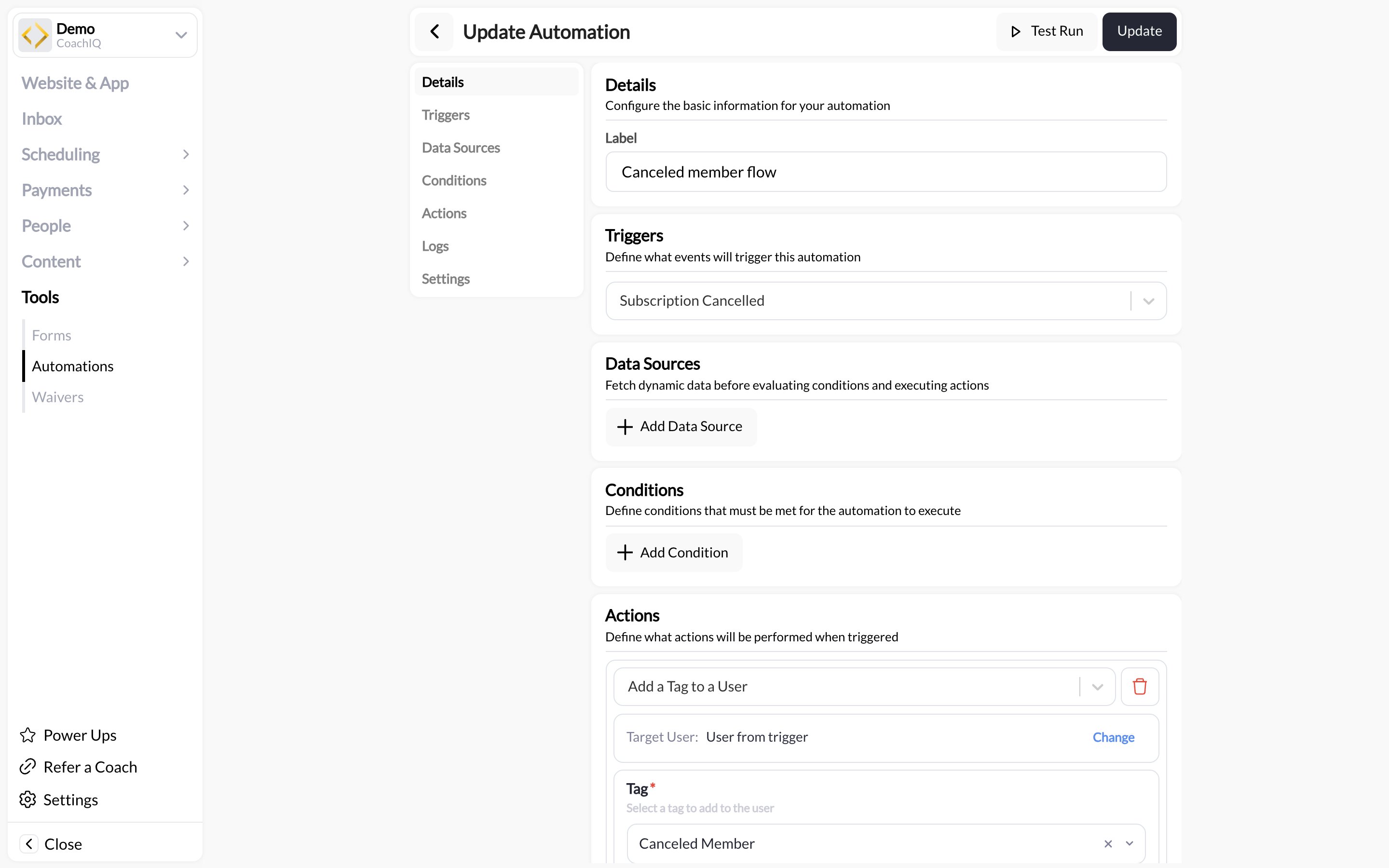 Section names and labels were checked against the live app on 2026-09-02. For the full list of triggers, actions, and dynamic fields see the [Triggers and actions reference](/tools/automations/triggers-actions-reference).
### Details
The automation's **label**. This is what you see in the Automations list and in Execution Logs, so make it specific: "Trial → membership nudge, day 3" rather than "Follow-up".
### Triggers
The event that starts the automation, such as **Purchase Made**, **Booking Created**, **Form Submitted**, or a schedule. One trigger per automation. When the event fires, the person it happened to becomes the **user** every later section can reference.
### Data Sources
Extra information fetched **before** the conditions run. Use a data source when your condition or message needs something the trigger alone does not carry: the athlete's current credit balance, their active subscription, their upcoming bookings. Add the source here and its fields become available in Conditions and Actions.
### Conditions
Filters that decide whether the automation continues. Each rule compares a field to a value: **Product Label · Equal To · "Summer Camp"**, **Interval · Equal To · month**, and so on.
Click **Add Condition** to create the first group and rule, then **Add Rule** for another rule. Rules sit inside groups, and you choose how a group combines them:
* **And** — every rule in the group must be true
* **Or** — any one rule is enough
**Add And/Or** creates a nested group, so you can express things like "(bought a membership **or** a credit pack) **and** has no future booking". If there are no conditions, the automation runs for every trigger event.
### Actions
What happens when the conditions pass. Click **Add Action** for each step. The two most used:
| Action | Fields |
| ------------------------ | ---------------------------------------------------------------------------------------------------------------------------------------------------------------------------------------------------- |
| **Send an Announcement** | **Target User** (defaults to *User from trigger*; click **Change** to pick someone else), **From** (*Default*, or **Set** to choose which admin it appears to come from), **Title**, and **Message** |
| **Send an SMS Message** | **Target User**, **From**, and **Message**, with a live counter such as **180 / 160** so you can see when a text splits into a second segment. The hint reads "Keep it under 160 characters for SMS" |
Inside any message field, type `#` to insert a **field option** from the trigger or a data source, or `@` to insert a **CoachIQ field** such as the athlete's first name, the session title, or the booking time (the field hint says exactly that: "Use # for field options, and @ for CoachIQ fields"). Fields fill in per person when the automation runs.
Actions run in order. Put the message you most want delivered first.
### Execution Logs
A record of every time the automation ran: when it fired, for whom, which conditions passed, and what each action returned. Click **Check for events** to refresh. This is the first place to look when someone says they did not get a message.
### Settings
The **Enabled** toggle. Off means the automation is saved but never runs. There is no separate delete button; the section says "Disable above to delete this automation", so switch Enabled off first and the delete option appears. Deleting is permanent, so if you may want it back, leave it disabled or archive it from the Automations list instead.
### Test Run
**Test Run** in the header runs the automation once against a sample, so you can read the filled-in message before real athletes do. Use it after every edit to a message or condition.
## A note on the older screenshots
Some pages in this section show an earlier version of the builder with a blank canvas and a **Select Trigger** button. The sections above are the current layout; the concepts are the same.
## Common questions
Open **Execution Logs**. If the run shows conditions failing, the person did not match. If an action shows an error, check the target user has a phone (for SMS) or a portal login (for announcements).
No. Create a second automation with the other trigger. Templates make that quick: see [Automation templates](/tools/automations/automation-templates).
`#` fields come from the event that fired or a data source you added (the product bought, the form answers). `@` fields are CoachIQ's standard fields about the person and your business (first name, session title, your group name).
## Related articles
Every trigger, action, and dynamic field
Prebuilt automations to start from
Automations that run on a timer instead of an event
A guided first build
Section names and labels were checked against the live app on 2026-09-02. For the full list of triggers, actions, and dynamic fields see the [Triggers and actions reference](/tools/automations/triggers-actions-reference).
### Details
The automation's **label**. This is what you see in the Automations list and in Execution Logs, so make it specific: "Trial → membership nudge, day 3" rather than "Follow-up".
### Triggers
The event that starts the automation, such as **Purchase Made**, **Booking Created**, **Form Submitted**, or a schedule. One trigger per automation. When the event fires, the person it happened to becomes the **user** every later section can reference.
### Data Sources
Extra information fetched **before** the conditions run. Use a data source when your condition or message needs something the trigger alone does not carry: the athlete's current credit balance, their active subscription, their upcoming bookings. Add the source here and its fields become available in Conditions and Actions.
### Conditions
Filters that decide whether the automation continues. Each rule compares a field to a value: **Product Label · Equal To · "Summer Camp"**, **Interval · Equal To · month**, and so on.
Click **Add Condition** to create the first group and rule, then **Add Rule** for another rule. Rules sit inside groups, and you choose how a group combines them:
* **And** — every rule in the group must be true
* **Or** — any one rule is enough
**Add And/Or** creates a nested group, so you can express things like "(bought a membership **or** a credit pack) **and** has no future booking". If there are no conditions, the automation runs for every trigger event.
### Actions
What happens when the conditions pass. Click **Add Action** for each step. The two most used:
| Action | Fields |
| ------------------------ | ---------------------------------------------------------------------------------------------------------------------------------------------------------------------------------------------------- |
| **Send an Announcement** | **Target User** (defaults to *User from trigger*; click **Change** to pick someone else), **From** (*Default*, or **Set** to choose which admin it appears to come from), **Title**, and **Message** |
| **Send an SMS Message** | **Target User**, **From**, and **Message**, with a live counter such as **180 / 160** so you can see when a text splits into a second segment. The hint reads "Keep it under 160 characters for SMS" |
Inside any message field, type `#` to insert a **field option** from the trigger or a data source, or `@` to insert a **CoachIQ field** such as the athlete's first name, the session title, or the booking time (the field hint says exactly that: "Use # for field options, and @ for CoachIQ fields"). Fields fill in per person when the automation runs.
Actions run in order. Put the message you most want delivered first.
### Execution Logs
A record of every time the automation ran: when it fired, for whom, which conditions passed, and what each action returned. Click **Check for events** to refresh. This is the first place to look when someone says they did not get a message.
### Settings
The **Enabled** toggle. Off means the automation is saved but never runs. There is no separate delete button; the section says "Disable above to delete this automation", so switch Enabled off first and the delete option appears. Deleting is permanent, so if you may want it back, leave it disabled or archive it from the Automations list instead.
### Test Run
**Test Run** in the header runs the automation once against a sample, so you can read the filled-in message before real athletes do. Use it after every edit to a message or condition.
## A note on the older screenshots
Some pages in this section show an earlier version of the builder with a blank canvas and a **Select Trigger** button. The sections above are the current layout; the concepts are the same.
## Common questions
Open **Execution Logs**. If the run shows conditions failing, the person did not match. If an action shows an error, check the target user has a phone (for SMS) or a portal login (for announcements).
No. Create a second automation with the other trigger. Templates make that quick: see [Automation templates](/tools/automations/automation-templates).
`#` fields come from the event that fired or a data source you added (the product bought, the form answers). `@` fields are CoachIQ's standard fields about the person and your business (first name, session title, your group name).
## Related articles
Every trigger, action, and dynamic field
Prebuilt automations to start from
Automations that run on a timer instead of an event
A guided first build