> ## Documentation Index
> Fetch the complete documentation index at: https://help.coachiq.io/llms.txt
> Use this file to discover all available pages before exploring further.
# Locations
> Save the places you coach, including Google Meet and Zoom links, attach them to schedulers, give individual dates their own venue, and let athletes see exactly where to show up.
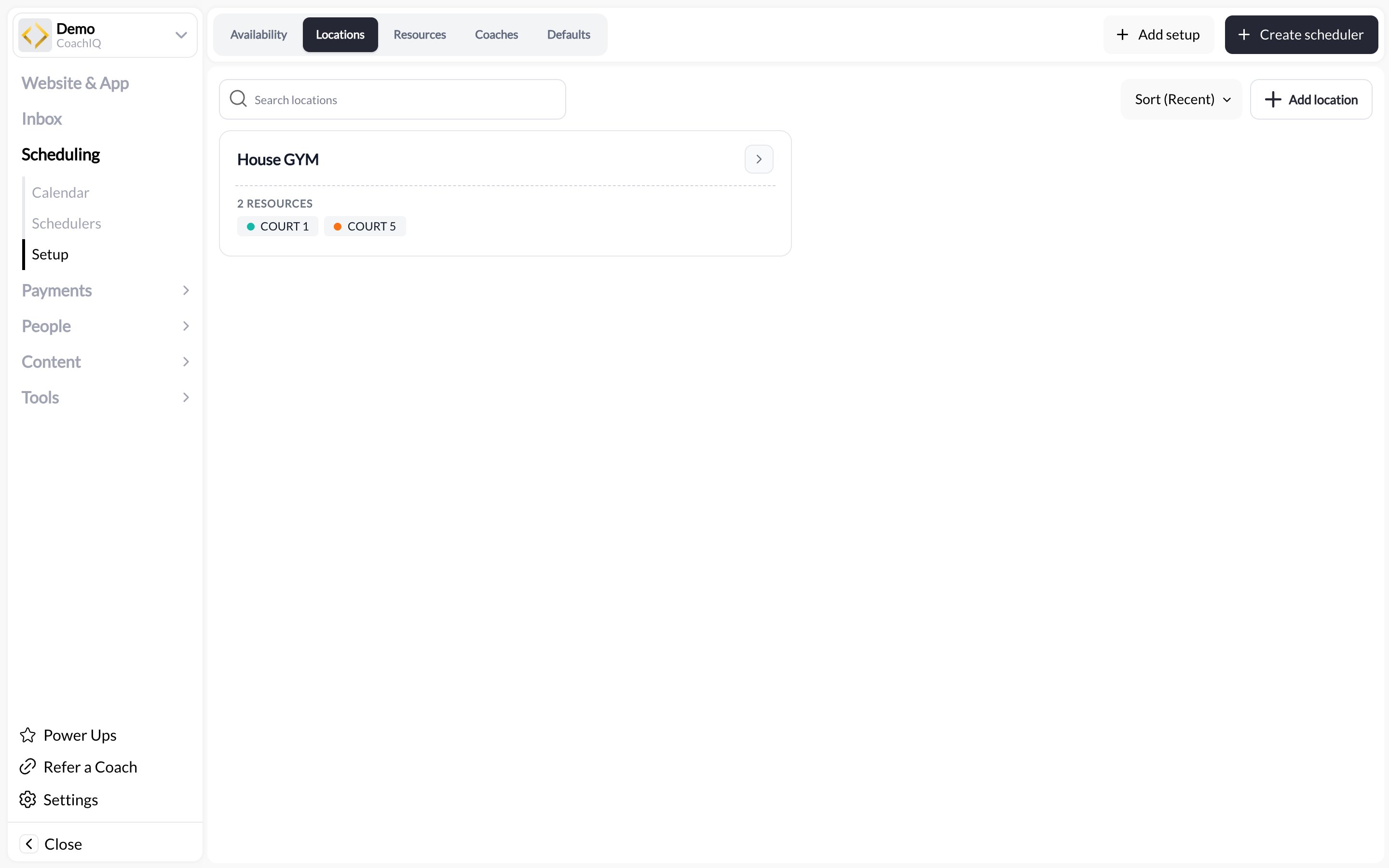
**Where to find this**: **Scheduling → Setup → Locations**
## What locations are
A location is a saved place: the field, gym, cage, or park where a session happens, or a **Google Meet** or **Zoom** link for sessions run over video. Save it once, attach it to any scheduler, and every booking confirmation, reminder, and calendar entry carries the right address without you retyping it.
Locations also anchor [Resources](/scheduling/resources). A court or cage belongs to a location, so athletes and coaches always know which building "Cage 2" is in.
 ## Adding a location
Go to **Scheduling → Setup** and click the **Locations** tab, then **Add setup**.
Give the location a short **title** athletes will recognise ("Main Gym", "Field 3 at Riverside Park") and fill in the street address. The title shows on bookings; the address powers map links.
Each location carries its own hours per weekday (for example Mon–Thu 9:00 AM – 1:00 PM and 5:00 PM – 9:00 PM). They show on the card alongside the location's schedulers; the actual bookable windows come from your [availability templates](/scheduling/how-availability-works).
The location appears as a card showing its address, hours, and **USED BY n SCHEDULERS**.
## Virtual locations (Google Meet and Zoom)
A session that happens on a video call gets a location too. Instead of a street address, save the meeting link:
In **Scheduling → Setup → Locations**, add a location and enter your **Google Meet** or **Zoom** link in place of the address. Give it a title athletes will recognise ("Remote film review", "Online strength check-in").
CoachIQ recognises the provider and labels the location as Google Meet or Zoom. A link that is not a valid Google Meet or Zoom meeting link is blocked when you save, so an athlete can never be sent to a dead link.
Pick it under the scheduler's **Location** section like any other location. Physical locations stay available alongside it.
Athletes and parents see the provider label, joining instructions, and a join action on the booking in the athlete portal, on your website, and in the native app. Use one reusable meeting link per scheduler; if you generate a fresh link for a call, update the location before the session starts.
## Attaching a location to a scheduler
Open the scheduler from **Scheduling → Schedulers**, go to the **Location** section, and use **Select Location** to pick a saved location. **Add Location** lets you type a new address there; it is saved to Setup → Locations automatically so you can reuse it.
The location you pick here is the scheduler's **default** venue. Every date uses it unless you give that date its own location (next section).
## A different venue for each date
A team that practices Tuesdays at one field and Thursdays at another does not need two schedulers. Each date in the scheduler's availability can carry its own location:
* Every date starts on the scheduler's default location, shown as the session default until you change it.
* Open the specific date in the availability template the scheduler uses and pick a different saved location for that date only. Other dates are not affected.
* Clear the override and the date falls back to the scheduler's default again.
* Changing the scheduler's default location updates every date that has not been given its own venue.
Set the venue on each date at the time you add it, so the schedule athletes see is correct from the start. If you later move the whole team to a new field, change the default on the scheduler rather than each date.
A scheduler can still be split by venue if you want to compare sites in [Calendar analytics](/scheduling/calendar-analytics), but it is no longer required. One scheduler with per-date venues keeps one roster, one set of reminders, and one automation to maintain.
## What athletes see
The location title and address for the specific date appear:
* On the session card in the athlete portal before booking
* On the athlete's schedule and in the booking confirmation and reminder messages
* On the calendar event if the athlete adds it to their phone
For a virtual location, the join action and joining instructions appear in the same places instead of an address.
When a date has its own venue, athletes see that venue, not the scheduler default, in each of these places.
## Editing and removing
Click a location card to edit the title, address, or hours. Changes apply to every scheduler and date that uses it, including sessions already booked.
You cannot delete a location while schedulers use it. The **USED BY** list on the card tells you which ones to move first.
## Common questions
If the venues are known in advance, save each one and give each date its own location as described above. If the exact spot is confirmed by message, create a location called "Travel session" with your base address, explain in the scheduler description that the exact spot is confirmed by message, and use the booking **Notes** field to record the address per booking.
Yes. Save the meeting link as a location and attach it to the scheduler; see [Virtual locations](#virtual-locations-google-meet-and-zoom). Other video services are not recognised as providers; for those, use a location titled "Online" and put the link in the scheduler description.
No. Availability comes from your templates, and conflicts come from coaches and resources. A location is a label and address, not a calendar.
Yes, unless they share a coach or a resource. That is the point of resources: attach "Court A" to both and CoachIQ prevents the double-booking. See [Resources](/scheduling/resources).
Not on its own. Resources and duration can also be set per date, from the scheduler's **Availability → Specific-date settings**. See [Resources](/scheduling/resources#different-resources-on-different-dates) and [Advanced scheduler settings](/scheduling/advanced-scheduler-settings#a-different-duration-on-one-date).
## Related articles
Courts, cages, and rooms that belong to a location
Who takes bookings, and when
The settings every new scheduler starts with
Put a location on a bookable session
## Adding a location
Go to **Scheduling → Setup** and click the **Locations** tab, then **Add setup**.
Give the location a short **title** athletes will recognise ("Main Gym", "Field 3 at Riverside Park") and fill in the street address. The title shows on bookings; the address powers map links.
Each location carries its own hours per weekday (for example Mon–Thu 9:00 AM – 1:00 PM and 5:00 PM – 9:00 PM). They show on the card alongside the location's schedulers; the actual bookable windows come from your [availability templates](/scheduling/how-availability-works).
The location appears as a card showing its address, hours, and **USED BY n SCHEDULERS**.
## Virtual locations (Google Meet and Zoom)
A session that happens on a video call gets a location too. Instead of a street address, save the meeting link:
In **Scheduling → Setup → Locations**, add a location and enter your **Google Meet** or **Zoom** link in place of the address. Give it a title athletes will recognise ("Remote film review", "Online strength check-in").
CoachIQ recognises the provider and labels the location as Google Meet or Zoom. A link that is not a valid Google Meet or Zoom meeting link is blocked when you save, so an athlete can never be sent to a dead link.
Pick it under the scheduler's **Location** section like any other location. Physical locations stay available alongside it.
Athletes and parents see the provider label, joining instructions, and a join action on the booking in the athlete portal, on your website, and in the native app. Use one reusable meeting link per scheduler; if you generate a fresh link for a call, update the location before the session starts.
## Attaching a location to a scheduler
Open the scheduler from **Scheduling → Schedulers**, go to the **Location** section, and use **Select Location** to pick a saved location. **Add Location** lets you type a new address there; it is saved to Setup → Locations automatically so you can reuse it.
The location you pick here is the scheduler's **default** venue. Every date uses it unless you give that date its own location (next section).
## A different venue for each date
A team that practices Tuesdays at one field and Thursdays at another does not need two schedulers. Each date in the scheduler's availability can carry its own location:
* Every date starts on the scheduler's default location, shown as the session default until you change it.
* Open the specific date in the availability template the scheduler uses and pick a different saved location for that date only. Other dates are not affected.
* Clear the override and the date falls back to the scheduler's default again.
* Changing the scheduler's default location updates every date that has not been given its own venue.
Set the venue on each date at the time you add it, so the schedule athletes see is correct from the start. If you later move the whole team to a new field, change the default on the scheduler rather than each date.
A scheduler can still be split by venue if you want to compare sites in [Calendar analytics](/scheduling/calendar-analytics), but it is no longer required. One scheduler with per-date venues keeps one roster, one set of reminders, and one automation to maintain.
## What athletes see
The location title and address for the specific date appear:
* On the session card in the athlete portal before booking
* On the athlete's schedule and in the booking confirmation and reminder messages
* On the calendar event if the athlete adds it to their phone
For a virtual location, the join action and joining instructions appear in the same places instead of an address.
When a date has its own venue, athletes see that venue, not the scheduler default, in each of these places.
## Editing and removing
Click a location card to edit the title, address, or hours. Changes apply to every scheduler and date that uses it, including sessions already booked.
You cannot delete a location while schedulers use it. The **USED BY** list on the card tells you which ones to move first.
## Common questions
If the venues are known in advance, save each one and give each date its own location as described above. If the exact spot is confirmed by message, create a location called "Travel session" with your base address, explain in the scheduler description that the exact spot is confirmed by message, and use the booking **Notes** field to record the address per booking.
Yes. Save the meeting link as a location and attach it to the scheduler; see [Virtual locations](#virtual-locations-google-meet-and-zoom). Other video services are not recognised as providers; for those, use a location titled "Online" and put the link in the scheduler description.
No. Availability comes from your templates, and conflicts come from coaches and resources. A location is a label and address, not a calendar.
Yes, unless they share a coach or a resource. That is the point of resources: attach "Court A" to both and CoachIQ prevents the double-booking. See [Resources](/scheduling/resources).
Not on its own. Resources and duration can also be set per date, from the scheduler's **Availability → Specific-date settings**. See [Resources](/scheduling/resources#different-resources-on-different-dates) and [Advanced scheduler settings](/scheduling/advanced-scheduler-settings#a-different-duration-on-one-date).
## Related articles
Courts, cages, and rooms that belong to a location
Who takes bookings, and when
The settings every new scheduler starts with
Put a location on a bookable session