> ## Documentation Index
> Fetch the complete documentation index at: https://help.coachiq.io/llms.txt
> Use this file to discover all available pages before exploring further.
# Save Calendar Views and Find Open Availability
> Find unbooked times, filter the openings you need, and save a calendar view for yourself or your team.
Open **Scheduling → Calendar**. The chips above the calendar let you return to saved configurations without rebuilding your filters.
## Show unbooked times
1. Open **Show** and choose **Open availability only**.
2. Under **Show openings for**, select the types of openings you want to see.
3. Narrow the **Schedulers** and **Coaches** filters, choose your date range and view, and check the timezone.
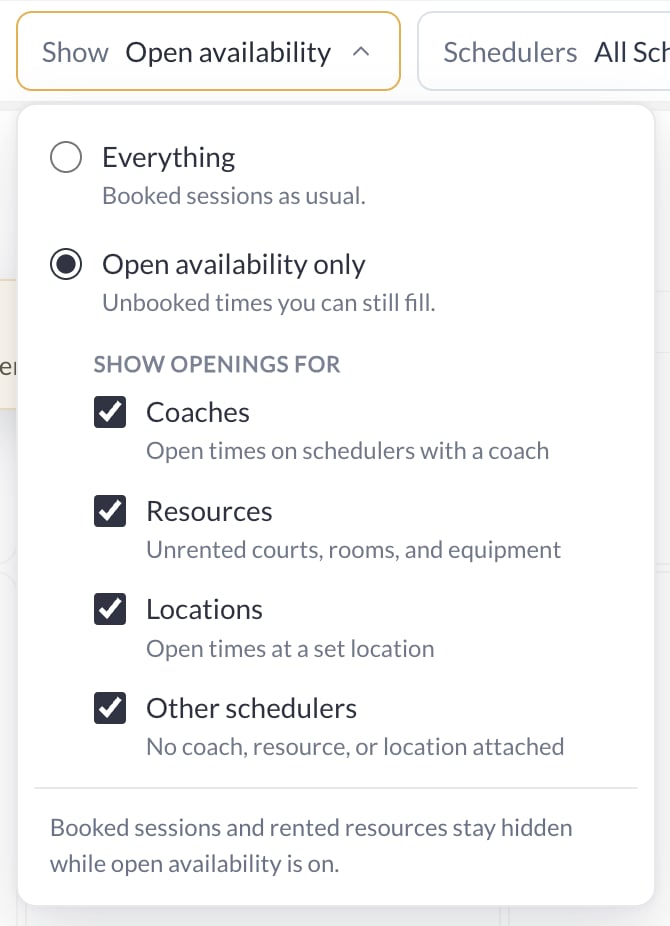 | Opening type | Shows |
| - | - |
| Coaches | Open times on schedulers with a coach. |
| Resources | Unrented courts, rooms, and equipment. |
| Locations | Open times at a set location. |
| Other schedulers | Schedulers without an attached coach, resource, or location. |
Booked sessions and rented resources stay hidden while open availability is on. An opening is an available time, not a booking or a reserved resource.
## Save your view
After changing the filters, choose **+ Save view**.
| Opening type | Shows |
| - | - |
| Coaches | Open times on schedulers with a coach. |
| Resources | Unrented courts, rooms, and equipment. |
| Locations | Open times at a set location. |
| Other schedulers | Schedulers without an attached coach, resource, or location. |
Booked sessions and rented resources stay hidden while open availability is on. An opening is an available time, not a booking or a reserved resource.
## Save your view
After changing the filters, choose **+ Save view**.
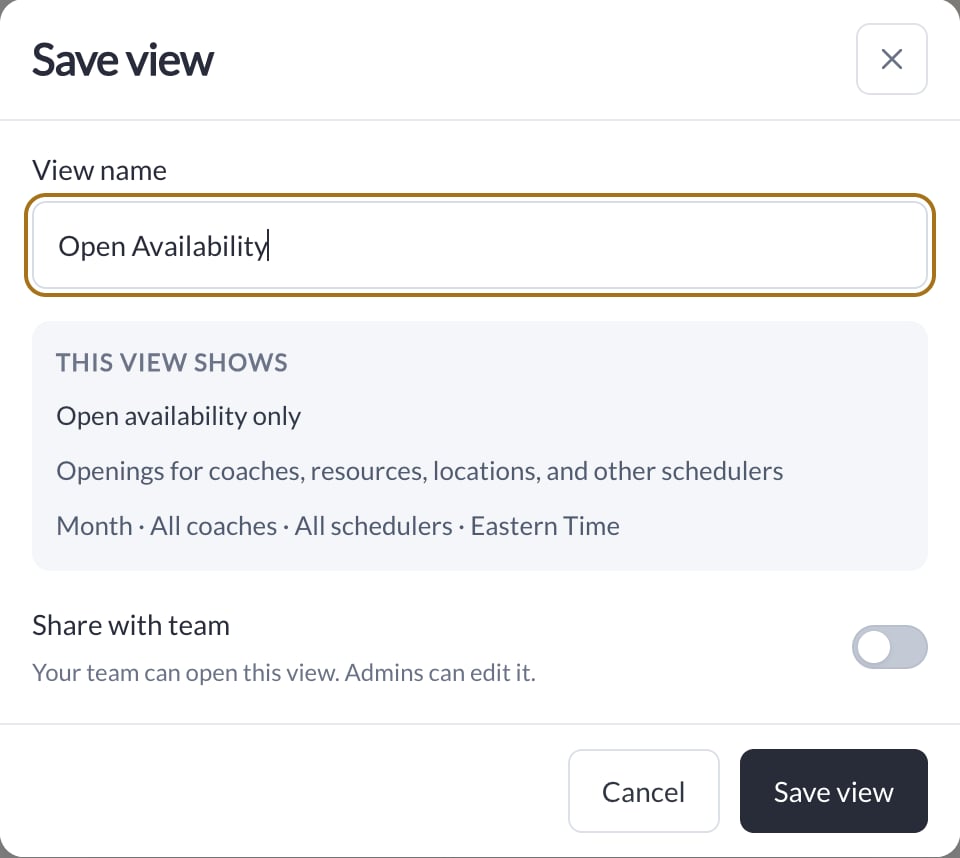 1. Give the view a name you will recognize, such as **Open Availability**.
2. Review **This view shows**, including the opening types, calendar view, coach and scheduler filters, and timezone.
3. If you want the team to use it, turn on **Share with team**. The team can open a shared view; Admins can edit it.
4. Choose **Save view**. Use its chip above the calendar to return to it.
## Manage views and set your default
Open **Manage views** to see **My views** and **Shared with team**. Rename or adjust sharing for a view you can edit. System views cannot be edited or deleted.
Star a view to make it your default when you reopen the calendar. The default is personal, even when the view is shared with the team. Remove the star to clear your personal default.
Deleting a saved view removes that saved configuration; it does not delete bookings. Choose **All sessions** to return to the normal booked-session display.
## When you do not see openings
Check the selected period, schedulers, coaches, and opening types first. **No openings this month** means the schedulers in view are booked up or have no availability in that period; it does not mean the entire business has no openings.
Openings load progressively: a thin line across the top of the calendar shows progress, and the grid is usable as soon as the first results appear. Open times show a dashed outline, with the time first, the scheduler name, and what the opening is for (coach, resource, location). If the calendar still asks for a shorter range or fewer schedulers, narrow the request and retry.
For more on navigation and bookings, see [Calendar overview](/scheduling/calendar-overview-and-navigation) and [How availability works](/scheduling/how-availability-works).
This documentation is built and hosted on [Mintlify](https://mintlify.com), a developer documentation platform.
1. Give the view a name you will recognize, such as **Open Availability**.
2. Review **This view shows**, including the opening types, calendar view, coach and scheduler filters, and timezone.
3. If you want the team to use it, turn on **Share with team**. The team can open a shared view; Admins can edit it.
4. Choose **Save view**. Use its chip above the calendar to return to it.
## Manage views and set your default
Open **Manage views** to see **My views** and **Shared with team**. Rename or adjust sharing for a view you can edit. System views cannot be edited or deleted.
Star a view to make it your default when you reopen the calendar. The default is personal, even when the view is shared with the team. Remove the star to clear your personal default.
Deleting a saved view removes that saved configuration; it does not delete bookings. Choose **All sessions** to return to the normal booked-session display.
## When you do not see openings
Check the selected period, schedulers, coaches, and opening types first. **No openings this month** means the schedulers in view are booked up or have no availability in that period; it does not mean the entire business has no openings.
Openings load progressively: a thin line across the top of the calendar shows progress, and the grid is usable as soon as the first results appear. Open times show a dashed outline, with the time first, the scheduler name, and what the opening is for (coach, resource, location). If the calendar still asks for a shorter range or fewer schedulers, narrow the request and retry.
For more on navigation and bookings, see [Calendar overview](/scheduling/calendar-overview-and-navigation) and [How availability works](/scheduling/how-availability-works).
This documentation is built and hosted on [Mintlify](https://mintlify.com), a developer documentation platform.