> ## Documentation Index
> Fetch the complete documentation index at: https://help.coachiq.io/llms.txt
> Use this file to discover all available pages before exploring further.
# Creating and Managing Recurring Bookings
> Set up recurring booking patterns for athletes who train on a regular schedule and manage individual session occurrences
**Quick navigation**: Schedule → Calendar → Book Session → Enable "Recurring" toggle
## What are recurring bookings?
Recurring bookings allow you to schedule multiple sessions for an athlete automatically by defining a repeating pattern (weekly, daily, monthly). Instead of manually booking "Tuesday at 6pm" 12 separate times, you create one recurring pattern and CoachIQ generates all 12 sessions instantly.
**Real-world example**: Sarah trains with you every Tuesday at 6:00 PM and Thursday at 5:00 PM for 12 weeks. Instead of creating 24 individual bookings, you create 2 recurring patterns and you're done in 2 minutes.
**Critical limitation**: Only coaches can create recurring bookings. Athletes using the booking portal can only book single sessions at a time.
## When to use recurring bookings
**Ideal scenarios for recurring bookings:**
* **Standing appointments**: Athlete trains same day/time weekly
* **Committed long-term clients**: Athletes with 8+ week programs
* **Team practices**: Scheduled team training sessions
* **VIP/Priority clients**: Premium athletes with consistent schedules
* **Subscription-based training**: Monthly unlimited or package deals
**Why it works**: Predictable schedules, athlete commitment, easy to plan around
**When recurring bookings create problems:**
* **Trial/new athletes**: Uncertain commitment level
* **Unpredictable schedules**: Athletes with frequently changing availability
* **One-off sessions**: Single assessment or consultation
* **High no-show rates**: Athletes who frequently reschedule
* **Short-term goals**: 2-4 week programs (manual booking faster)
**Why avoid**: Creates unnecessary booking overhead, harder to modify, commitment pressure
**Best practice for most coaches:**
1. **Start with manual bookings** for first 4-6 sessions
2. **Evaluate commitment** and schedule consistency
3. **Switch to recurring** once athlete proves reliable
4. **Communicate clearly**: "I'll set you up on recurring schedule—more convenient for both of us!"
**Result**: Reduced no-shows, better athlete retention, protected time slots
***
## Creating a recurring booking pattern
Navigate to your calendar and initiate a new booking:
1. Go to **Schedule → Calendar**
2. Click **Book Session** (or the **+** button)
3. The Booking Builder modal opens
**Alternative access**: You can also access Booking Builder from Schedule → Schedulers → Create → "Manually Book an Athlete" option.
**Step 1: Choose the athlete**
* Search by name or email
* Filter by tags if needed
* Select the athlete who will receive recurring sessions
**Step 2: Choose the scheduler**
* Select which session type to book (e.g., "60-Min Private Training")
* Pricing and duration are determined by the scheduler you choose
**Credit-based sessions**: If using credit-based schedulers, recurring bookings do NOT automatically deduct credits. You'll handle credits separately per your configuration.
In the **Date & Time** section, you'll see a toggle labeled **"Recurring"**.
1. **Toggle it ON** to reveal recurring options
2. **Toggle it OFF** to book just a single session
**What happens when enabled**: Additional configuration options appear:
* Repeat pattern (daily, weekly, monthly)
* Repeat interval (every 1 week, every 2 weeks, etc.)
* Days of the week (for weekly patterns)
* Ending options (ongoing vs specific end date)
 **Choose your repeat frequency:**
**Use for**: Standard training schedules
**Configuration**:
1. Select **"Weekly"** from dropdown
2. Choose **"Repeat every: 1 week"** (or 2 weeks, 3 weeks, etc.)
3. **Select days**: Check Monday, Wednesday, Friday, etc.
4. **Set time**: Choose session start time
**Example**: "Every Tuesday and Thursday at 6:00 PM"
**Most coaches use this**: 80% of recurring bookings are weekly patterns for consistent training schedules.
**Use for**: Intensive training camps, daily check-ins, tournament prep
**Configuration**:
1. Select **"Daily"** from dropdown
2. Choose **"Repeat every: 1 day"** (or every 2 days, 3 days, etc.)
3. **Set time**: Choose session start time
**Example**: "Every day at 7:00 AM for 1-week training camp"
**Use case**: Mike runs a 2-week intensive basketball camp and needs to schedule 30 athletes for daily sessions—recurring bookings save hours of manual work.
**Use for**: Monthly check-ins, assessments, progress reviews
**Configuration**:
1. Select **"Monthly"** from dropdown
2. Choose **"Repeat every: 1 month"** (or every 2 months, etc.)
3. **Set day of month**: First Tuesday, 15th, last Friday, etc.
4. **Set time**: Choose session start time
**Example**: "First Monday of every month at 10:00 AM for progress assessment"
**Use case**: Sarah schedules monthly body composition assessments with all her nutrition clients—one recurring pattern per athlete.
Choose how long the recurring pattern continues:
**What it means**: Bookings continue indefinitely until you manually stop them
**When to use**:
* Long-term committed athletes (6+ months)
* Monthly subscription clients
* Athletes with unlimited session packages
* When end date is uncertain
**How to stop later**:
* Click any session in the recurring series
* Delete the entire recurring pattern
* Or skip/change individual sessions as needed
**Example**: "Jake has an annual training package—set his sessions as ongoing, adjust as his schedule changes"
**Watch out**: Ongoing bookings can fill your calendar far into the future. Review and adjust monthly to prevent over-scheduling.
**What it means**: Recurring sessions stop automatically on the date you specify
**When to use**:
* Defined training programs (8-week, 12-week, etc.)
* Season-specific training (pre-season, in-season)
* Athletes with package deals (20-session package = \~10 weeks)
* Trial recurring periods
**How to set**:
1. Select **"Set an end date"** radio button
2. Choose end date from calendar picker
3. System calculates total number of sessions based on pattern + end date
**Example**: "Chris wants 12 weeks of training. I create recurring bookings from Sept 1 - Nov 24 (12 weeks), resulting in 24 sessions (Tuesday/Thursday)."
**Best practice**: Always start with a defined end date for first-time recurring bookings. You can extend later if athlete continues.
**Time-saving feature**: Instead of manually clicking through options, use natural language.
**How it works**:
1. Find the **"CoachIQ Copilot"** panel (right sidebar)
2. Type your desired schedule in plain English
3. Click **"Generate Availability"**
4. Copilot automatically fills out the recurring configuration
**Examples of what to type**:
* "Every Tuesday at 5pm"
* "Monday Wednesday Friday at 6:00 AM"
* "Every other Thursday at 7pm for 12 weeks"
* "Daily at 8am for 2 weeks"
**Choose your repeat frequency:**
**Use for**: Standard training schedules
**Configuration**:
1. Select **"Weekly"** from dropdown
2. Choose **"Repeat every: 1 week"** (or 2 weeks, 3 weeks, etc.)
3. **Select days**: Check Monday, Wednesday, Friday, etc.
4. **Set time**: Choose session start time
**Example**: "Every Tuesday and Thursday at 6:00 PM"
**Most coaches use this**: 80% of recurring bookings are weekly patterns for consistent training schedules.
**Use for**: Intensive training camps, daily check-ins, tournament prep
**Configuration**:
1. Select **"Daily"** from dropdown
2. Choose **"Repeat every: 1 day"** (or every 2 days, 3 days, etc.)
3. **Set time**: Choose session start time
**Example**: "Every day at 7:00 AM for 1-week training camp"
**Use case**: Mike runs a 2-week intensive basketball camp and needs to schedule 30 athletes for daily sessions—recurring bookings save hours of manual work.
**Use for**: Monthly check-ins, assessments, progress reviews
**Configuration**:
1. Select **"Monthly"** from dropdown
2. Choose **"Repeat every: 1 month"** (or every 2 months, etc.)
3. **Set day of month**: First Tuesday, 15th, last Friday, etc.
4. **Set time**: Choose session start time
**Example**: "First Monday of every month at 10:00 AM for progress assessment"
**Use case**: Sarah schedules monthly body composition assessments with all her nutrition clients—one recurring pattern per athlete.
Choose how long the recurring pattern continues:
**What it means**: Bookings continue indefinitely until you manually stop them
**When to use**:
* Long-term committed athletes (6+ months)
* Monthly subscription clients
* Athletes with unlimited session packages
* When end date is uncertain
**How to stop later**:
* Click any session in the recurring series
* Delete the entire recurring pattern
* Or skip/change individual sessions as needed
**Example**: "Jake has an annual training package—set his sessions as ongoing, adjust as his schedule changes"
**Watch out**: Ongoing bookings can fill your calendar far into the future. Review and adjust monthly to prevent over-scheduling.
**What it means**: Recurring sessions stop automatically on the date you specify
**When to use**:
* Defined training programs (8-week, 12-week, etc.)
* Season-specific training (pre-season, in-season)
* Athletes with package deals (20-session package = \~10 weeks)
* Trial recurring periods
**How to set**:
1. Select **"Set an end date"** radio button
2. Choose end date from calendar picker
3. System calculates total number of sessions based on pattern + end date
**Example**: "Chris wants 12 weeks of training. I create recurring bookings from Sept 1 - Nov 24 (12 weeks), resulting in 24 sessions (Tuesday/Thursday)."
**Best practice**: Always start with a defined end date for first-time recurring bookings. You can extend later if athlete continues.
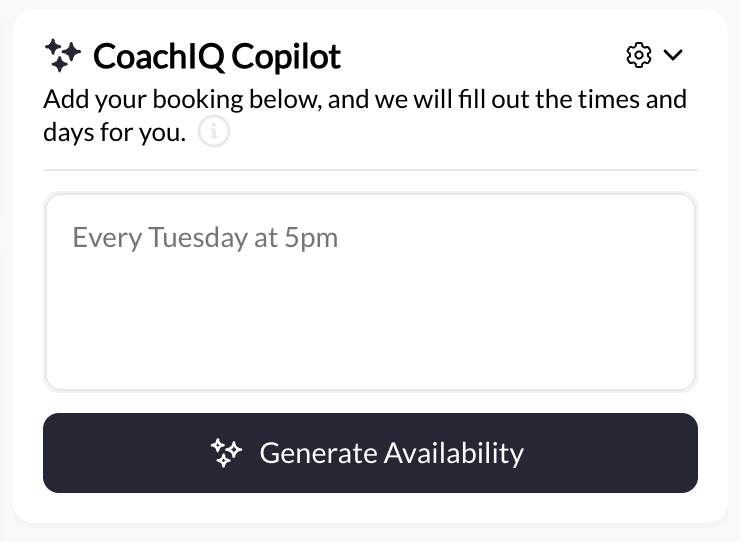
**Time-saving feature**: Instead of manually clicking through options, use natural language.
**How it works**:
1. Find the **"CoachIQ Copilot"** panel (right sidebar)
2. Type your desired schedule in plain English
3. Click **"Generate Availability"**
4. Copilot automatically fills out the recurring configuration
**Examples of what to type**:
* "Every Tuesday at 5pm"
* "Monday Wednesday Friday at 6:00 AM"
* "Every other Thursday at 7pm for 12 weeks"
* "Daily at 8am for 2 weeks"
 **Result**: Copilot translates your text into:
* Repeat pattern (weekly, daily, etc.)
* Days of week
* Time
* Interval
You can then fine-tune manually if needed.
**Time saved**: Copilot reduces recurring setup from 2 minutes to 15 seconds. Use it!
**Before you hit "Create"**, use the **Occurrences preview calendar** to verify your pattern.
**What you'll see** (right sidebar):
* Calendar showing all future session dates
* Visual confirmation of your recurring pattern
* Dates highlighted for each occurrence
**Why this matters**: Catch mistakes before creating dozens of bookings.
**Common things to verify**:
* ✅ Correct days of week selected
* ✅ Sessions land on expected dates
* ✅ No conflicts with known athlete vacations
* ✅ End date is correct (if using set end date)
* ✅ Total number of sessions makes sense
**Example**: "I set up 'every Tuesday and Thursday for 12 weeks'—preview shows 24 total sessions, last one on Nov 21. Perfect!"
**Double-check before creating**: Once you create recurring bookings, there's no "undo" button. You'd need to delete and recreate.
Once everything looks correct:
1. Click the **"Create"** button
2. CoachIQ generates all recurring bookings instantly
3. All sessions appear on your calendar
4. Athlete receives notification (if notifications enabled)
**What happens next**:
* Each session appears as individual booking on calendar
* No special "recurring" indicator visible to athletes
* You can manage each session individually
**Success!** Your athlete is now scheduled for all sessions in the recurring pattern. Calendar confirms all bookings created.
***
## Managing individual occurrences after creation
Once recurring bookings are created, you have full control over each individual session.
### Accessing the Occurrences calendar
**To view and manage all occurrences in a recurring series:**
1. Go to **Schedule → Calendar**
2. **Find any session** from the recurring series
3. **Click on that booking**
4. The **Occurrences view** opens, showing:
* Calendar with all recurring dates
* "Change" and "Skip" buttons for each occurrence
* Full visibility into the entire pattern
**Use case**: Quick access when you're already viewing calendar
1. Go to **People → Clients**
2. Find and open the athlete's profile
3. Navigate to **"Upcoming Bookings"** section
4. **Click any recurring session**
5. The **Occurrences view** opens
**Use case**: When managing athlete-specific schedules or reviewing multiple recurring patterns for one athlete
**Result**: Copilot translates your text into:
* Repeat pattern (weekly, daily, etc.)
* Days of week
* Time
* Interval
You can then fine-tune manually if needed.
**Time saved**: Copilot reduces recurring setup from 2 minutes to 15 seconds. Use it!
**Before you hit "Create"**, use the **Occurrences preview calendar** to verify your pattern.
**What you'll see** (right sidebar):
* Calendar showing all future session dates
* Visual confirmation of your recurring pattern
* Dates highlighted for each occurrence
**Why this matters**: Catch mistakes before creating dozens of bookings.
**Common things to verify**:
* ✅ Correct days of week selected
* ✅ Sessions land on expected dates
* ✅ No conflicts with known athlete vacations
* ✅ End date is correct (if using set end date)
* ✅ Total number of sessions makes sense
**Example**: "I set up 'every Tuesday and Thursday for 12 weeks'—preview shows 24 total sessions, last one on Nov 21. Perfect!"
**Double-check before creating**: Once you create recurring bookings, there's no "undo" button. You'd need to delete and recreate.
Once everything looks correct:
1. Click the **"Create"** button
2. CoachIQ generates all recurring bookings instantly
3. All sessions appear on your calendar
4. Athlete receives notification (if notifications enabled)
**What happens next**:
* Each session appears as individual booking on calendar
* No special "recurring" indicator visible to athletes
* You can manage each session individually
**Success!** Your athlete is now scheduled for all sessions in the recurring pattern. Calendar confirms all bookings created.
***
## Managing individual occurrences after creation
Once recurring bookings are created, you have full control over each individual session.
### Accessing the Occurrences calendar
**To view and manage all occurrences in a recurring series:**
1. Go to **Schedule → Calendar**
2. **Find any session** from the recurring series
3. **Click on that booking**
4. The **Occurrences view** opens, showing:
* Calendar with all recurring dates
* "Change" and "Skip" buttons for each occurrence
* Full visibility into the entire pattern
**Use case**: Quick access when you're already viewing calendar
1. Go to **People → Clients**
2. Find and open the athlete's profile
3. Navigate to **"Upcoming Bookings"** section
4. **Click any recurring session**
5. The **Occurrences view** opens
**Use case**: When managing athlete-specific schedules or reviewing multiple recurring patterns for one athlete
 ***
### Changing one occurrence
**Scenario**: Athlete requests a time change for just one session (e.g., Oct 15 needs to move from 6pm to 8pm).
Click any session in the recurring series (from calendar or athlete profile).
In the Occurrences calendar, click the date you want to change (e.g., Oct 15).
The **"Change"** button appears for that specific occurrence.
**What happens**: Opens date/time picker for that one session only.
1. Choose the new date and/or time
2. Confirm the change
3. **Only that one session updates**—all other recurring sessions remain unchanged
**Result**: Oct 15 session moved to 8pm. Oct 22, Oct 29, etc. still at 6pm as scheduled.
**Important notes**:
* Changes affect ONLY that specific occurrence
* No impact on other sessions in the series
* Athlete receives notification of the time change
* Calendar reflects the updated time
***
### Skipping one occurrence
**Scenario**: Athlete is traveling on Oct 22 and needs to skip that session.
Click any session in the recurring series.
In the Occurrences calendar, click Oct 22.
The **"Skip"** button appears.
**What happens**: That occurrence is removed from the recurring series.
System removes that booking—Oct 22 session is gone.
**All other sessions remain**: Oct 15, Oct 29, Nov 5, etc. still scheduled as normal.
**Result**: Oct 22 skipped. Recurring pattern continues for all other dates.
**Important notes**:
* Skipped sessions are permanently removed (not "paused")
* No credit refund triggered (recurring bookings don't involve automatic credit deductions)
* Athlete receives cancellation notification
* Cannot "un-skip" later—you'd need to manually book that date if athlete wants it back
***
## Making changes to the entire recurring pattern
### The limitation: No "edit all" function
**Critical restriction**: CoachIQ does not support editing all future occurrences at once. You cannot change the entire pattern (e.g., move all from Tuesday 6pm → Thursday 7pm) after creation.
**Why this matters**: If an athlete's schedule permanently changes, you'll need to delete and recreate.
***
### Deleting the entire recurring pattern
**When to delete**:
* Athlete's schedule permanently changes
* Athlete discontinues training
* You need to recreate pattern with different settings
* Mistake made during initial setup
**How to delete all occurrences**:
Click any session in the recurring series (from calendar or athlete profile).
Look for the **"Delete"** option within the Occurrences view.
**What happens**: Deletes the entire recurring booking pattern—all future sessions removed.
**This action is permanent**: All remaining sessions are deleted. Cannot be undone.
System asks for confirmation—click **"Delete All"** to proceed.
All recurring sessions disappear from calendar instantly.
**After deletion**:
* Create a new recurring pattern if needed
* Or switch to manual booking going forward
* Or athlete stops training entirely
***
### Workaround: Recreating the pattern
**Scenario**: You need to change recurring pattern (e.g., Tuesday 6pm → Thursday 7pm for all remaining sessions).
**The process**:
Before deleting, record:
* Original pattern details (days, times)
* How many sessions remain
* Any already-completed sessions
**Example**: "Chris has 18 sessions left, currently Tuesday/Thursday 6pm, wants to switch to Wednesday/Friday 7pm."
Follow the "Delete all" process above.
**Result**: All 18 remaining sessions removed from calendar.
Open Booking Builder and create new recurring bookings:
1. Select same athlete (Chris)
2. Select same scheduler
3. Enable Recurring toggle
4. Configure NEW pattern (Wednesday/Friday 7pm)
5. Set end date to capture remaining sessions (\~9 weeks)
6. Click Create
**Result**: New 18-session recurring pattern created with updated schedule.
**Critical step**: Let athlete know their schedule changed.
**Template message**: "Hey Chris, I've updated your recurring sessions to Wed/Fri 7pm as requested. All 18 remaining sessions are now on the new schedule. Let me know if you have any conflicts!"
**Notification best practice**: Even though system sends automatic notifications, personally confirm major schedule changes with athletes to prevent confusion.
**Time commitment**: Deleting and recreating can take 3-5 minutes. Factor this into your process when athletes request pattern changes.
***
## Best practices for recurring bookings
**Before clicking Create**, review the Occurrences preview calendar. Catch mistakes before generating dozens of bookings.
**Check**: Days of week, times, total sessions, end date.
**For first-time recurring clients**, always set a specific end date (8-12 weeks). You can extend later.
**Why**: Prevents over-commitment and gives natural check-in points.
**When you Change or Skip** sessions, personally confirm with athlete (don't rely solely on auto-notifications).
**Template**: "FYI, moved your Oct 15 session to 8pm. See you then!"
**First of each month**, review all recurring patterns. Check for:
* Patterns ending soon (extend if needed)
* Athlete vacations/conflicts
* Your own availability changes
**Result**: Proactive management prevents last-minute chaos.
**Save time** by using natural language in Copilot panel: "Every Tuesday and Thursday at 6pm"
**Result**: 15 seconds vs 2 minutes of manual clicking.
**Skip individual sessions** for one-off exceptions.
**Delete entire pattern** when permanent schedule change needed.
**Rule**: 3+ skips in a row = consider deleting and recreating pattern.
***
## Credit handling with recurring bookings
**Important clarification**: Recurring bookings in CoachIQ do NOT automatically deduct credits when sessions are created. Credit handling depends on your specific scheduler configuration.
**What this means**:
* Creating recurring bookings doesn't immediately consume athlete credits
* Credit deduction happens per your scheduler's credit settings
* Skipping a session doesn't trigger credit refunds
**Recommendation**: If a client is only on a recurring booking then credits are not necessary. Instead just collect payment and set up there recurring schedule once.
**For detailed credit system information**, see [Credit System Explained](/scheduling/credit-system-overview) and [Credit Usage Limits](/scheduling/credit-usage-limits-restrictions).
***
## When NOT to use recurring bookings
**Recurring bookings aren't always the answer.** Sometimes manual booking is better.
**Use manual booking instead when**:
**Athlete situation**: Shift worker, travel-heavy job, inconsistent availability
**Problem with recurring**: Constant Changes and Skips = admin overhead
**Better approach**: Client book sessions 2-4 weeks in advance as athlete confirms availability
**Example**: "Maria's nursing schedule changes monthly. She book her sessions 3 weeks out once her shifts are posted."
**Athlete situation**: New client, trying you out for first month
**Problem with recurring**: Over-commitment pressure, higher dropout risk
**Better approach**: They book first 6-8 sessions, then switch to recurring if they commit
**Example**: "Jake books 4 trial sessions. After session 3, I say 'You're doing great—want to lock in recurring Tuesdays?'"
**Athlete situation**: 4-week pre-season prep, 2-week intensive
**Problem with recurring**: Setup time exceeds benefit (only 8 sessions total)
**Better approach**: Client book all sessions in 5 minutes
**Example**: "Chris wants 3x/week for 3 weeks (9 sessions). Manual booking = faster than recurring setup."
**Athlete situation**: Chronic reschedulers, high change rate
**Problem with recurring**: You'll spend more time managing Changes than you saved with automation
**Better approach**: They book 2-3 sessions at a time and can adjust as needed
**Example**: "Sam reschedules 50% of sessions.He books 2 weeks out, adjusts as needed"
***
## Next steps
Learn the complete manual booking process for non-recurring sessions
Understand cancellation policies and how to handle booking cancellations
Master calendar navigation and filtering for managing all your bookings
Deep dive into how credits work with bookings and schedulers
## Related articles
Set up bookable session types before creating recurring bookings
Configure capacity, limits, and permissions for schedulers
***
**You now understand**: How to create recurring booking patterns, manage individual occurrences, and decide when recurring bookings are the right solution vs manual booking.
**Questions about recurring bookings?** Our support team can help you design the optimal scheduling strategy for your athletes. [Contact Support](https://support.coachiq.com)
***
### Changing one occurrence
**Scenario**: Athlete requests a time change for just one session (e.g., Oct 15 needs to move from 6pm to 8pm).
Click any session in the recurring series (from calendar or athlete profile).
In the Occurrences calendar, click the date you want to change (e.g., Oct 15).
The **"Change"** button appears for that specific occurrence.
**What happens**: Opens date/time picker for that one session only.
1. Choose the new date and/or time
2. Confirm the change
3. **Only that one session updates**—all other recurring sessions remain unchanged
**Result**: Oct 15 session moved to 8pm. Oct 22, Oct 29, etc. still at 6pm as scheduled.
**Important notes**:
* Changes affect ONLY that specific occurrence
* No impact on other sessions in the series
* Athlete receives notification of the time change
* Calendar reflects the updated time
***
### Skipping one occurrence
**Scenario**: Athlete is traveling on Oct 22 and needs to skip that session.
Click any session in the recurring series.
In the Occurrences calendar, click Oct 22.
The **"Skip"** button appears.
**What happens**: That occurrence is removed from the recurring series.
System removes that booking—Oct 22 session is gone.
**All other sessions remain**: Oct 15, Oct 29, Nov 5, etc. still scheduled as normal.
**Result**: Oct 22 skipped. Recurring pattern continues for all other dates.
**Important notes**:
* Skipped sessions are permanently removed (not "paused")
* No credit refund triggered (recurring bookings don't involve automatic credit deductions)
* Athlete receives cancellation notification
* Cannot "un-skip" later—you'd need to manually book that date if athlete wants it back
***
## Making changes to the entire recurring pattern
### The limitation: No "edit all" function
**Critical restriction**: CoachIQ does not support editing all future occurrences at once. You cannot change the entire pattern (e.g., move all from Tuesday 6pm → Thursday 7pm) after creation.
**Why this matters**: If an athlete's schedule permanently changes, you'll need to delete and recreate.
***
### Deleting the entire recurring pattern
**When to delete**:
* Athlete's schedule permanently changes
* Athlete discontinues training
* You need to recreate pattern with different settings
* Mistake made during initial setup
**How to delete all occurrences**:
Click any session in the recurring series (from calendar or athlete profile).
Look for the **"Delete"** option within the Occurrences view.
**What happens**: Deletes the entire recurring booking pattern—all future sessions removed.
**This action is permanent**: All remaining sessions are deleted. Cannot be undone.
System asks for confirmation—click **"Delete All"** to proceed.
All recurring sessions disappear from calendar instantly.
**After deletion**:
* Create a new recurring pattern if needed
* Or switch to manual booking going forward
* Or athlete stops training entirely
***
### Workaround: Recreating the pattern
**Scenario**: You need to change recurring pattern (e.g., Tuesday 6pm → Thursday 7pm for all remaining sessions).
**The process**:
Before deleting, record:
* Original pattern details (days, times)
* How many sessions remain
* Any already-completed sessions
**Example**: "Chris has 18 sessions left, currently Tuesday/Thursday 6pm, wants to switch to Wednesday/Friday 7pm."
Follow the "Delete all" process above.
**Result**: All 18 remaining sessions removed from calendar.
Open Booking Builder and create new recurring bookings:
1. Select same athlete (Chris)
2. Select same scheduler
3. Enable Recurring toggle
4. Configure NEW pattern (Wednesday/Friday 7pm)
5. Set end date to capture remaining sessions (\~9 weeks)
6. Click Create
**Result**: New 18-session recurring pattern created with updated schedule.
**Critical step**: Let athlete know their schedule changed.
**Template message**: "Hey Chris, I've updated your recurring sessions to Wed/Fri 7pm as requested. All 18 remaining sessions are now on the new schedule. Let me know if you have any conflicts!"
**Notification best practice**: Even though system sends automatic notifications, personally confirm major schedule changes with athletes to prevent confusion.
**Time commitment**: Deleting and recreating can take 3-5 minutes. Factor this into your process when athletes request pattern changes.
***
## Best practices for recurring bookings
**Before clicking Create**, review the Occurrences preview calendar. Catch mistakes before generating dozens of bookings.
**Check**: Days of week, times, total sessions, end date.
**For first-time recurring clients**, always set a specific end date (8-12 weeks). You can extend later.
**Why**: Prevents over-commitment and gives natural check-in points.
**When you Change or Skip** sessions, personally confirm with athlete (don't rely solely on auto-notifications).
**Template**: "FYI, moved your Oct 15 session to 8pm. See you then!"
**First of each month**, review all recurring patterns. Check for:
* Patterns ending soon (extend if needed)
* Athlete vacations/conflicts
* Your own availability changes
**Result**: Proactive management prevents last-minute chaos.
**Save time** by using natural language in Copilot panel: "Every Tuesday and Thursday at 6pm"
**Result**: 15 seconds vs 2 minutes of manual clicking.
**Skip individual sessions** for one-off exceptions.
**Delete entire pattern** when permanent schedule change needed.
**Rule**: 3+ skips in a row = consider deleting and recreating pattern.
***
## Credit handling with recurring bookings
**Important clarification**: Recurring bookings in CoachIQ do NOT automatically deduct credits when sessions are created. Credit handling depends on your specific scheduler configuration.
**What this means**:
* Creating recurring bookings doesn't immediately consume athlete credits
* Credit deduction happens per your scheduler's credit settings
* Skipping a session doesn't trigger credit refunds
**Recommendation**: If a client is only on a recurring booking then credits are not necessary. Instead just collect payment and set up there recurring schedule once.
**For detailed credit system information**, see [Credit System Explained](/scheduling/credit-system-overview) and [Credit Usage Limits](/scheduling/credit-usage-limits-restrictions).
***
## When NOT to use recurring bookings
**Recurring bookings aren't always the answer.** Sometimes manual booking is better.
**Use manual booking instead when**:
**Athlete situation**: Shift worker, travel-heavy job, inconsistent availability
**Problem with recurring**: Constant Changes and Skips = admin overhead
**Better approach**: Client book sessions 2-4 weeks in advance as athlete confirms availability
**Example**: "Maria's nursing schedule changes monthly. She book her sessions 3 weeks out once her shifts are posted."
**Athlete situation**: New client, trying you out for first month
**Problem with recurring**: Over-commitment pressure, higher dropout risk
**Better approach**: They book first 6-8 sessions, then switch to recurring if they commit
**Example**: "Jake books 4 trial sessions. After session 3, I say 'You're doing great—want to lock in recurring Tuesdays?'"
**Athlete situation**: 4-week pre-season prep, 2-week intensive
**Problem with recurring**: Setup time exceeds benefit (only 8 sessions total)
**Better approach**: Client book all sessions in 5 minutes
**Example**: "Chris wants 3x/week for 3 weeks (9 sessions). Manual booking = faster than recurring setup."
**Athlete situation**: Chronic reschedulers, high change rate
**Problem with recurring**: You'll spend more time managing Changes than you saved with automation
**Better approach**: They book 2-3 sessions at a time and can adjust as needed
**Example**: "Sam reschedules 50% of sessions.He books 2 weeks out, adjusts as needed"
***
## Next steps
Learn the complete manual booking process for non-recurring sessions
Understand cancellation policies and how to handle booking cancellations
Master calendar navigation and filtering for managing all your bookings
Deep dive into how credits work with bookings and schedulers
## Related articles
Set up bookable session types before creating recurring bookings
Configure capacity, limits, and permissions for schedulers
***
**You now understand**: How to create recurring booking patterns, manage individual occurrences, and decide when recurring bookings are the right solution vs manual booking.
**Questions about recurring bookings?** Our support team can help you design the optimal scheduling strategy for your athletes. [Contact Support](https://support.coachiq.com)