> ## Documentation Index
> Fetch the complete documentation index at: https://help.coachiq.io/llms.txt
> Use this file to discover all available pages before exploring further.
# Scheduling Quick Start Checklist
> Pre-launch checklist to ensure your scheduling system is ready for athletes to book
Use this checklist before sharing your booking link with athletes.
**Estimated time**: 5-10 minutes
***
## Platform Setup
* [ ] **Timezone** is correct in Settings → Account Settings
* [ ] **Payment processing** connected (if charging for sessions)
* [ ] **Test athlete** created to verify booking flow
***
## Scheduler Configuration
* [ ] **Session name** is clear and includes duration (e.g., "60-Min Private Training")
* [ ] **Description** explains what athletes get
* [ ] **Duration** is set correctly
* [ ] **Capacity** matches session type (1 for private, higher for groups)
* [ ] **Buffer time** set to 10-15 minutes between sessions
***
## Availability
* [ ] **Days and times** match when you want to coach
* [ ] **Extends far enough** into the future (2-4 weeks minimum)
* [ ] **Blackout days** set for known time off
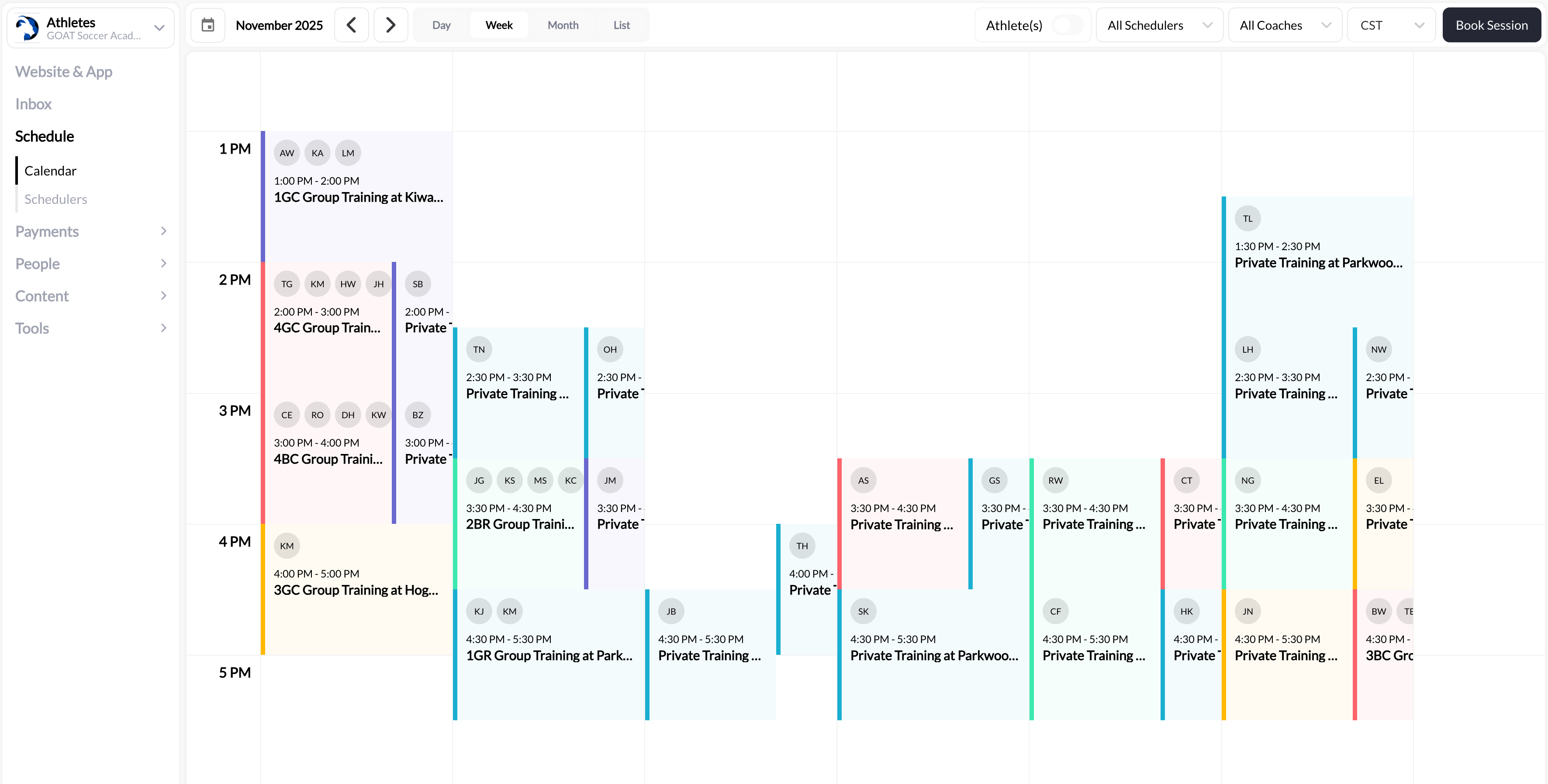
* [ ] **No AM/PM mistakes** (check calendar to verify)
 ***
## Payment (If Charging)
* [ ] **Payment method** configured (free, direct payment, or credits)
* [ ] **Price/credit cost** is correct
* [ ] **Test transaction** completed successfully
**First time?** Start with free sessions to learn the system, then add payment later.
***
## Test Booking
This is the most important step—experience what athletes will experience.
Copy your scheduler's booking link and open it in an incognito/private browser window.
Select a time slot and complete the full booking process as your test athlete.
* Booking appears on your calendar
* Confirmation notification received
* Credit deducted (if applicable)
* Time slot no longer available to others
**No available times showing?** Your availability isn't configured correctly. Go to Schedule → Schedulers and verify availability settings.
***
## Ready to Launch
Before sharing your booking link, confirm:
**Must-haves:**
* [ ] Test booking completed successfully
* [ ] Booking appears correctly on calendar
* [ ] Notifications working
* [ ] Tested on mobile device
**Nice-to-haves:**
* [ ] Reminders configured
* [ ] Cancellation policy set
* [ ] Booking link saved and ready to share
**All set?** Share your booking link and start accepting bookings!
***
## Troubleshooting
| Problem | Fix |
| -------------------------------------- | ---------------------------------- |
| No available times showing | Add availability to scheduler |
| Athletes can't complete booking | Check payment/credit configuration |
| Wrong times displaying | Fix timezone in account settings |
| Too few slots available | Reduce buffer time to 10-15 min |
| Multiple athletes in "private" session | Set max capacity to 1 |
***
## Related articles
Step-by-step scheduler creation
Configure your coaching hours
Understand credit-based booking
***
## Payment (If Charging)
* [ ] **Payment method** configured (free, direct payment, or credits)
* [ ] **Price/credit cost** is correct
* [ ] **Test transaction** completed successfully
**First time?** Start with free sessions to learn the system, then add payment later.
***
## Test Booking
This is the most important step—experience what athletes will experience.
Copy your scheduler's booking link and open it in an incognito/private browser window.
Select a time slot and complete the full booking process as your test athlete.
* Booking appears on your calendar
* Confirmation notification received
* Credit deducted (if applicable)
* Time slot no longer available to others
**No available times showing?** Your availability isn't configured correctly. Go to Schedule → Schedulers and verify availability settings.
***
## Ready to Launch
Before sharing your booking link, confirm:
**Must-haves:**
* [ ] Test booking completed successfully
* [ ] Booking appears correctly on calendar
* [ ] Notifications working
* [ ] Tested on mobile device
**Nice-to-haves:**
* [ ] Reminders configured
* [ ] Cancellation policy set
* [ ] Booking link saved and ready to share
**All set?** Share your booking link and start accepting bookings!
***
## Troubleshooting
| Problem | Fix |
| -------------------------------------- | ---------------------------------- |
| No available times showing | Add availability to scheduler |
| Athletes can't complete booking | Check payment/credit configuration |
| Wrong times displaying | Fix timezone in account settings |
| Too few slots available | Reduce buffer time to 10-15 min |
| Multiple athletes in "private" session | Set max capacity to 1 |
***
## Related articles
Step-by-step scheduler creation
Configure your coaching hours
Understand credit-based booking