> ## Documentation Index
> Fetch the complete documentation index at: https://help.coachiq.io/llms.txt
> Use this file to discover all available pages before exploring further.
# Duration, Start Times, and Overlapping Sessions
> Set how long a session runs, how often a new one can start, and whether two bookings may share the same window.
By default, CoachIQ offers start times back-to-back based on your session duration: a 60-minute session offers 9:00, 10:00, 11:00. The **Advanced settings** section of a scheduler lets you separate three things that used to be tied together:
* **Duration** — how long one booked session runs
* **New sessions can start** — how often a start time is offered
* **Allow overlapping sessions** — whether two bookings of this session may occupy the same window
**Where to find this:** Scheduling → Schedulers → open a scheduler → **Advanced settings**
## The three controls
| Control | What it does | Example |
| ------------------------------ | -------------------------------------------------------------------------------------------------------------------------------------------------- | -------------------------------------------------------------------------------- |
| **Duration** | Length of one session. Presets **15 / 30 / 45 / 60 mins** or **Custom** (exact hours and minutes). | 60 min |
| **New sessions can start** | The start-time grid: how often a family can grab a start time. Usually the same as duration. Presets 15 / 30 / 45 / 60 or Custom. | Every 30 min offers 9:00–10:00 *or* 9:30–10:30 |
| **Allow overlapping sessions** | Checkbox. When **off**, a booking removes every later start time that would collide with it. When **on**, two bookings may occupy the same window. | Off: once 9:00 is booked, 9:30 disappears. On: 9:00 and 9:30 can both be booked. |
The three are independent. Setting a start cadence shorter than the duration does **not** turn overlap on; it just gives families more start times to choose from, and the first booking clears the ones that would collide.
## Common setups
**Duration 60 · New sessions can start 30 · Allow overlapping sessions off**
Athletes see 9:00, 9:30, 10:00, 10:30. When someone books 9:30–10:30, the 9:00 and 10:00 starts drop out because they would collide; 10:30 stays. One athlete at a time, but nobody is forced onto the hour.
Best for private lessons where you want to fill gaps without ever double-booking yourself.
**Duration 60 · New sessions can start 15 · Allow overlapping sessions on**
Start times at 9:00, 9:15, 9:30 and so on, each a full 60-minute session that overlaps the next. Every start time keeps its own capacity.
Best for open gym, drop-in conditioning, or any format where athletes can enter while others are mid-session.
**Duration 60 · New sessions can start 60 · Allow overlapping sessions off**
The default. 9:00, 10:00, 11:00, one session per hour.
## Set it up
Go to **Scheduling → Schedulers** and open the scheduler you want to edit.
Click **Advanced settings** in the left rail of the scheduler builder.
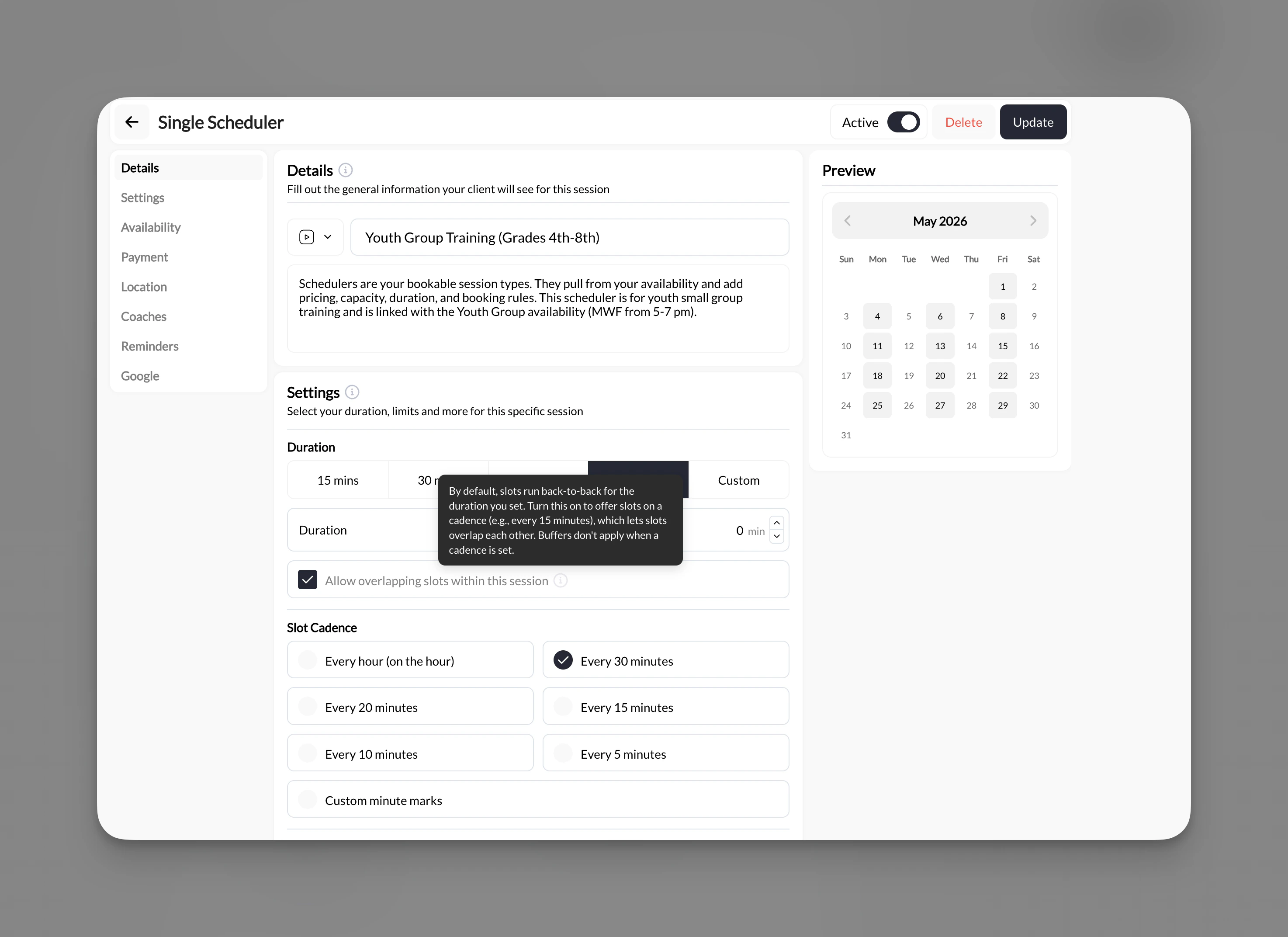 Pick **15**, **30**, **45**, or **60 mins**, or **Custom** for an exact length.
Choose how often a start time is offered. Leave it equal to the duration for back-to-back slots, or make it shorter to offer more start times.
Leave the box **unchecked** to keep one booking per window. Check it only when athletes really can be in the space at the same time.
Click **Update** in the top right.
## What athletes see
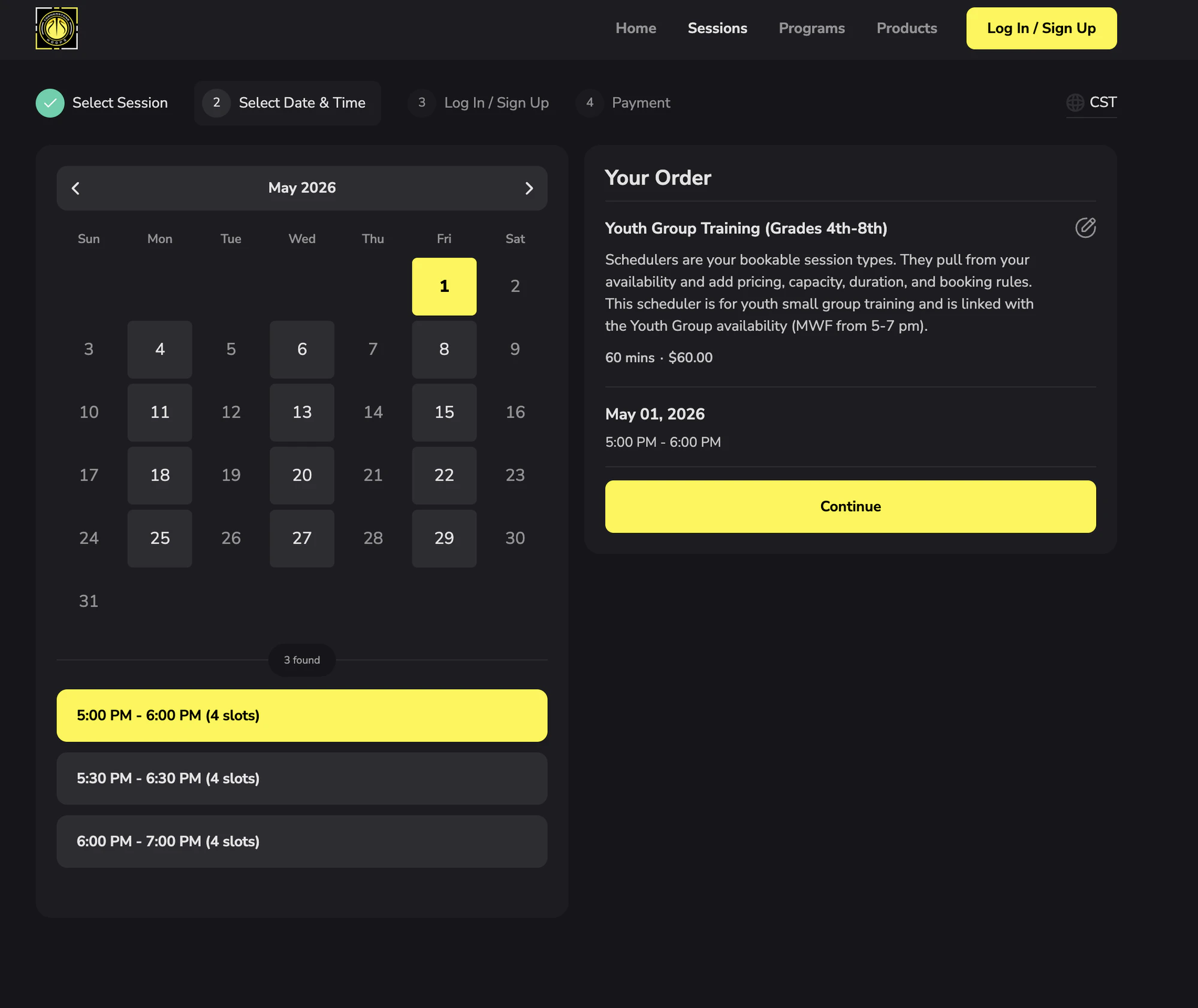
Athletes see each offered start time as a separate slot on the booking calendar, with how many spots are still open for each. With overlap off, start times that would collide with an existing booking simply stop appearing.
Pick **15**, **30**, **45**, or **60 mins**, or **Custom** for an exact length.
Choose how often a start time is offered. Leave it equal to the duration for back-to-back slots, or make it shorter to offer more start times.
Leave the box **unchecked** to keep one booking per window. Check it only when athletes really can be in the space at the same time.
Click **Update** in the top right.
## What athletes see
Athletes see each offered start time as a separate slot on the booking calendar, with how many spots are still open for each. With overlap off, start times that would collide with an existing booking simply stop appearing.
 ## Things to know
* **Allow overlapping sessions** only concerns bookings of *this* scheduler. Coach and resource conflicts with other schedulers are still enforced unless you turn those off separately (the connected-coaches checkbox and **Allow resource double booking**).
* Capacity is per start time. With overlap on, each start time fills independently; see [Session capacity](/scheduling/scheduler-settings-limits-and-permissions#setting-1-session-capacity).
* These settings are per scheduler, so you can offer rolling starts on drop-ins and leave lessons on the hour.
* Card and credit payments behave the same way; the payment method does not change which start times are offered.
* **Buffers** (before and after, in the same Advanced settings section) still add time around each session. If you use a short start cadence together with buffers, test the booking page to make sure the start times you expect are the ones offered.
## Related articles
## Things to know
* **Allow overlapping sessions** only concerns bookings of *this* scheduler. Coach and resource conflicts with other schedulers are still enforced unless you turn those off separately (the connected-coaches checkbox and **Allow resource double booking**).
* Capacity is per start time. With overlap on, each start time fills independently; see [Session capacity](/scheduling/scheduler-settings-limits-and-permissions#setting-1-session-capacity).
* These settings are per scheduler, so you can offer rolling starts on drop-ins and leave lessons on the hour.
* Card and credit payments behave the same way; the payment method does not change which start times are offered.
* **Buffers** (before and after, in the same Advanced settings section) still add time around each session. If you use a short start cadence together with buffers, test the booking page to make sure the start times you expect are the ones offered.
## Related articles