> ## Documentation Index
> Fetch the complete documentation index at: https://help.coachiq.io/llms.txt
> Use this file to discover all available pages before exploring further.
# Managing Athlete Credits: Balance Tracking and Manual Operations
> Master daily credit management—view balances, grant credits, read logs, troubleshoot issues, and handle athlete credit requests efficiently
**Where to find this**: Dashboard → People → Clients → \[Athlete Profile] → Credits section
## What you'll accomplish
Learn how to monitor athlete credit balances, grant credits manually, interpret credit logs, troubleshoot common credit issues, and efficiently manage credits across your athlete base. This guide covers your daily credit operations and common management scenarios.
**Prerequisites**:
* Credit-issuing products already created ([Credit Based Products](https://coachiq.mintlify.app/payments/credits-products))
* Understanding of credit types ([Credit System Overview](/scheduling/credit-system-overview))
* Athletes or test accounts have purchased credit packages or subscriptions
***
## Understanding the athlete credit interface
When you open an athlete's profile and navigate to the Credits section, you'll see their complete credit ecosystem organized into tabs.
### The credit tab system
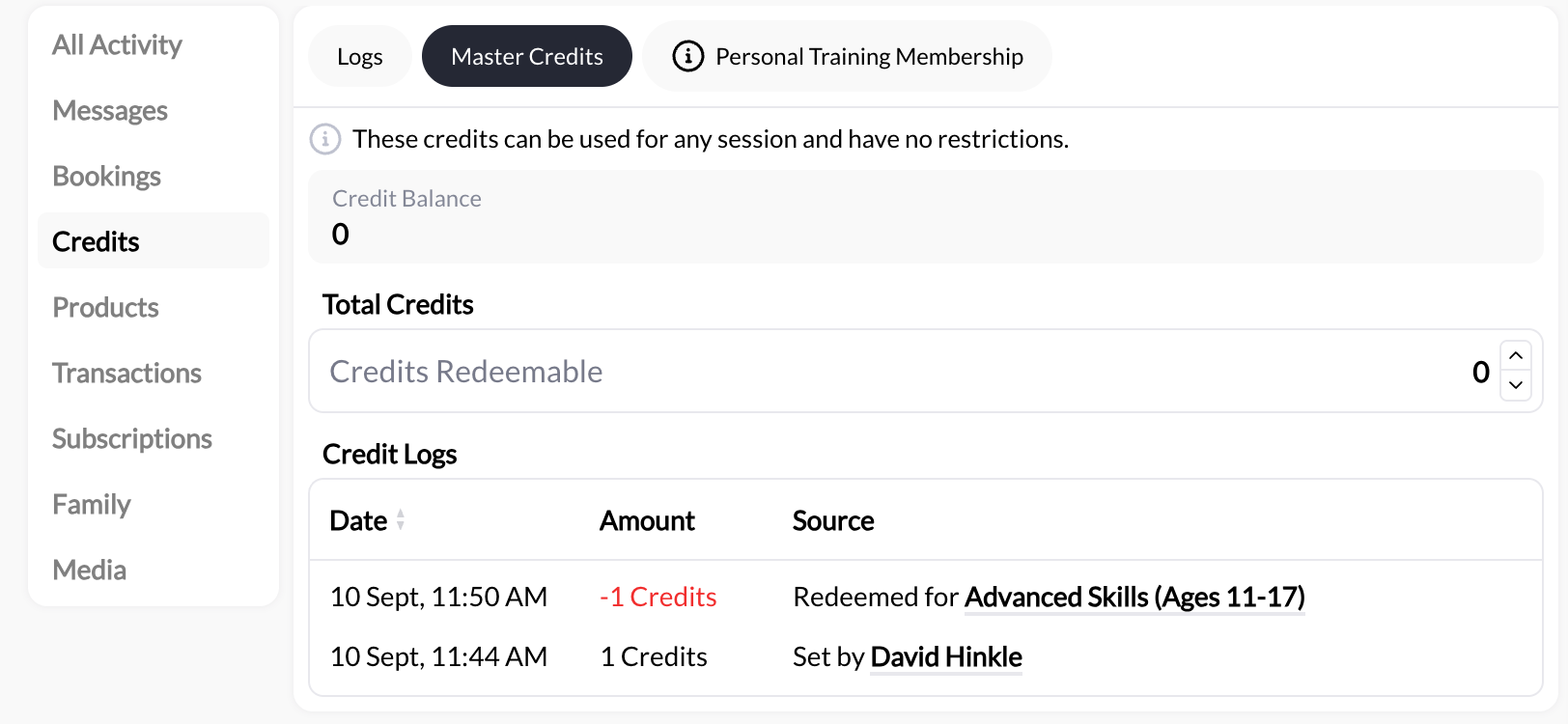
**Each credit source gets its own tab:**
**What it shows:**
* Universal credits usable for ANY scheduler
* Total credits available (no restrictions)
* Note: "These credits can be used for any session and have no restrictions"
**Example display:**
 **When to use Master Credits:**
* Compensating athletes for issues
* Promotional credits (referral bonuses)
* Make-good credits (cancelled sessions)
* Trial credits for new athletes
* Credits that work everywhere
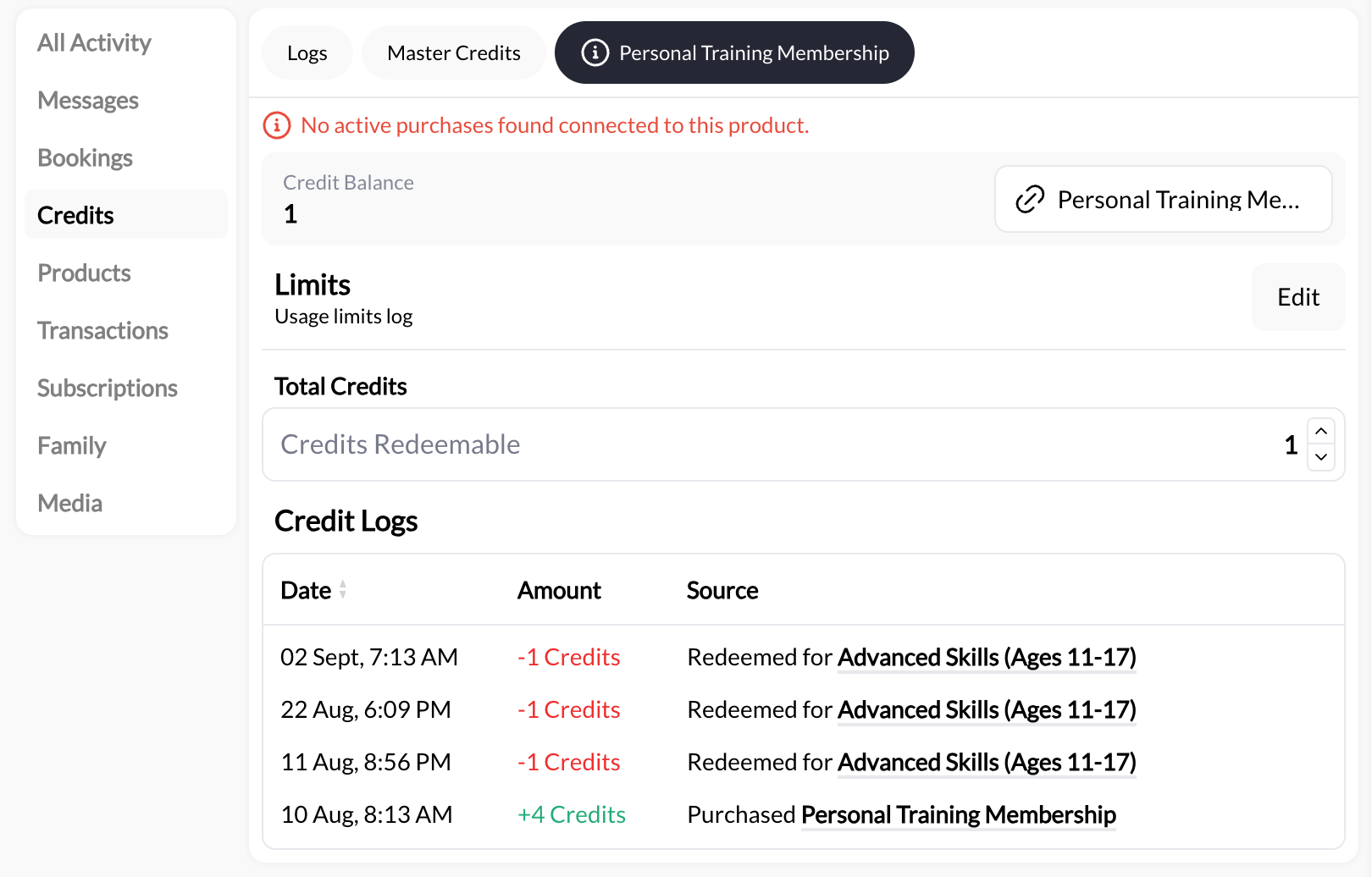
**What it shows:**
* Product/subscription name as tab title
* Credit balance (finite number or ∞)
* Redeemable Schedulers list with per-scheduler usage
* Usage limits log (if restrictions configured)
* Credit logs for this specific product
**Example display:**
**When to use Master Credits:**
* Compensating athletes for issues
* Promotional credits (referral bonuses)
* Make-good credits (cancelled sessions)
* Trial credits for new athletes
* Credits that work everywhere
**What it shows:**
* Product/subscription name as tab title
* Credit balance (finite number or ∞)
* Redeemable Schedulers list with per-scheduler usage
* Usage limits log (if restrictions configured)
* Credit logs for this specific product
**Example display:**
 **Key indicators:**
* **∞** = Unlimited credits this billing period
* **3/∞** = Used 3 credits, unlimited remaining
* **0/∞** = Haven't used any for this specific scheduler
* **Finite number** = One-time package credits remaining
**Navigation tip**: Athletes with multiple credit products will have multiple tabs. Click between tabs to see each credit source separately. Master Credits always appears as the first tab.
***
## Reading credit balances and notation
Understanding what you're looking at when you check an athlete's credits.
### Credit balance display meanings
**Display**: Simple number like "Credit Balance: 8"
**Meaning**: Athlete has 8 credits remaining from a one-time purchase package
**Behavior**:
* Decreases by 1 (or scheduler credit cost) per booking
* Does not renew automatically
* Athlete must purchase more when depleted
**Example scenario**: Athlete bought "10-Credit Package" and has used 2 sessions, showing "Credit Balance: 8"
**Display**: "Credit Balance: ∞"
**Meaning**: Unlimited credits WITHIN current subscription period (NOT forever)
**Behavior**:
* Does not decrease to zero
* Resets at next billing cycle (monthly/weekly/yearly)
* Active only while subscription active on Stripe
**Example scenario**: Athlete has "Unlimited Monthly Membership" with monthly renewal, shows "∞" all month, resets next month
**Critical**: The ∞ symbol does NOT mean unlimited forever—it means unlimited until subscription renewal. If subscription becomes inactive on Stripe, these credits become unusable.
**Display**: "Rising Stars Class (3/∞)"
**Meaning**: Used 3 credits for this specific scheduler, unlimited remaining this period
**Behavior**:
* Tracks usage per scheduler for subscription credits
* Shows how frequently athlete books each session type
* Resets at subscription renewal
**Use case**: Monitoring which schedulers athletes use most from their subscription credits
**Example scenario**: Athlete has unlimited monthly credits, used "Rising Stars Class" 3 times, "Shooting Lab" 0 times
**Display**: Under "Credit Expirations" section: "10/18/2025 (0/5)"
**Meaning**: 0 credits have expired out of 5 total issued
**Where athletes see it**: Athlete Portal → Settings → Billing → Credit Expirations
**Monitoring**: Helps you track if athletes are losing credits to expiration (may indicate engagement issues)
***
## Understanding credit logs
Credit logs provide a complete transaction history for each athlete's credits. Every credit movement is tracked.
### What credit logs show
**Location**: Athlete Profile → Credits → \[Credit Tab] → Credit Logs section
**Logged events:**
**Log entry format:**
```
22 May, 10:07 AM | +∞ Credits | Purchased Month to Month Rising Stars Membership
```
**What it means**: Athlete purchased a product/subscription that issued credits
**Green color**: "+∞ Credits" or "+10 Credits" displayed in green
**Source**: Product or subscription name shown
**Log entry format:**
```
17 Jun, 3:00 PM | -1 Credits | Redeemed for Rising Stars Class
```
**What it means**: Athlete used credits to book a session
**Red color**: "-1 Credits" displayed in red/orange
**Source**: Scheduler name where credit was redeemed
**Per-session tracking**: See exactly which schedulers consume credits
**Log entry format:**
```
08 Jul, 5:53 PM | +13 Credits | Set by [Coach Name]
```
**What it means**: Coach manually added credits to athlete's account
**Source**: "Set by \[Coach Name]" identifies who granted the credits
**Use case**: Make-goods, promotions, compensation, trial credits
**Log entry format:**
```
15 Aug, 12:00 AM | -3 Credits | Expired (unused)
```
**What it means**: Credits expired according to product expiration rules
**Tracking**: Helps identify athletes who aren't using credits before expiration
**Action item**: May indicate need for engagement outreach
***
## Manual credit operations
How to manually grant credits to athletes outside of product purchases.
### Granting Master Credits
Use Master Credits when you want to give credits that work for ANY scheduler.
Dashboard → **People** → **Clients** → Click athlete name
Click the **Master Credits** tab (first tab in Credits section)
You'll see current master credit balance and a note: "These credits can be used for any session and have no restrictions"
**Input**: Number of credits to grant (e.g., "5")
**Important**: This SETS the total, it does not ADD to existing balance
**Math required**: If athlete has 2 credits and you want to give 5 more, enter "7" (not "5")
**Critical**: Setting credits to a lower number will REMOVE credits. Always check current balance first!
Click **Update Redeemable Credits** button
**Verification**: Credit balance updates immediately, new entry appears in Credit Logs:
```
[Today's date] | +5 Credits | Set by [Your Name]
```
**Success!** The athlete now has updated Master Credits available for any scheduler booking.
### When to grant Master Credits
**Common use cases:**
**Scenario**: You had to cancel a session last-minute
**Action**: Grant 1-2 Master Credits as apology/compensation
**Communication**: "I've added 2 complimentary credits to your account for the inconvenience"
**Why Master Credits**: Works for any session, gives athlete flexibility
**Scenario**: Athlete refers a friend who signs up
**Action**: Grant 1 Master Credit as referral reward
**Communication**: "Thanks for referring Sarah! I've added 1 free credit to your account"
**Why Master Credits**: Universal reward, simple to administer
**Scenario**: New athlete wants to try your training before buying package
**Action**: Grant 1-2 Master Credits for trial sessions
**Communication**: "Here are 2 trial credits to try us out—book your first sessions!"
**Why Master Credits**: Lets them sample different session types
**Scenario**: Running a "Summer Kickoff" promotion
**Action**: Grant 1 Master Credit to all active athletes
**Communication**: "Summer special—everyone gets 1 free credit!"
**Why Master Credits**: Broad applicability, simple bulk operation
**Scenario**: Athlete was accidentally charged for a session that should have used credits
**Action**: Grant credits equal to the value they should have used
**Communication**: "I've added credits to your account to correct the billing error"
**Why Master Credits**: Quick fix, doesn't require product reconfiguration
***
## Granting product-specific credits
For adding credits tied to specific products/subscriptions.
### When to use product-specific vs Master Credits
✅ **Quick fixes** - One-off compensation or promotional credits\
✅ **Flexibility needed** - Athlete should be able to use for ANY scheduler\
✅ **Trial credits** - New athletes sampling your services\
✅ **Make-goods** - Compensating for service issues
**Bottom line**: Master Credits are simpler and more flexible for most manual operations
✅ **Package extensions** - Athlete bought 10-pack, you're adding 2 bonus credits to that package\
✅ **Subscription supplements** - Adding extra credits to their monthly subscription this cycle\
✅ **Tracking required** - Need to know which product/subscription credits came from\
✅ **Scheduler restrictions matter** - Credits should only work for specific schedulers\
✅ **Maintaining credit separation** - Keep different credit types separate for reporting
**Bottom line**: Product-specific credits maintain tighter control and tracking
### Adding product-specific credits
Dashboard → **People** → **Clients** → Click athlete name → **Credits** section
Click the tab for the product/subscription you want to add credits to
**Example**: "10-Credit Standard Package" or "Monthly Unlimited Membership"
If athlete doesn't have the product yet:
1. Click **+ Add Product** (or similar button in athlete profile)
2. Select the product from dropdown
3. Choose whether to charge athlete or add without payment
**Payment consideration**: Adding product manually can give you the ability to 1.) optionally charge the athlete via Stripe, or 2.) add without charging (credits stay live until you remove product)
Follow same process as Master Credits:
1. Locate the credit balance
2. Enter new total (remember: this SETS the total)
3. Save changes by pressing **Update Redeemable Credits**
**Result**: Credit logs will show: "\[Date] | +X Credits | Set by \[Coach Name]"
**Edge case**: Manually adding a product to an athlete WITHOUT charging them keeps those credits live indefinitely (until you remove the product). This is useful for:
* Staff/family complimentary access
* Long-term sponsorships
* Special VIP arrangements
***
## Bulk credit operations
Managing credits for multiple athletes at once.
### Bulk credit grants
**Scenario**: You want to give 1 free credit to all active athletes for a promotion
**Current limitation**: CoachIQ may not have built-in bulk credit grants
**Workaround options:**
If available, create automation:
**Trigger**: Athlete has specific tag (e.g., "Active Athlete")\
**Action**: Grant 1 Master Credit
**Setup**:
1. Dashboard → Tools → Automations → Create New
2. Set trigger (tag-based)
3. Set action: Add credits
4. Activate automation
**Best option**: Automated, scalable, trackable
**Process**:
1. Create list of athletes to receive credits
2. Go through each athlete profile
3. Manually grant credits as described above
4. Track completion in spreadsheet
**Time estimate**: \~30 seconds per athlete
**For 50 athletes**: \~25 minutes
**Risk**: Human error, missed athletes, time-consuming
**Clever workaround**:
1. Create a \$0 product that issues credits
2. Manually add product to each athlete (no charge)
3. Credits issued automatically via product
**Benefits**:
* Trackable via product
* Clean credit logs
* Can remove product later to revoke credits if needed
**Most scalable**: For large athlete bases, this method provides best tracking and control
***
## Troubleshooting credit issues
Common problems and solutions.
### Issue: Athlete says credits aren't showing in app
**Troubleshooting checklist:**
Navigate to athlete profile → Credits section
**Check**: Do you see credits in their account?
**If NO credits visible**: Credits don't exist—athlete may be confused or checking wrong account
**If credits ARE visible**: Continue to next step
For subscription-based credits:
**Verify**: Payments → Subscriptions → Is subscription "Active" on Stripe?
**If inactive**: Credits become unusable even if balance shows in coach dashboard
**Solution**: Athlete must resolve payment issue or reactivate subscription
Credits may exist but not work for the scheduler athlete is trying to book
**Check**:
1. Athlete's credit tab → "Redeemable Schedulers" list
2. Is the scheduler they want listed there?
**If NOT listed**: Credits are restricted to other schedulers
**Solution**: Grant Master Credits or add scheduler to product's redeemable list ([Credit-Based Scheduling](/scheduling/credit-based-scheduling))
**Technical fix**:
1. Log out of mobile app completely
2. Log back in
3. Check if credits now visible
**Why this works**: App data sync issue resolved by fresh login
**Quick test**: Have athlete check credits on web browser (Athlete Portal). If visible there but not in app, it's definitely an app sync issue.
**Common issue**: Athlete has multiple accounts (old email + new email)
**Check**: Ask athlete what email they're logged in with
**Solution**: Consolidate accounts or transfer credits to correct account
### Using credit logs for troubleshooting
**Common scenarios where logs help:**
**Solution**: Check credit logs to show:
* When credits were purchased
* When/where credits were redeemed
* Current accurate balance
**Solution**: Credit logs prove:
* Purchase date and amount
* How many credits used vs unused
* Calculate fair refund amount
**Solution**: Credit logs confirm:
* Whether booking used credits or charged card
* Which session the credit was redeemed for
* Timeline of credit usage
**Solution**: Credit logs show:
* Last credit renewal date
* Whether credits refreshed after payment
* If subscription is still active
***
## Tips for efficient credit management
**Create written policies**:
* Credit expiration rules
* Refund policy
* Transfer policy
* Make-good credit policy
**Share with athletes**:
* Website FAQ page
* Product purchase confirmation emails
* Athlete portal welcome message
**Benefit**: Sets expectations, reduces disputes
**For disputes, screenshots, or refund requests**:
1. Open athlete's credit logs
2. Screenshot relevant transactions
3. Annotate if needed
4. Share with athlete
**Shows professionalism**: "Here's your complete credit history showing..."
**Builds trust**: Transparent tracking visible to both parties
**Create templates for common scenarios**:
* Low-balance reminder
* Expiration warning (30 days, 7 days)
* Credit purchase confirmation
* Renewal celebration
**Save time**: Pre-written messages you can personalize
**Consistency**: All athletes get same quality service
***
## Common questions
**Short answer**: No
**Why**: Credit logs are permanent transaction records for accounting and transparency
**What you CAN do**:
* Remove credits from athlete's balance (sets to 0)
* Delete the product from their account
* Issue refunds via Stripe
**What you CANNOT do**:
* Erase credit log history
* Hide specific transactions
**Reason**: Financial integrity and audit trail preservation
**Result**: All credit logs are permanently deleted when athlete is deleted
**Warning**: This is irreversible—credits and all transaction history are lost
**Before deleting athlete**:
1. Screenshot credit balances and logs if needed for records
2. Process any pending refunds
3. Confirm athlete has no outstanding credits they're owed
**Liability consideration**: Deleting athlete with unused credits may create refund obligation. Resolve credits first.
**Yes**: Athletes can view their credit logs in Athlete Portal
**Location for athletes**: Athlete Portal → Settings → Billing → Credit Logs section
**What they see**:
* Credit Balance
* Credit Renewals date
* Credit Expirations tracking
* Redeemable Sessions list
* Credit Logs with transaction history
**Benefit**: Self-service transparency reduces "where did my credits go?" questions
**What is credit liability?**: Total value of credits sold but not yet used (sessions you owe)
**Manual calculation**:
1. Sum all athlete credit balances across all athletes
2. Multiply by your average session value
3. Result = total outstanding liability
**Example**:
* 50 athletes × 5 average credits each = 250 total outstanding credits
* 250 credits × $45 per session value = $11,250 liability
**What this means**: If all athletes used all credits immediately, you'd need to deliver \$11,250 worth of sessions
**Healthy ratio**: Outstanding credits should be ≤ 2 months of typical credit sales
**Warning sign**: Liability growing faster than you're delivering sessions = overselling capacity
**Feature request**: Ask CoachIQ support for built-in credit liability reporting dashboard
**Policy decision**: Each has pros/cons
**Store credit (keeping money in business)**:
* ✅ Retains revenue
* ✅ Keeps athlete engaged
* ✅ Simpler than refunds
* ❌ Athlete may feel trapped
* ❌ Some jurisdictions require cash refunds
**Cash refunds**:
* ✅ Athlete satisfaction
* ✅ Legal compliance
* ✅ Builds goodwill
* ❌ Lose revenue
* ❌ Credit card fees often non-refundable
**Recommended hybrid policy**:
* Within 7 days of purchase: Full cash refund
* After 7 days but unused: Store credit or partial refund (minus processing fees)
* Credits partially used: Pro-rated refund only
**Communicate clearly**: Post this policy on your website and product pages
***
## Related articles
Book athletes using their credit balance
Where credit packages are created
Configure credit vs direct payment options
Complete athlete profile and data management
***
**You now know how to**: View credit balances, interpret credit notation, read credit logs, manually grant credits, handle common credit scenarios, troubleshoot credit issues, and proactively manage credits across your athlete base.
**Need help with complex credit operations?** Our support team can assist with bulk credit management, policy setup, or custom credit scenarios. [Contact Support](https://support.coachiq.com)
**Key indicators:**
* **∞** = Unlimited credits this billing period
* **3/∞** = Used 3 credits, unlimited remaining
* **0/∞** = Haven't used any for this specific scheduler
* **Finite number** = One-time package credits remaining
**Navigation tip**: Athletes with multiple credit products will have multiple tabs. Click between tabs to see each credit source separately. Master Credits always appears as the first tab.
***
## Reading credit balances and notation
Understanding what you're looking at when you check an athlete's credits.
### Credit balance display meanings
**Display**: Simple number like "Credit Balance: 8"
**Meaning**: Athlete has 8 credits remaining from a one-time purchase package
**Behavior**:
* Decreases by 1 (or scheduler credit cost) per booking
* Does not renew automatically
* Athlete must purchase more when depleted
**Example scenario**: Athlete bought "10-Credit Package" and has used 2 sessions, showing "Credit Balance: 8"
**Display**: "Credit Balance: ∞"
**Meaning**: Unlimited credits WITHIN current subscription period (NOT forever)
**Behavior**:
* Does not decrease to zero
* Resets at next billing cycle (monthly/weekly/yearly)
* Active only while subscription active on Stripe
**Example scenario**: Athlete has "Unlimited Monthly Membership" with monthly renewal, shows "∞" all month, resets next month
**Critical**: The ∞ symbol does NOT mean unlimited forever—it means unlimited until subscription renewal. If subscription becomes inactive on Stripe, these credits become unusable.
**Display**: "Rising Stars Class (3/∞)"
**Meaning**: Used 3 credits for this specific scheduler, unlimited remaining this period
**Behavior**:
* Tracks usage per scheduler for subscription credits
* Shows how frequently athlete books each session type
* Resets at subscription renewal
**Use case**: Monitoring which schedulers athletes use most from their subscription credits
**Example scenario**: Athlete has unlimited monthly credits, used "Rising Stars Class" 3 times, "Shooting Lab" 0 times
**Display**: Under "Credit Expirations" section: "10/18/2025 (0/5)"
**Meaning**: 0 credits have expired out of 5 total issued
**Where athletes see it**: Athlete Portal → Settings → Billing → Credit Expirations
**Monitoring**: Helps you track if athletes are losing credits to expiration (may indicate engagement issues)
***
## Understanding credit logs
Credit logs provide a complete transaction history for each athlete's credits. Every credit movement is tracked.
### What credit logs show
**Location**: Athlete Profile → Credits → \[Credit Tab] → Credit Logs section
**Logged events:**
**Log entry format:**
```
22 May, 10:07 AM | +∞ Credits | Purchased Month to Month Rising Stars Membership
```
**What it means**: Athlete purchased a product/subscription that issued credits
**Green color**: "+∞ Credits" or "+10 Credits" displayed in green
**Source**: Product or subscription name shown
**Log entry format:**
```
17 Jun, 3:00 PM | -1 Credits | Redeemed for Rising Stars Class
```
**What it means**: Athlete used credits to book a session
**Red color**: "-1 Credits" displayed in red/orange
**Source**: Scheduler name where credit was redeemed
**Per-session tracking**: See exactly which schedulers consume credits
**Log entry format:**
```
08 Jul, 5:53 PM | +13 Credits | Set by [Coach Name]
```
**What it means**: Coach manually added credits to athlete's account
**Source**: "Set by \[Coach Name]" identifies who granted the credits
**Use case**: Make-goods, promotions, compensation, trial credits
**Log entry format:**
```
15 Aug, 12:00 AM | -3 Credits | Expired (unused)
```
**What it means**: Credits expired according to product expiration rules
**Tracking**: Helps identify athletes who aren't using credits before expiration
**Action item**: May indicate need for engagement outreach
***
## Manual credit operations
How to manually grant credits to athletes outside of product purchases.
### Granting Master Credits
Use Master Credits when you want to give credits that work for ANY scheduler.
Dashboard → **People** → **Clients** → Click athlete name
Click the **Master Credits** tab (first tab in Credits section)
You'll see current master credit balance and a note: "These credits can be used for any session and have no restrictions"
**Input**: Number of credits to grant (e.g., "5")
**Important**: This SETS the total, it does not ADD to existing balance
**Math required**: If athlete has 2 credits and you want to give 5 more, enter "7" (not "5")
**Critical**: Setting credits to a lower number will REMOVE credits. Always check current balance first!
Click **Update Redeemable Credits** button
**Verification**: Credit balance updates immediately, new entry appears in Credit Logs:
```
[Today's date] | +5 Credits | Set by [Your Name]
```
**Success!** The athlete now has updated Master Credits available for any scheduler booking.
### When to grant Master Credits
**Common use cases:**
**Scenario**: You had to cancel a session last-minute
**Action**: Grant 1-2 Master Credits as apology/compensation
**Communication**: "I've added 2 complimentary credits to your account for the inconvenience"
**Why Master Credits**: Works for any session, gives athlete flexibility
**Scenario**: Athlete refers a friend who signs up
**Action**: Grant 1 Master Credit as referral reward
**Communication**: "Thanks for referring Sarah! I've added 1 free credit to your account"
**Why Master Credits**: Universal reward, simple to administer
**Scenario**: New athlete wants to try your training before buying package
**Action**: Grant 1-2 Master Credits for trial sessions
**Communication**: "Here are 2 trial credits to try us out—book your first sessions!"
**Why Master Credits**: Lets them sample different session types
**Scenario**: Running a "Summer Kickoff" promotion
**Action**: Grant 1 Master Credit to all active athletes
**Communication**: "Summer special—everyone gets 1 free credit!"
**Why Master Credits**: Broad applicability, simple bulk operation
**Scenario**: Athlete was accidentally charged for a session that should have used credits
**Action**: Grant credits equal to the value they should have used
**Communication**: "I've added credits to your account to correct the billing error"
**Why Master Credits**: Quick fix, doesn't require product reconfiguration
***
## Granting product-specific credits
For adding credits tied to specific products/subscriptions.
### When to use product-specific vs Master Credits
✅ **Quick fixes** - One-off compensation or promotional credits\
✅ **Flexibility needed** - Athlete should be able to use for ANY scheduler\
✅ **Trial credits** - New athletes sampling your services\
✅ **Make-goods** - Compensating for service issues
**Bottom line**: Master Credits are simpler and more flexible for most manual operations
✅ **Package extensions** - Athlete bought 10-pack, you're adding 2 bonus credits to that package\
✅ **Subscription supplements** - Adding extra credits to their monthly subscription this cycle\
✅ **Tracking required** - Need to know which product/subscription credits came from\
✅ **Scheduler restrictions matter** - Credits should only work for specific schedulers\
✅ **Maintaining credit separation** - Keep different credit types separate for reporting
**Bottom line**: Product-specific credits maintain tighter control and tracking
### Adding product-specific credits
Dashboard → **People** → **Clients** → Click athlete name → **Credits** section
Click the tab for the product/subscription you want to add credits to
**Example**: "10-Credit Standard Package" or "Monthly Unlimited Membership"
If athlete doesn't have the product yet:
1. Click **+ Add Product** (or similar button in athlete profile)
2. Select the product from dropdown
3. Choose whether to charge athlete or add without payment
**Payment consideration**: Adding product manually can give you the ability to 1.) optionally charge the athlete via Stripe, or 2.) add without charging (credits stay live until you remove product)
Follow same process as Master Credits:
1. Locate the credit balance
2. Enter new total (remember: this SETS the total)
3. Save changes by pressing **Update Redeemable Credits**
**Result**: Credit logs will show: "\[Date] | +X Credits | Set by \[Coach Name]"
**Edge case**: Manually adding a product to an athlete WITHOUT charging them keeps those credits live indefinitely (until you remove the product). This is useful for:
* Staff/family complimentary access
* Long-term sponsorships
* Special VIP arrangements
***
## Bulk credit operations
Managing credits for multiple athletes at once.
### Bulk credit grants
**Scenario**: You want to give 1 free credit to all active athletes for a promotion
**Current limitation**: CoachIQ may not have built-in bulk credit grants
**Workaround options:**
If available, create automation:
**Trigger**: Athlete has specific tag (e.g., "Active Athlete")\
**Action**: Grant 1 Master Credit
**Setup**:
1. Dashboard → Tools → Automations → Create New
2. Set trigger (tag-based)
3. Set action: Add credits
4. Activate automation
**Best option**: Automated, scalable, trackable
**Process**:
1. Create list of athletes to receive credits
2. Go through each athlete profile
3. Manually grant credits as described above
4. Track completion in spreadsheet
**Time estimate**: \~30 seconds per athlete
**For 50 athletes**: \~25 minutes
**Risk**: Human error, missed athletes, time-consuming
**Clever workaround**:
1. Create a \$0 product that issues credits
2. Manually add product to each athlete (no charge)
3. Credits issued automatically via product
**Benefits**:
* Trackable via product
* Clean credit logs
* Can remove product later to revoke credits if needed
**Most scalable**: For large athlete bases, this method provides best tracking and control
***
## Troubleshooting credit issues
Common problems and solutions.
### Issue: Athlete says credits aren't showing in app
**Troubleshooting checklist:**
Navigate to athlete profile → Credits section
**Check**: Do you see credits in their account?
**If NO credits visible**: Credits don't exist—athlete may be confused or checking wrong account
**If credits ARE visible**: Continue to next step
For subscription-based credits:
**Verify**: Payments → Subscriptions → Is subscription "Active" on Stripe?
**If inactive**: Credits become unusable even if balance shows in coach dashboard
**Solution**: Athlete must resolve payment issue or reactivate subscription
Credits may exist but not work for the scheduler athlete is trying to book
**Check**:
1. Athlete's credit tab → "Redeemable Schedulers" list
2. Is the scheduler they want listed there?
**If NOT listed**: Credits are restricted to other schedulers
**Solution**: Grant Master Credits or add scheduler to product's redeemable list ([Credit-Based Scheduling](/scheduling/credit-based-scheduling))
**Technical fix**:
1. Log out of mobile app completely
2. Log back in
3. Check if credits now visible
**Why this works**: App data sync issue resolved by fresh login
**Quick test**: Have athlete check credits on web browser (Athlete Portal). If visible there but not in app, it's definitely an app sync issue.
**Common issue**: Athlete has multiple accounts (old email + new email)
**Check**: Ask athlete what email they're logged in with
**Solution**: Consolidate accounts or transfer credits to correct account
### Using credit logs for troubleshooting
**Common scenarios where logs help:**
**Solution**: Check credit logs to show:
* When credits were purchased
* When/where credits were redeemed
* Current accurate balance
**Solution**: Credit logs prove:
* Purchase date and amount
* How many credits used vs unused
* Calculate fair refund amount
**Solution**: Credit logs confirm:
* Whether booking used credits or charged card
* Which session the credit was redeemed for
* Timeline of credit usage
**Solution**: Credit logs show:
* Last credit renewal date
* Whether credits refreshed after payment
* If subscription is still active
***
## Tips for efficient credit management
**Create written policies**:
* Credit expiration rules
* Refund policy
* Transfer policy
* Make-good credit policy
**Share with athletes**:
* Website FAQ page
* Product purchase confirmation emails
* Athlete portal welcome message
**Benefit**: Sets expectations, reduces disputes
**For disputes, screenshots, or refund requests**:
1. Open athlete's credit logs
2. Screenshot relevant transactions
3. Annotate if needed
4. Share with athlete
**Shows professionalism**: "Here's your complete credit history showing..."
**Builds trust**: Transparent tracking visible to both parties
**Create templates for common scenarios**:
* Low-balance reminder
* Expiration warning (30 days, 7 days)
* Credit purchase confirmation
* Renewal celebration
**Save time**: Pre-written messages you can personalize
**Consistency**: All athletes get same quality service
***
## Common questions
**Short answer**: No
**Why**: Credit logs are permanent transaction records for accounting and transparency
**What you CAN do**:
* Remove credits from athlete's balance (sets to 0)
* Delete the product from their account
* Issue refunds via Stripe
**What you CANNOT do**:
* Erase credit log history
* Hide specific transactions
**Reason**: Financial integrity and audit trail preservation
**Result**: All credit logs are permanently deleted when athlete is deleted
**Warning**: This is irreversible—credits and all transaction history are lost
**Before deleting athlete**:
1. Screenshot credit balances and logs if needed for records
2. Process any pending refunds
3. Confirm athlete has no outstanding credits they're owed
**Liability consideration**: Deleting athlete with unused credits may create refund obligation. Resolve credits first.
**Yes**: Athletes can view their credit logs in Athlete Portal
**Location for athletes**: Athlete Portal → Settings → Billing → Credit Logs section
**What they see**:
* Credit Balance
* Credit Renewals date
* Credit Expirations tracking
* Redeemable Sessions list
* Credit Logs with transaction history
**Benefit**: Self-service transparency reduces "where did my credits go?" questions
**What is credit liability?**: Total value of credits sold but not yet used (sessions you owe)
**Manual calculation**:
1. Sum all athlete credit balances across all athletes
2. Multiply by your average session value
3. Result = total outstanding liability
**Example**:
* 50 athletes × 5 average credits each = 250 total outstanding credits
* 250 credits × $45 per session value = $11,250 liability
**What this means**: If all athletes used all credits immediately, you'd need to deliver \$11,250 worth of sessions
**Healthy ratio**: Outstanding credits should be ≤ 2 months of typical credit sales
**Warning sign**: Liability growing faster than you're delivering sessions = overselling capacity
**Feature request**: Ask CoachIQ support for built-in credit liability reporting dashboard
**Policy decision**: Each has pros/cons
**Store credit (keeping money in business)**:
* ✅ Retains revenue
* ✅ Keeps athlete engaged
* ✅ Simpler than refunds
* ❌ Athlete may feel trapped
* ❌ Some jurisdictions require cash refunds
**Cash refunds**:
* ✅ Athlete satisfaction
* ✅ Legal compliance
* ✅ Builds goodwill
* ❌ Lose revenue
* ❌ Credit card fees often non-refundable
**Recommended hybrid policy**:
* Within 7 days of purchase: Full cash refund
* After 7 days but unused: Store credit or partial refund (minus processing fees)
* Credits partially used: Pro-rated refund only
**Communicate clearly**: Post this policy on your website and product pages
***
## Related articles
Book athletes using their credit balance
Where credit packages are created
Configure credit vs direct payment options
Complete athlete profile and data management
***
**You now know how to**: View credit balances, interpret credit notation, read credit logs, manually grant credits, handle common credit scenarios, troubleshoot credit issues, and proactively manage credits across your athlete base.
**Need help with complex credit operations?** Our support team can assist with bulk credit management, policy setup, or custom credit scenarios. [Contact Support](https://support.coachiq.com)