> ## Documentation Index
> Fetch the complete documentation index at: https://help.coachiq.io/llms.txt
> Use this file to discover all available pages before exploring further.
# Editing & Rescheduling Bookings
> How to modify booking details or move sessions to a different time
**Where to find this**: Schedule → Calendar → Click any booking
## Editing a booking
Update booking details like notes, assigned coach, or location without changing the time.
Go to **Schedule** → **Calendar** and click on the booking you want to edit.
The session detail modal appears showing participants and booking info.
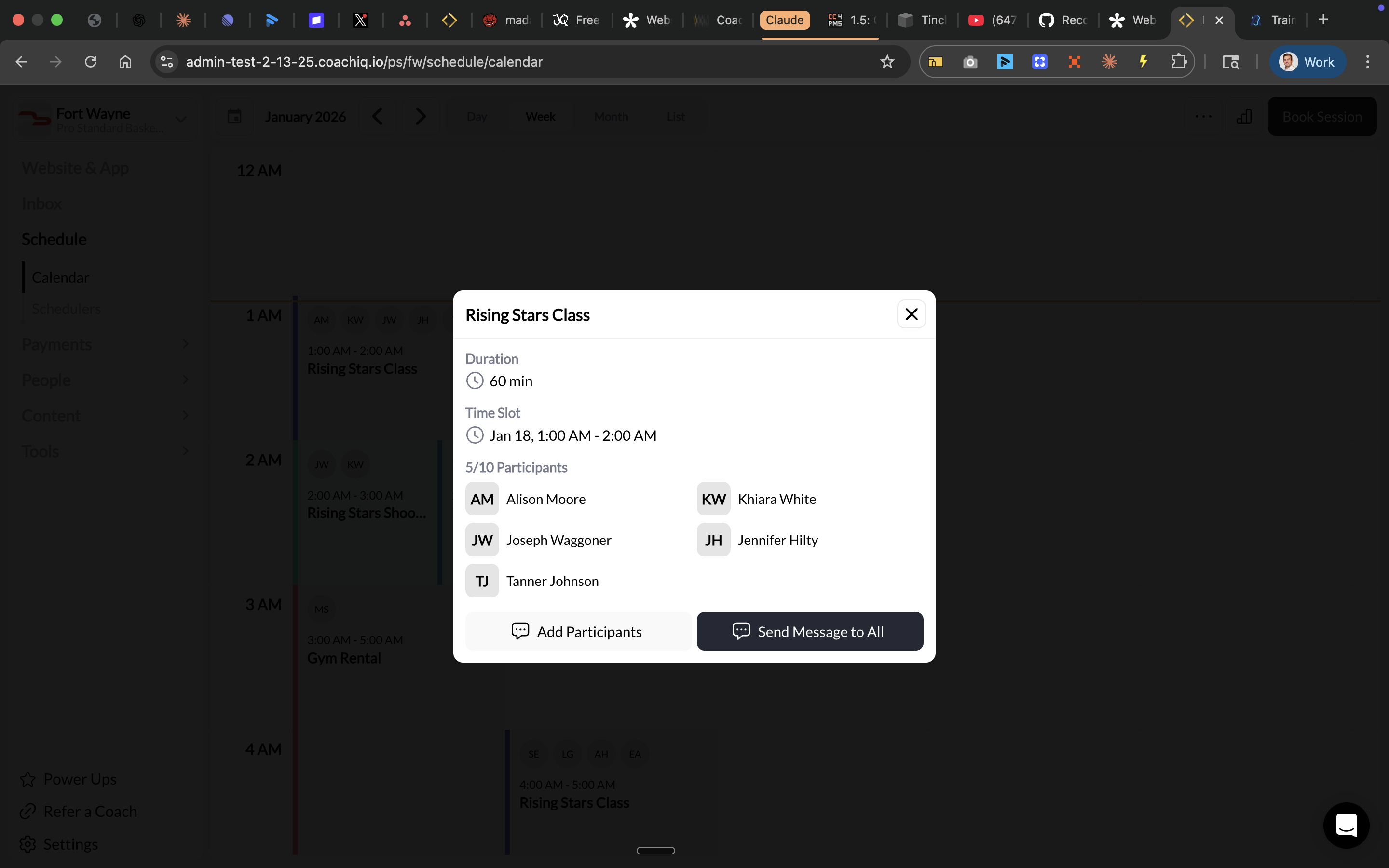 In the booking detail panel, click **Edit** to open the full booking editor.
Update any of the following:
* **Notes** — Add session notes or special instructions
* **Coach assignment** — Change which coach is assigned
* **Location** — Update where the session takes place
* **Participants** — Add or remove athletes
Click **Save** to apply the updates.
Changes are saved immediately. Athletes are notified if relevant details changed.
***
## Rescheduling a booking
Move a booking to a different date or time.
Go to **Schedule** → **Calendar** and click on the booking you want to reschedule.
In the booking detail panel, click **Reschedule**.
Choose from available time slots. The system shows only slots that match the scheduler's availability.
Click **Confirm** to finalize the reschedule.
Athletes automatically receive a notification with the new date and time.
***
## Drag-and-drop rescheduling
For quick rescheduling directly on the calendar:
Use the view toggles at the top of your calendar to switch to **Week** or **Day** view.
In the booking detail panel, click **Edit** to open the full booking editor.
Update any of the following:
* **Notes** — Add session notes or special instructions
* **Coach assignment** — Change which coach is assigned
* **Location** — Update where the session takes place
* **Participants** — Add or remove athletes
Click **Save** to apply the updates.
Changes are saved immediately. Athletes are notified if relevant details changed.
***
## Rescheduling a booking
Move a booking to a different date or time.
Go to **Schedule** → **Calendar** and click on the booking you want to reschedule.
In the booking detail panel, click **Reschedule**.
Choose from available time slots. The system shows only slots that match the scheduler's availability.
Click **Confirm** to finalize the reschedule.
Athletes automatically receive a notification with the new date and time.
***
## Drag-and-drop rescheduling
For quick rescheduling directly on the calendar:
Use the view toggles at the top of your calendar to switch to **Week** or **Day** view.
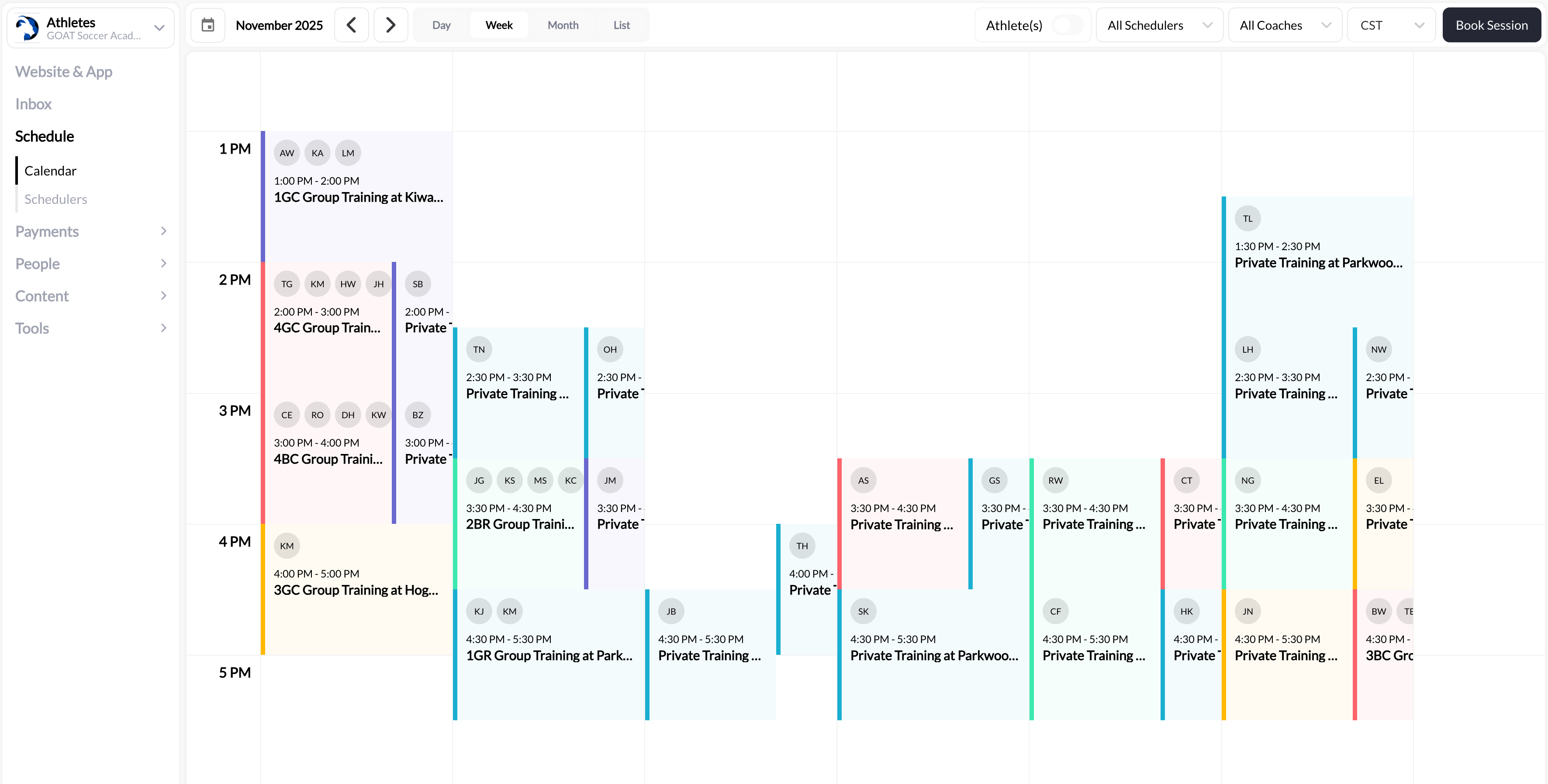 Click and hold the booking you want to move, then drag it to the new time slot.
Drop the booking on the desired time. The change saves automatically.
Drag-and-drop rescheduling bypasses availability checks. Make sure the new time works for both the coach and athlete before moving.
***
## What athletes see
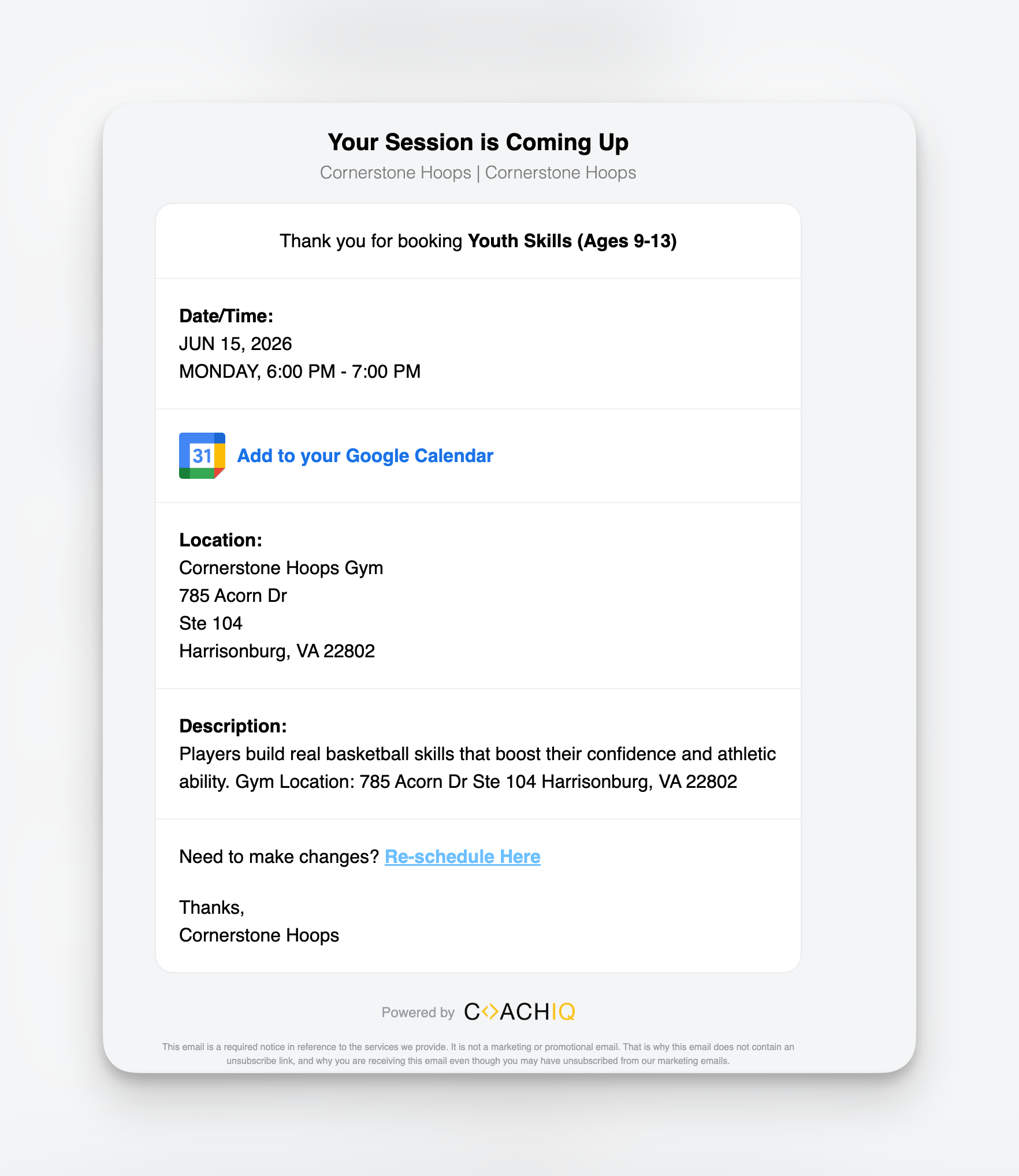
When a session is booked or rescheduled, athletes automatically receive a confirmation email:
Click and hold the booking you want to move, then drag it to the new time slot.
Drop the booking on the desired time. The change saves automatically.
Drag-and-drop rescheduling bypasses availability checks. Make sure the new time works for both the coach and athlete before moving.
***
## What athletes see
When a session is booked or rescheduled, athletes automatically receive a confirmation email:
 When you reschedule a booking:
* **Email notification** — Athletes receive an email with the new date/time
* **Portal update** — The updated session appears in their Athlete Portal immediately
* **Calendar sync** — Any linked calendar invites are automatically updated
**Best practice**: If making a significant time change, send a personal message through the Inbox to confirm the athlete can make the new time.
***
## Controlling whether athletes can reschedule
You can configure athlete self-rescheduling on a per-scheduler basis in **Scheduler Settings → Booking Rules**. There are two related toggles:
**Allow athletes to reschedule** — When on, athletes can move their booking to a different available time slot from the Athlete Portal or app. No additional payment is required; the original credit or payment carries over to the new time. When off, only coaches and admins can reschedule — athletes must contact you to make changes.
**Block rescheduling within cancellation window** — When on, athletes cannot reschedule once they're inside your cancellation notice window. This prevents athletes from using reschedule as a workaround to avoid forfeiting a credit on a late cancellation. The blocking window matches your Cancellation Policy (e.g., if you require 24-hour notice, rescheduling is also blocked within that same 24 hours).
[Configure rescheduling permissions →](/scheduling/scheduler-settings-limits-and-permissions#setting-7-booking-rules-athlete-permissions)
***
## Related articles
Cancel sessions and handle credits
Book athletes directly into sessions
Navigate and manage your calendar
When you reschedule a booking:
* **Email notification** — Athletes receive an email with the new date/time
* **Portal update** — The updated session appears in their Athlete Portal immediately
* **Calendar sync** — Any linked calendar invites are automatically updated
**Best practice**: If making a significant time change, send a personal message through the Inbox to confirm the athlete can make the new time.
***
## Controlling whether athletes can reschedule
You can configure athlete self-rescheduling on a per-scheduler basis in **Scheduler Settings → Booking Rules**. There are two related toggles:
**Allow athletes to reschedule** — When on, athletes can move their booking to a different available time slot from the Athlete Portal or app. No additional payment is required; the original credit or payment carries over to the new time. When off, only coaches and admins can reschedule — athletes must contact you to make changes.
**Block rescheduling within cancellation window** — When on, athletes cannot reschedule once they're inside your cancellation notice window. This prevents athletes from using reschedule as a workaround to avoid forfeiting a credit on a late cancellation. The blocking window matches your Cancellation Policy (e.g., if you require 24-hour notice, rescheduling is also blocked within that same 24 hours).
[Configure rescheduling permissions →](/scheduling/scheduler-settings-limits-and-permissions#setting-7-booking-rules-athlete-permissions)
***
## Related articles
Cancel sessions and handle credits
Book athletes directly into sessions
Navigate and manage your calendar